
Early in my career, I had a boss who did something that seemed borderline sadistic at the time. He banned us from using the mouse in Excel. Not forever, just until we’d properly learned the keyboard shortcuts. I remember sitting there, hand hovering uselessly over my trackpad, feeling like someone had taken away my training wheels before I could ride.
But something clicked after about a week of frustration. I stopped thinking about how to navigate and started thinking about what I was actually trying to do. The friction disappeared. I was just… working. That feeling, where your tools become invisible and you’re purely focused on the problem, that’s flow state. And I didn’t realise it at the time, but my boss wasn’t just teaching me Excel shortcuts. He was teaching me that every time you reach for the mouse, you break something valuable.
UC Irvine researcher Gloria Mark found that after an interruption, it takes an average of 23 minutes to fully regain focus. Now, reaching for your trackpad isn’t the same as someone tapping you on the shoulder, but that physical context switch, the hand movement, the visual reorientation to find your cursor, the click-and-drag, it all adds up. Dozens of times per hour, hundreds of times per day. Death by a thousand micro-interruptions.
I’ve spent years working with Jupyter, and the same principle applies. Once I committed to keeping my hands on the keyboard, everything changed. But before you start practicing keyboard shortcuts, you need to understand one quirk of Jupyter’s design.
How Jupyter Thinks
Jupyter has two modes:
- Command Mode is when you’re controlling the notebook itself, creating cells, deleting them, moving around. You’ll know you’re in Command Mode because the cell border is blue (in classic Notebook) or there’s no cursor blinking inside. Press Esc to get here.
- Edit Mode is when you’re typing inside a cell. The border turns green, and your keystrokes become text. Press Enter to get here.
This dual-mode system is what makes single-keystroke shortcuts possible. In Command Mode, pressing A doesn’t type the letter A, it creates a new cell above. Once this clicks, you’ll wonder how you ever worked without it.
Here are the 10 shortcuts that made the difference. (Note: I’m using Mac shortcuts throughout. Windows/Linux users should substitute Ctrl for Cmd).
10 Jupyter Keyboard Shortcuts That Eliminated My Mouse
1. Command Palette (Cmd+Shift+C)
This is your escape hatch when you can’t remember any other shortcut, which makes it the most important one to learn first. It opens a searchable interface where you can find and execute any command by typing its name. In classic Notebook, this is P in Command Mode, but the JupyterLab version is more powerful and worth memorising. When in doubt, Command Palette.
2. Toggle the File Browser Sidebar (Cmd+B)
JupyterLab-specific, but essential for getting started. Hit Cmd+B to reveal the file browser, use arrow keys to navigate, Enter to open. When you need to concentrate, Cmd+B hides it again.
3. Save As (Cmd+Shift+S)

Peter Wang captured this perfectly. We’ve all been there: A graveyard of Untitled.ipynb, Untitled1.ipynb, Untitled73.ipynb cluttering our directories because we never got around to naming them properly. Cmd+Shift+S opens the Save As dialog so you can give your notebook a proper name before it joins the pile. Your future self will thank you.
4. Insert Cells Above and Below (A and B)
In Command Mode, A creates a new cell above your current position; B creates one below. These replace the multi-click journey through Insert menus. I use B probably 50 times a day.
5. Run Cell (Shift+Enter and Cmd+Enter)
These are the heartbeat of Jupyter work. Shift+Enter executes the current cell and immediately moves to the next one, creating a rhythm: Write, run, observe, continue. Cmd+Enter runs the cell but stays put, which is perfect for iterative testing where you’re tweaking parameters and re-running the same cell over and over. I switch between these constantly depending on whether I’m exploring or refining.
6. Delete Cell (DD)
Double-tap D in Command Mode to delete the current cell. The double-tap is a safety mechanism so you won’t accidentally delete cells with a stray keystroke. And if you do mistakenly delete a cell, Z brings it back.
7. Merge and Split Cells (Shift+M and Cmd+Shift+-)
Select multiple cells (using Shift+Up/Down arrows or Shift+Click), then hit Shift+M to merge them into one. It’s brilliant for consolidating code fragments or combining markdown sections. To split a cell back apart, position your cursor where you want the break and use Cmd+Shift+-.
8. Restart Kernel (00)
Double-tap 0 in Command Mode to restart your kernel. When your notebook gets into a weird state with variables holding stale values or imports behaving oddly, this is faster than hunting through menus. Pair it with Shift+Enter to run cells from the top, and you’ll have a clean slate in seconds.
9. Anaconda Assistant (Cmd+Shift+A)
If you’re using Anaconda’s Jupyter tools, Cmd+Shift+A opens the Anaconda AI Assistant inline. Ask it to explain code, debug errors, or generate boilerplate without breaking your flow. Having AI help a keystroke away rather than a browser tab away makes a real difference in staying in the zone.
10. Open Settings (Cmd+,)
Here’s the thing: These are my ten shortcuts. Yours might be different. JupyterLab lets you customize every keyboard shortcut to match how your brain works. Hit Cmd+, to open Settings, then navigate to Keyboard Shortcuts, and you’ll see every available command and can rebind anything that doesn’t feel natural.
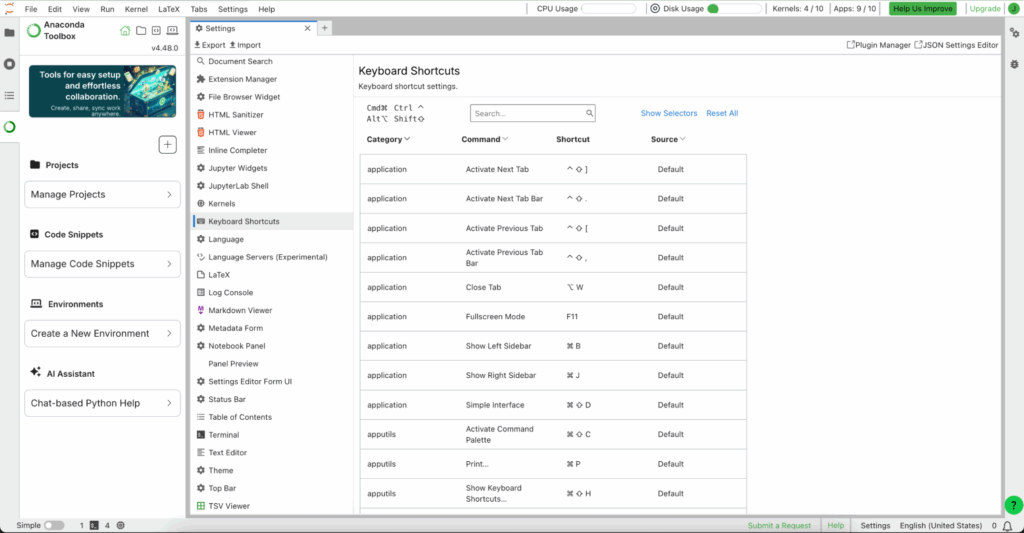
Maybe you want Cmd+Enter to do something else entirely. Maybe you’re coming from VS Code and want familiar bindings. The best shortcut setup is the one you’ll actually use.
The Challenge
Here’s what I’d suggest: Try one week of mouse-free Jupyter. Print out the shortcuts if you need to. Yes, the first few days will feel slower, and that’s the learning curve. Research suggests it takes around 200 repetitions before keyboard shortcuts become faster than mouse navigation for most people.
But once you cross that threshold, you won’t go back. The mouse will start to feel like an interruption rather than a tool.
My boss was right, even if his methods were a bit extreme. Every time you touch the trackpad, you’re stepping out of flow. And 23 minutes is a long time to spend getting back in.
One final thought: if you find a keyboard shortcut that’s missing, something you keep reaching for that doesn’t exist, consider contributing it back to the project. JupyterLab is open source, and the keyboard shortcut system lives in the JupyterLab GitHub repository. The best tools are shaped by the people who use them.
Download a printable copy of these keyboard shortcuts to keep at your desk while you build the muscle memory.