

Anaconda Platform
7.0.0 is available through a limited early access program. Contact your Anaconda Technical Account Manager (TAM) if you’re interested in adopting the latest version.Exploring models
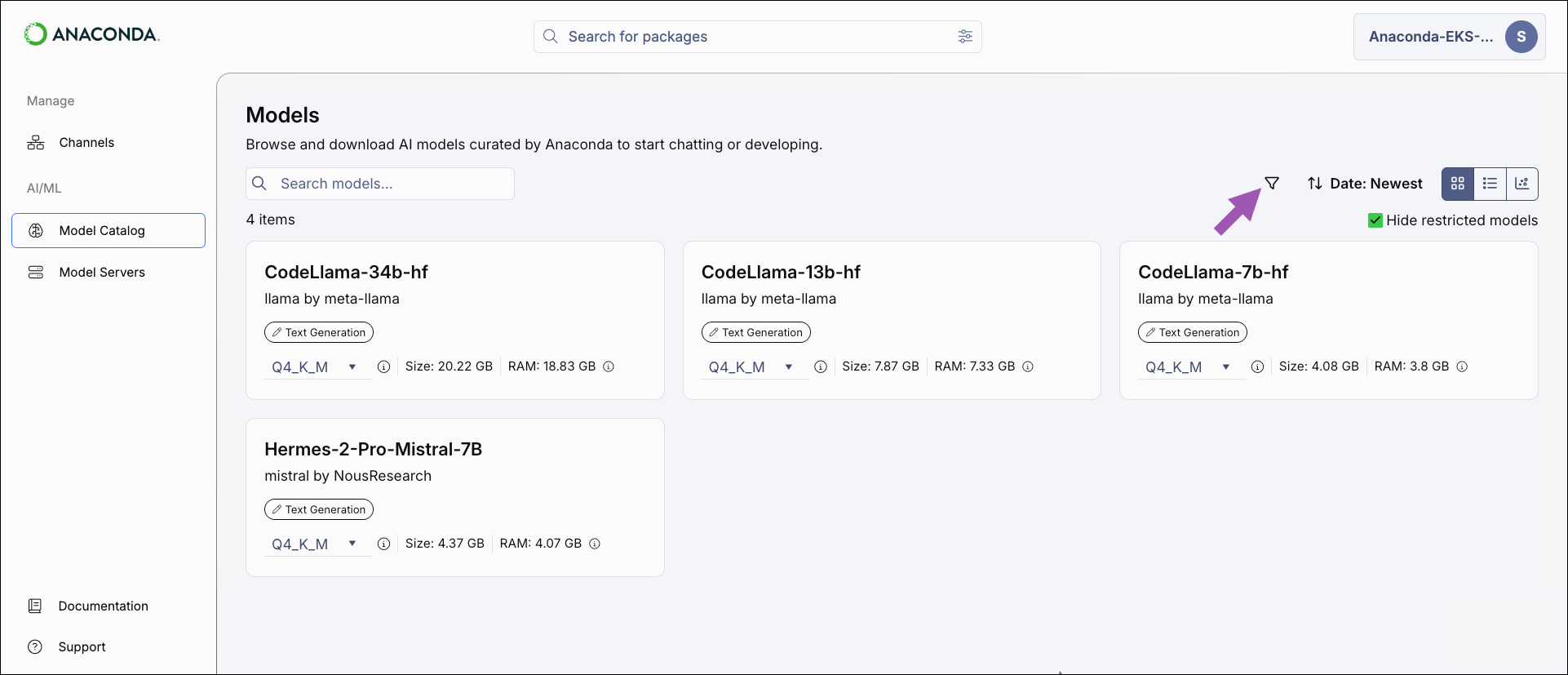
To browse models, select Model Catalog from the left-hand navigation. The Models page displays all of the models available in Anaconda Platform. You can search for a model by name, filter and sort the displayed models, and switch between catalog views.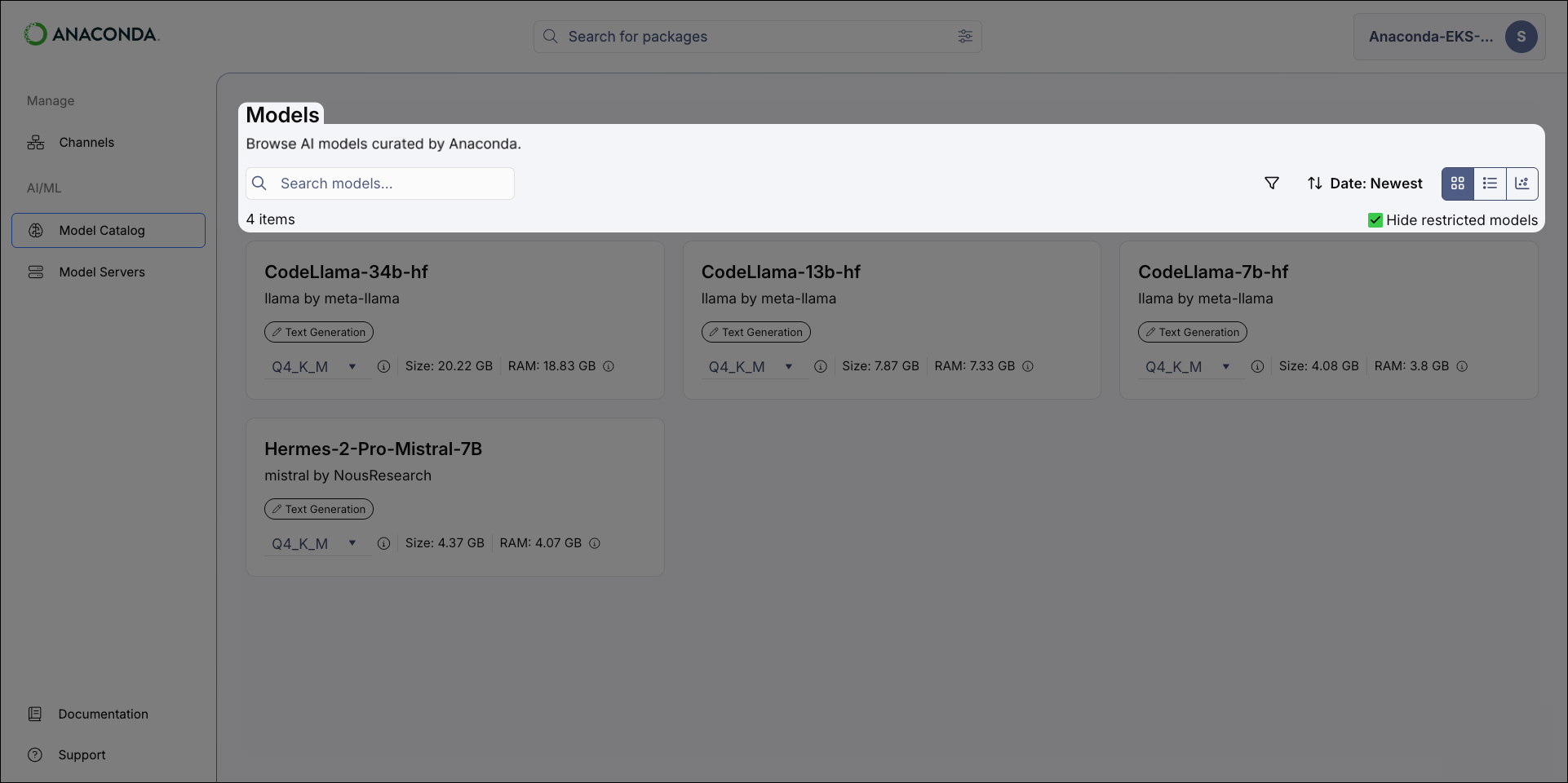
Models with a lock icon beside their name have been restricted from use by your administrator. Select the Hide restricted models checkbox to only view models you have access to.
Model catalog views
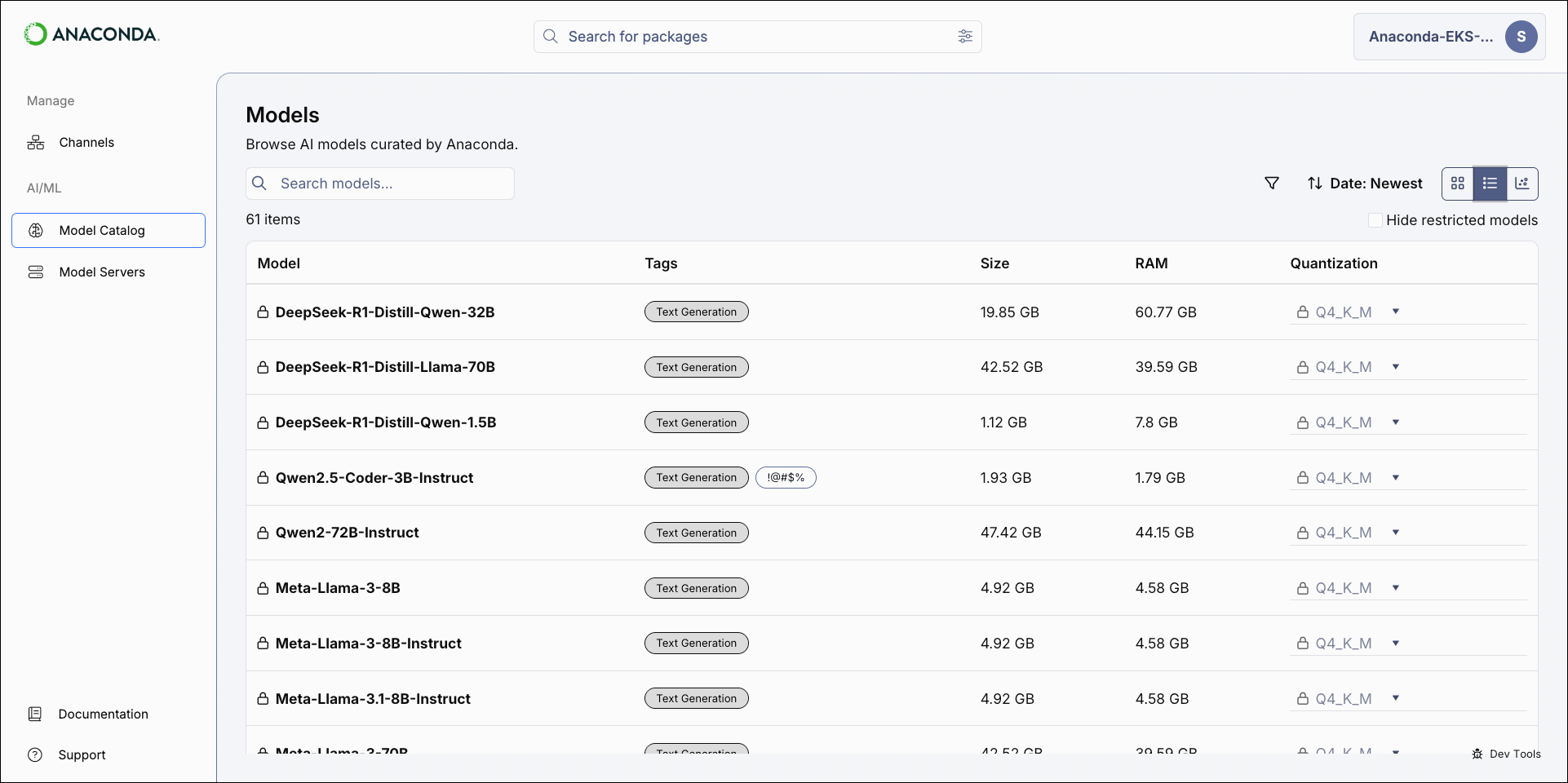
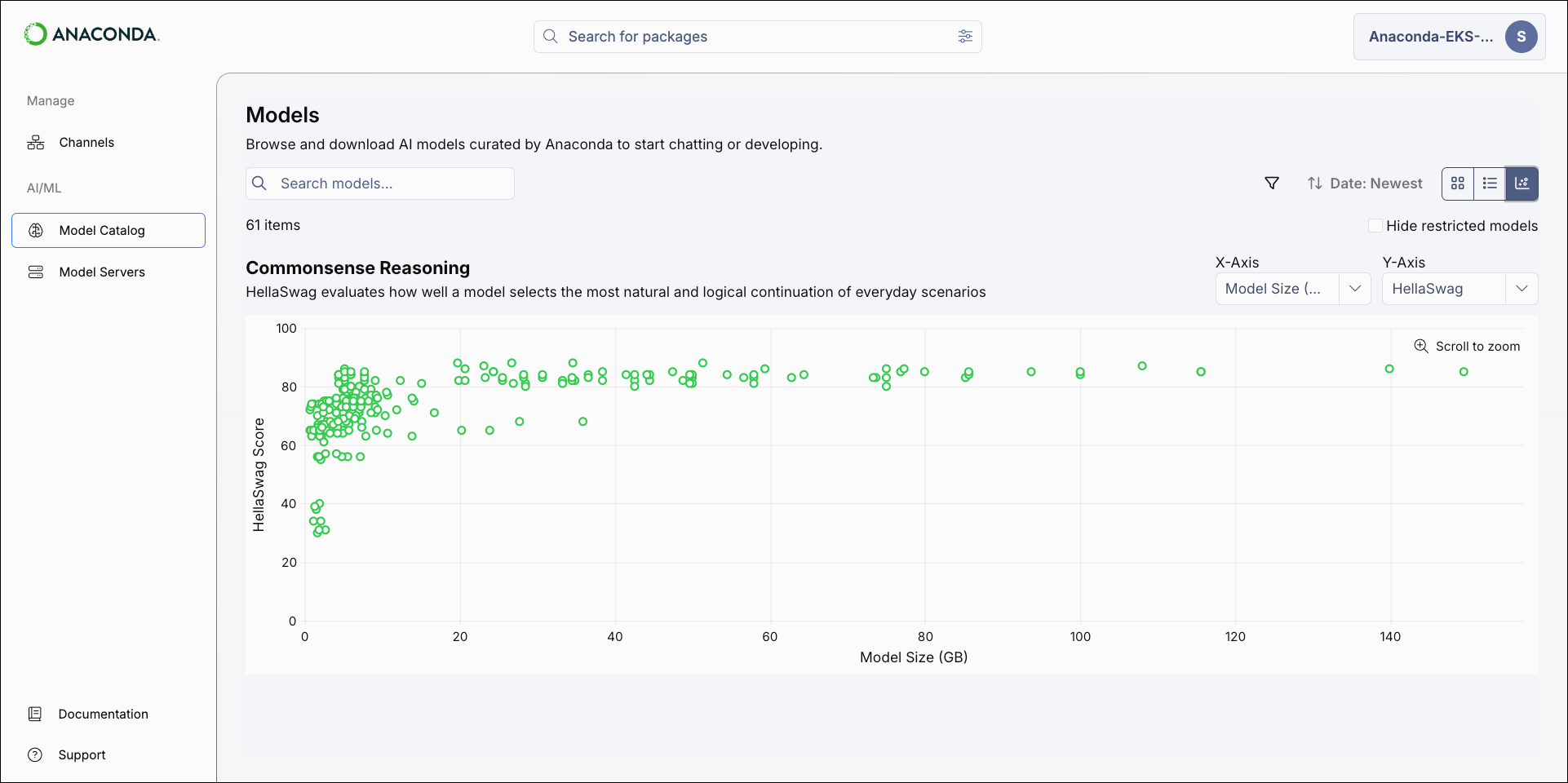
The model catalog can be displayed as a tile grid, a table, or as a comparative chart. Use the icons in the upper-right of the Models page to switch between views.- Tile
- Table
- Chart
The Tile view displays models in a grid. Each tile shows the model’s name, publisher, type, and the disk space and RAM required to run the currently selected quantization.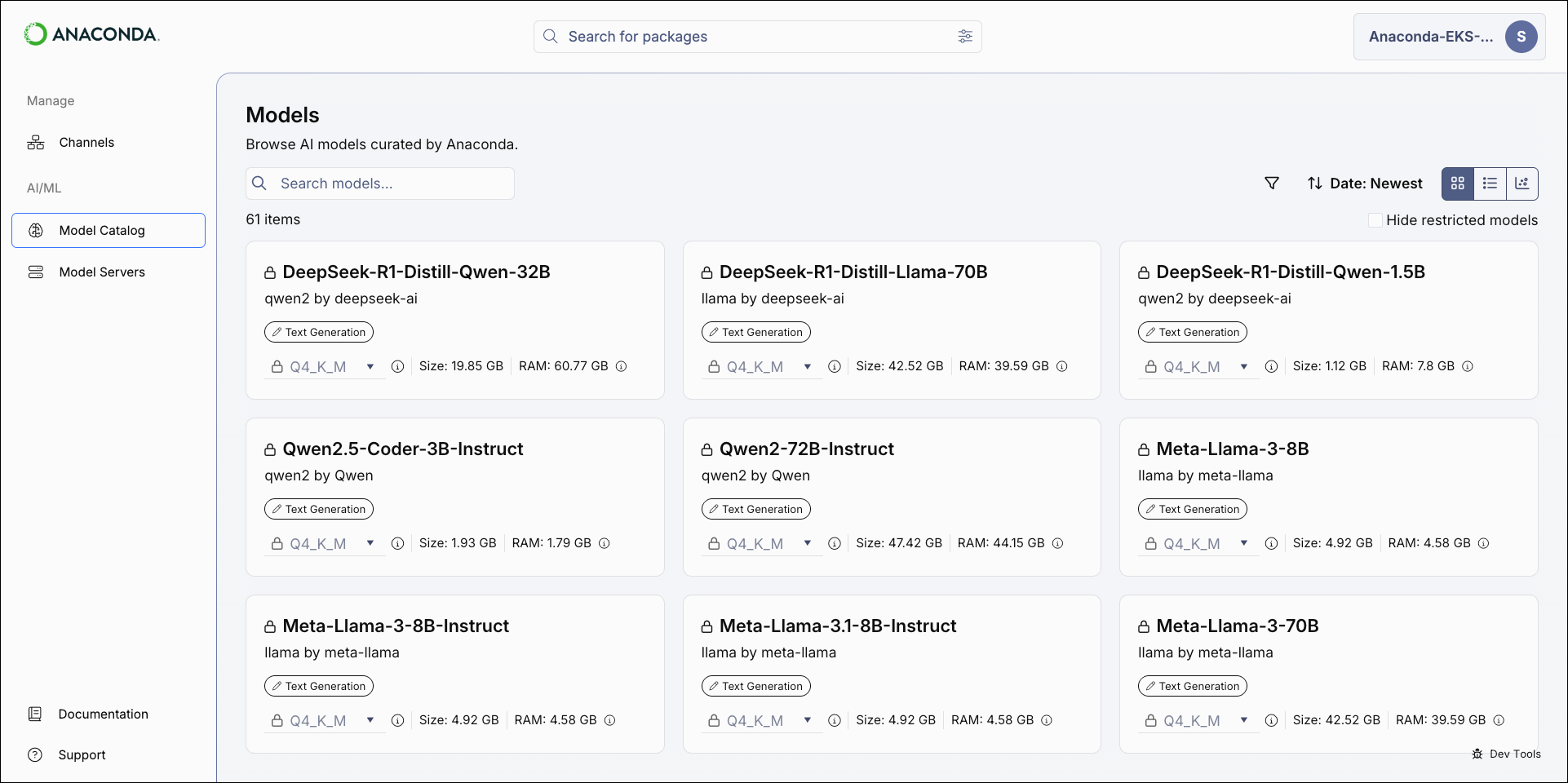
Model types and tags
A model’s type reflects its training objective and architecture. Anaconda Platform currently supports the following model types: Tags reflect what a model can do beyond its primary purpose. For example, aText Generation model type might also have a Code Generation tag, indicating its capability for generating code.
Currently supported tags
Currently supported tags
Understanding quantizations
From the model catalog, you can select which quantization to use for a model. Each quantization is a separate, pre-built version of a model stored as a GGUF (.gguf) file. Quantization reduces the precision of a model’s weights, converting them from high-precision floating point values to lower bit depths like 8-bit or 4-bit integers. This shrinks file size and RAM requirements at the cost of some output quality.
Reading quantization names
Anaconda models use a naming convention that encodes the bit depth and quantization method. For example,q4_k_m means a 4-bit quantization using the medium-variant K-quant method.
Choosing a quantization
Select a quantization based on your hardware and accuracy needs:- Lower bit depth (
q2–q4): Smaller files, lower RAM usage, and faster inference, but noticeably reduced output quality. Best suited for resource-constrained hardware. - Mid-range (
q5–q6): A practical balance between size and quality that works well on most hardware. - Higher bit depth (
q8,f16): Near full-precision output quality, but requires significantly more RAM and disk space.
Filtering and sorting models
Apply filters and sort the results to help you locate models.-
Select the Filter icon to open the filter panel.
- Apply filters as necessary to narrow the list of displayed models.
- Close the panel to see the model list with filters applied.
Model filters
- Hide restricted models: Filters out models that you do not have permission to use.
- Publisher: Filter models by the organization that built them.
- Date Published: Filter models based on the date they were published.
- Purpose: Filter models based on their associated model type.
- Language: Filter models by which spoken languages they can understand.
- Tags: Filter models by tags associated with their characteristics, capabilities, or use cases.
- License: Filter models based on their usage, modification, and distribution terms.
- Quantization: Filter models by the quantization method used to build them.
- File Size: Adjust the slider to filter models by the amount of disk space they require.
- RAM: Adjust the slider to filter models by the amount of RAM they require.
- HellaSwag: Filters models by their HellaSwag benchmark score.
- WinoGrande: Filters models by their WinoGrande benchmark score.
- TruthfulQA: Filters models by their TruthfulQA benchmark score.
Viewing model details
Select a model to view its details:- Overview
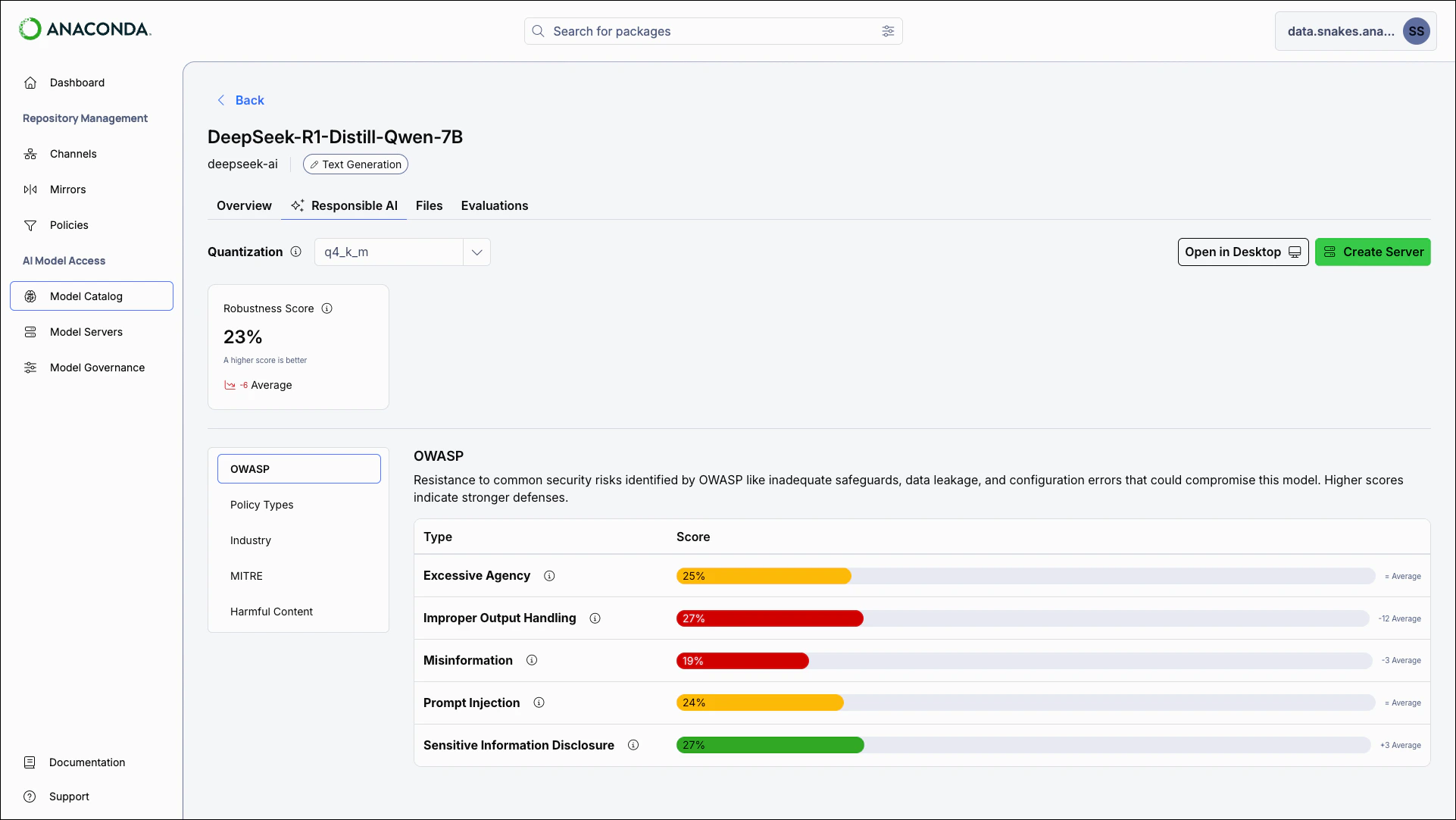
- Responsible AI
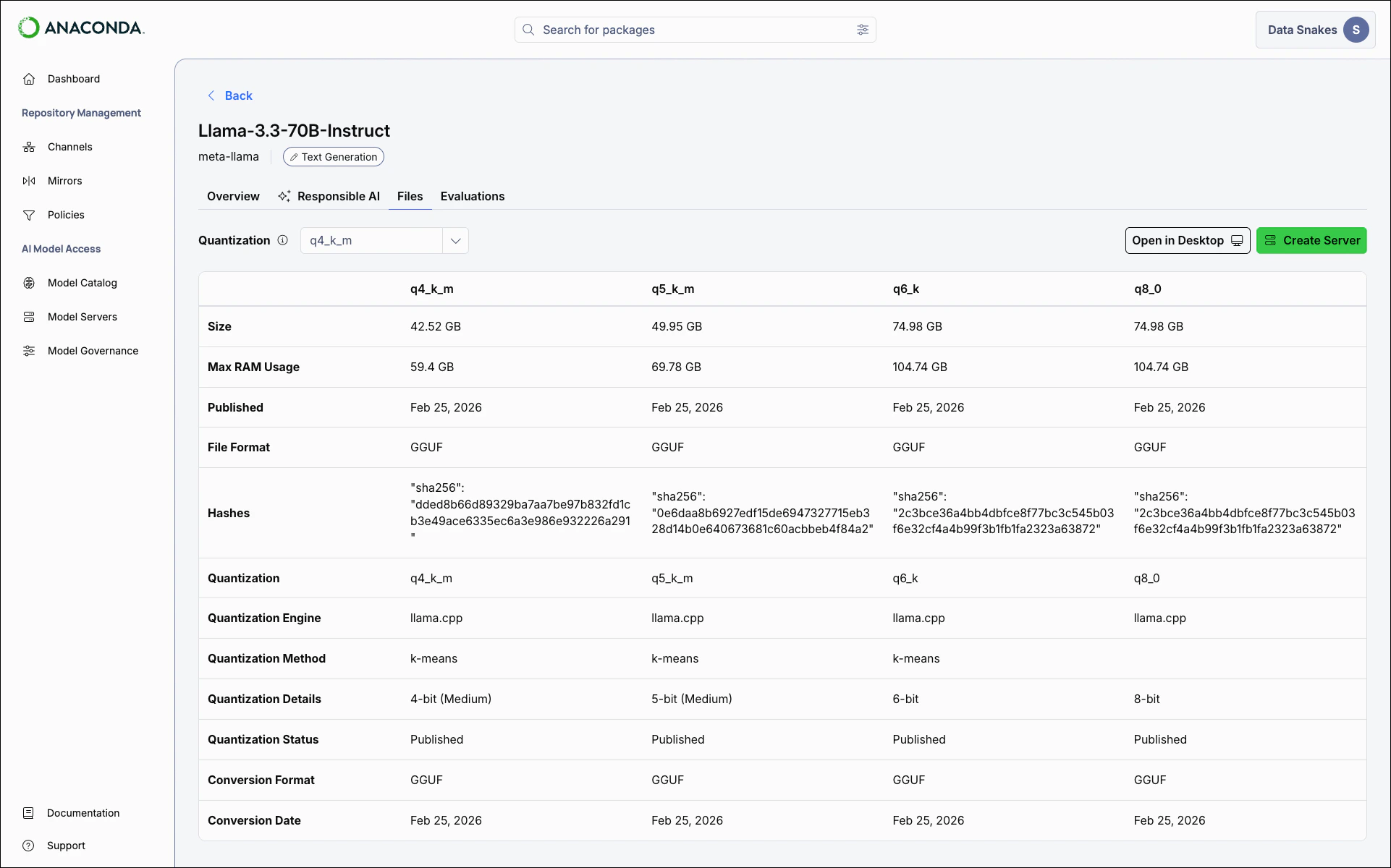
- Files
- Evaluations
The Overview tab offers general information about the model, including its description, publisher, intended use cases, and license terms, as well as relevant links and a downloadable AI Bill Of Materials (AIBOM).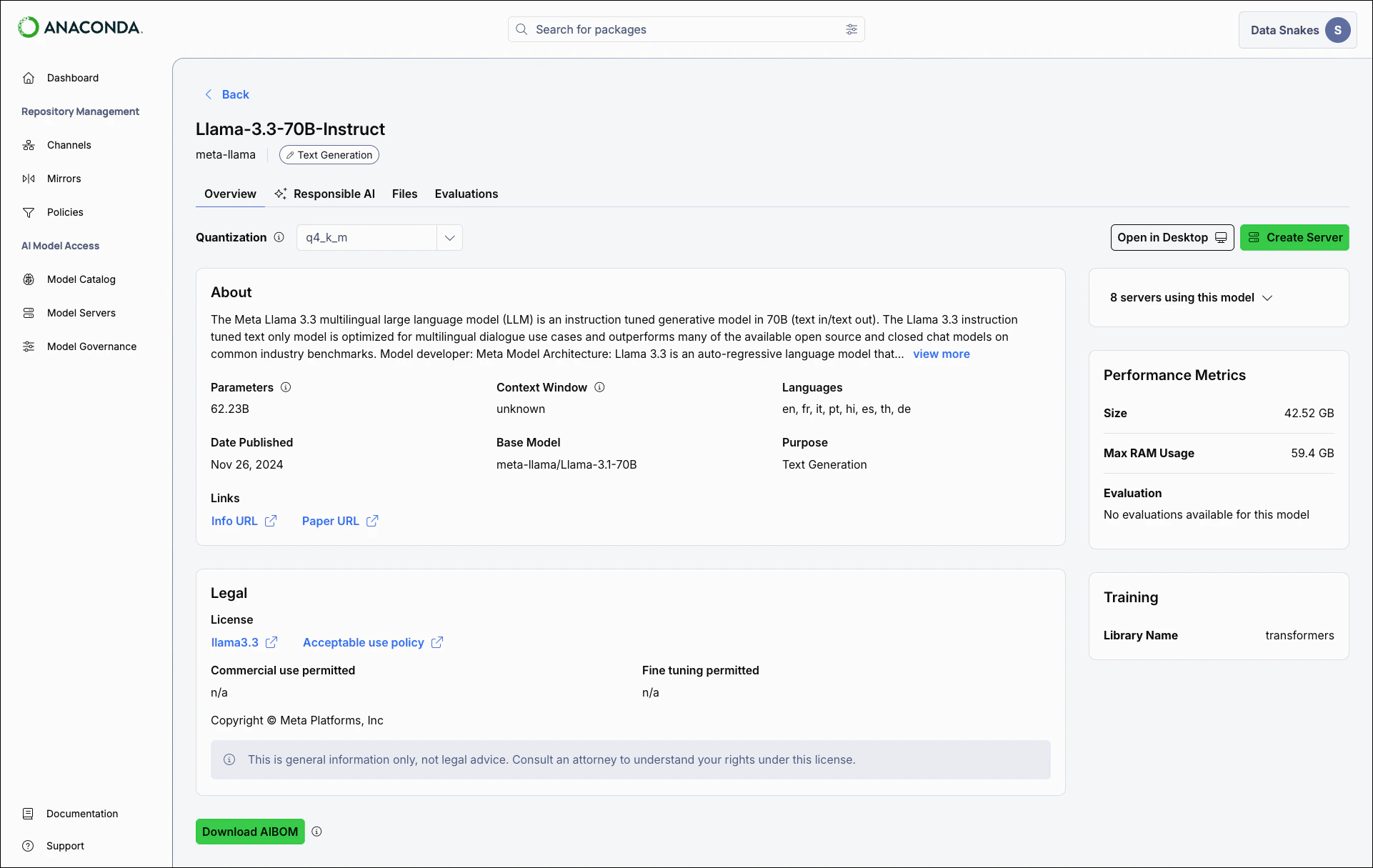
Downloading the model AIBOM
The AIBOM provides a comprehensive record of the model’s composition and provenance. Select Download AIBOM to download the report as a.json file in CycloneDX format.A model’s AIBOM might include:- Model metadata: The publisher, version, architecture, license terms, and intended use cases
- File variants: Details for each available quantization, including file format, disk space, and RAM requirements
- Cryptographic hashes: SHA-256 checksums you can use to verify that downloaded model files are intact and unmodified
- Performance metrics: Benchmark scores across available quantizations
- Ethical considerations: Documented limitations, bias risks, and recommended mitigations
- Software dependencies: Libraries required to run the model
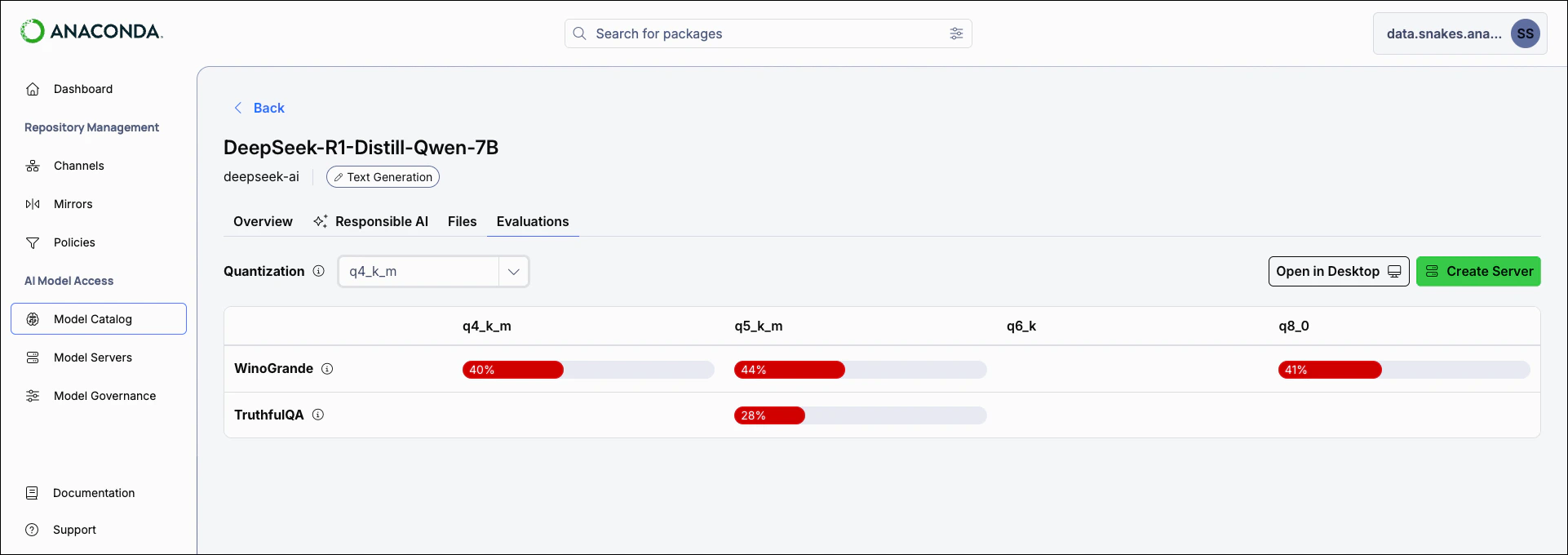
Creating a server
Creating a server loads the selected model quantization into a dedicated instance that exposes API endpoints for inference and embedding. When requests are sent to these endpoints, the model processes the input and returns the output. You can connect your applications to the server’s IP address and use it in your AI workflows. For more information about creating and using servers, see Model servers.- From a model’s details page, select Create Server.
- If the model is already in use, a dropdown lists active servers using the model. Select a server from this list to view the server’s details.
- Newly created servers appear on the Model Servers page.