

Viewing registered MCP servers
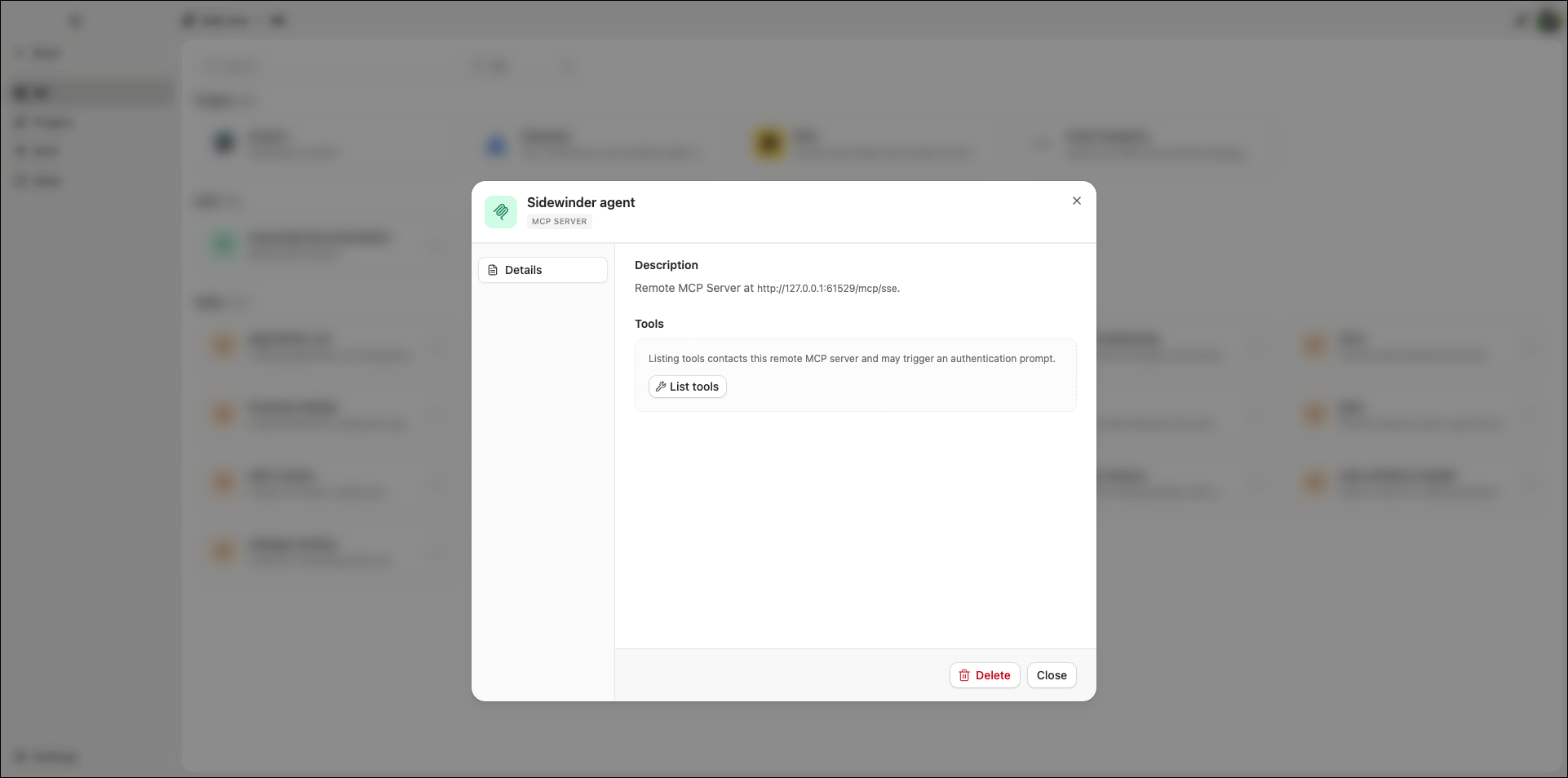
To view your registered MCP servers and their available tools:- Select Add-ons from the left-hand navigation, then click MCP.
- Select an MCP server to expand it.
- Click List tools to discover the server’s available tools.
Registering an MCP server
To register an MCP server:- Select Add-ons from the left-hand navigation, then click MCP.
- Click Add.
- Enter a name for the server.
-
Select a transport method and configure the connection:
- Standard I/O (stdio)
- Server-Sent Events (SSE)
Use stdio for MCP servers that run locally as a process on your machine.- Enter the Command to start the server (for example,
npxoruvx). - Add any required Arguments for the command. Click Add argument to add additional arguments.
- (Optional) Add Environment variables as key-value pairs. Click Add environment variable to add additional variables.
- (Optional) Enter a Working Directory for the server process.
- Click Add to Catalog.
Editing and deleting MCP servers
- Select Add-ons from the left-hand navigation, then click MCP.
- Click on the server’s row.
- Select Edit to modify the server’s configuration, or select Delete to remove it.
Deleting an MCP server removes it from all agents that use it. Those agents will no longer have access to the server’s tools.
Servers registered by plugins cannot be edited or deleted from this page. Manage them through the plugin’s own configuration.
Servers registered by plugins cannot be edited or deleted from this page. Manage them through the plugin’s own configuration.