With Anaconda Desktop, you can manage packages for your conda environments in a convenient graphical interface.Documentation Index
Fetch the complete documentation index at: https://anaconda.com/docs/llms.txt
Use this file to discover all available pages before exploring further.
Viewing packages
Packages are managed at the environment level. To manage an environment’s packages, navigate to the Environments page in the left navigation, then select the environment’s name from the table to open its details page. From the environment’s details page, you can view the its packages, dependencies, and channels.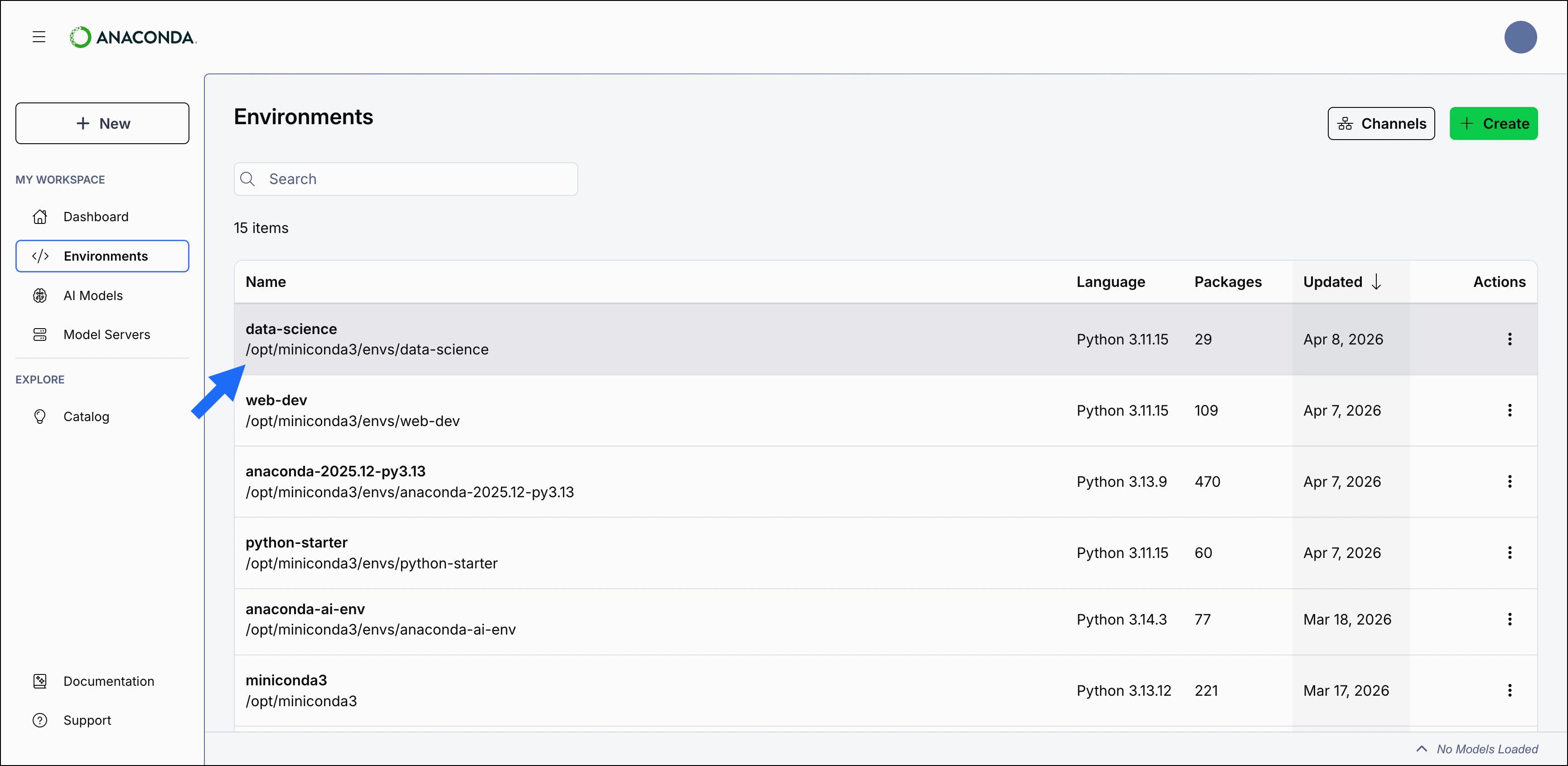
Package table overview
User-installed packages appear in black text at the top of the package table. Their dependencies appear below with a Dependency label. Dependencies and the Python version are managed automatically to ensure compatibility in Desktop and cannot be modified.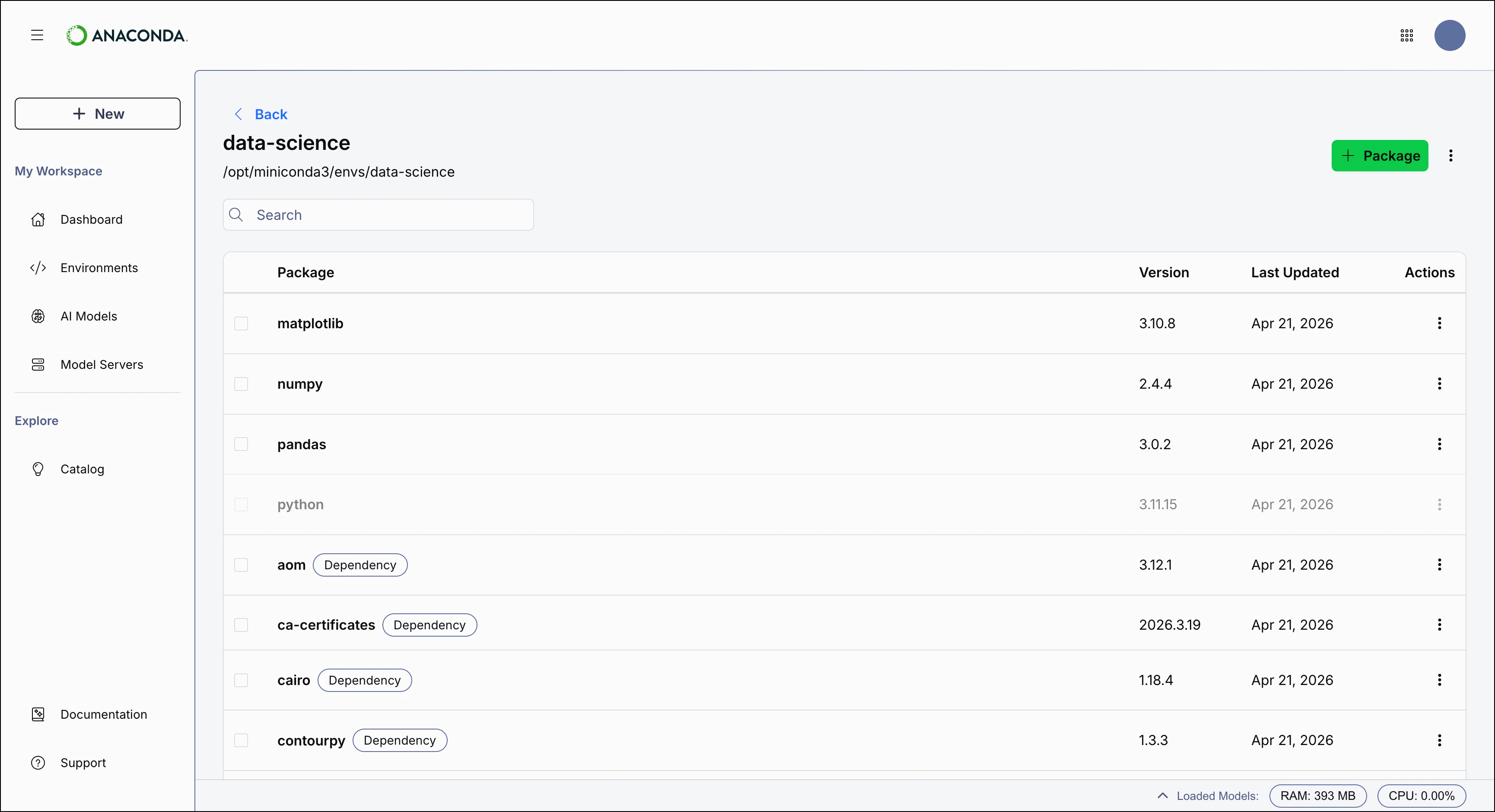
CVE data is for reference only.
Searching for packages
Use the Search box to locate a specific package by name. Enter all (or part of) the package’s name to filter the list to display only packages that contain the .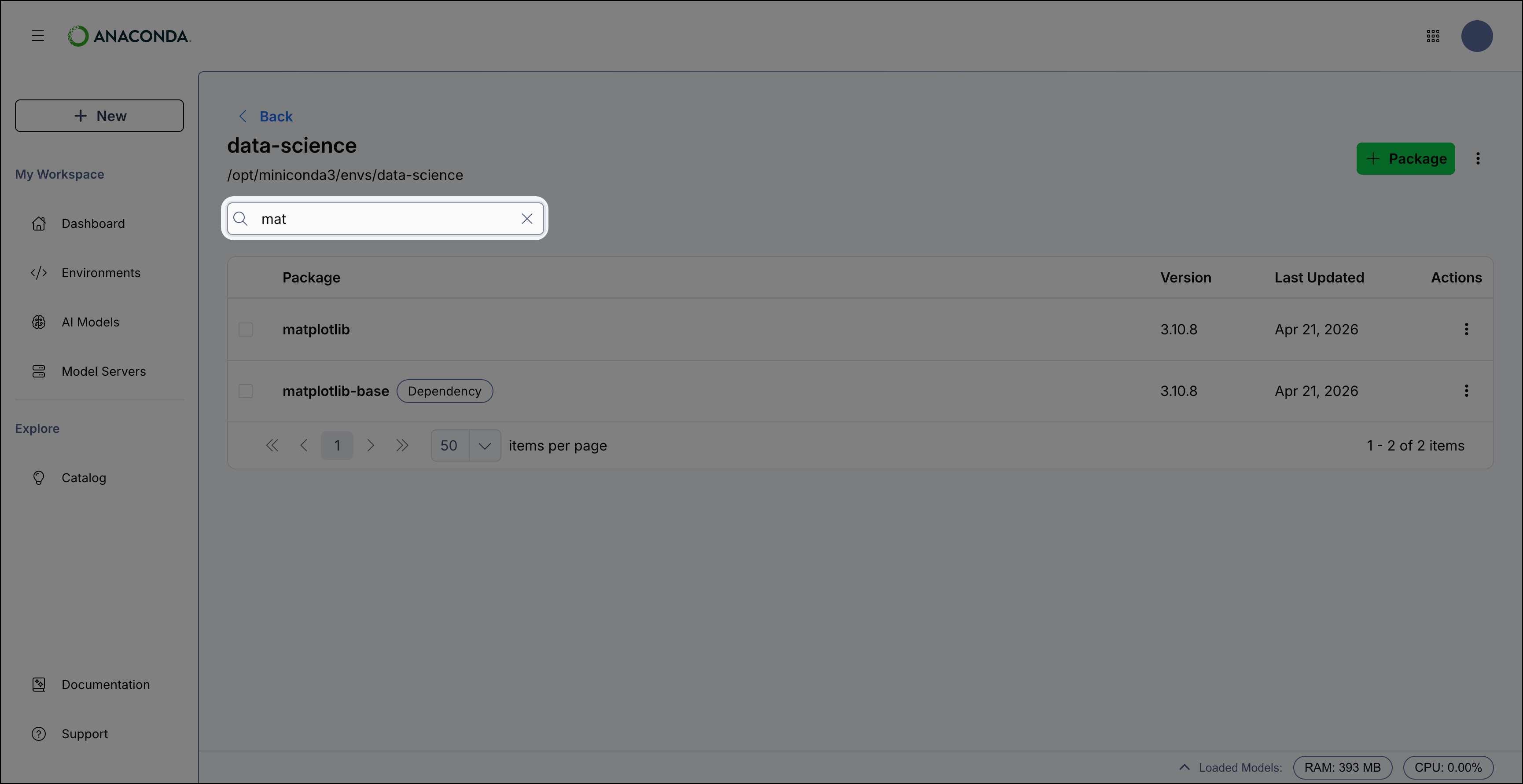
Installing a package
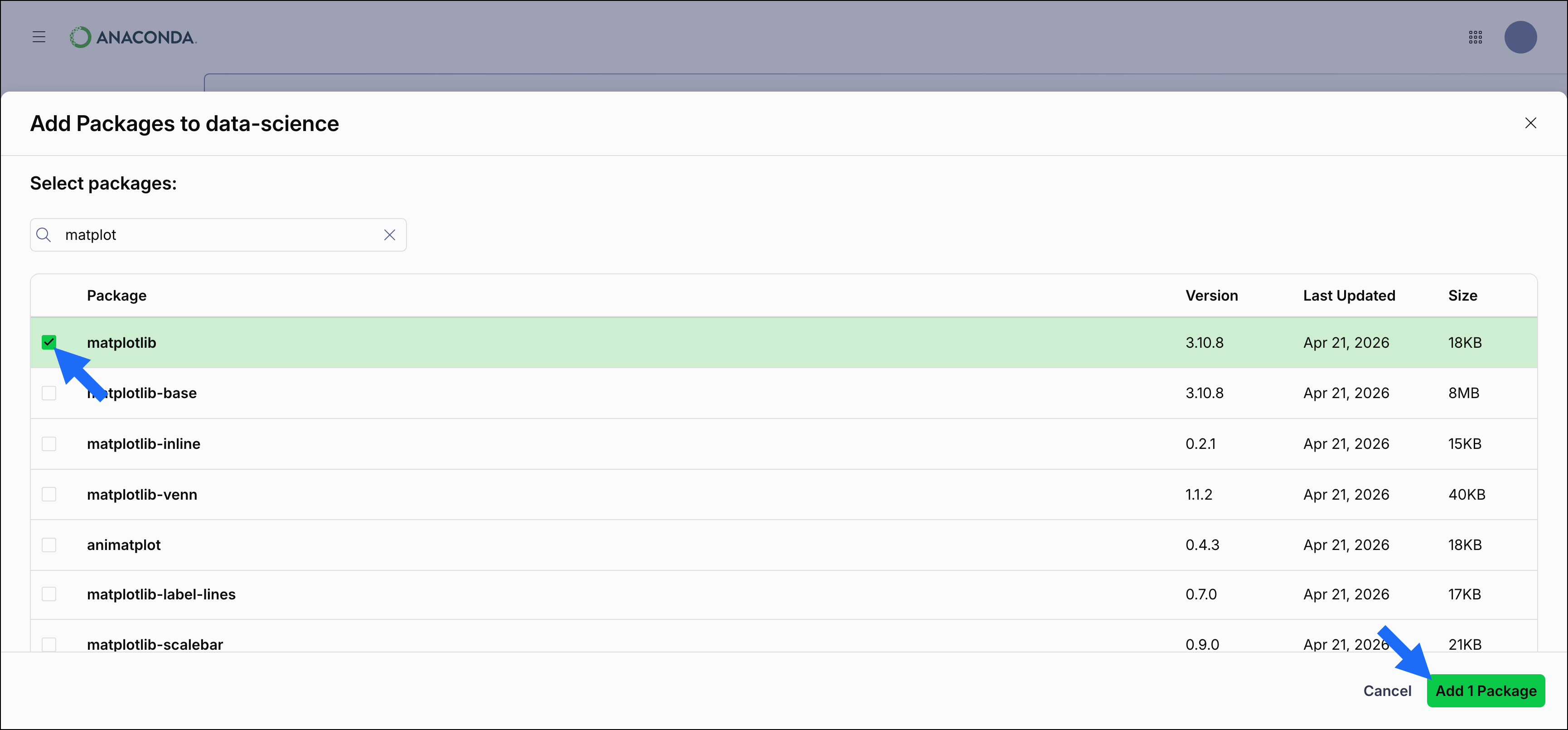
To install a package:- Click Packages.
- Use the Search box to find the package you want to install.
- Select the checkbox beside the package you want to install.
- Click Add Package to install the package.
Updating a package
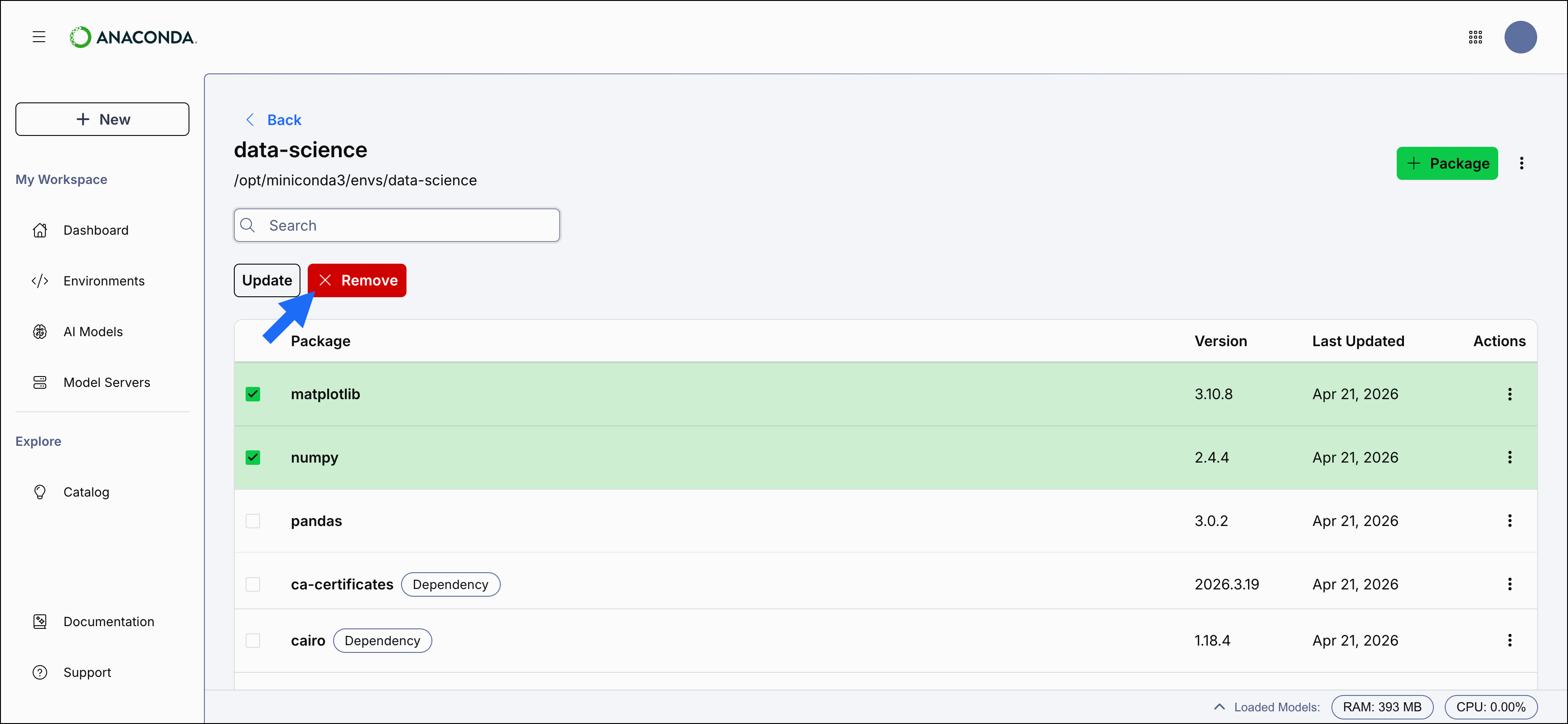
To update packages, select the checkbox beside the packages you want to update and click Update at the top of the package table.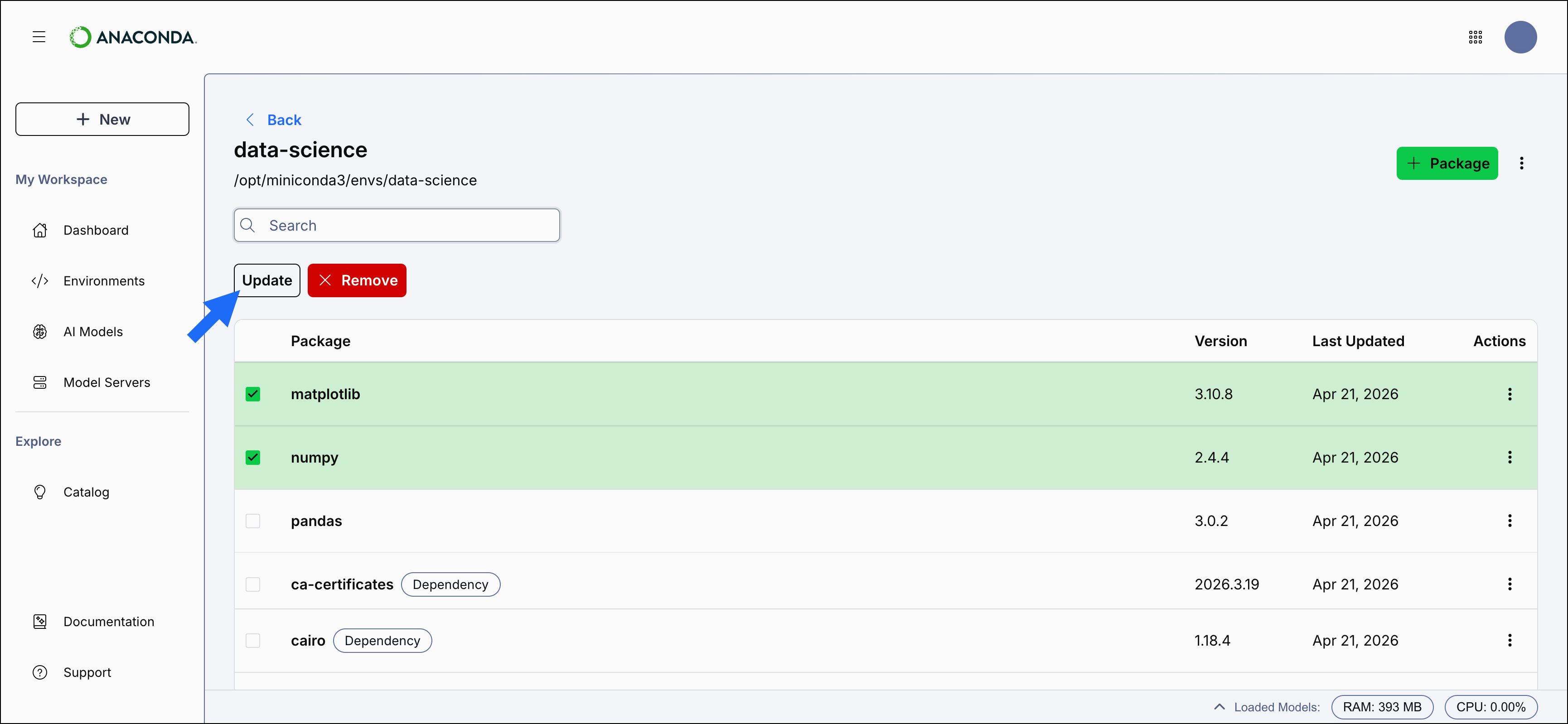
Removing a package
To remove packages, select the checkbox beside the packages you want to remove and click Remove at the top of the package table.