Anaconda MCP is a beta feature of Anaconda Desktop. Features and functionality might change during the beta period.
Anaconda MCP is a Model Context Protocol (MCP) server that gives AI coding assistants full awareness of your conda environments, packages, and channel configurations. Once connected, you can create environments, install packages, and manage dependencies using natural language directly from your AI coding assistant.Anaconda MCP currently supports the following assistants: Claude Desktop, Claude Code, Cursor, VS Code, Opencode, and Windsurf.
MCP is displayed in the left-hand navigation by default. Disable it on the Settings page. If you belong to an organization, your administrator may restrict access to beta features.
Anaconda Desktop
CLI
1
Configure your AI coding assistant
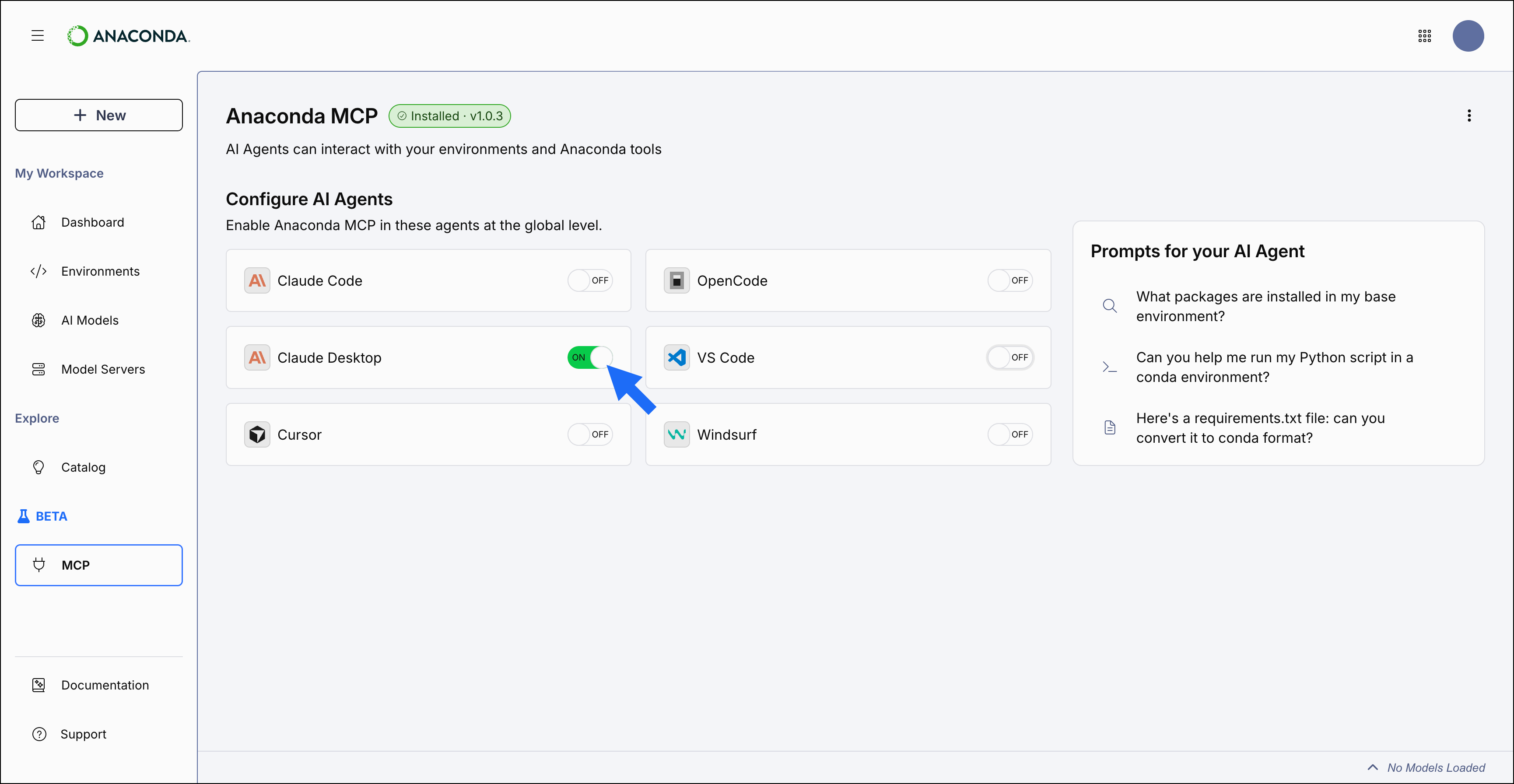
Select MCP under BETA in the left-hand navigation.
Toggle on the AI coding assistant you want to configure.
Anaconda Desktop installs the anaconda-mcp package into a new environment called anaconda-mcp and configures the selected assistant automatically. A confirmation message appears when setup is complete.
2
Restart your AI coding assistant
Quit and restart your AI coding assistant for the changes to take effect.
3
Verify the connection
Ask your assistant something like “List my conda environments” to verify that Anaconda MCP is connected and responding.Alternatively, you can verify the MCP server is running by checking the settings in your AI coding assistant’s configuration. For example, in Claude Desktop, navigate to Settings > Developer > Local MCP Servers and look for anaconda-mcp.
You can add “In conda” or “Using the conda server” to your prompts to ensure requests are routed to the Anaconda MCP server.
1
Open a shell application
Open Anaconda Prompt (Terminal on macOS/Linux).
2
Create a conda environment and install anaconda-mcp
conda create --name <ENV_NAME> anaconda-mcp
Anaconda recommends installing anaconda-mcp in its own dedicated environment rather than base to avoid Python version and dependency conflicts.
3
Activate the environment
conda activate <ENV_NAME>
4
Run the setup wizard
anaconda mcp setup
The wizard prompts you to select your AI coding assistant and whether to configure it at a global or project level. If you’re not logged in to your anaconda.com account, the wizard prompts you to log in. You’re also prompted to agree to the Anaconda MCP Beta Agreement the first time you run this command.
5
Restart your AI coding assistant
Quit and restart your AI coding assistant for the changes to take effect.