General
What are notebooks and why would I use them?
What are notebooks and why would I use them?
How do I access Anaconda Notebooks?
How do I access Anaconda Notebooks?
What do I have access to?
What do I have access to?
- A curated JupyterLab notebook interface
- Fast, backed-up SSD storage
- CPU seconds, refreshed daily
- Anaconda Assistant, your AI-powered pair programmer
- Application publishing
- Conda environments with the most popular python packages
- Ability to create and upload your own custom environments
- Example notebooks to develop your coding skills
Is Anaconda Notebooks different from JupyterLab and Jupyter Notebooks?
Is Anaconda Notebooks different from JupyterLab and Jupyter Notebooks?
Where can I get support?
Where can I get support?
Which packages are pre-configured on Anaconda Notebooks?
Which packages are pre-configured on Anaconda Notebooks?
How do I upload a notebook to the service?
How do I upload a notebook to the service?
.ipynb file. Then, click Open. The notebook will appear in the left-hand menu.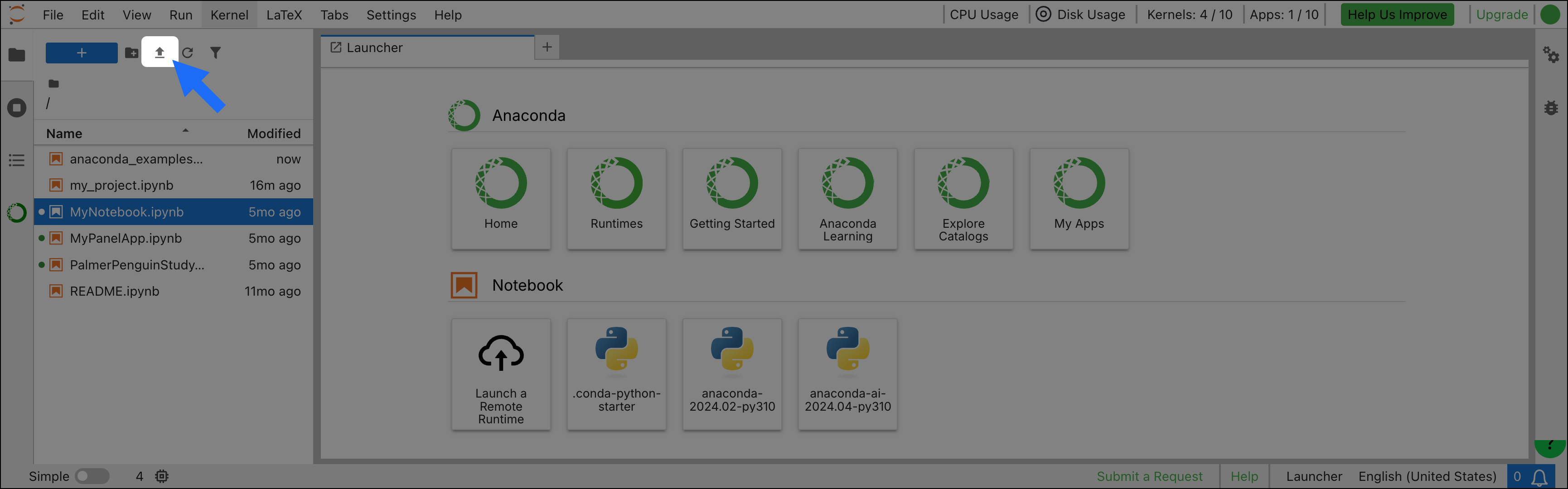
How do I save a notebook?
How do I save a notebook?
Can I install new packages or create custom environments in Anaconda Notebooks?
Can I install new packages or create custom environments in Anaconda Notebooks?
Can I use Anaconda Notebooks for work?
Can I use Anaconda Notebooks for work?
I have an organization in Package Security Manager (Cloud). How can my team leverage Anaconda Notebooks?
I have an organization in Package Security Manager (Cloud). How can my team leverage Anaconda Notebooks?
Can I control access to Anaconda Notebooks?
Can I control access to Anaconda Notebooks?
I have a site license. How do I give my members access?
I have a site license. How do I give my members access?
Where is the kernel package stored?
Where is the kernel package stored?
ipykernel is available from the main channel.What are the pros and cons of publishing on Anaconda Notebooks versus working on PyScript.com directly?
What are the pros and cons of publishing on Anaconda Notebooks versus working on PyScript.com directly?
numba, dask, or pytorch). In other words, it’s a matter of running on the server or running locally in your browser.What are data catalogs?
What are data catalogs?
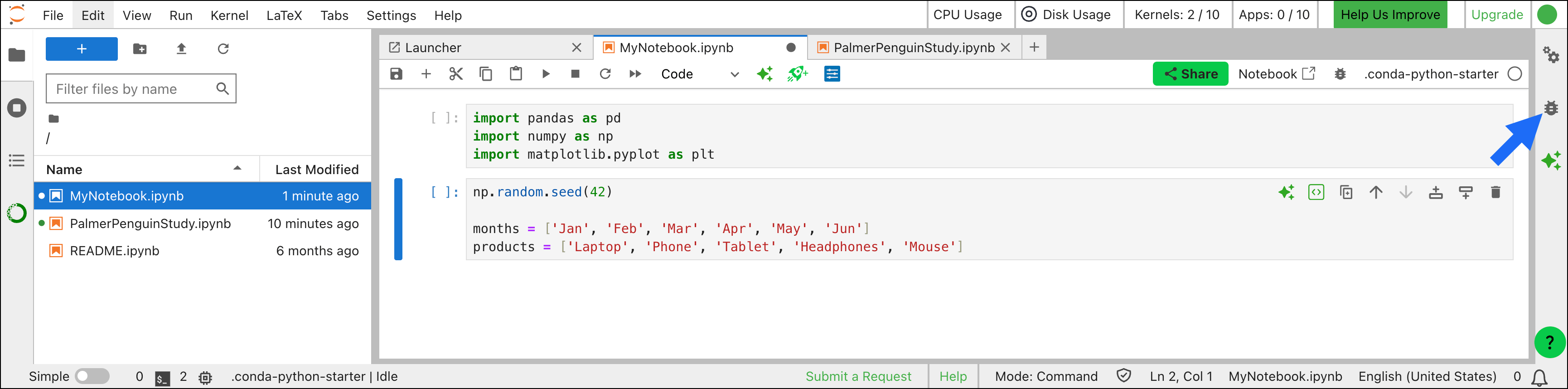
How do I activate the debugger?
How do I activate the debugger?
Toolbox environments
Are package versions specified in the quick start environments?
Are package versions specified in the quick start environments?
!conda list in a notebook cell in the active environment. You can also view package versions on the Environments page in Navigator.Can I view security information like CVEs for the installed packages?
Can I view security information like CVEs for the installed packages?
channels list available in your .condarc file. For customers on the Business plan, this means that you are only able to install quick start environments if your organization’s policies allow it.Which channels do I need?
Which channels do I need?
How long does an environment take to install?
How long does an environment take to install?
python-starter environment, which includes the fewest packages, is the quickest to install and should complete in fewer than five minutes. The anaconda-ai-ml environment, on the other hand, could take up to 15 minutes to install, due to the large size of some of the packages and complexity of the package dependency resolution process. Exact installation times vary depending on your internet download speeds and hardware specifications.Can I install more than one quick start environment?
Can I install more than one quick start environment?
How do I stop or interrupt an environment from installing?
How do I stop or interrupt an environment from installing?
- In the JupyterLab interface, go to File > Shut Down.
-
Alternatively, return to the shell application where you launched
jupyter-laband press Ctrl+C.
If I've uninstalled an environment, can I continue working?
If I've uninstalled an environment, can I continue working?
Anaconda Assistant
Why am I not seeing all options under Working with DataFrames?
Why am I not seeing all options under Working with DataFrames?
What programming languages are supported?
What programming languages are supported?
What personal data is collected when I use the Assistant?
What personal data is collected when I use the Assistant?
How do I provide feedback?
How do I provide feedback?