

Installing Anaconda Toolbox locally
You can install Anaconda Toolbox in a local JupyterLab instance through either the command line interface (CLI) or Navigator, the graphical user interface (GUI) that is automatically installed with Anaconda Distribution.- CLI
Open Navigator, install Anaconda Toolbox, and launch JupyterLab using the following instructions:
-
Open Navigator:
- Windows/Linux
- macOS
Click Start, search for “Navigator”, and then click to open.If you run into any issues opening Navigator, refer to our Navigator troubleshooting topic for assistance. -
Locate the Anaconda Toolbox tile and click Install.
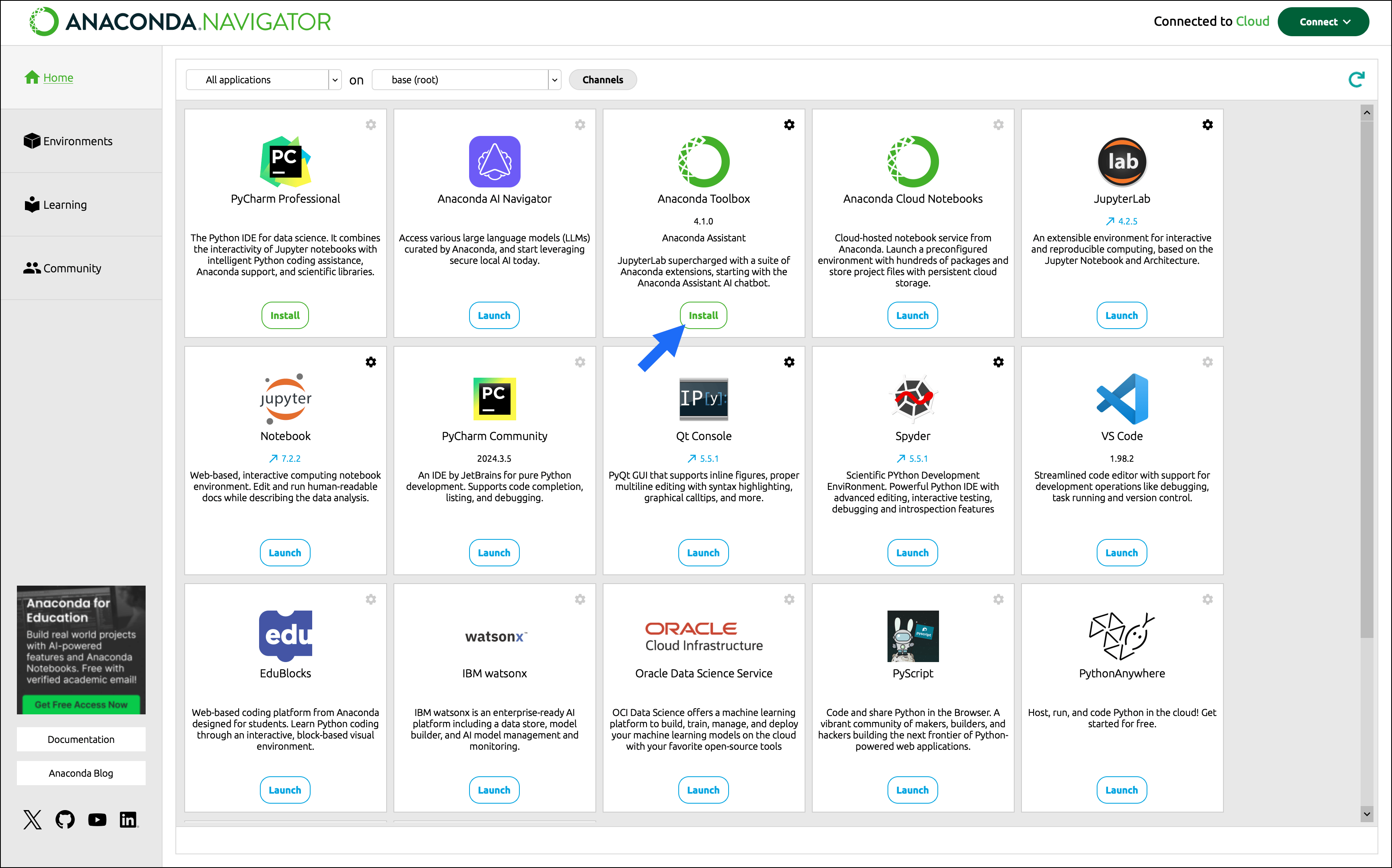
- Once the installation is complete, click Launch on the same tile to launch a new JupyterLab session.
- Open a new notebook.
- Log in or create an Anaconda account.
Using Anaconda Toolbox
Once you’ve installed Anaconda Toolbox and started a new JupyterLab session, open a new notebook and you’ll see Anaconda Toolbox to the left of your notebook and Anaconda Assistant to the right. As the local Anaconda Toolbox is virtually identical to its cloud counterpart, you can refer to the pages listed below to learn more about:- Using Anaconda Assistant
- Creating and sharing projects
- Working with code snippets
Updating Anaconda Toolbox
Update Anaconda Toolbox through either the CLI or Navigator.- CLI
Uninstalling Anaconda Toolbox
Remove Anaconda Toolbox from your local instance of JupyterLab through either the CLI or Navigator.- CLI
As JupyterLab is a requirement for the Toolbox, it is also removed when uninstalling the Toolbox. To reinstall JupyterLab without the Toolbox, run the following command: