

This guide assumes you have read Connect and run your first flow.
@secrets decorator, for securely accessing secrets such as database passwords and API keys in your tasks. Anaconda Platform stores and manages the secrets for you, so you can grant tasks access to the credentials they need without handling secret storage yourself.
By default, secrets are stored in the control plane account operated by Anaconda. If you would prefer to store secrets entirely within the data plane you control, contact Anaconda support.
Integrations and secrets
The Integrations page of your Anaconda Platform deployment is where you manage credentials and secrets for the external services your teams use. The page offers dedicated integrations for popular services, such as databases, cloud storage, IAM roles, and model providers, and each integration guides you through that service’s setup process.Creating a custom secret
Admin only For credentials that do not belong to a dedicated integration, such as an API token for an internal service, you can create a custom secret as a set of key-value pairs. To create a custom secret:- Select Integrations in the left-hand navigation.
- Click the Custom card.
- Enter a Name and Description for the integration.
-
Under Key and Value, enter each key-value pair you want the secret to contain. Click Add row to include more key-value pairs.
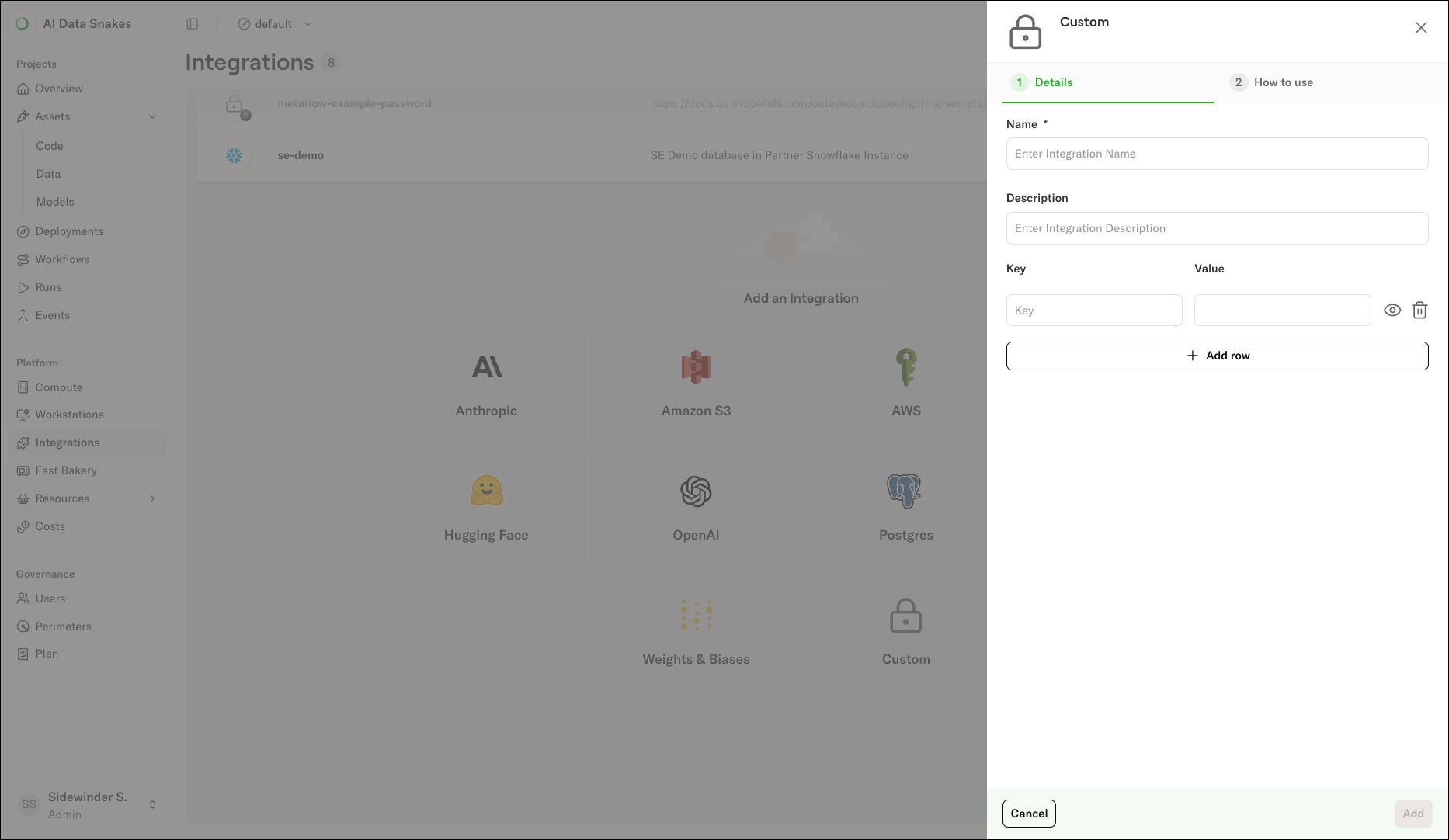
- Click Add to store your key-value pairs as a secret on the platform and make them available to your tasks.
Using secrets
After you create one or more secrets, access them in your flows with the@secrets decorator. During task execution, the platform retrieves the secrets automatically and exposes each key as an environment variable.
Reference a custom secret by prefixing its name with outerbounds., then read each key from the environment exactly as you entered it. For example, if you created a secret named my-secret containing the keys api_key and api_url:
Using a custom IAM role
To access secrets stored in AWS Secrets Manager with a custom IAM role, create an AWS IAM integration and reference the role in your flow. This is useful when your secrets are stored in a different AWS account than the one where your tasks run. For more on storing secrets in AWS Secrets Manager directly, see Configuring secrets with AWS Secrets Manager.Setting up the IAM role integration
- On the Integrations page, select the AWS card.
- Enter a Name and Description for the integration.
-
In the IAM Role ARN field, enter the ARN of your IAM role. To create a new role or configure an existing one, expand Getting your IAM role ARN? and follow the instructions provided. The role needs:
- A trust policy that allows the platform to assume the role.
- A tag with the key
outerbounds.com/accessible-by-deploymentand the value set to your deployment name, as shown in the form. The tag allows the platform to discover the role. - Permissions to access the secret. For example, grant
secretsmanager:GetSecretValuefor the secret’s ARN andkms:Decryptfor the KMS key used to encrypt the secret.
For additional help managing tags on IAM roles, see the official AWS documentation. - Click Add.
Using the IAM role with secrets
Once you have created the IAM role integration, use it with the@secrets decorator by specifying the role parameter:
get_aws_client helper in the Metaflow extensions to create a client for another AWS service: