

@vllm and @llamacpp decorators, see the inference examples repository:
outerbounds/inference-examples
Loading repository data...
Deploying a model
- In the left-hand navigation, select Resources, then select Models.
-
Confirm the context picker shows the perimeter you want to deploy into. The model catalog shows the models available in your current perimeter, as determined by that perimeter’s model policies.
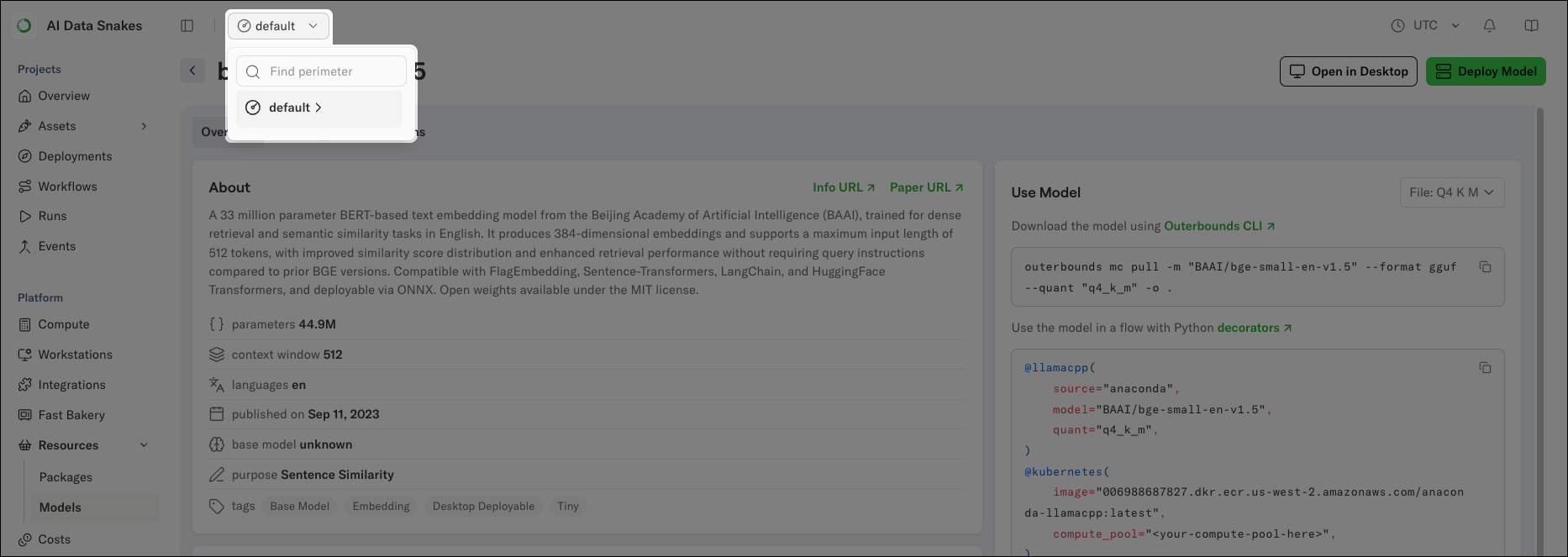
- Select a model from the list to open its details page.
-
Click Deploy Model.
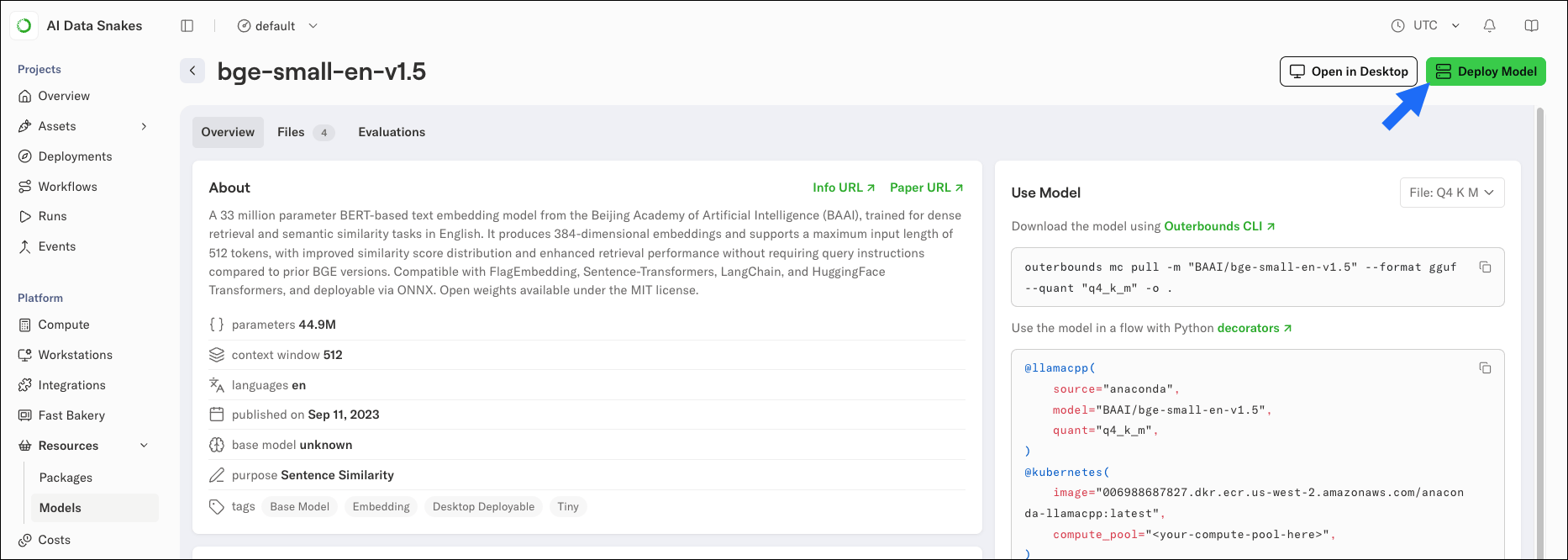
- In the Deploy model dialog, confirm the Project context for the deployment.
- Under Resources, set the CPU, memory, and disk for the deployment. Use the model’s file size and estimated RAM values shown under the selected file as a guide. Memory must exceed the estimated RAM, and disk must exceed the file size with room for the serving runtime.
-
Select a compute pool for the deployment, or leave the selection empty to let the platform schedule it on the best-fitting pool. If no compute pool can manage your requested resources, choose a smaller model file or reduce the values for the resources you are requesting.
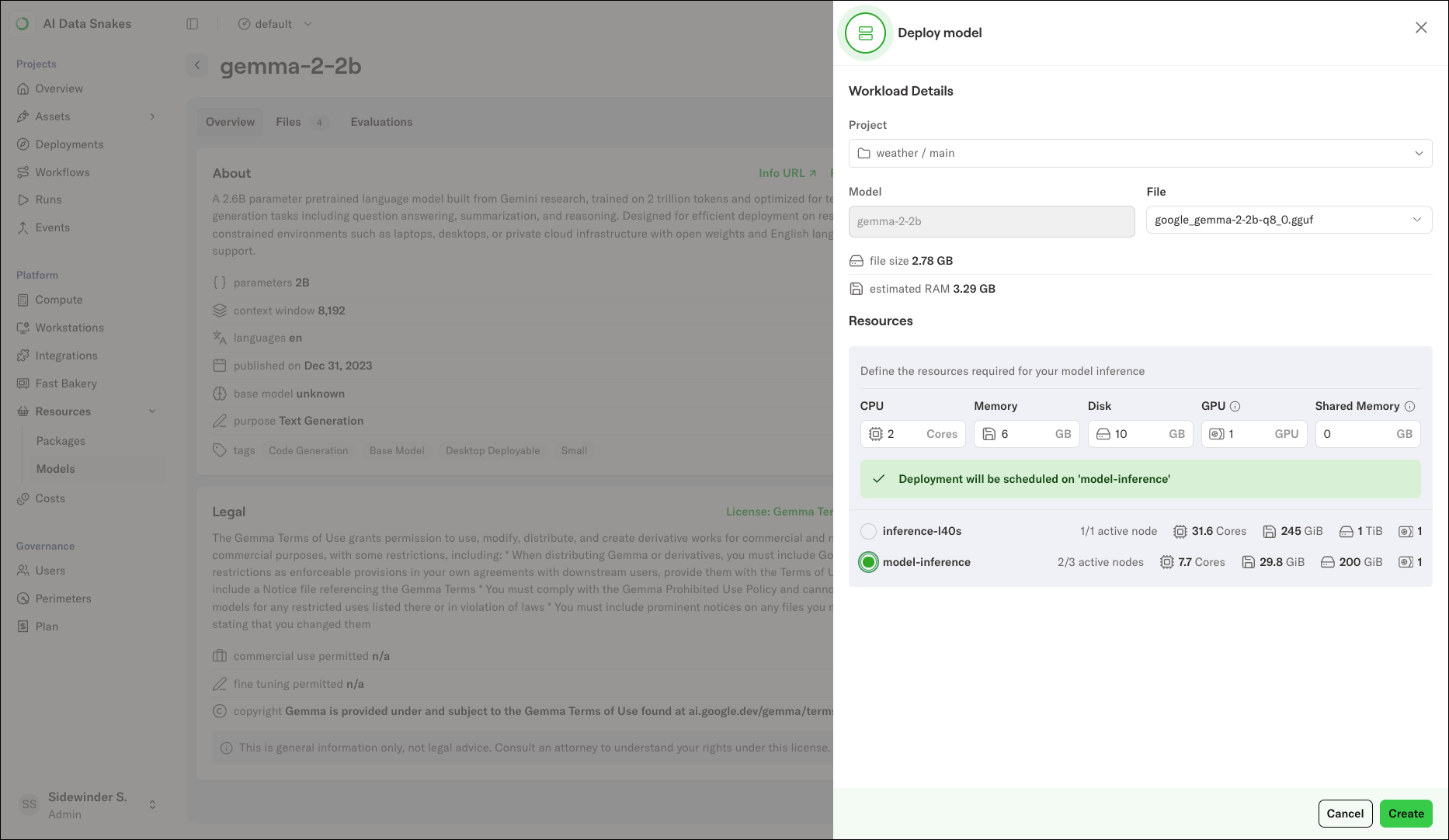
- Click Create.
If the Deployments view shows “Deployment not found” immediately after creating a deployment, refresh the page. The deployment list updates as the platform registers the new deployment.
Accessing the deployment
When the deployment is ready, it appears in the Deployments list with a green status indicator. Select it to open the details view, which shows:- The API endpoint URL, labeled “available at”. This is the endpoint your applications call.
- Additional UI routes. For certain model file types (
.ggufmodels served withllamacpp), this includes a built-in chat interface for trying the model interactively. Safetensors models served with vLLM expose the API endpoint only. Both the endpoint and the chat UI require visitors to be signed in to the platform. - The serving image, compute pool, and resources the deployment is running with.
- Charts for requests per minute and autoscaling activity.
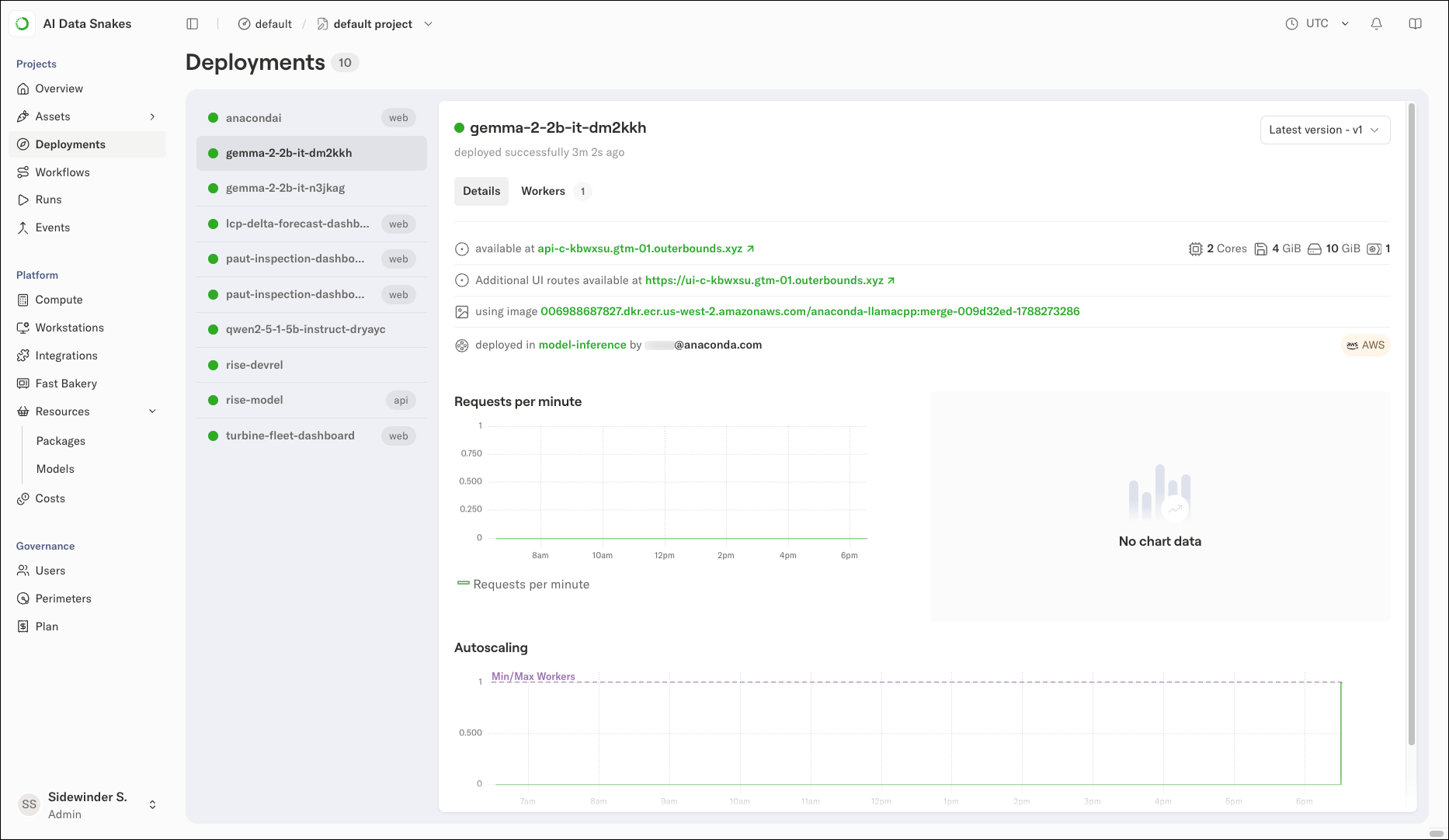
gemma-2-2b-it-dm2kkh) so you can deploy the same model more than once without name conflicts.
Trying the model
The deployment’s API endpoint is the primary interface: send requests to the endpoint URL with your application or tools likecurl. For gguf models served with llamacpp, the deployment also includes a built-in chat interface.
To open it, click the Additional UI routes link in the deployment details. You will be asked to sign in if you are not already signed in. From the chat UI, you can send messages to the model and inspect its responses without writing any code. Each response shows its token count, latency, and throughput in tokens per second, which gives you a quick read on how the deployment performs under your sizing choices.
The chat interface is available only for
.gguf models served with llamacpp. Safetensors models served with vLLM expose the API endpoint only.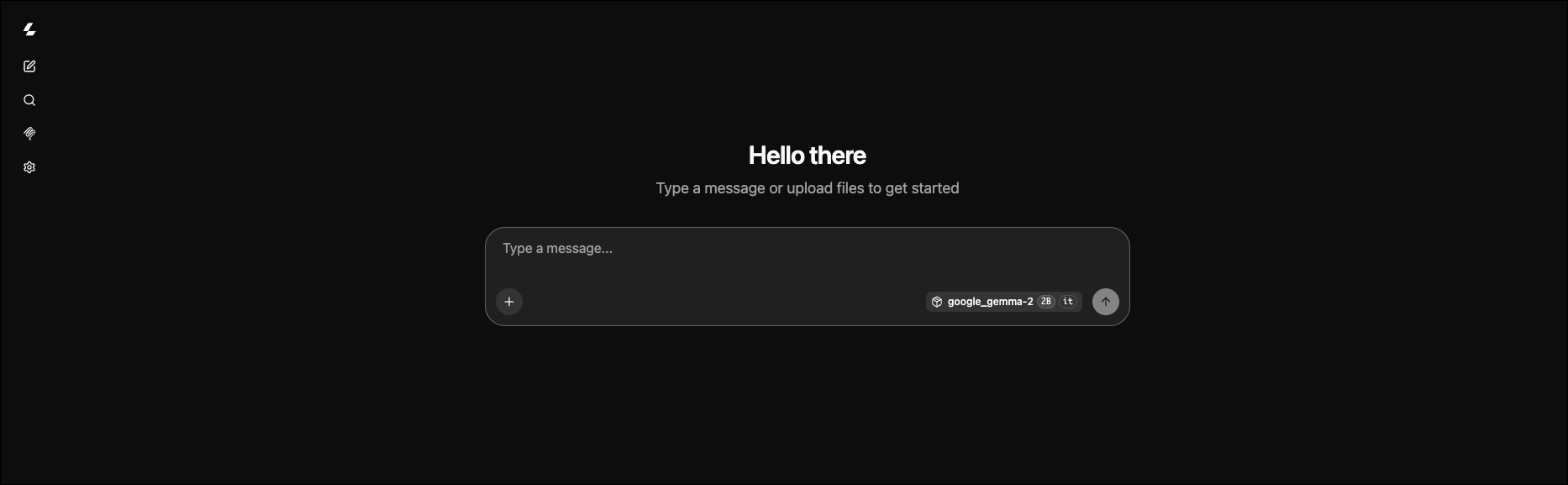
Suspending and resuming the deployment
Suspending a deployment scales its workers down to zero, which stops it from consuming compute while retaining its configurations and endpoint. You can resume it later without redeploying, which makes suspension good for deployments that are used intermittently. To suspend a deployment:- Select the deployment in the Deployments list to open its details view.
-
Click Actions, then select Suspend.
 While the platform processes the request, the Actions button shows “Suspending…”. Once suspended, the deployment’s status shows Suspended in place of its usual health status.
- Select the deployment in the Deployments list to open its details view.
- Click Actions, then select Resume.
Deleting the deployment
Deployments can be deleted when you no longer need them. Deleting a deployment removes it from the platform, including its endpoint and configurations. You can delete deployments from the UI or the CLI. Deletion is asynchronous. The deployment might show a terminating state briefly before it disappears from the list. To tear down a deployment you no longer need:- Select the deployment in the Deployments list to open its details view.
- Click Actions, then select Delete.
- Click Delete in the dialog to confirm.
Next steps
- To deploy a custom service (such as a FastAPI app or a fine-tuned model) instead of a catalog model, see Writing your first deployment.
- For an in-depth look at deployment configuration options, see Deployments deep dive.
- To manage deployments from the command line, see the Deployments CLI reference.