

Using workstations
Can a non-admin create or edit a workstation?
Can a non-admin create or edit a workstation?
Are workstations tied to a specific perimeter?
Are workstations tied to a specific perimeter?
Can I switch perimeters inside my workstation?
Can I switch perimeters inside my workstation?
outerbounds perimeter switch --id <PERIMETER_NAME> to switch perimeters on your workstation, or use the platform’s pre-installed VS Code extension: open it from the extensions bar and select the perimeter to switch to.Can I use perimeter credentials outside flows on a workstation?
Can I use perimeter credentials outside flows on a workstation?
gcloud, scripts, and notebooks automatically use the credentials of the selected perimeter, whether or not you are using Metaflow.When you switch perimeters, the credentials swap automatically, and subsequent commands, scripts, and flows use the new perimeter’s credentials.How much access does an additional user get on my workstation?
How much access does an additional user get on my workstation?
outerbounds configuration on that workstation.Configuration and images
Can I use a custom Docker image for my workstation?
Can I use a custom Docker image for my workstation?
How do I build my own workstation image?
How do I build my own workstation image?
- Start from a base image
- Build from scratch
- A system-wide installation of Python
- Dependency management tools (including conda and mamba)
- A default user (
workstation-user) - The home directory set to
/home/ob-workspace - The GitHub CLI (
gh)
What does the platform install on my workstation?
What does the platform install on my workstation?
- The
outerboundsCLI and the Metaflow Python package, viapip install outerbounds. - Credentials to access your deployment, renewed automatically when they expire.
What can I modify after the workstation is created?
What can I modify after the workstation is created?
- Additional users
- Auto-hibernation settings
- CPU, GPU, memory, and shared memory
- Disk size (you can only increase it)
- Base image
- Compute pool or instance type
Which image is used when I launch a task with Kubernetes from my workstation?
Which image is used when I launch a task with Kubernetes from my workstation?
--with kubernetes or argo-workflows use the workstation’s image.To override the image for a run:- In the flow code
- On the command line
Can I choose the instance type for my workstation?
Can I choose the instance type for my workstation?
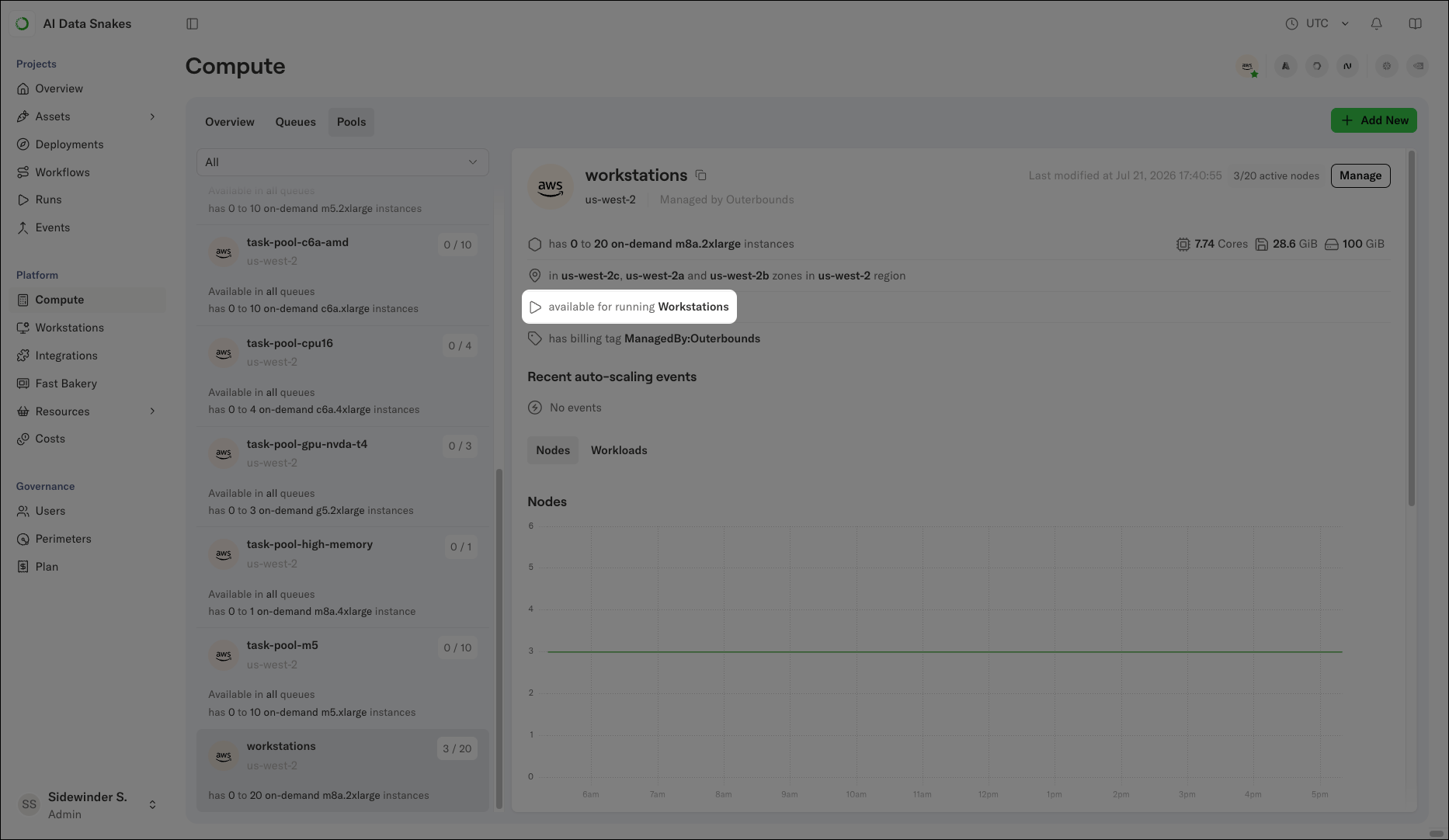
Can I configure a default IAM role or GCP service account for my workstation?
Can I configure a default IAM role or GCP service account for my workstation?
Working on a workstation
Which IDEs can I use with my workstation?
Which IDEs can I use with my workstation?
Can I use Jupyter Notebooks or JupyterLab on my workstation?
Can I use Jupyter Notebooks or JupyterLab on my workstation?
- Connect to your workstation using the platform’s VS Code extension.
-
Install JupyterLab and Jupyter Notebook:
-
Launch Jupyter with
jupyter laborjupyter notebook. Jupyter runs on the workstation’s localhost, and VS Code automatically port-forwards it to your local machine, so you can open it directly in your browser. Leave the workstation’s VS Code window open in the background while you work. - Copy the URL from the command’s output into your browser.
Can I SSH into my workstation?
Can I SSH into my workstation?
openssh-server on the workstation. For issues or longer-term solutions, contact Anaconda Support.How do I set up Git access on my workstation?
How do I set up Git access on my workstation?
gh CLI. Run gh auth login to authenticate with GitHub. When possible, the platform’s VS Code extension forwards your Git credentials to the workstation to minimize setup steps.Can I copy files from my local machine to my workstation?
Can I copy files from my local machine to my workstation?
Can I run a long-running process on my workstation?
Can I run a long-running process on my workstation?
argo-workflows, which offers better reliability. If you need to run the process on your workstation instead, use tmux so the process does not depend on your connection to the workstation.What directories persist across sessions?
What directories persist across sessions?
/home/ob-workspace is the only directory that persists across sessions, hibernations, and restarts.Resources, cost, and lifecycle
What qualifies as activity for auto-hibernation?
What qualifies as activity for auto-hibernation?
- A Python process is running, or
- A file on the workstation changed.
When does a workstation occupy cloud instances?
When does a workstation occupy cloud instances?
Is workstation usage included in cost reports?
Is workstation usage included in cost reports?
How do I check my workstation's CPU and memory usage?
How do I check my workstation's CPU and memory usage?
Are workstation actions audited?
Are workstation actions audited?