

This guide assumes you have read Structuring projects, which explains how Metaflow packages your code automatically.
pytorch or keras and their supporting libraries, using one of the methods described below:
Each method has tradeoffs, and some are better suited for specific scenarios. If you are unsure where to start, declaring your environment’s dependencies in your flow using a decorator is a strong choice. It’s the least work to set up and maintains consistency by default. Move to using an off-the-shelf or custom image when you need system-level control, GPU drivers that must match the node’s NVIDIA driver, or policy enforcement.
Enforceable means an administrator can require all executions to use an approved image through an image allowlist perimeter policy.
- Declare an environment
- Off-the-shelf image
- Custom image
An environment decorator, such as Benefits to declaring an environment in your flow:
@anaconda_base, declares the Python version and packages your flow needs to run, including where those packages are sourced. Supply the environment declaration directly in your flow’s code:Example environment declaration
- You can run the flow in different environments without needing to change the dependencies or the code:
- Anyone can define or change the libraries they need without writing a
Dockerfileor building images by hand. - Teams can maintain any number of project-specific environments without coordinating image upgrades across projects.
- Developers can work in consistent environments on workstations or laptops without running Docker locally.
- The environment is built at run time from your declared dependencies, so if your organization requires all executions to use an approved image, use one of the image-based approaches instead.
Managing dependencies for a workflow
The following example shows all three approaches using one flow using a PyTorch benchmark flow. TheTorchTestFlow benchmark test squares a large tensor repeatedly and measures throughput. It resembles a realistic project that uses pytorch, optionally running on GPUs that require CUDA drivers.
Running the benchmark with a declared environment
The CPU version of the benchmark declares its environment with@anaconda_base. Save the following as torchtest.py:
- Run locally
- Run in the cloud
Running on a GPU with an off-the-shelf image
GPU tasks need the CUDA driver stack, which belongs in the container image rather than the declared environment. The libraries are large, and they must match the NVIDIA driver on the GPU node. For GPU workloads, use a prebuilt image that includespytorch and CUDA, such as the AWS deep learning containers.
Do I have GPUs in my cluster?Check the availability of GPU instances in your cluster as follows:
- Select Compute in the left-hand navigation.
- Click Pools.
-
Find a compute pool that displays
Has Access to GPUs.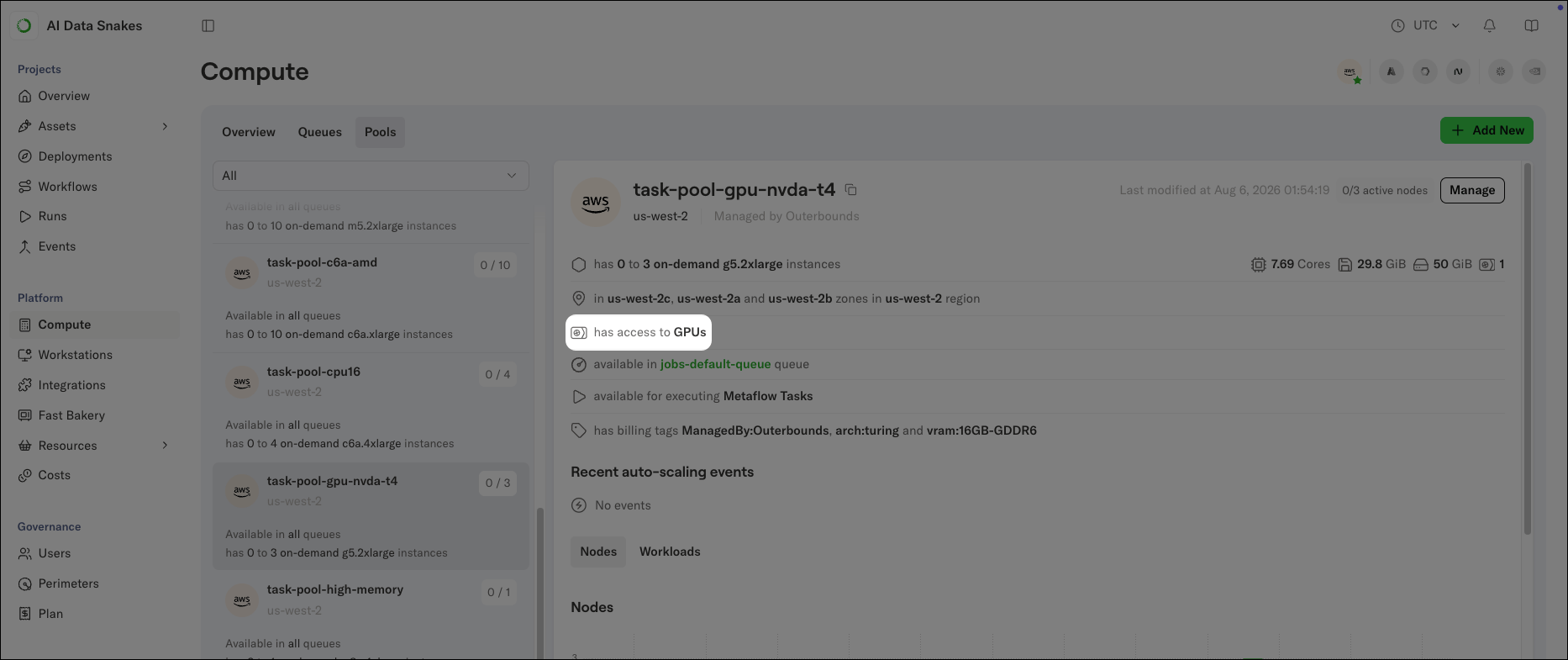
torchtest-gpu.py:
torchtest.py in two ways. First, it adds two decorators to the start step, highlighted above. @resources(gpu=1) requests a GPU, and @gpu_profile() shows a real-time GPU utilization card while the task runs. Second, it omits @anaconda_base, so the task uses the image’s packages instead of building a declared environment.
Run it with the prebuilt image:
Developing on a workstation with a custom image
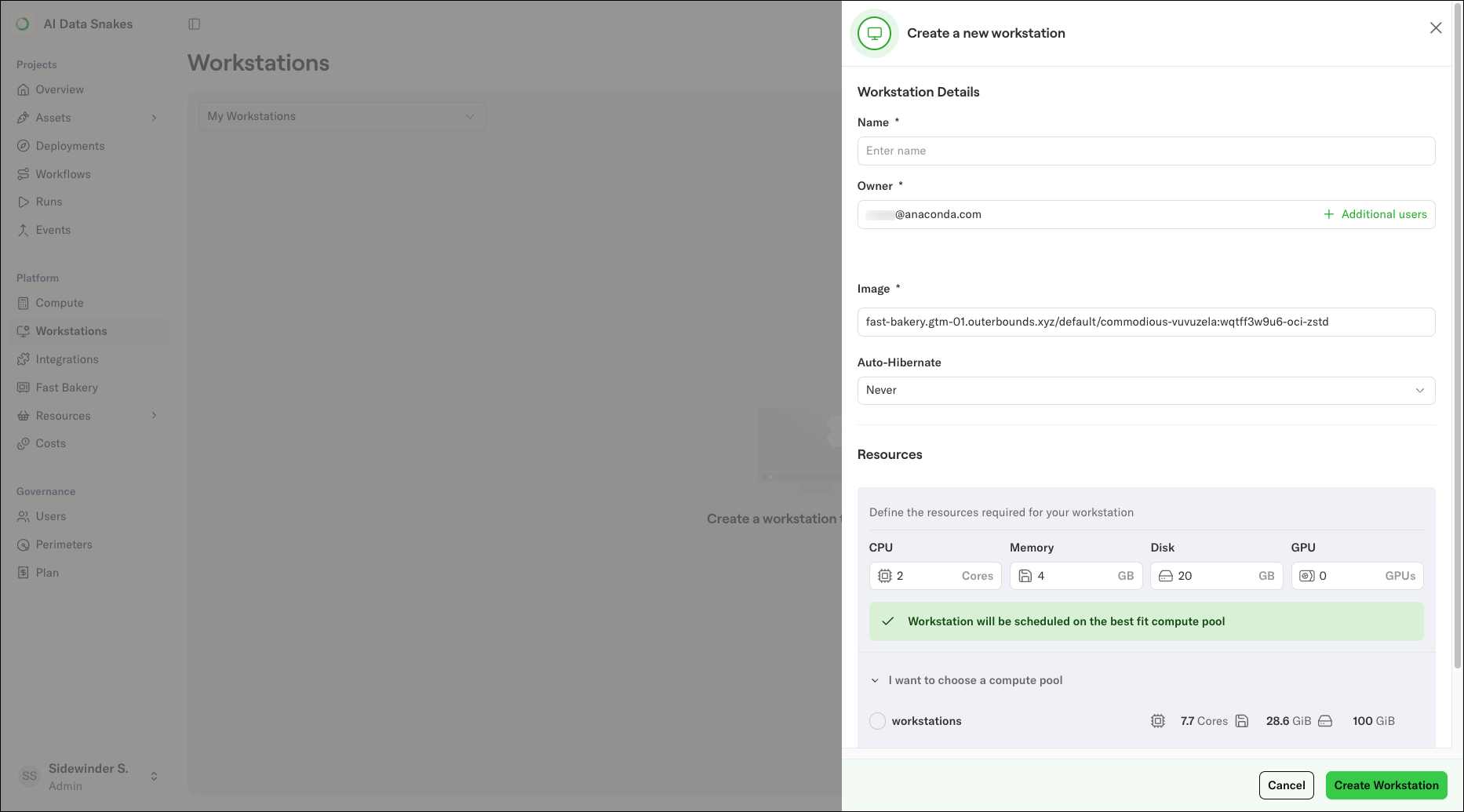
Workstations accept custom images as well, so you can develop in the same environment your cloud tasks run in.-
When creating the workstation, replace the prefilled value in the Image field with the following:
The URI can point to any publicly available image, or to an image in a private registry such as Amazon ECR, provided the registry is in the same cloud account as the platform deployment.
-
Once the workstation is running, run the flow on cloud compute:
The platform uses the workstation’s image for the cloud execution by default, so you do not need to specify the image on the command line. Code that runs on the workstation runs in the cloud with the same dependencies.To override this behavior and use a different image for a run, pass the image explicitly: