

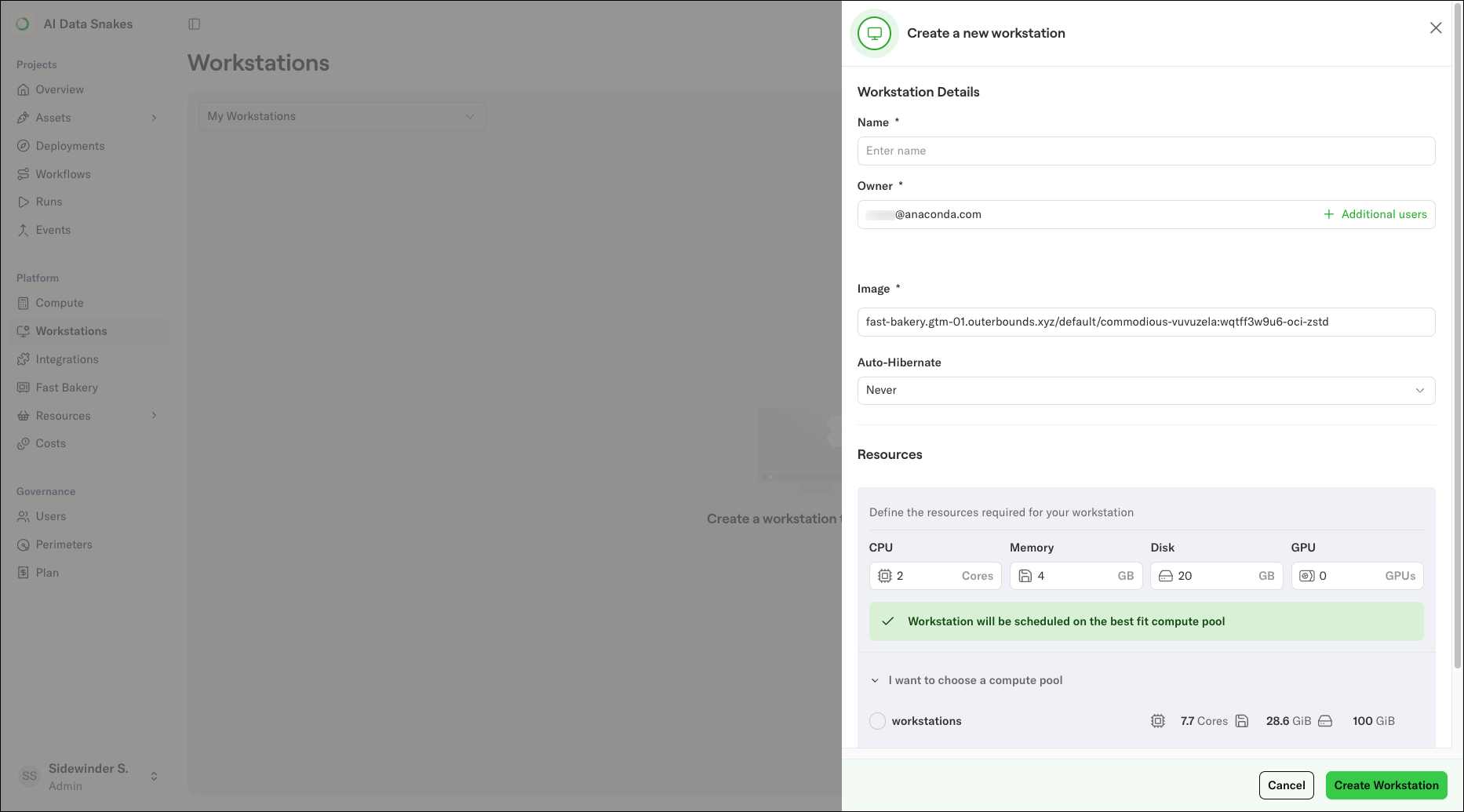
- Name: A name for the workstation, useful for telling multiple workstations apart.
- Owner: The user the workstation is assigned to. The user must have been invited to the platform first.
- Image: The container image backing the workstation. For dependency options, see Managing dependencies.
- Auto-hibernate: When the workstation shuts down automatically after a period of inactivity.
- Resources: The CPU, memory, disk, and GPU allocated to the workstation. If no compute pool in your cluster can satisfy the requirements you enter, the dialog warns you before it creates the workstation.
- Shared memory: The size of the workstation’s
/dev/shmin-memory filesystem. Increase this for libraries that use shared memory heavily, such as multi-worker PyTorch data loading.
Workstation lifecycle
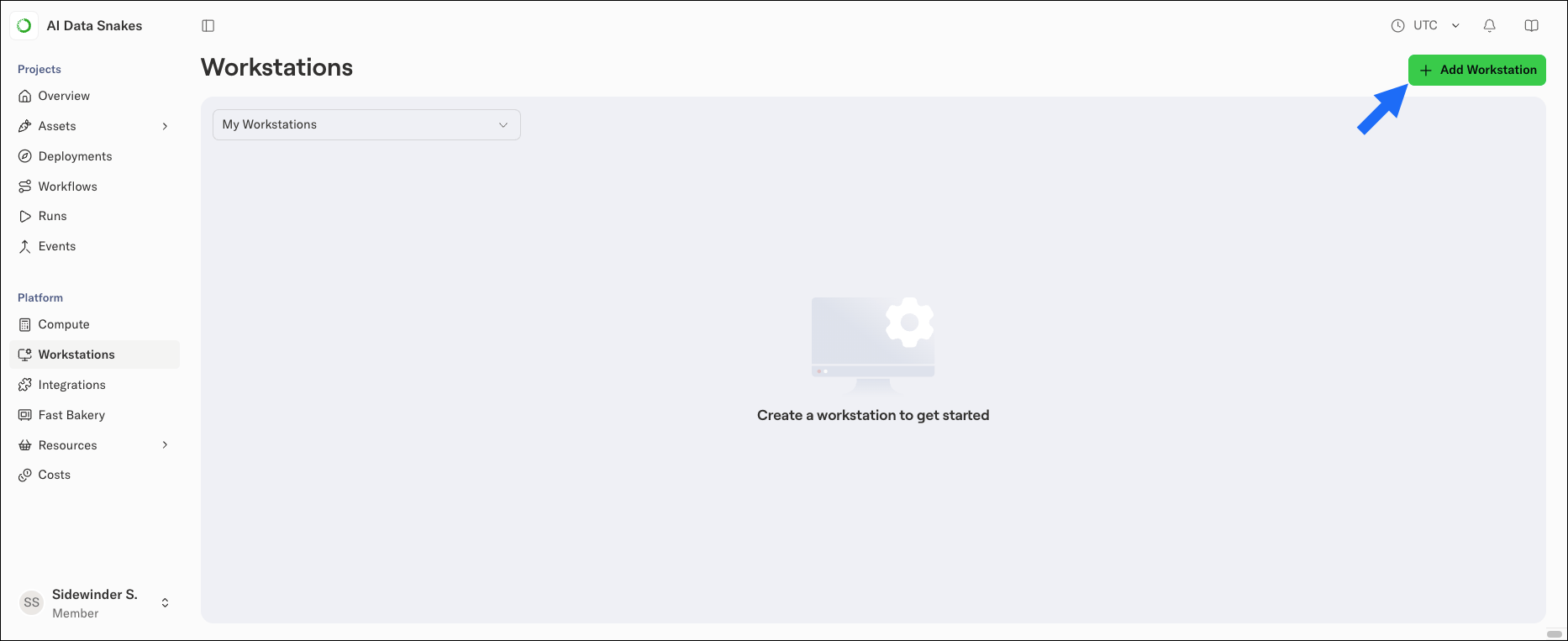
On the Workstations page, you can see a list of provisioned workstations. The Status indicator shows the state of each workstation:- Green: The workstation is active and ready to use.
- Spinner: The workstation is starting or stopping.
- Gray: The workstation has been hibernated (shut down) and is not consuming resources. An admin or the owner restarts it manually to make it active again.
Connecting and working
For instructions on connecting to a workstation, see Connecting to a cloud workstation.A workstation is not meant for long-term persistent data storage. Push your code to a repository regularly, and avoid relying on datasets that exist only on a workstation.