

outerbounds/ob-project-starter
Loading repository data...
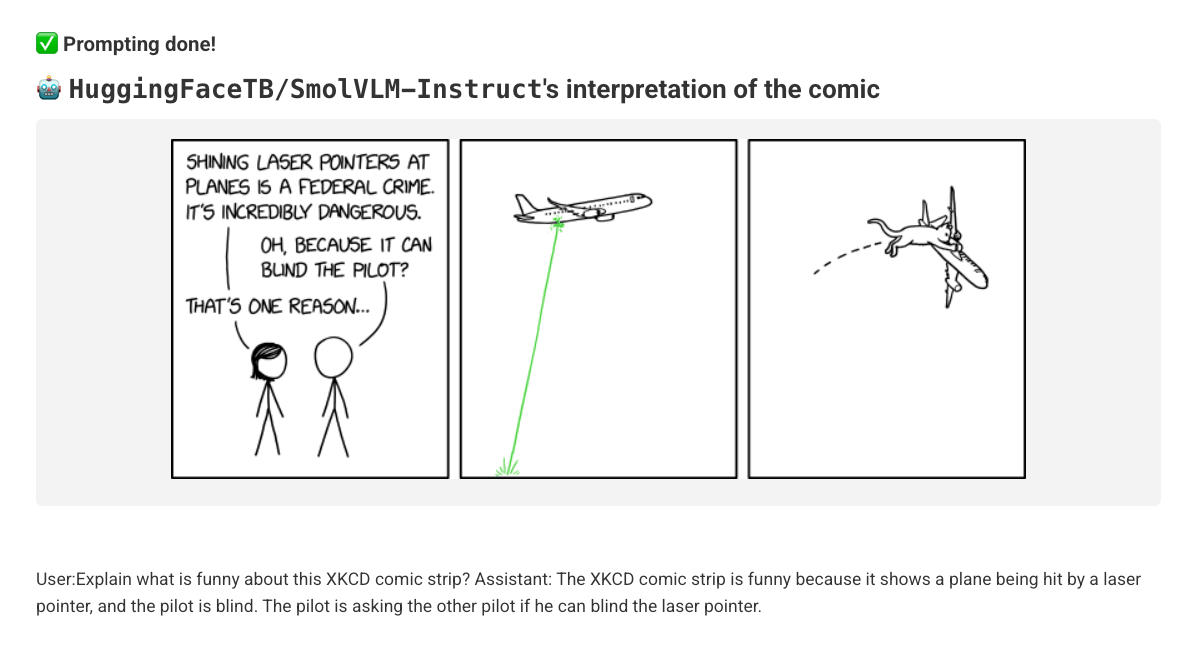
Deploying the example
Deploy the project following the steps in Setting up a new project:-
Clone the repository:
-
Change
platforminobproject.tomlto match your platform URL. - Create a corresponding CI/CD machine user, as described in Programmatic access with machine users.
- Open a pull request and make a commit to trigger a project update.
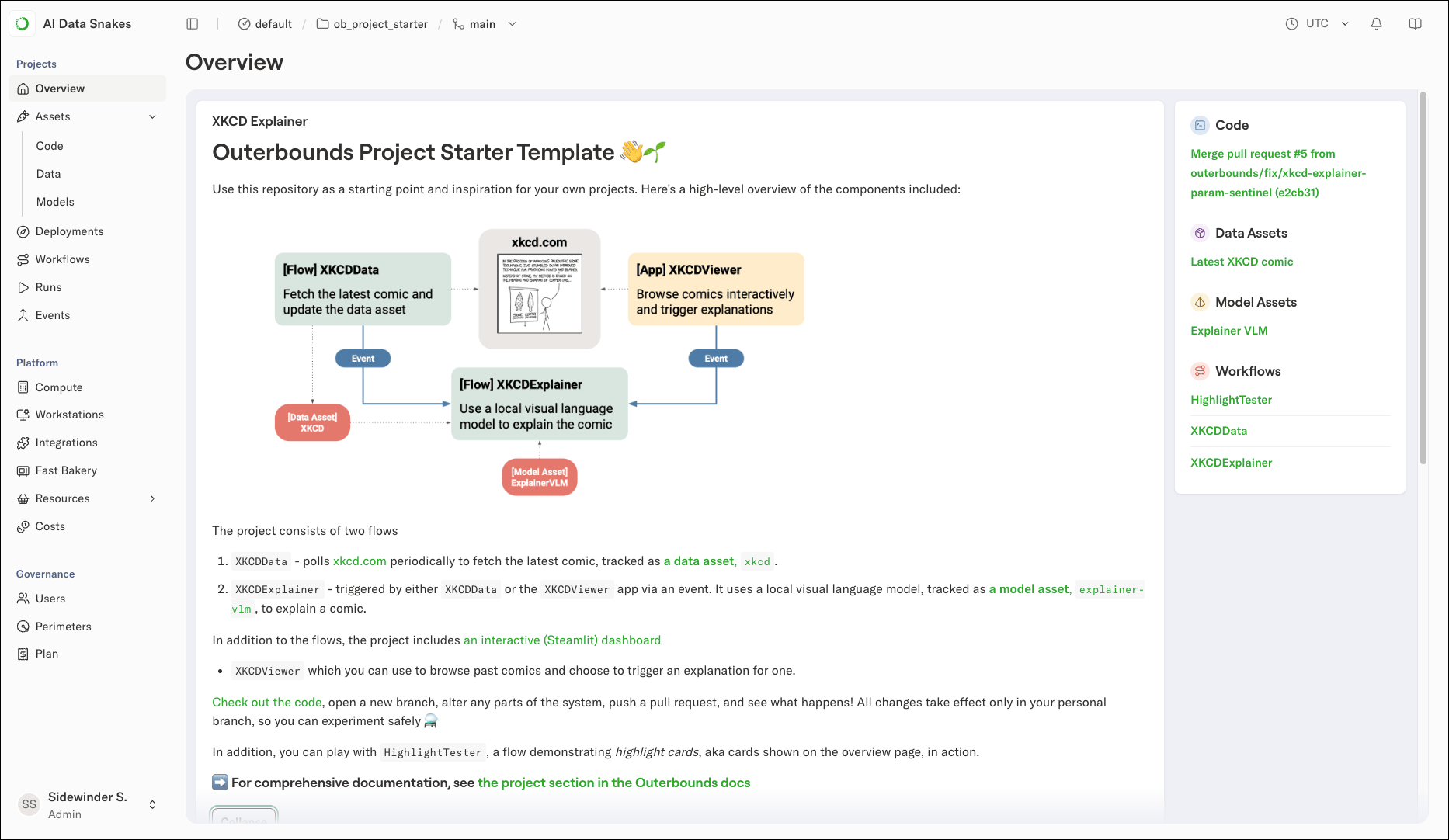
Testing highlight cards
The full explanation pipeline takes several minutes per comic. Before getting to XKCD, run a faster flow to confirm the project deployed correctly and to see how highlight cards work:- Select the project in the context picker.
- Navigate to Workflows and select
HighlightTester. - Click Actions, then click Trigger a run. The
stylefield is pre-filled withanimals; leave it as-is or enter another style (nyan,image,small_square,tall_image,wide_image,revenue,busy). - Click Trigger.
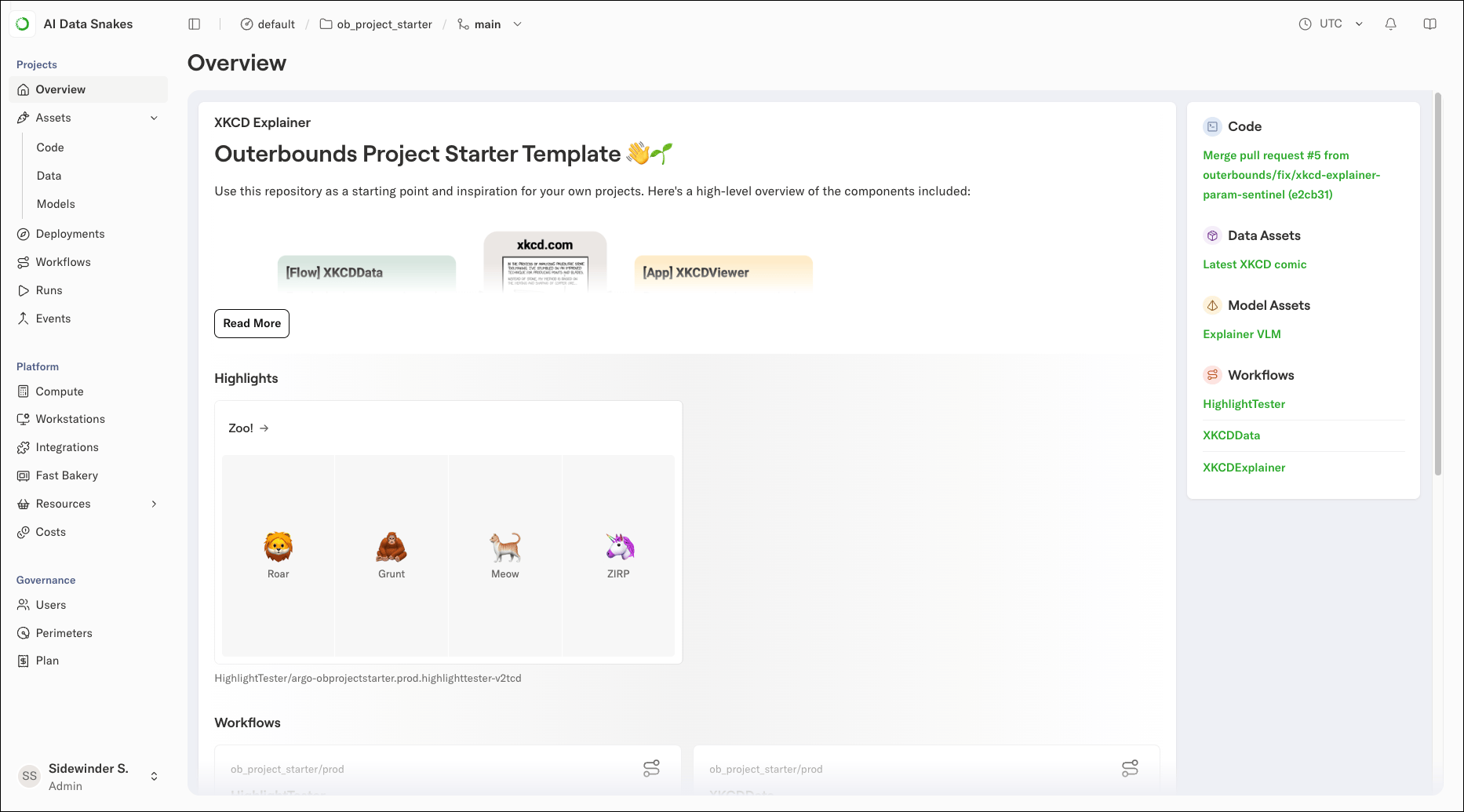
HighlightTester to learn how you can render highlights of different styles for your own projects.
View a comic and trigger an explanation
The project includes a deployed app,xkcd-viewer: a Streamlit app that lets you browse past XKCD comics and trigger an explanation for any of them.
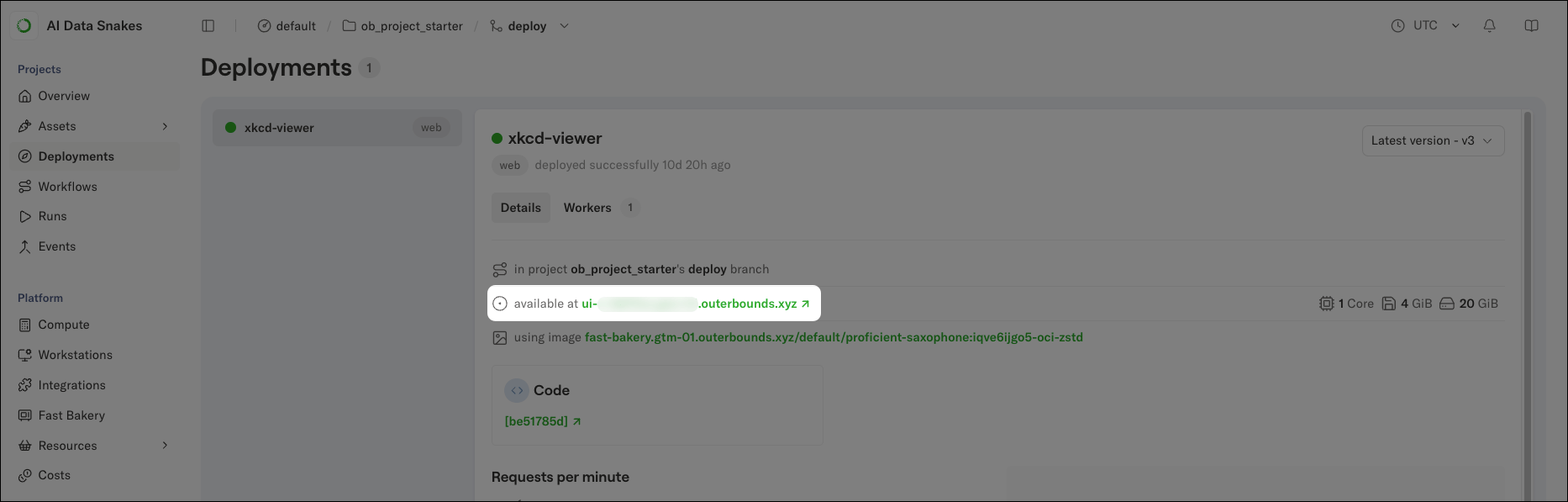
- Navigate to Deployments to see the deployed app:
-
On the deployment’s card, click the URL shown under the deployment name to open the viewer in a new tab.
-
In the viewer, browse to a comic and click Trigger analysis. This triggers a run of the
XKCDExplainerflow. - Navigate to Workflows → XKCDExplainer to watch the run start, and follow its progress through logs and the run card.
asset_config.toml, which keeps it decoupled from the code and explicitly visible, an important property for evaluation. In real AI projects, teams often iterate across multiple models, which makes tracking their performance crucial.
Trigger a data asset update
TheXKCDData flow fetches the latest comic daily at midnight and creates the xkcd data asset. Until it runs, the Data view shows only an empty asset. You can trigger an update manually instead of waiting:
- Navigate to Workflows → XKCDData.
- Click Actions, then click Trigger a run.
- Click Trigger.
- After the run completes, return to the Data view to see the populated
xkcdasset.
XKCDData finds a new comic, it triggers a run of XKCDExplainer automatically. You can observe the explain events facilitating this in the Events view.
Connecting the dots
At this point you have touched all the parts of the system:- The
XKCDDataandXKCDExplainerflows - The
xkcd-viewerapp - The
models,data,code, andeventsthat make the system work
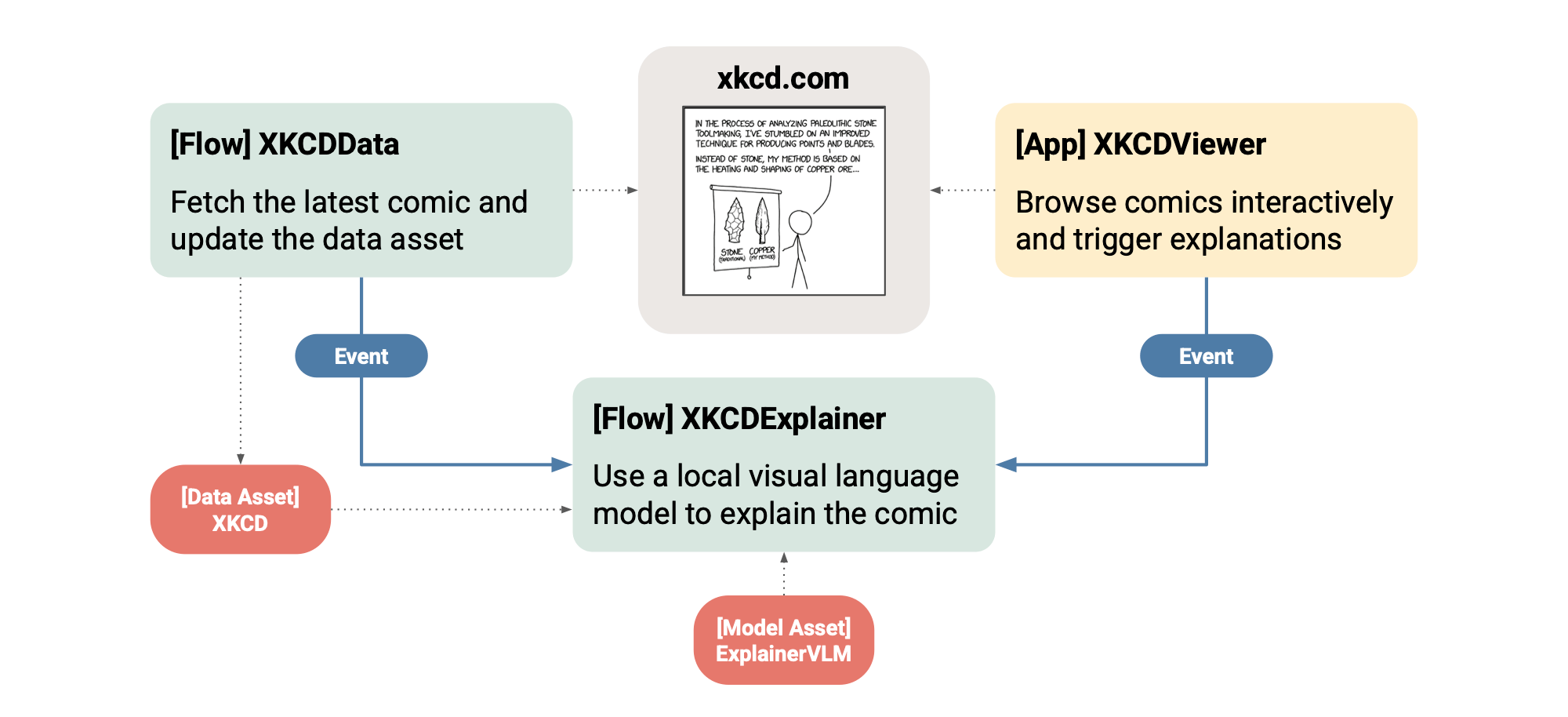
xkcd_utils, to encapsulate logic used across flows and deployments.
Developing and testing locally
A key strength of Metaflow is how easily it supports local development and testing, even when flows demand substantial compute resources. Project flows are no different. For instance, to testXKCDData locally, run the following at the project root:
Local testing takes place in the default project, outside Git branches. Use the context picker to switch to the default project to observe locally started runs.
Using assets during development
By default,XKCDExplainer fetches the latest data asset. During local development, you can configure which branch to read assets from while your writes remain isolated to your user namespace.
In obproject.toml, define:
main while any assets you register go to your Metaflow user branch, such as user.alice, which prevents local experiments from contaminating production data.
Iterate and evaluate
A key benefit of projects is that they let you iterate quickly and safely on every part of a production-grade system: code, data, and models across both offline and online components. For a deeper look at this pattern, see Building standout AI. To see how this works in practice, create a new branch forob-project-starter, change any aspect of the system, test it locally, and open a pull request.
You can then observe your branch alongside the existing version, safely running in its own isolated namespace, and compare the results. Colleagues can do the same at the same time, without interfering with each other’s work.