- Uploading an environment.yml file
- Viewing environment dependencies
- Viewing environment metadata
- Viewing environment vulnerabilities
- Managing an environment
Uploading an environment.yml file
- Create your environment file
-
Click the green dropdown button in the top right corner, and then click Upload File.
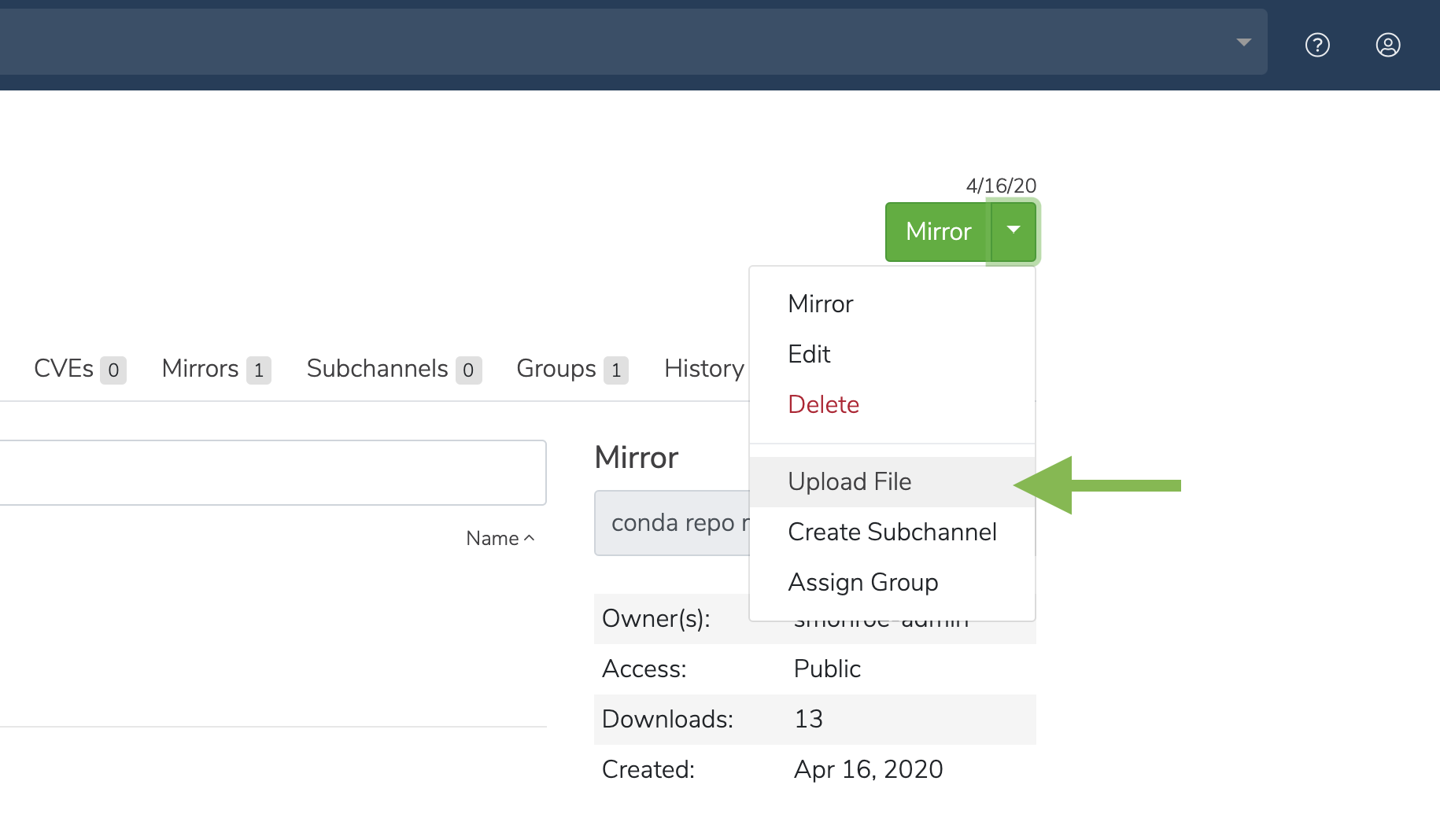
- On the Upload a File screen, select the type of file you’d like to upload from the dropdown.
- Click the Browse button to find your file and add it to the page.
- Click Upload.
Viewing environment dependencies
On the Environments tab, click anywhere on an environment to view its details.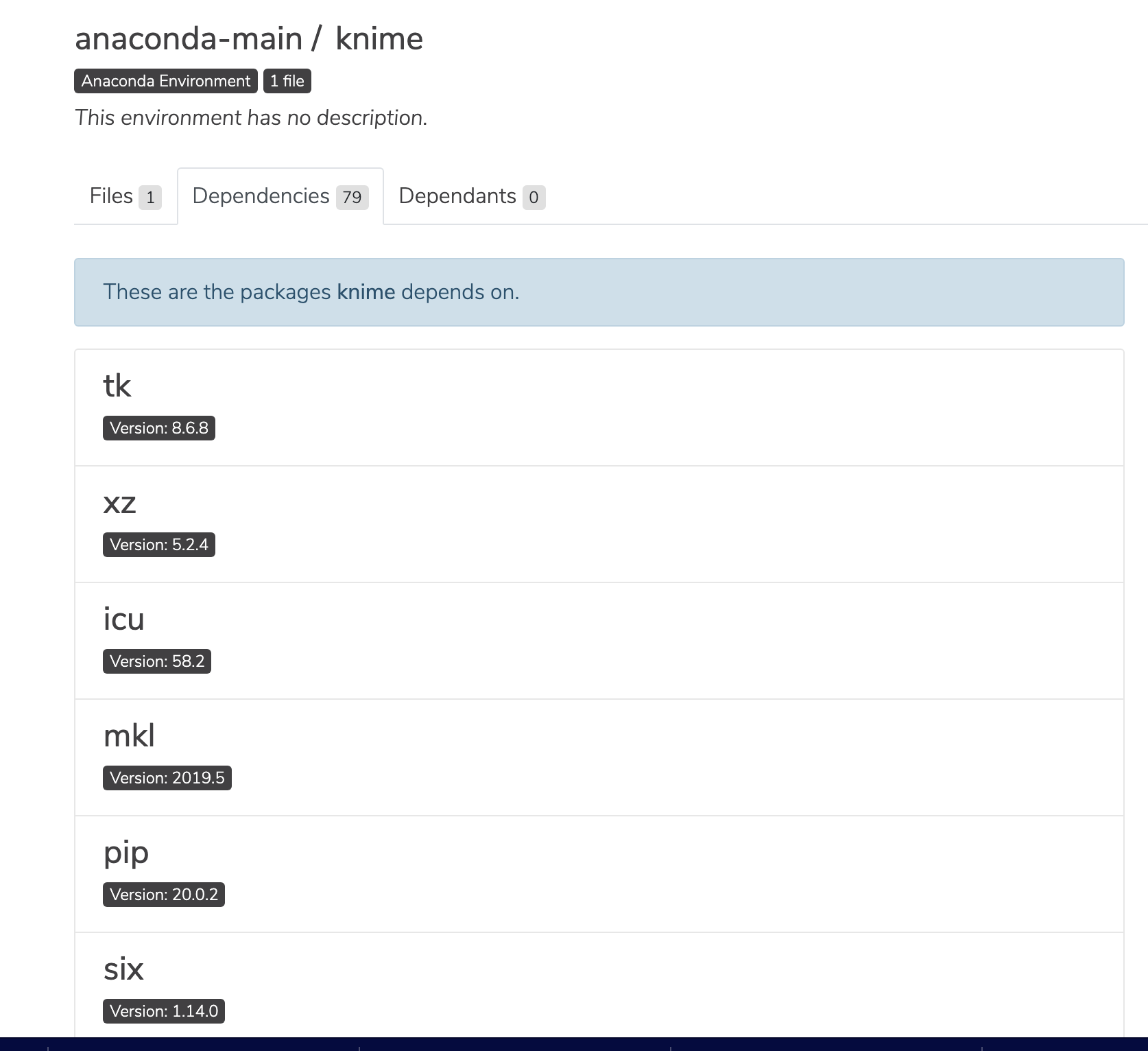
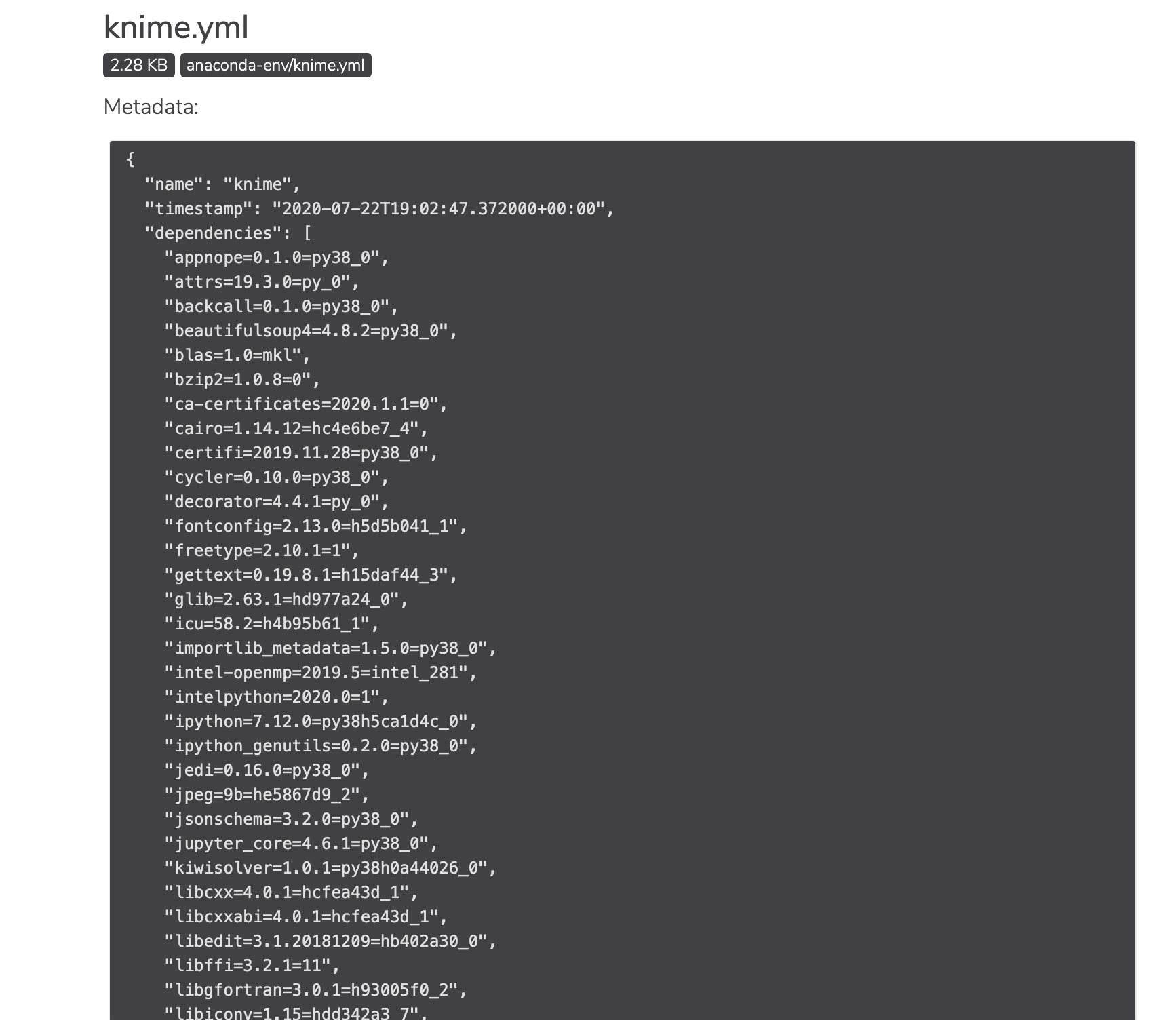
Viewing environment metadata
Click the information icon to view a file’s metadata.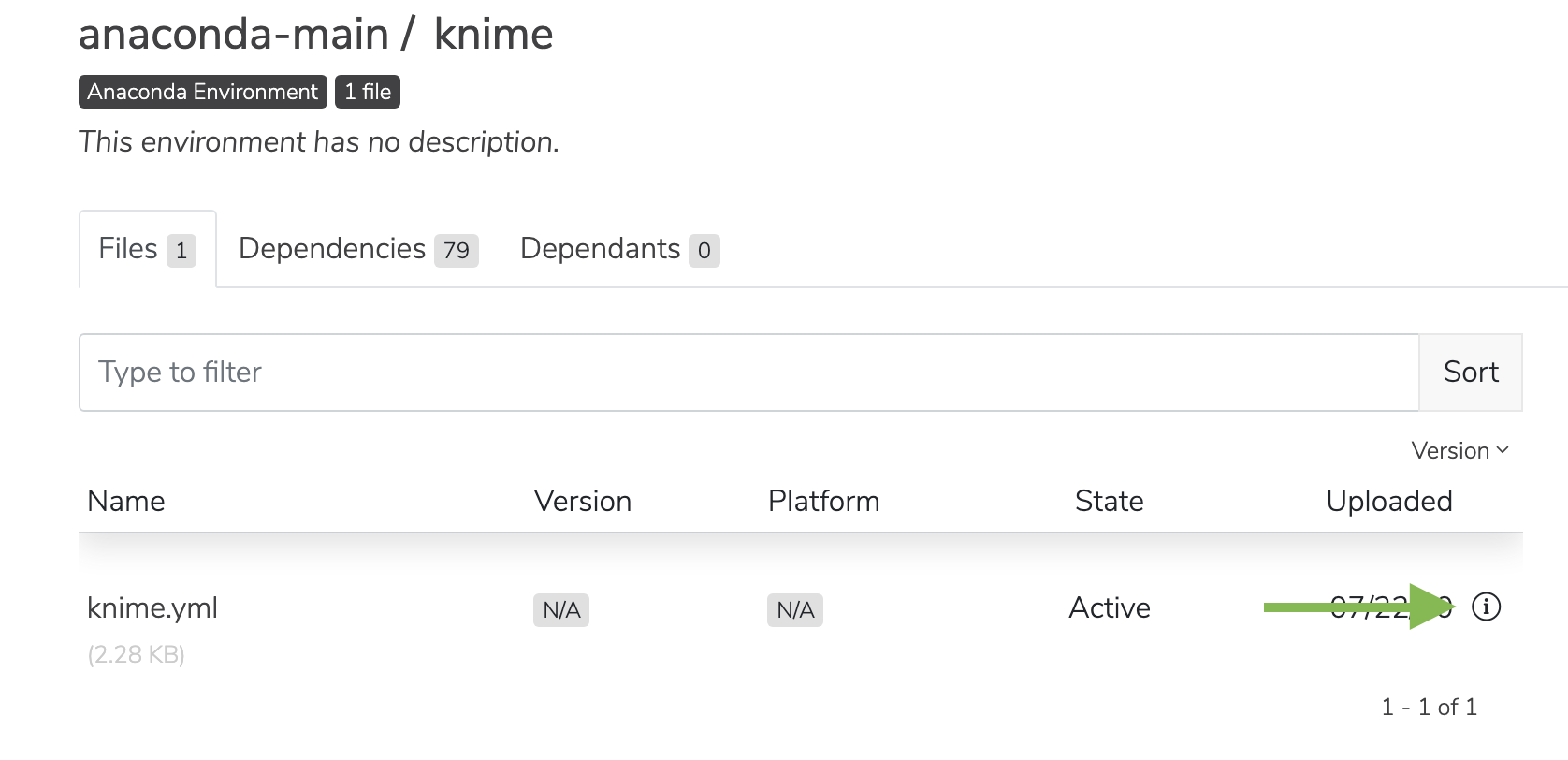
Viewing environment vulnerabilities
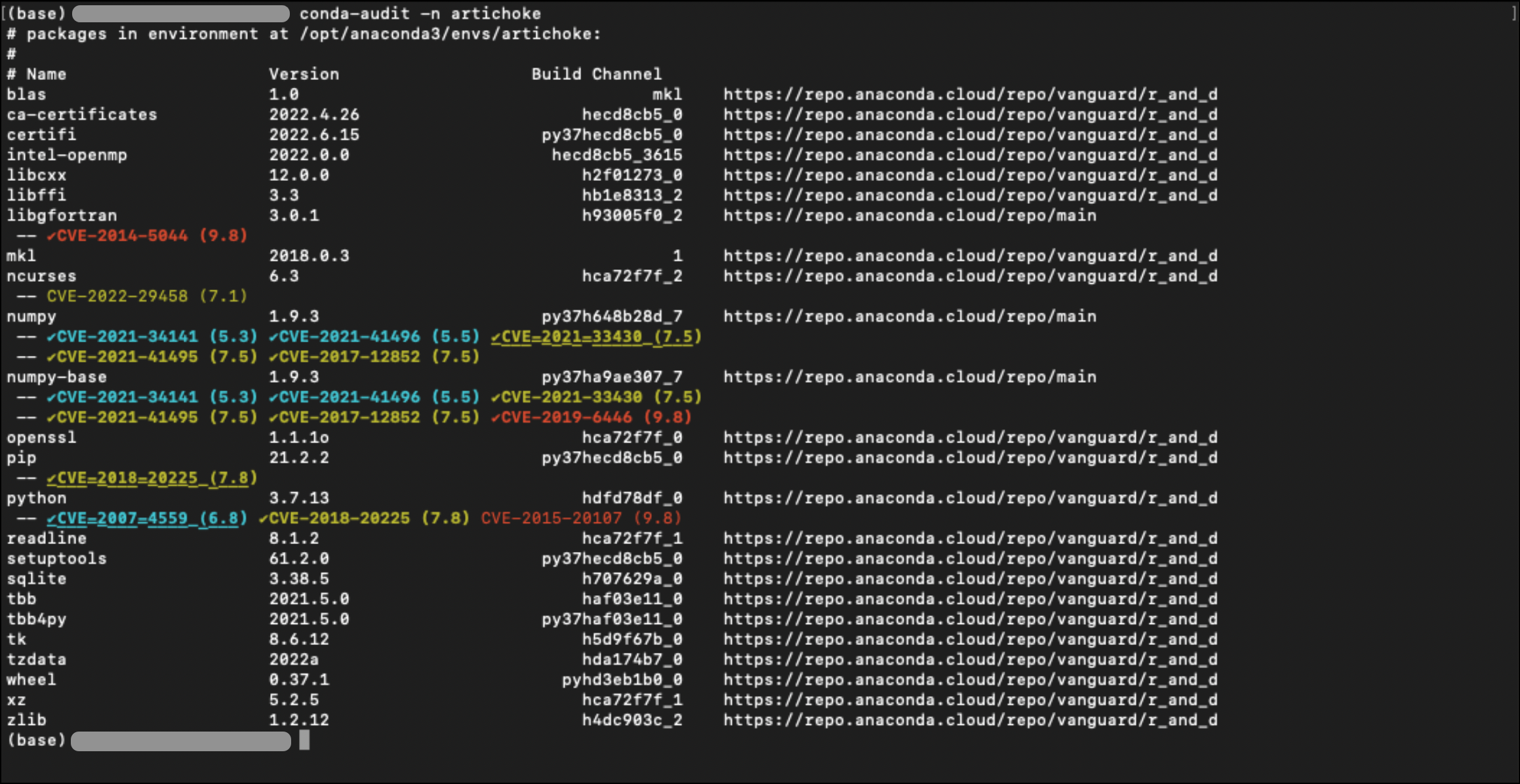
Viewing environment vulnerabilities is an early access feature for administrators only, and currently only operates when used in your base environment. This feature will be expanded and made more accessible in upcoming versions of Anaconda Server.
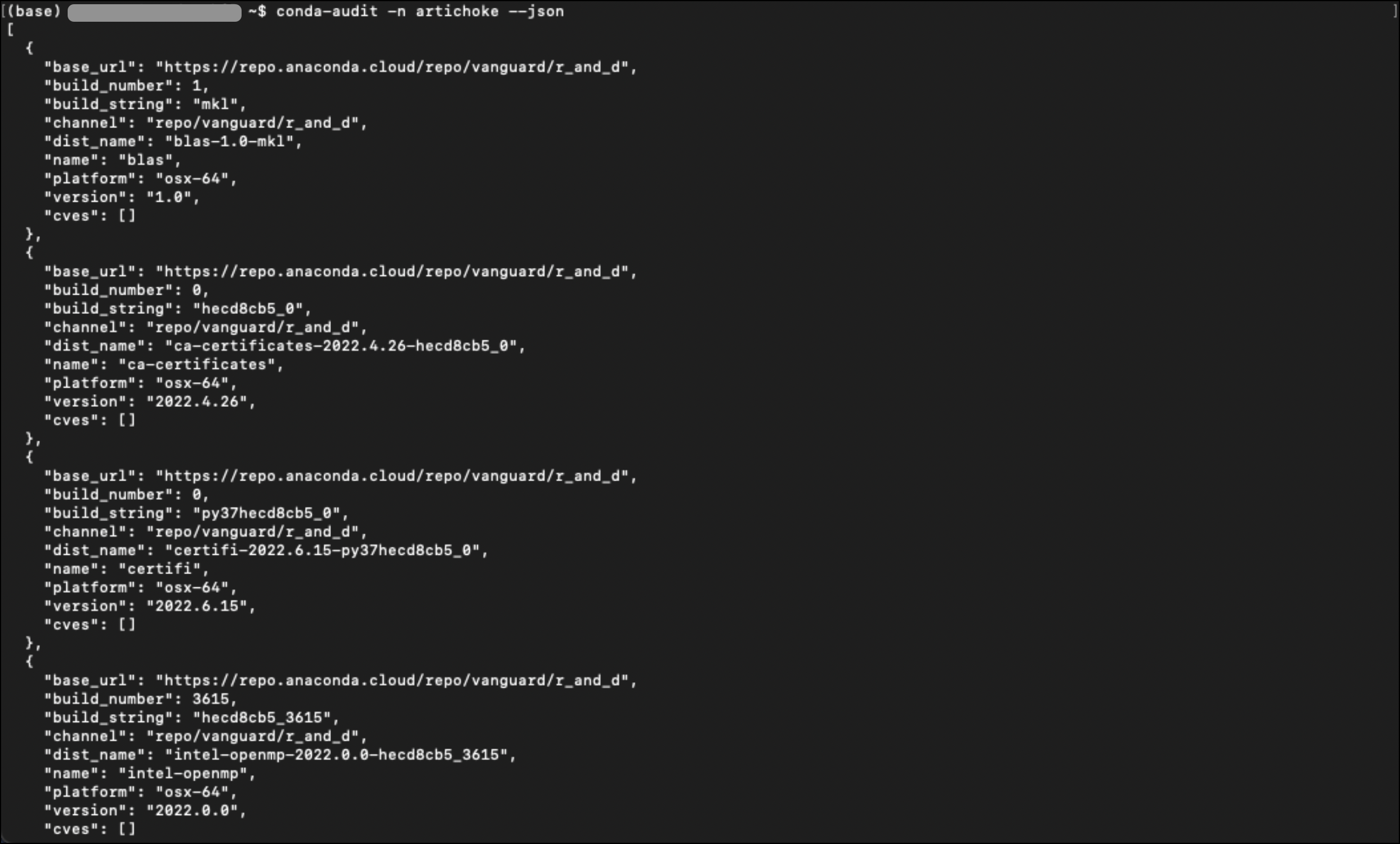
conda-audit to scan your conda environment and show the vulnerabilities associated with your projects.
Open a terminal and activate your base environment.
conda-audit.
Managing an environment
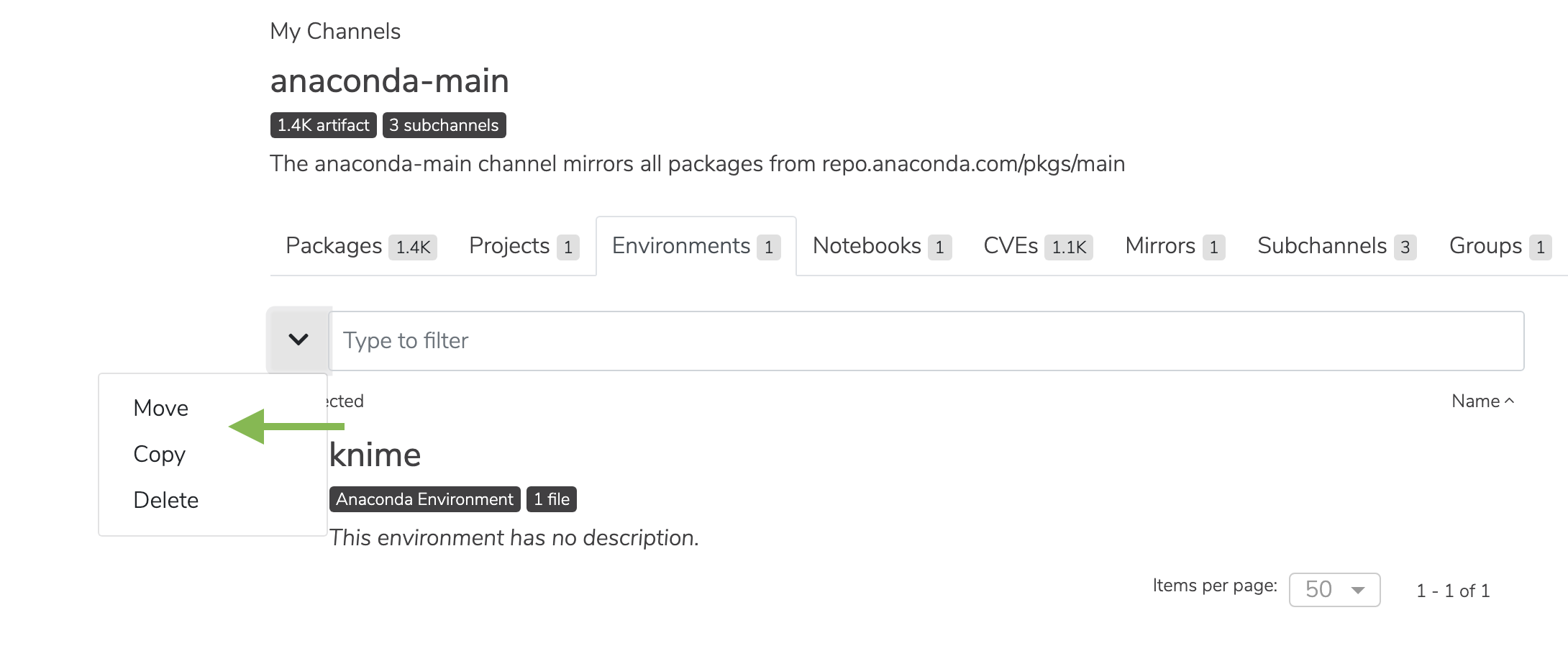
Select the checkbox next to an environment. Then, click the dropdown next to the search bar. You may then move, copy, or delete the environment.