

- Update the Anaconda Enterprise config map with the information required to connect to the external version control repository.
- To run the project migration script, you’ll need Administrator access to a command line tool that can run bash or Python scripts on the master node of the Anaconda Enterprise cluster.
- You’ll also need the Postgres database password, origin Git host token/password, and destination Git host token/password.
Pre-migration setup
-
If you haven’t already done so, install the version of conda provided with the Anaconda Enterprise installer on the master node:
- After conda is finished installing, login to the terminal again.
-
Install git, using the command that’s appropriate for your environment:
On RHEL/CentOS:
yum install gitOn Ubuntu/Debian:apt install git -
Use the following command to create the conda environment:
-
Use the following command to activate the conda environment:
-
Temporarily disable reverse proxy authentication by adding the following key-value pair to the
gitsection (outside of thestoragesection in the config map) of theanaconda-enterprise-anaconda-platform.ymlfile used to configure the platform to use an external version control repository:This should look similar to the following: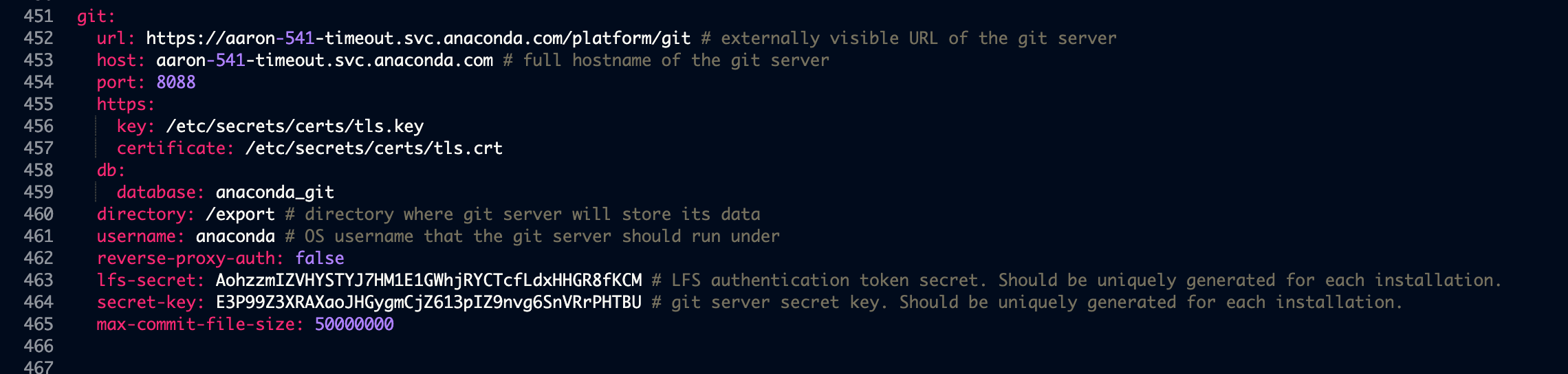
-
Run the following command to restart the associated pod on the master node:
-
Create a user mappings file that maps Anaconda Enterprise user IDs to Git user IDs. This is a colon-separated text file where the first field is the AE user name, and the second field is the corresponding Git user name. For example:
If you intend on migrating to or from a Bitbucket repository, you must use your
Bitbucket account ID instead of your Bitbucket username in the user mappings file.Using the migration tool
If you’ve migrated to https://github.com, whenever a user is added to a project as a collaborator, they’ll be sent an invitation to collaborate via email. They’ll need to accept this invitation to be able to commit changes to the repository associated with the project. This does not apply to Github Enterprise.
migrate_projects.py, found in the AE5 installation tarball. It can be used in the following ways:
Post-migration cleanup
After the script finishes migrating the projects, re-enable reverse proxy authentication by editing the key-value pair you previously added to thegit section of the anaconda-enterprise-anaconda-platform.yml file, so it looks like the following: