Anaconda Platform (Cloud) audit logs are currently available through a limited early access program.
The audit log is a running history of actions taken by users within your Anaconda Platform organization.

Viewing audit logs

To view your audit logs:
  1. Sign in to Anaconda.com.
  2. Navigate to your Organizations page.
  3. Select the organization you want to view audit logs for.
  4. Under User Management, select Audit Logs.
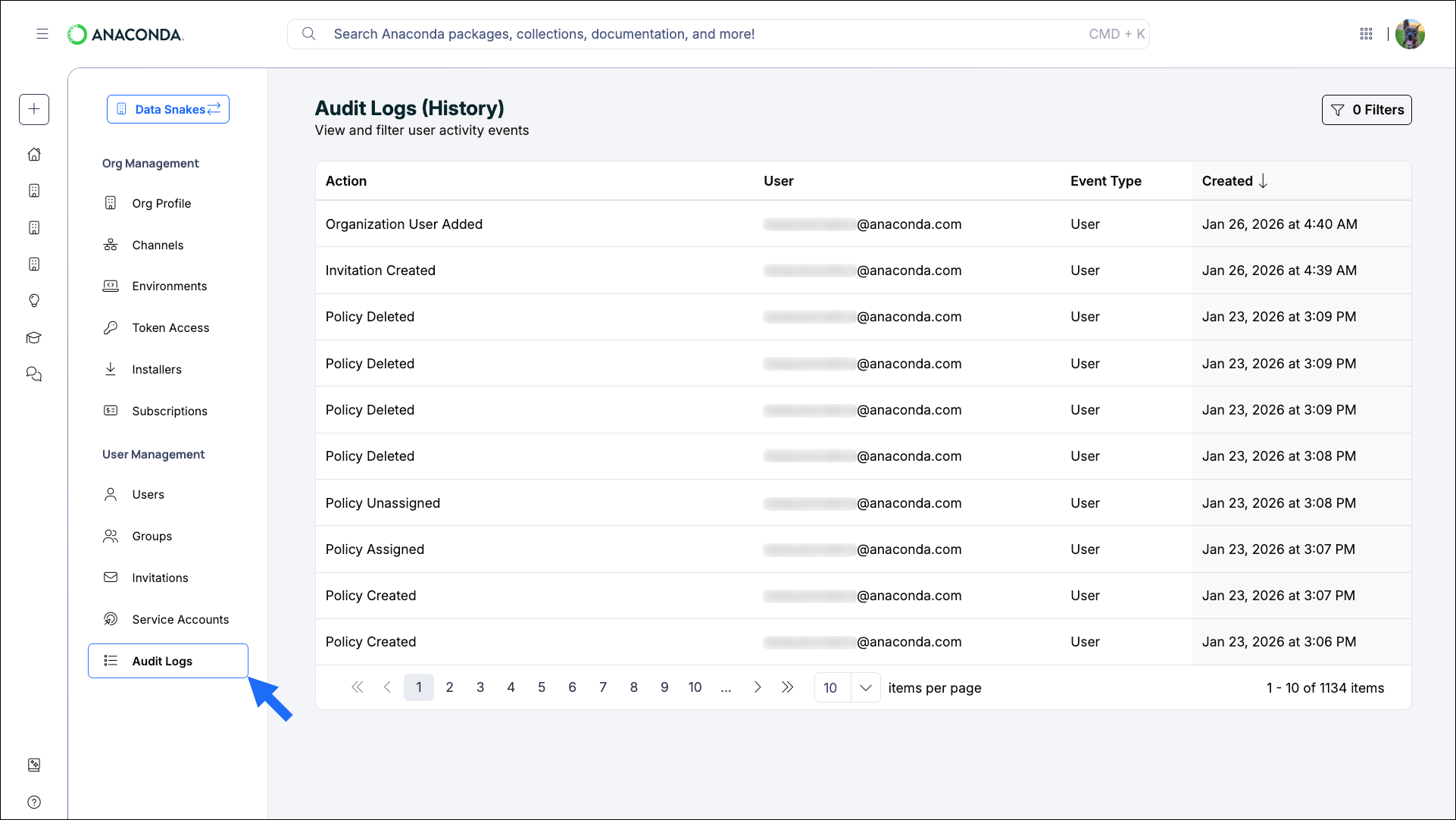
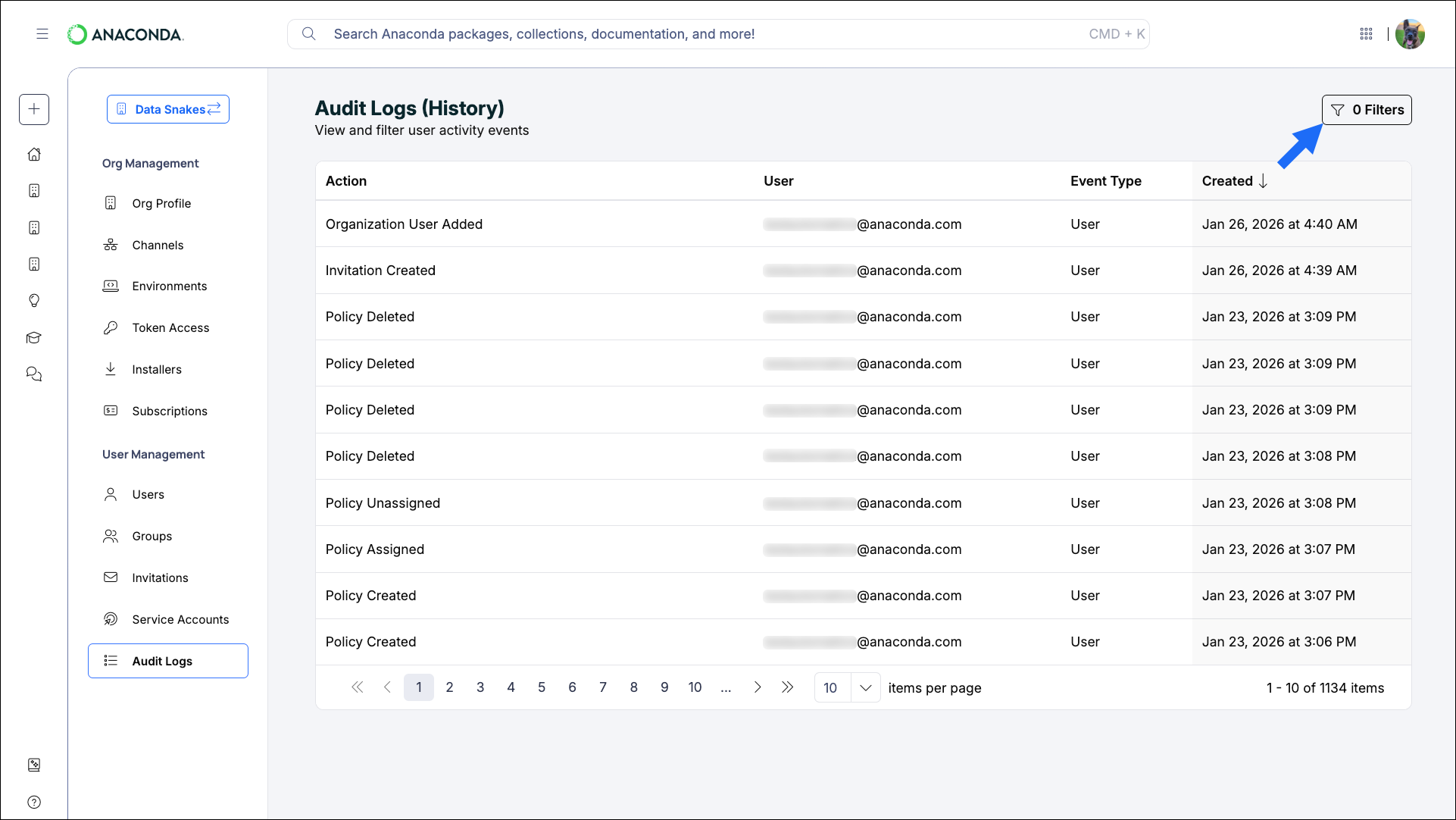
Use the controls at the bottom of the page to navigate between pages of events and change how many items are displayed per page.
Audit log view
  • Audit Log Export Requested
  • Channel Created
  • Channel Deleted
  • Group Assigned To Channel
  • Group Unassigned From Channel
  • Invitation Created
  • Organization Updated
  • Organization User Added
  • Organization User Removed
  • Organization User Updated
  • Authentication Success
  • Policy Assigned
  • Policy Created
  • Policy Deleted
  • Policy Unassigned
  • Policy Updated
  • Product Assigned
  • Product Revoked
  • Service Account Created
  • Service Account Deleted
  • Service Account Updated
  • User Added To Group
  • User Group Created
  • User Group Deleted
  • User Removed From Group
  • Token Created
  • Token Revoked
  • User
  • Created (date range)

Filtering audit logs

Apply filters to the audit logs to view specific actions taken by specific users. Select Filters to open the filters pane.
Audit log filter pane
Add Actions and Users from the dropdowns and limit your view to a specific time range to locate specific events.

Audit log API

The Audit Log API provides programmatic access to audit logs for your Anaconda Platform organization. Use this API to query, filter, and export audit log events for security monitoring, compliance reporting, and operational analysis. Anaconda maintains a Jupyter Notebook that contains helper functions for interacting with the audit log API: