Use this file to discover all available pages before exploring further.
Each project editor session and deployment consumes compute resources within the Workbench cluster. If you need to run applications that require more memory or compute power than Anaconda provides by default, you can create customized resource profiles and configure the number of cores and amount of memory/RAM available for them. You can then allow users to access your customized resource profiles either globally or based on their role, assigned group, or as individual users.For example, if your installation includes nodes with GPUs, you can add a GPU resource profile so users can access the GPUs to accelerate computation within their projects, which is essential for AI/ML model training.Resource profiles that you create are listed for users when they create or deploy a project. You can create as many resource profiles as needed.
Configuring resource profiles via ConfigMap
Configuring resource profiles via Helm chart
Connect to your instance of Workbench.
View a list of your configmaps by running the following command:
kubectl get cm
Edit the anaconda-enterprise-anaconda-platform.yml file.
kubectl edit cm anaconda-enterprise-anaconda-platform
Anaconda recommends making a backup copy of this file before you edit it. Any changes you make will impact how Workbench functions.
Find the resource-profiles: section of the file.
Add any additional resources using the following examples as a template for your resource profiles, then customize them for your environment:
Resource profiles display their description: as their name. Profiles are listed in alphabetical order, after the default profile.
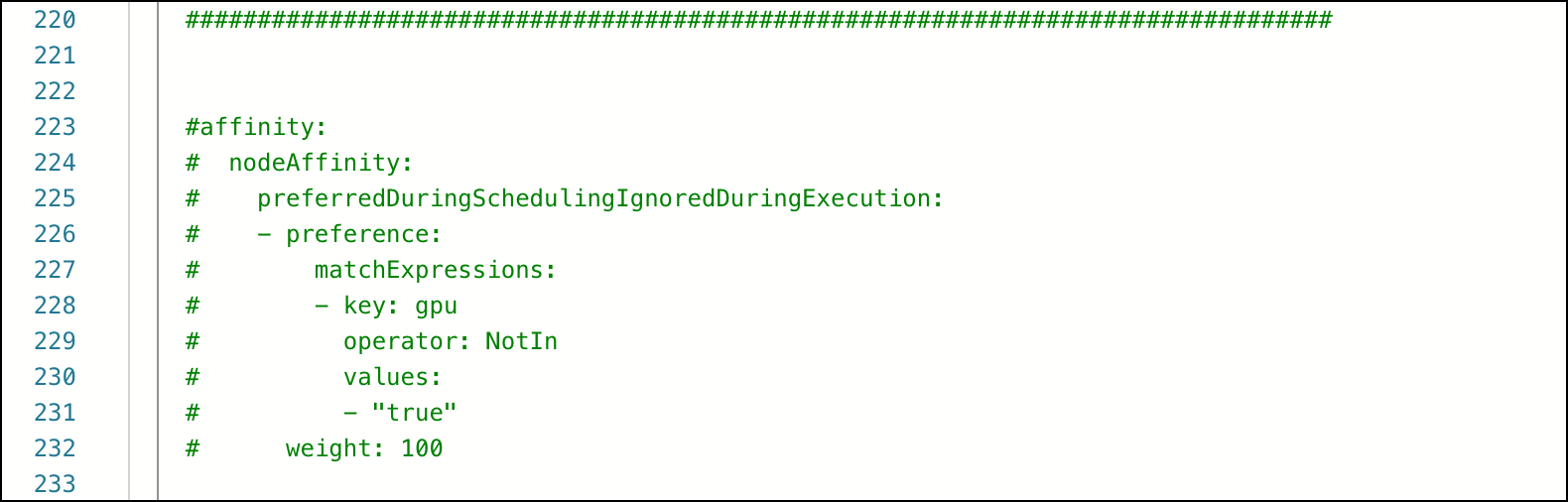
(Optional) By default, CPU sessions and deployments are allowed to run on GPU nodes. To reserve your GPU nodes for sessions and deployments that require them, comment out the affinity: specification in the file as shown:
(Optional) If you need to schedule user workloads on a specific node, add a node_selector to your resource profile. Use node selectors when running different CPU types, such as Intel and AMD; or different GPU types, such as Tesla v100 and p100. To enable a node selector, add node_selector to the bottom of your resource profile, with the model: value matching the label you have applied to your worker node.
Restart the workspace and deploy services by running the following command:
kubectl delete pods -l 'app in (ap-workspace, ap-deploy)'
Anaconda’s Kubernetes Helm chart encapsulates application definitions, dependencies, and configurations into a single values.yaml file. For more information about the Helm chart, see Helm values template.
Connect to your instance of Workbench.
Save your current configurations using the extract_config.sh script by running the following command:
# Replace <NAMESPACE> with the namespace Workbench is installed inNAMESPACE=<NAMESPACE> ./extract_config.sh
The extract_config.sh script creates a file called helm_values.yaml and saves it in the directory where the script was run.
Verify that the information captured in helm_values.yaml file contains your current cluster configuration settings.
Create a new section at the bottom of the helm_values.yaml file and add any additional resources using the following examples as a template for your resource profiles, then customize them for your environment:
Resource profiles display their description: as their name. Profiles are listed in alphabetical order, after the default profile.
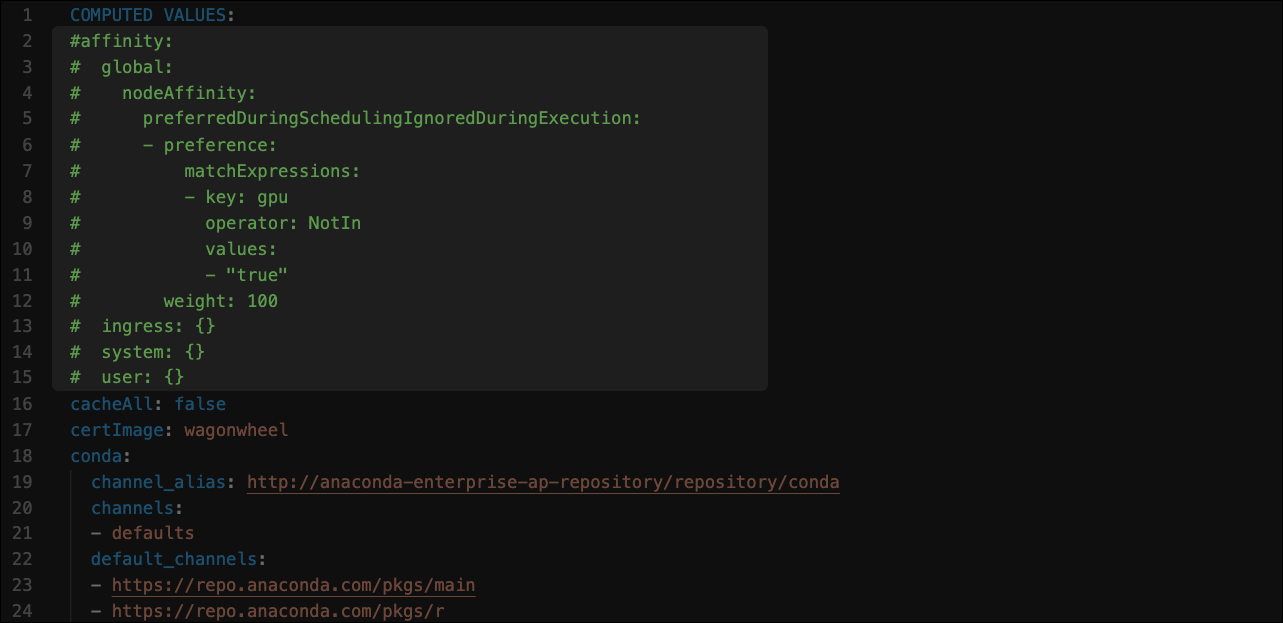
(Optional) By default, CPU sessions and deployments are allowed to run on GPU nodes. To reserve your GPU nodes for sessions and deployments that require them, comment out the affinity: configuration in the file as shown:
(Optional) If you need to schedule user workloads on a specific node, add a node_selector to your resource profile. Use node selectors when running different CPU types, such as Intel and AMD; or different GPU types, such as Tesla v100 and p100. To enable a node selector, add node_selector to the bottom of your resource profile, with the model: value matching the label you have applied to your worker node.