

Where to find Unified Search
Unified Search appears in the top navigation bar after you sign in to anaconda.com/app.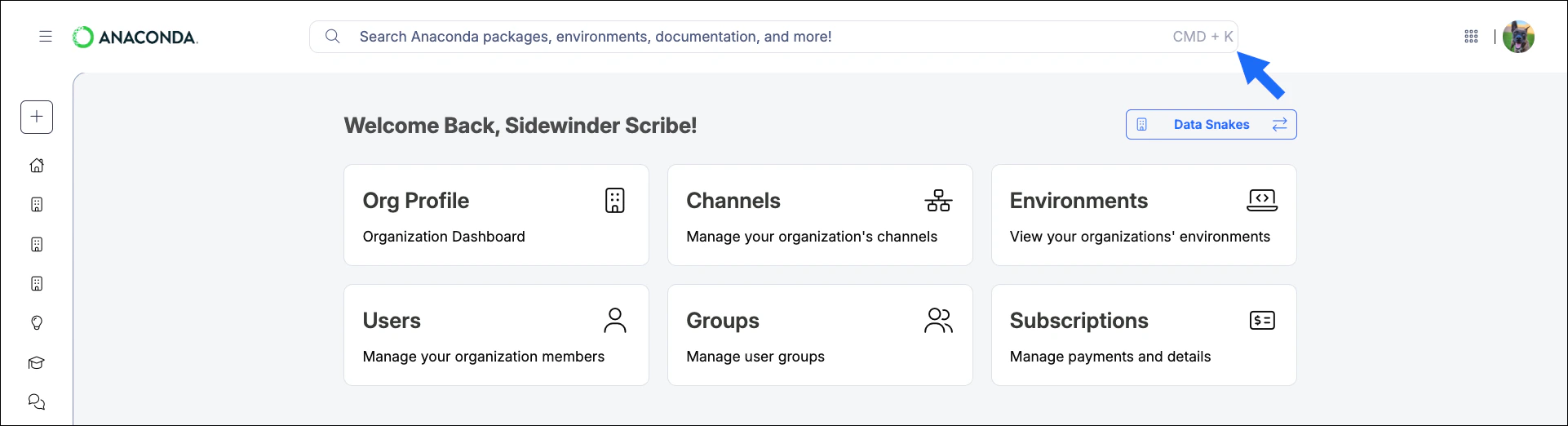
-
Packages from anaconda.com and anaconda.org channels that match the search query.
Packages from trusted Anaconda sources appear first and are sorted by download count.
-
Environments that have been logged with your organization that contain the package you are searching for.
When you search for a CVE ID, results include environments that contain packages affected by that CVE.
- Relevant pages from Anaconda’s official documentation.
- Help topics from Anaconda’s community forum.
- accessible through your Anaconda account.
Filtering search results
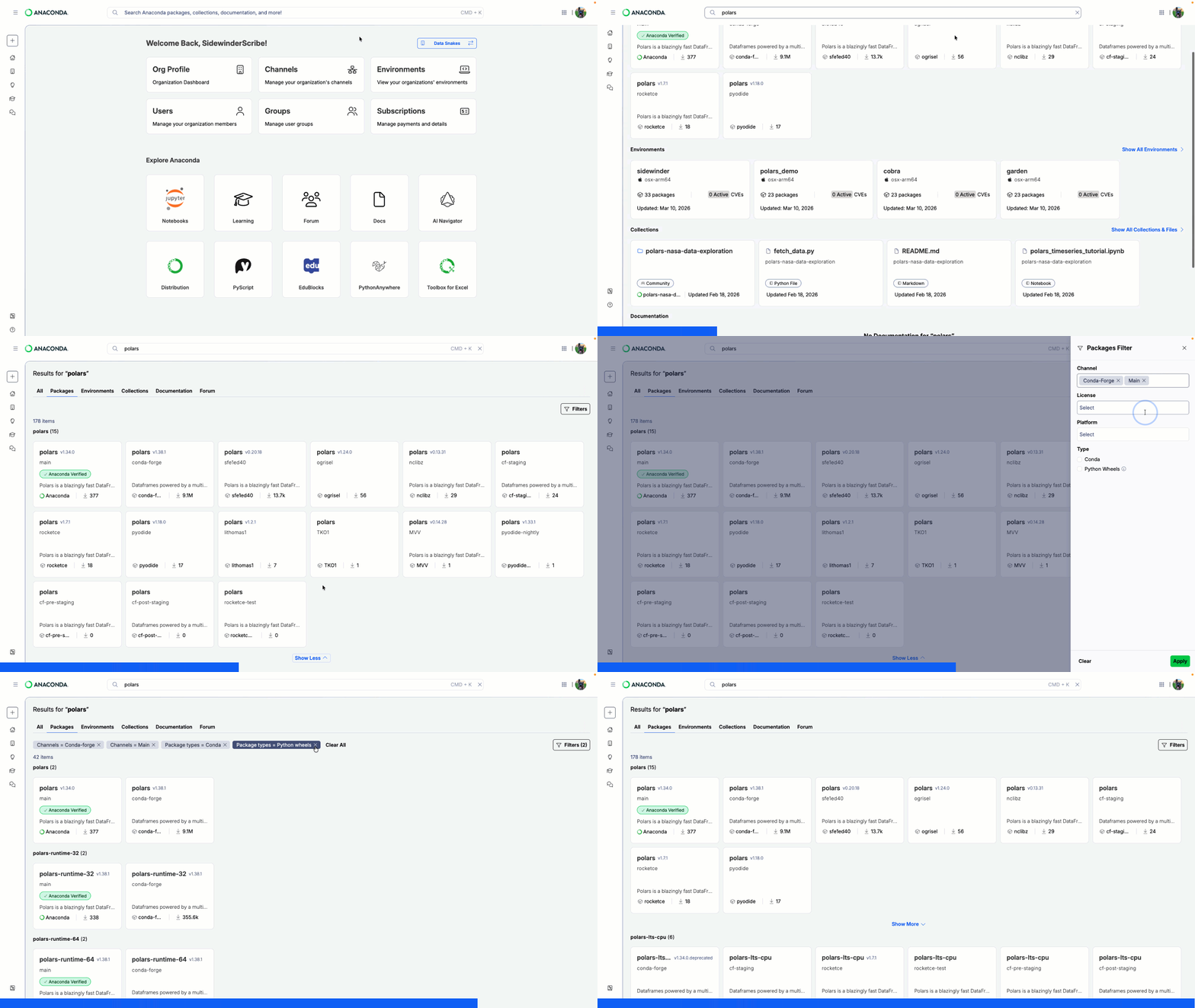
After you have made a search query, you can apply filters to your results to narrow down the list of available options for Packages, Environments, Collections, Documentation topics, and Forum posts.- Perform a search query.
- Select a tab to view just the results from your query for that type of resource.
- Click Filters (#) to open the filter panel.
-
Configure your filters to narrow down the list of returned results.
Available Filters
Packages
Python wheels are standard Python packages distributed as wheels. Wheels work with bothpipanduvpackage managers.Environments
Collections
Documentation
Forum
- Click Apply to update your search results with the filters you have configured.
Clearing filters
Click beside any established filter to remove it, or click Clear All beside the established filters (or from the filter panel) to remove all filters and return to the default search results.Managing collections
Projects that you have created or that are shared with your Anaconda account fromnb.anaconda.com, pyscript.com, and PyExcel (through the Anaconda Toolbox) appear in your search results as collections. You can Rename or Delete a collection using the icons beside the collection in your search results.
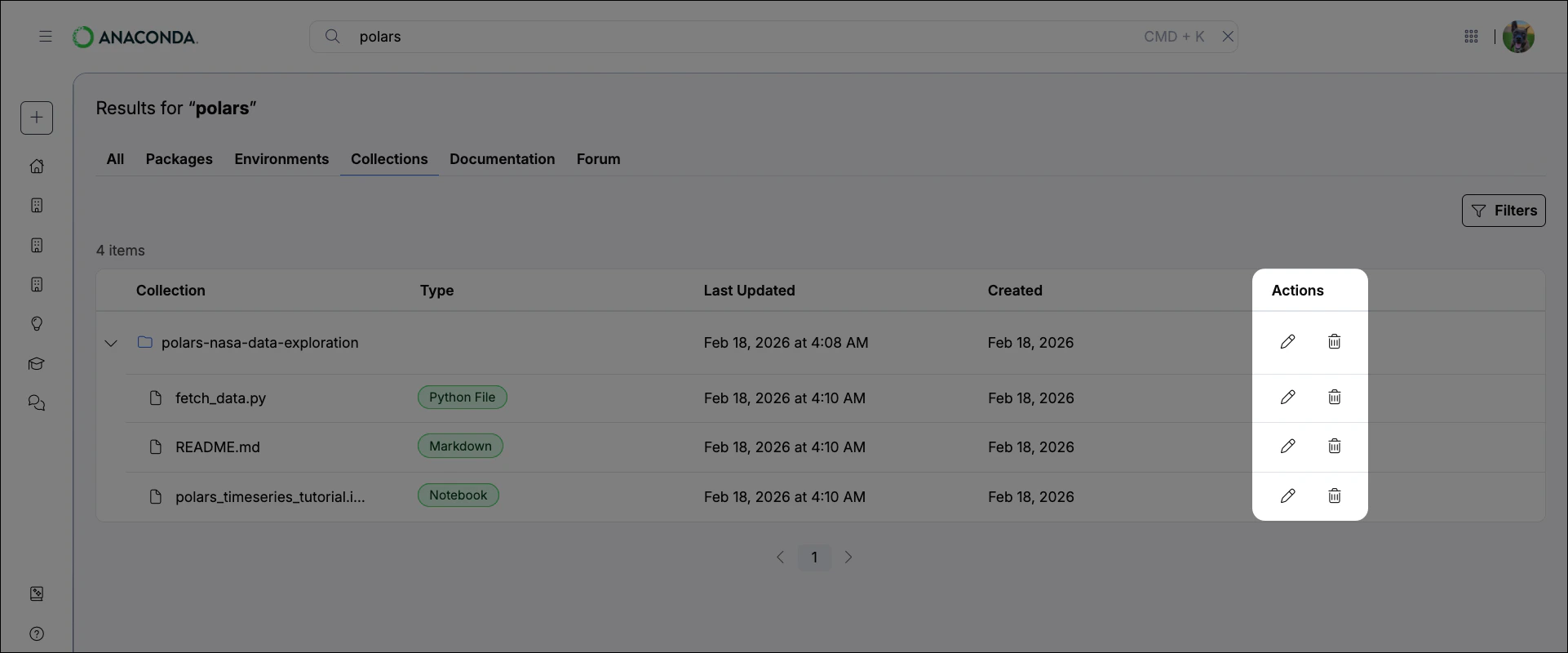
You can only delete or rename collections that you have created.