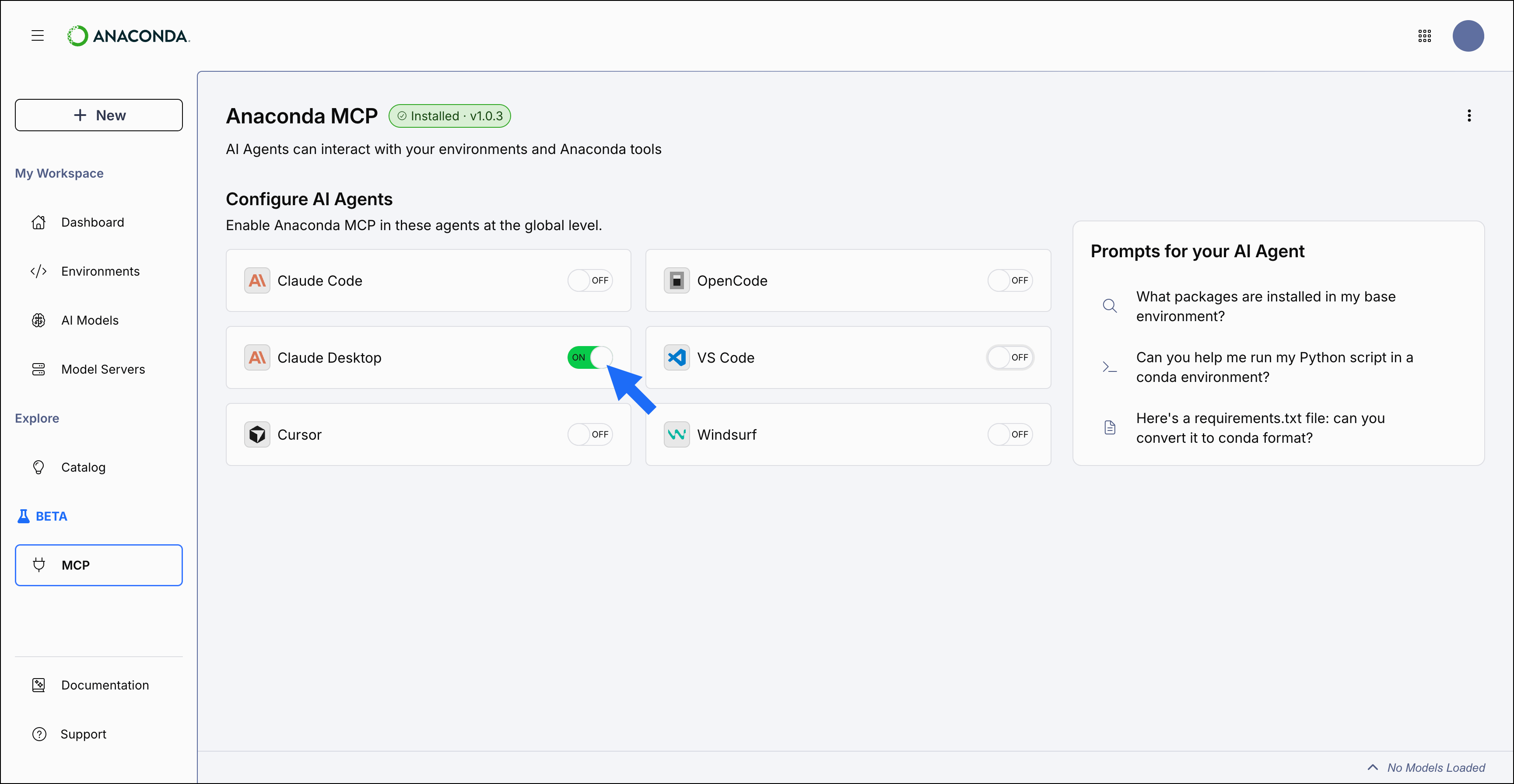
Anaconda MCP Server is a Model Context Protocol (MCP) server that gives AI coding assistants full awareness of your conda environments, packages, and channel configurations.This page covers how to connect Anaconda MCP Server to Claude Desktop, which lets you create environments, install packages, and manage dependencies using natural language all from within Claude Desktop. A built-in setup command automatically configures Claude Desktop for you, so you can get started in minutes.
Anaconda MCP Server integration with Claude Desktop is currently only supported on macOS.
Anaconda MCP Server exposes a set of core conda environment and package management features that cover the most common development workflows and tasks.Currently, Anaconda MCP Server supports the following capabilities:
Installing Anaconda MCP Server and connecting to Claude Desktop
1
Install the Anaconda MCP Server package
Open Terminal.
Create a new conda environment and install Anaconda MCP Server:
Report incorrect code
Copy
Ask AI
conda create --name <ENV_NAME> anaconda-mcp
Activate the environment:
Report incorrect code
Copy
Ask AI
conda activate <ENV_NAME>
When Anaconda MCP Server starts, it will open a browser window to Anaconda’s login page. However, authentication is not required to use Anaconda MCP Server.
2
Connect to Claude Desktop
You can connect to Claude Desktop automatically using the built-in setup command or by editing the configuration file manually.
Connect automatically (recommended)
Manual configuration
Activate the conda environment where you installed Anaconda MCP Server and run:
Report incorrect code
Copy
Ask AI
anaconda-mcp claude-desktop setup-config
If your Claude Desktop configuration file is in a non-standard location, you can specify the path to the configuration file:
The env section of the Claude Desktop configuration supports the following options:By default, Anaconda MCP Server uses the mcp_compose.toml file in the directory where anaconda-mcp was installed. If your configuration file is in a non-standard location or has a custom name, use the --config flag and add the path to the configuration file to the args list:
Anaconda MCP Server is a full-featured MCP server that can be used with any MCP-enabled AI coding assistant; the Claude Desktop integration covered on this page is one way to use it. For full CLI reference documentation, including commands for starting and managing Anaconda MCP Server, composing MCP servers, and configuring client integrations, see the Anaconda MCP Server CLI reference.