

Spyder is an open-source included with Anaconda Distribution that offers advanced editing, interactive testing, debugging, and introspection features. Spyder integrates with popular libraries such as NumPy, SciPy, pandas, and more!Documentation Index
Fetch the complete documentation index at: https://anaconda.com/docs/llms.txt
Use this file to discover all available pages before exploring further.
Installing Spyder
Spyder is included with Anaconda Distribution and can be installed using Navigator. To use Spyder with Miniconda, you must install the Spyder package on the command line.- Command line
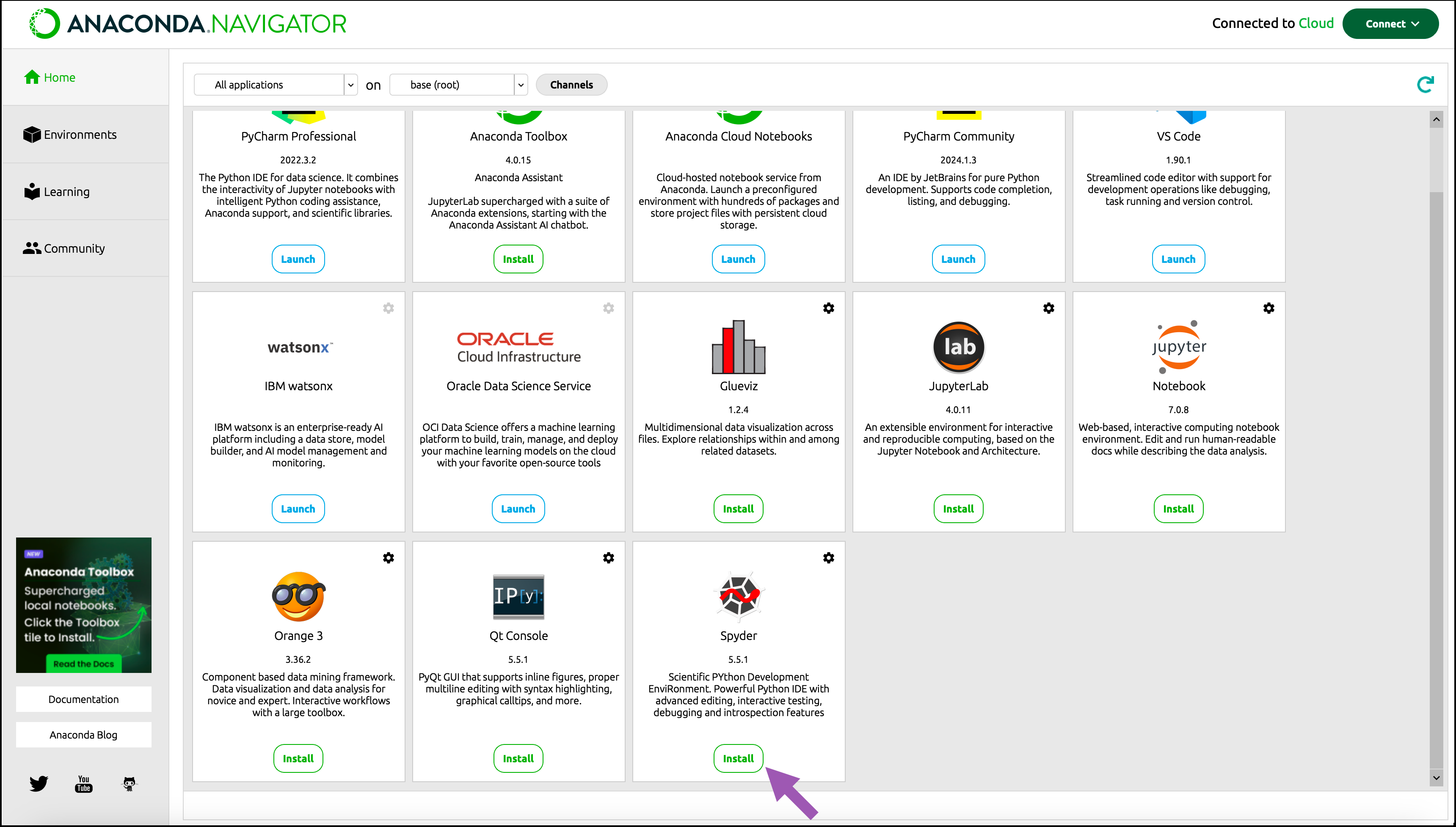
To install Spyder using Navigator:
- Activate the environment where you want to install Spyder.
-
Click Install on the Spyder tile.
Launching Spyder
Launch Spyder using either Navigator or a command line terminal:Creating and activating a conda environment
Before starting your Python project, Anaconda recommends creating a to isolate your project’s software packages and manage their dependencies. For more information about creating and activating a conda environment, see Environments.Selecting your environment’s Python interpreter
To ensure your code has access to the correct code completion and type information for your project, you must activate the conda environment associated with your project and select it as the Python interpreter in Spyder.If you launched Spyder from an environment that does not contain the correct version of Python for your project, select the correct environment in the status bar.
- Open Spyder.
-
Select the Python interpreter in the status bar.

- Under Python Interpreter, select Selected interpreter.
- Select your preferred environment.
- Click OK.