

Using Anaconda Distribution in a commercial setting?
Using Anaconda Distribution in a commercial setting?
- You might need to purchase a license to stay compliant with our Terms of Service.
- If your company security policies do not allow admin privileges for end users, you will be unable to install Anaconda Distribution manually. Consider requesting that your IT admin add Anaconda Distribution to a software delivery or fleet management system (such as Kandji or Jamf).
Installation steps
- Navigate to anaconda.com/download.
- Click Get Started with Anaconda Distribution and register with Anaconda.
- Click Windows 64-Bit Graphical Installer under Anaconda Distribution.
-
Go to your Downloads folder and double-click the installer to launch.
If you encounter issues during installation, temporarily disable your anti-virus software during install, then re-enable it after the installation concludes. If you installed for All Users, uninstall Anaconda Distribution and re-install it for Just Me only.
- Select Next and then I Agree to agree to Anaconda’s Terms of Service (TOS). You can read the full TOS at https://anaconda.com/legal.
-
Select an installation option:
- Just Me (Recommended)
- Install Anaconda Distribution for the current user account.
- All Users
- Install Anaconda Distribution for all user accounts on the computer (requires Windows Administrator privileges).
- Select Next.
- Select a destination folder to install Anaconda, then select Next.
-
Customize your installation options:
- Create shortcuts
- Selected by default. Creates Start Menu shortcuts for the Anaconda Navigator, Spyder, Jupyter Notebook, and Anaconda Prompt packages. Deselecting this option skips creating these shortcuts.
- Add Anaconda3 to my PATH environment variable
- Adds the path that contains the conda binaries to your PATH environment variable.
- Register Anaconda3 as my default Python 3.12
- Registers the Python package in this install as the default Python for programs like VSCode, PyCharm, and so on.
- Clear the package cache upon completion
- Runs
conda clean --all --force-pkgs-dirsafter the install finishes. For more information on these commands, see the conda clean command documentation.
- Select Install. The installation might take a few minutes to complete. Select Show details to view the packages being installed.
- Select Next twice, then select Finish to close the installer.
Verify your install
You can verify your installation was successful using Anaconda Navigator or .- Anaconda Prompt
Anaconda Navigator opens automatically when installation completes successfully.If you need to manually open Anaconda Navigator, type “Anaconda Navigator” in the Windows search bar, then select the application.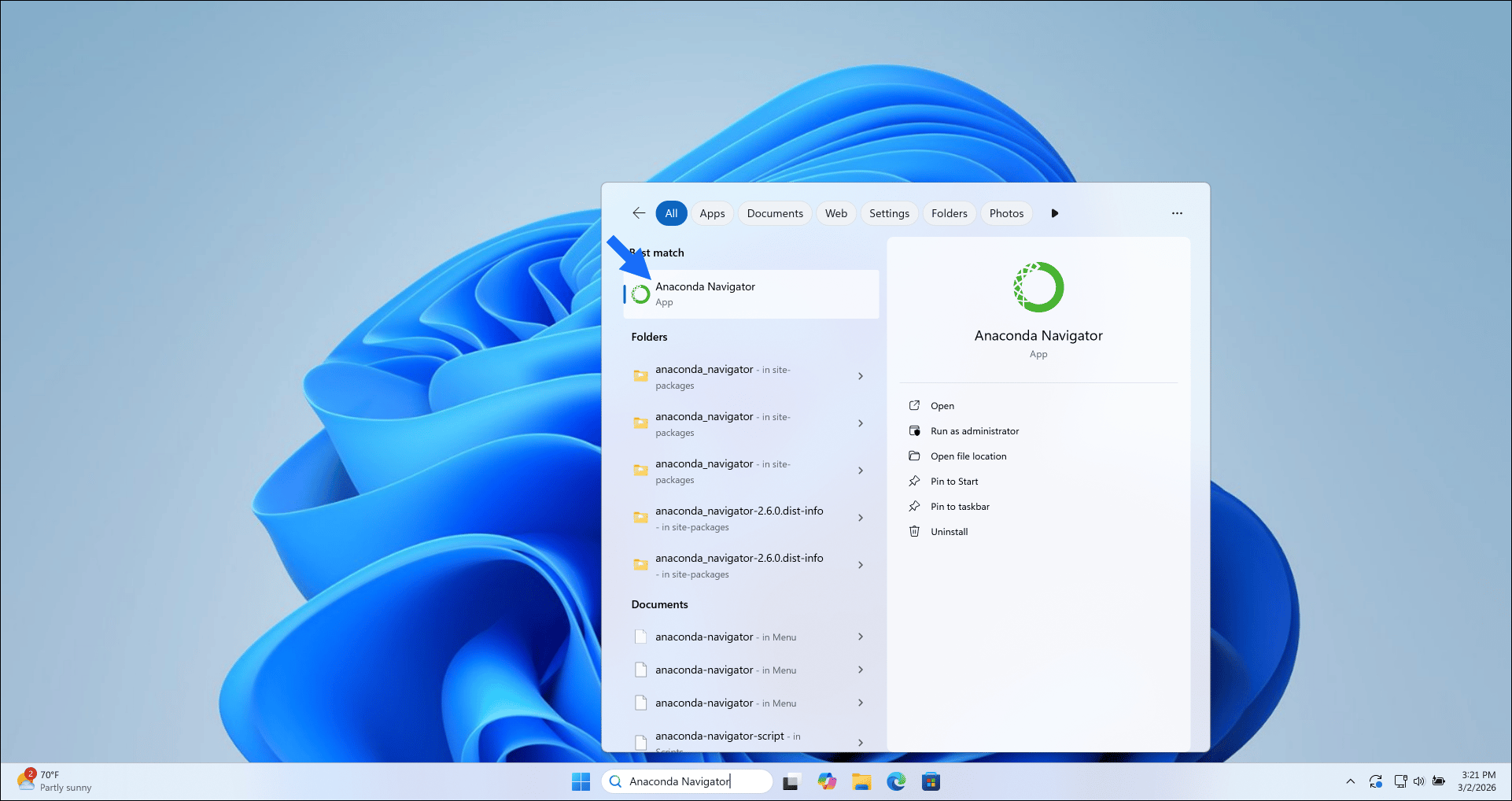
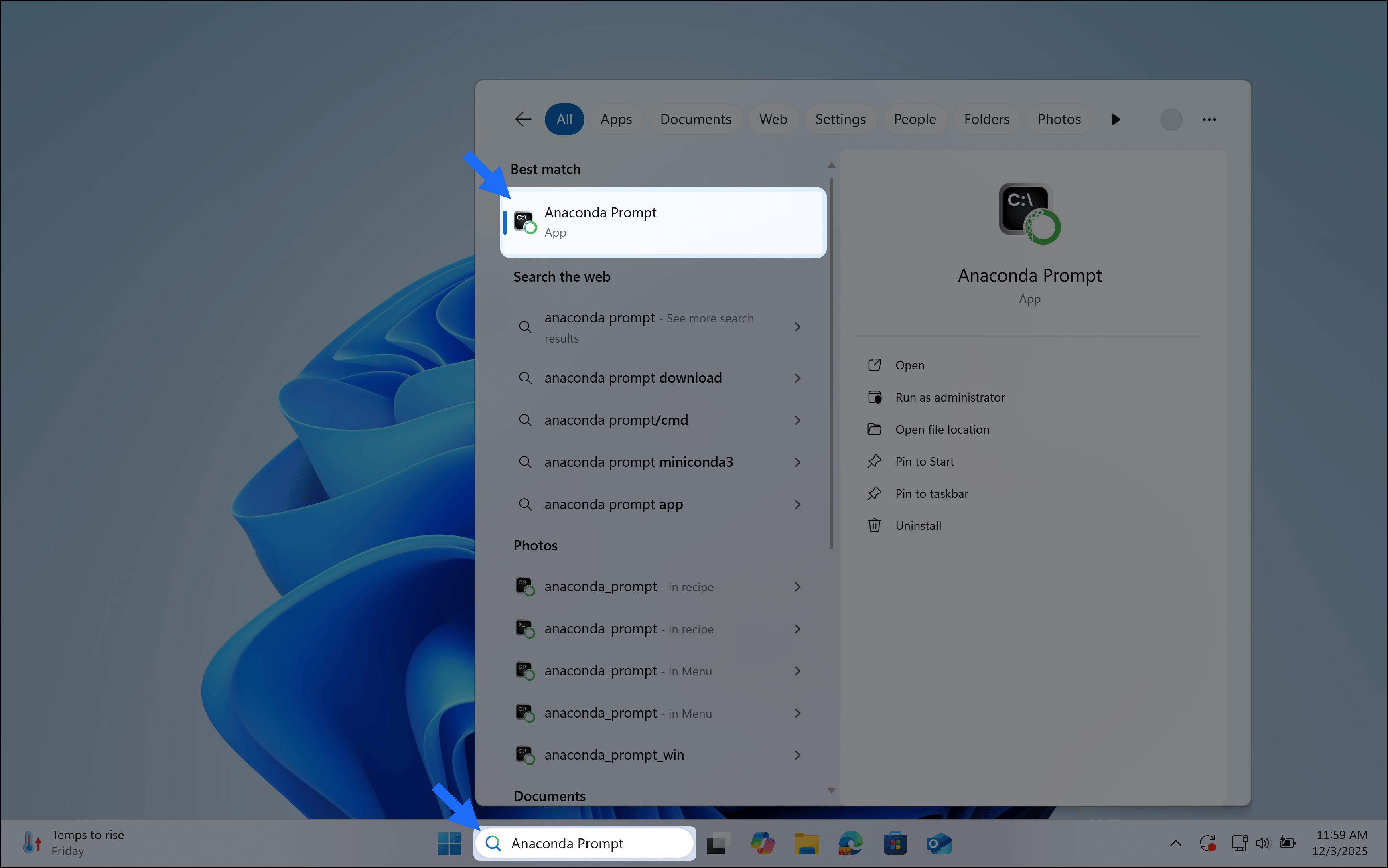
Choose how you want to work with conda
Anaconda Navigator provides a graphical user interface (GUI) to interface with , without using the command line. If you prefer working at the command line, you can interface with conda directly through (Windows) or your system’s terminal (macOS and Linux) after you complete your installation.Anaconda Navigator is not included with Miniconda. Follow the instructions on Installing Navigator to manually install Navigator onto your computer.
Get started with Navigator
Manage packages and environments with a desktop application
Work with conda
Use command-line tools for package and environment management