

Why convert to pixi?
Pixi is an alternative project format that replacesanaconda-project.yml with a pixi.toml manifest. It offers dramatically faster environment solves and reproducible lockfiles that ensure environments rebuild identically across sessions and machines.
A single pixi.toml file declares all package dependencies (conda and pip), environments, and tasks. You can also define multiple named environments for different workflows (for example, a default environment and a GPU-enabled variant).
Converting a project to pixi
New projects are created in the classicanaconda-project.yml format. To use the pixi.toml format, convert an existing project from within a JupyterLab session.
Converting is non-destructive. Your original
anaconda-project.yml is preserved alongside the pixi.toml.-
Open the project in a JupyterLab session.
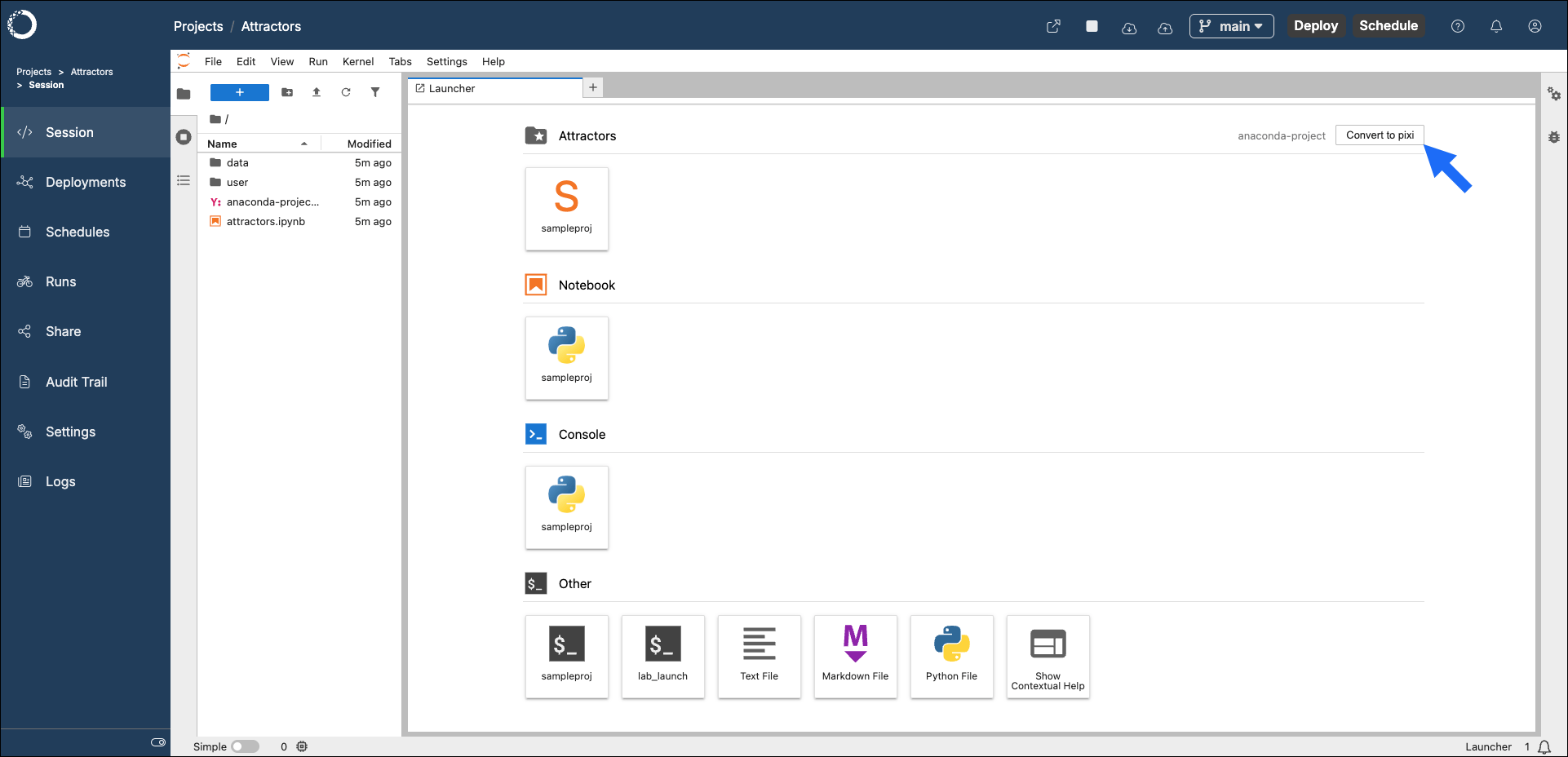
You must be in the JupyterLab Launcher to convert a project. If your project opens directly to a notebook or terminal, open the Launcher first.
-
Click Convert to pixi.
-
The project’s environment is renamed to
defaultduring the conversion process. To retain the original environment name, clear the checkbox in the Convert to pixi modal. -
Click Convert.
 Converted projects use the platform’s configured channels (
pkgs/main) by default. This differs from standalone pixi outside of Workbench, which defaults toconda-forge.
Verifying the pixi environment
To confirm your project is running in the pixi-managed environment, verify that the Python path points under.pixi/envs/.
- Notebook
- Terminal
If the project’s environment includes
ipykernel, its kernel becomes available after the build completes.- Open a notebook.
- Switch to the pixi environment kernel by clicking the kernel name in the top-right corner of the notebook, then selecting the pixi environment from the list.
-
Run the following in a cell:
The output path should be under
.pixi/envs/.
ipykernel, JupyterLab falls back to a global kernel. Add ipykernel to your pixi.toml and re-prepare to get a project-specific kernel.Updating the pixi environment
After conversion, the environment is automatically prepared. If you later add or remove packages inpixi.toml, click the Prepare environment action on the Launcher card to rebuild the environment. No session restart is needed.
Using your pixi environment
Once you are satisfied with your pixi environment, commit and push bothpixi.toml and pixi.lock to the project repository. This ensures that other collaborators and future sessions use the same resolved environment.
Only tagged commits can be deployed or scheduled. After committing your pixi configuration, tag the commit before attempting to deploy or schedule the project.
Running tasks
To run a task defined inpixi.toml, use the project’s Launcher or run it from a terminal:
Reverting to anaconda-project
To revert a project to its original format, delete thepixi.toml file. The original anaconda-project.yml is preserved during conversion and the project returns to anaconda-project mode.