

The Anaconda Enterprise cluster
As an Operations Center Admin, you can use the Operations Center to configure and monitor the platform. To access the Operations Center:- Log in to Anaconda Enterprise, select the Menu icon in the top right corner, and click the Administrative Console link displayed at the bottom of the slide out window.
- Click Manage Resources.
- Login to the Operations Center using the Administrator credentials configured after installation.
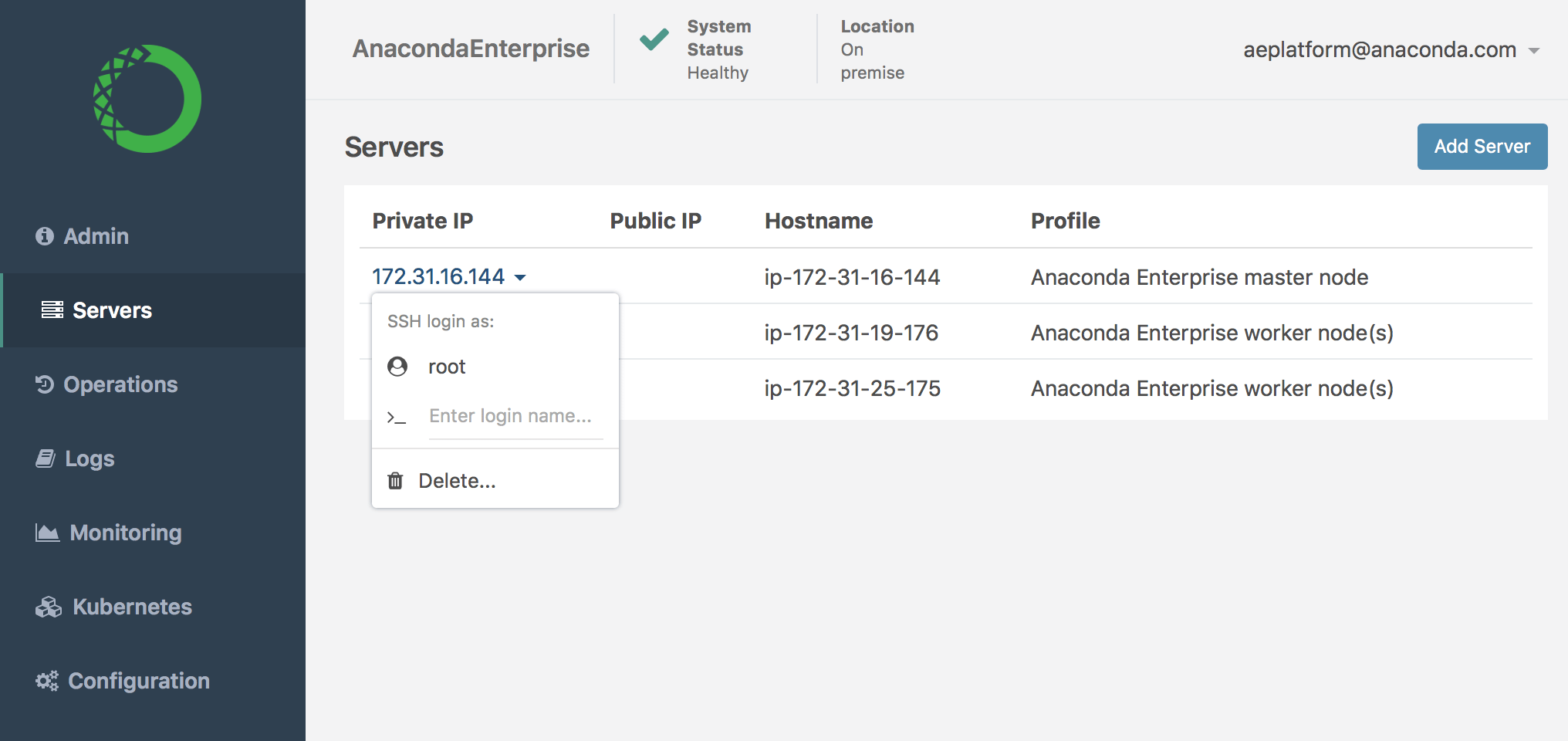
- Select Servers in the menu on the left.
- Click on the Private IP address of the Anaconda Enterprise master node, and select SSH login as root.
- To display the current resource utilization of each node in the cluster, run this command:
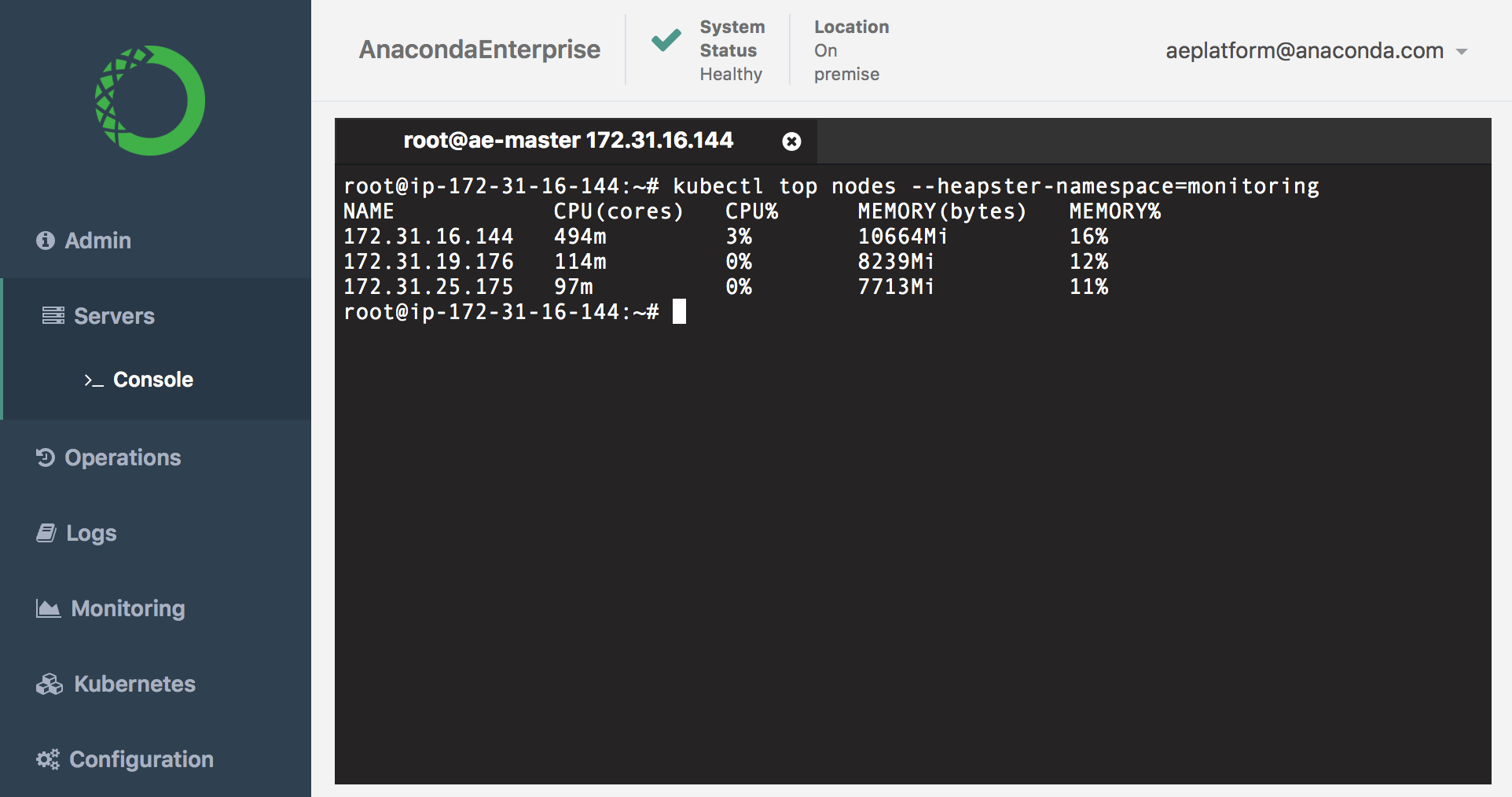
This is actual resource utilization, not limits or requests.
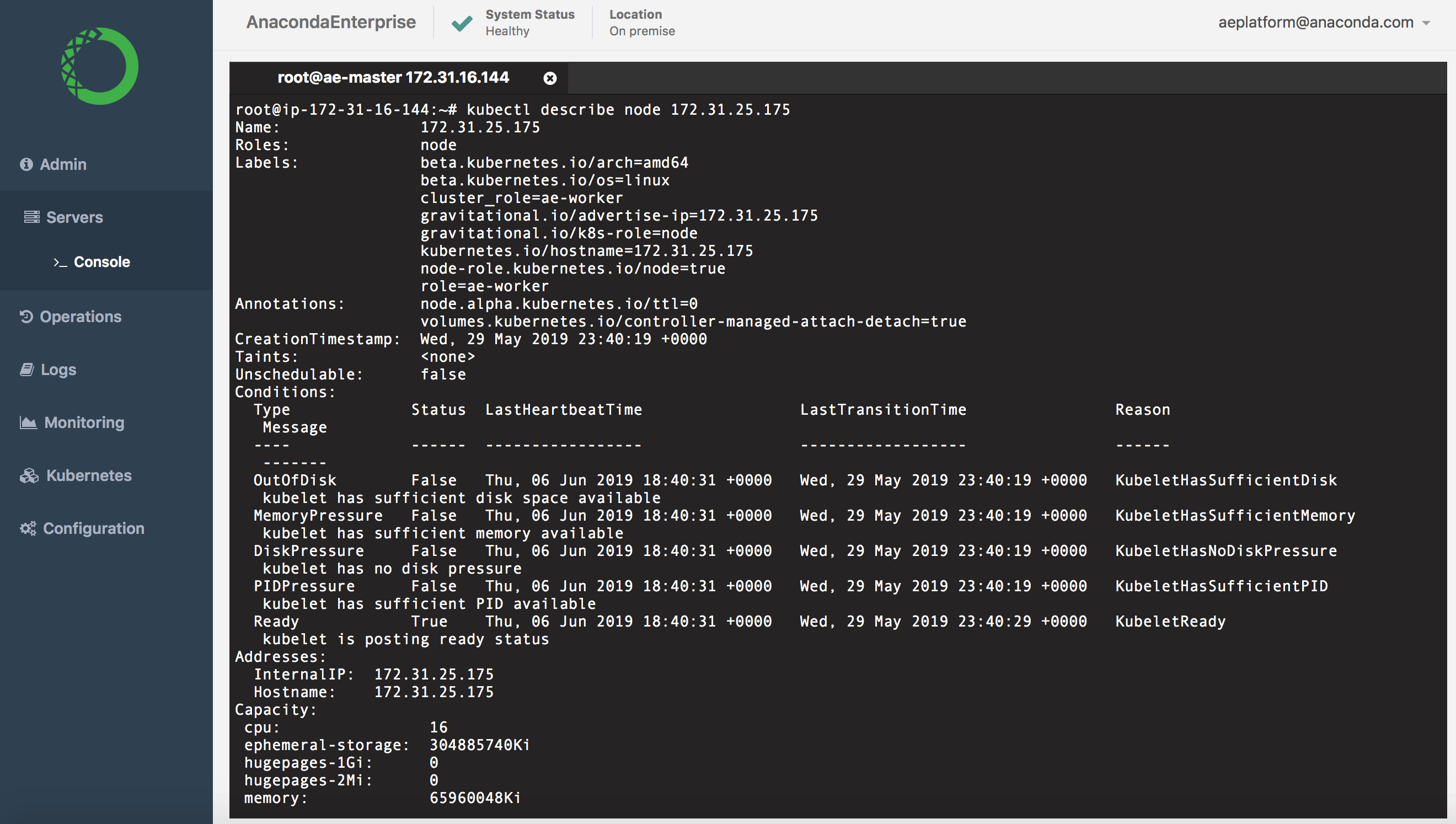
- To view utilization and requests for a particular node, run the
kubectl describe nodecommand against the IP address for the node (listed underNAME). For example:
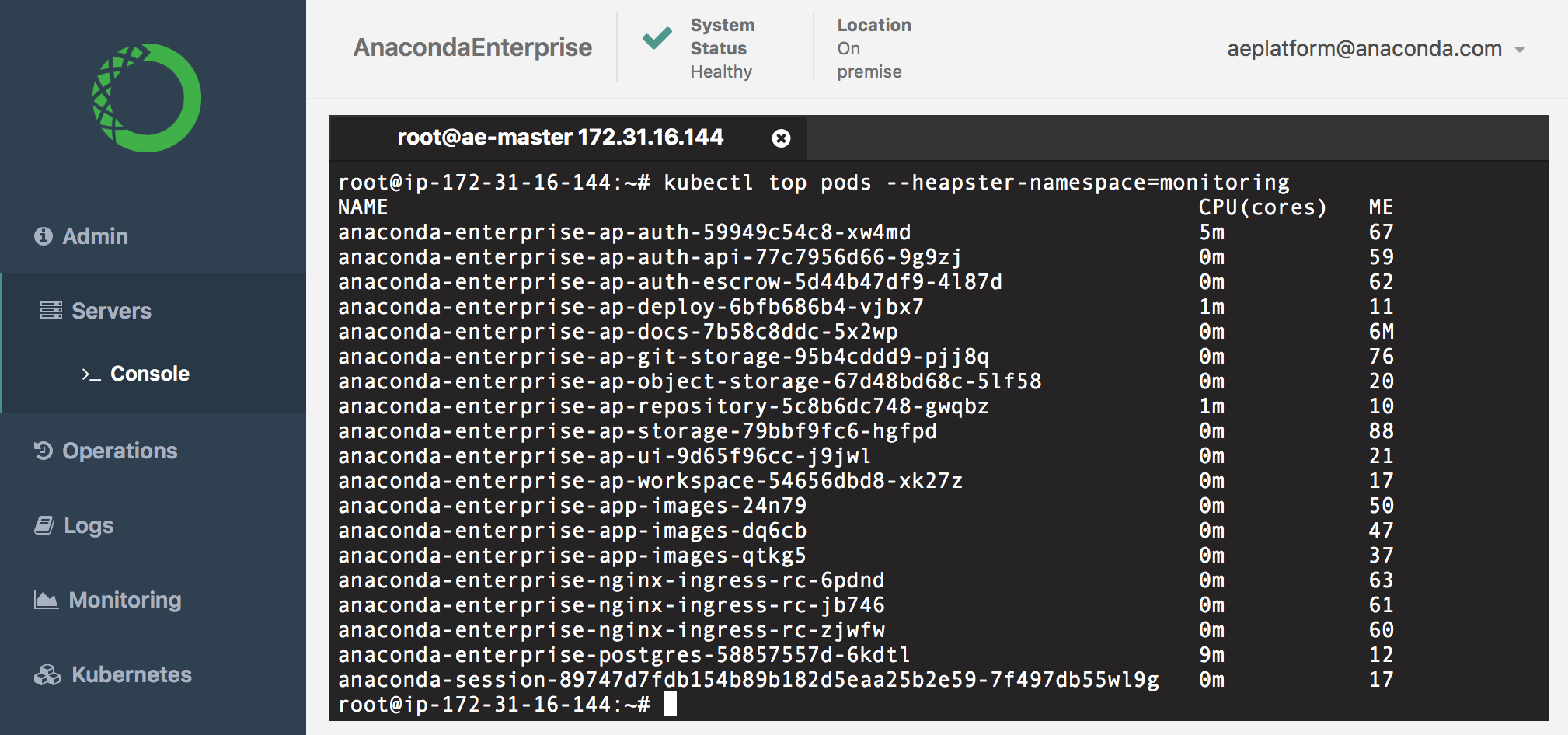
- To view the resource utilization per pod, run this command:
- To view the current status of all pods in the cluster, run
kubectl get pods.
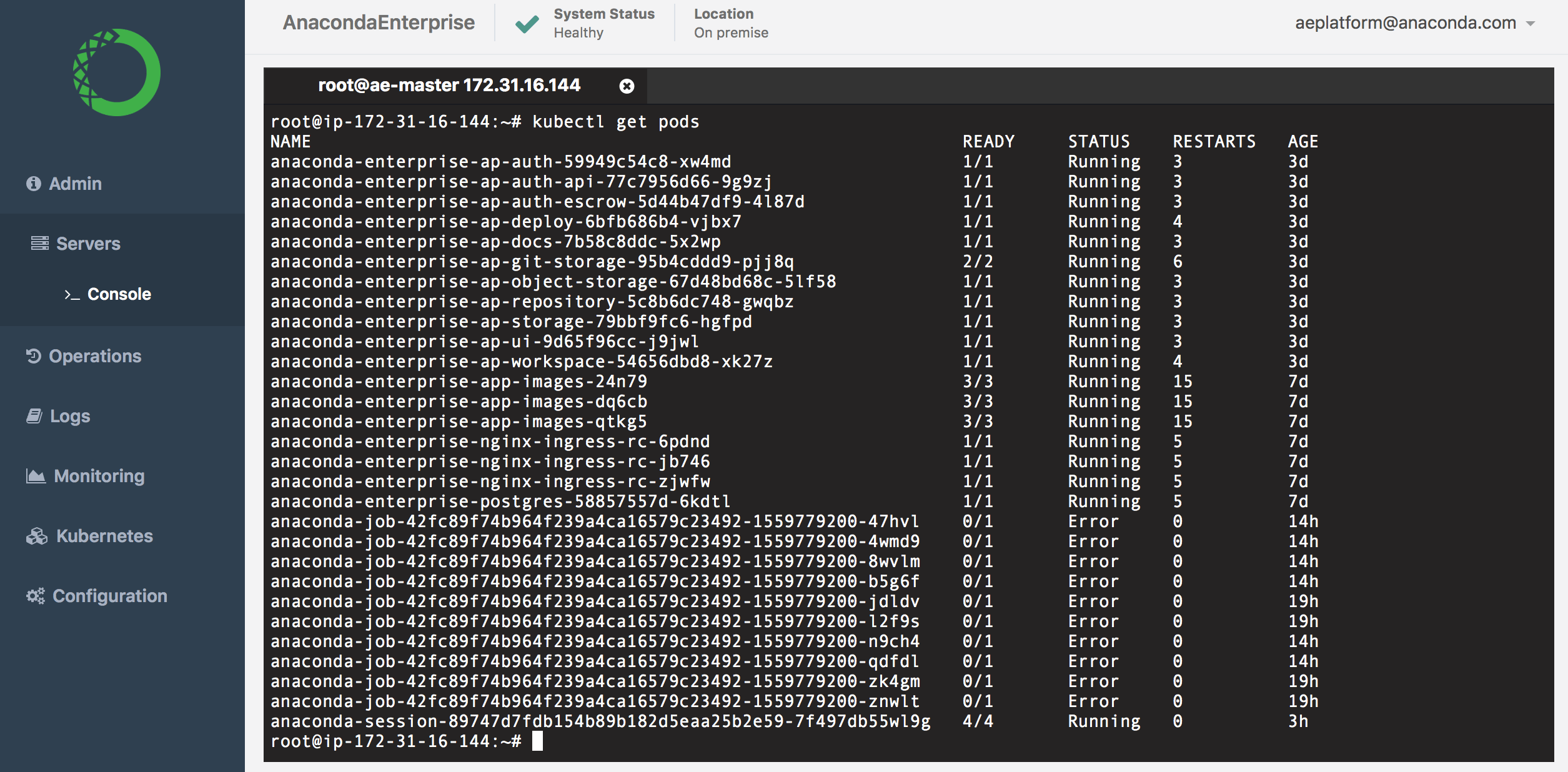
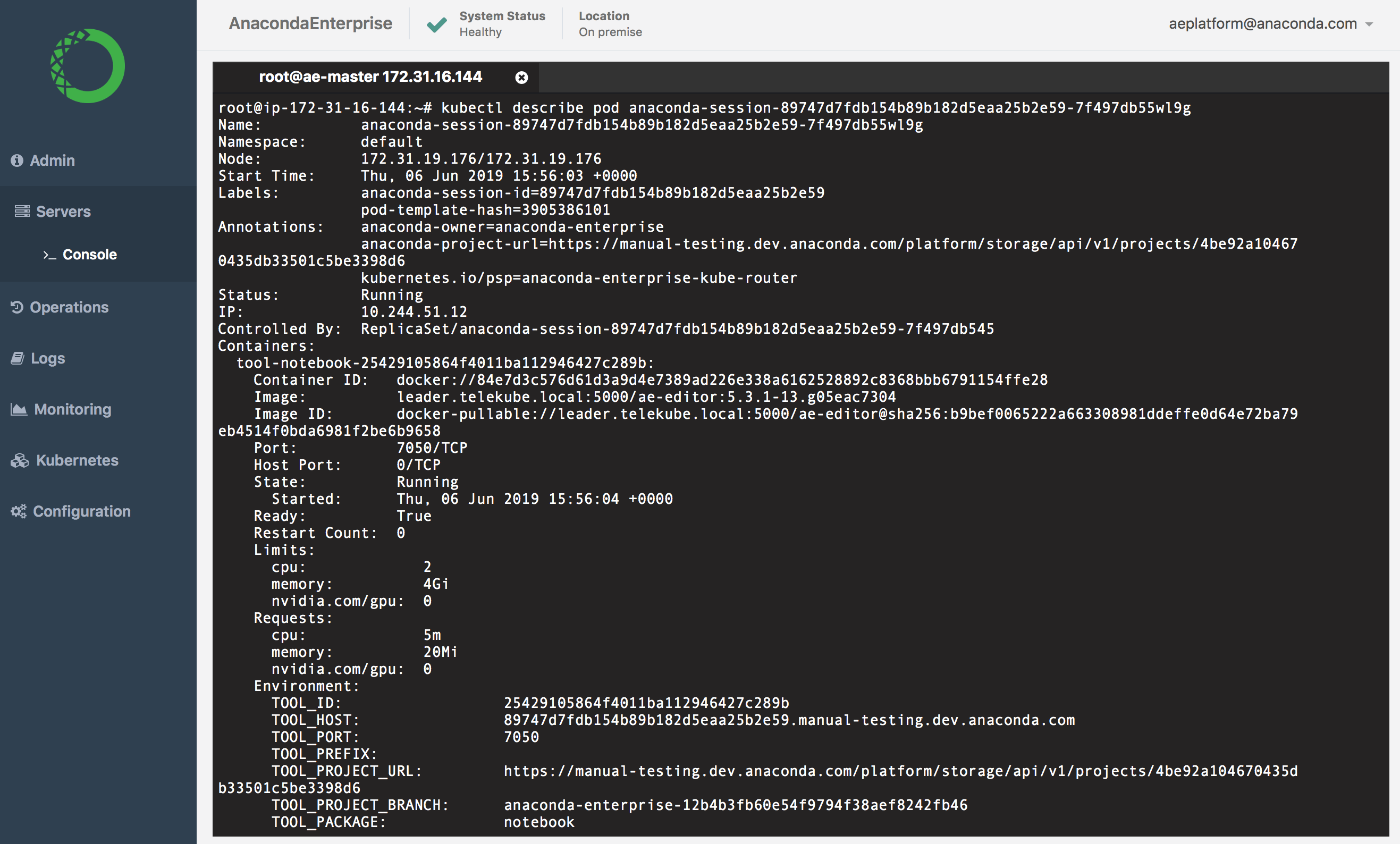
- To view information for a particular pod, run the
kubectl describe podcommand against the pod (listed underNAME). For example:
User errors
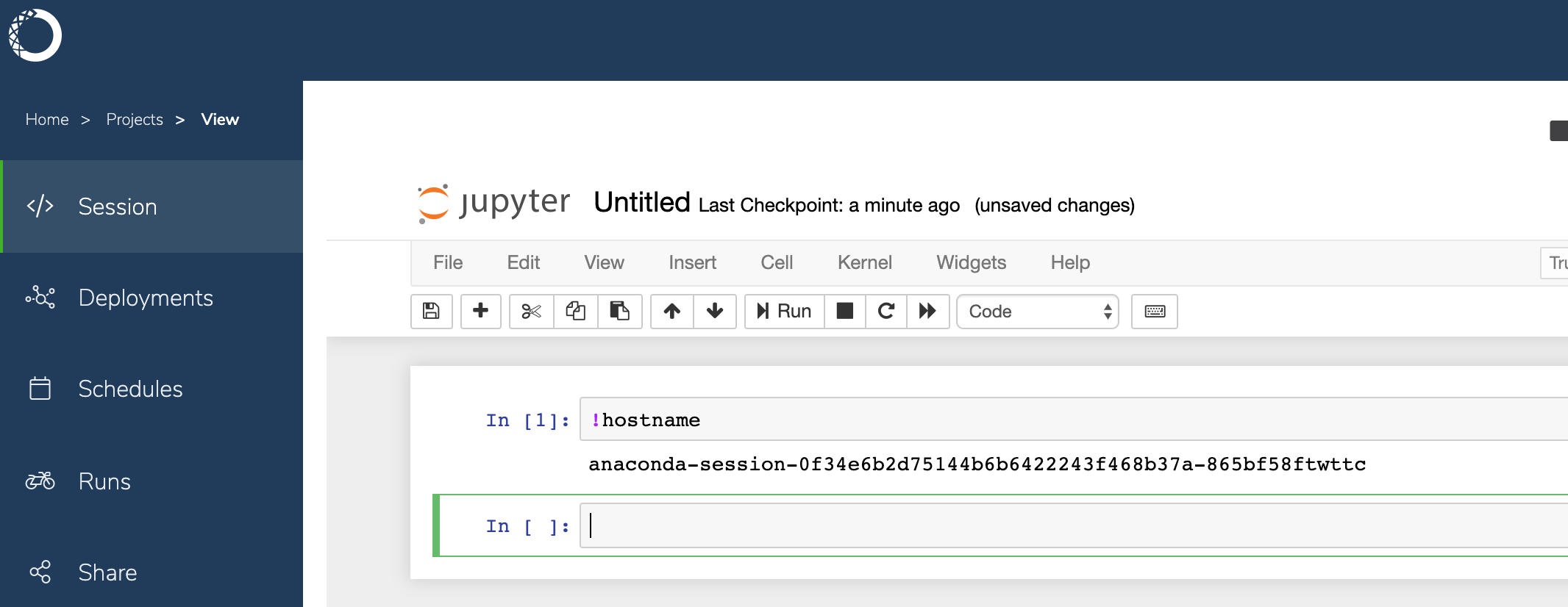
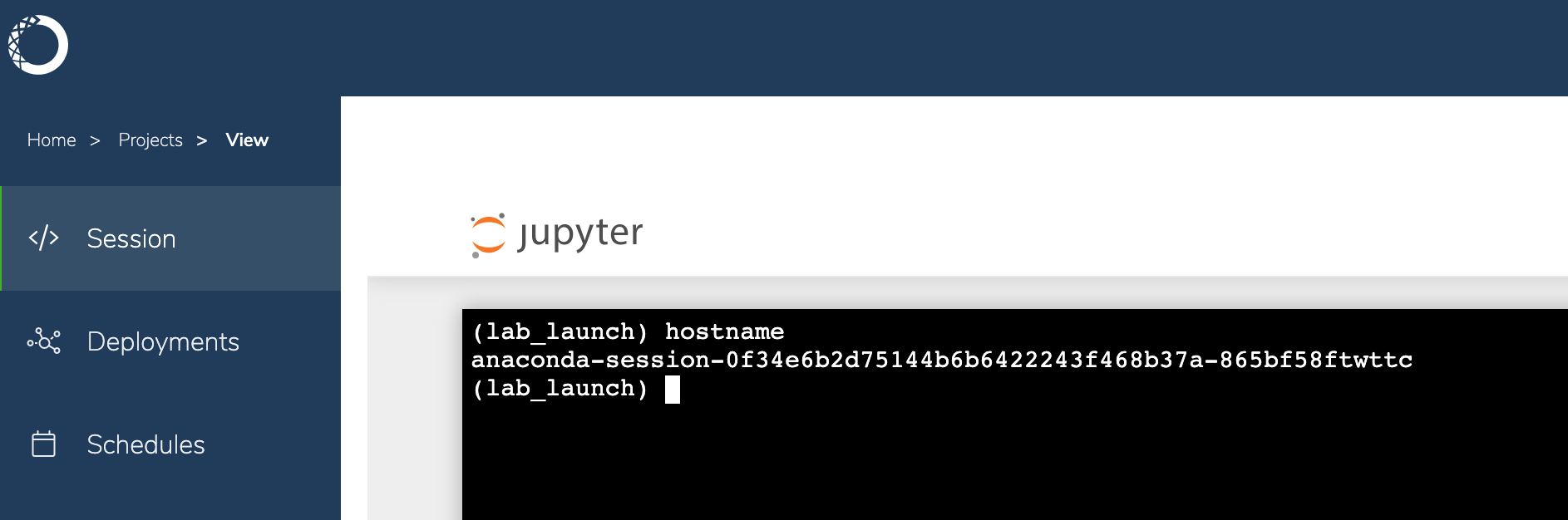
If a user experiences issues within a Notebook session, have them send you the name of the pod associated with their project session. They can obtain this information by running thehostname command from within a Jupyter Notebook or terminal window.
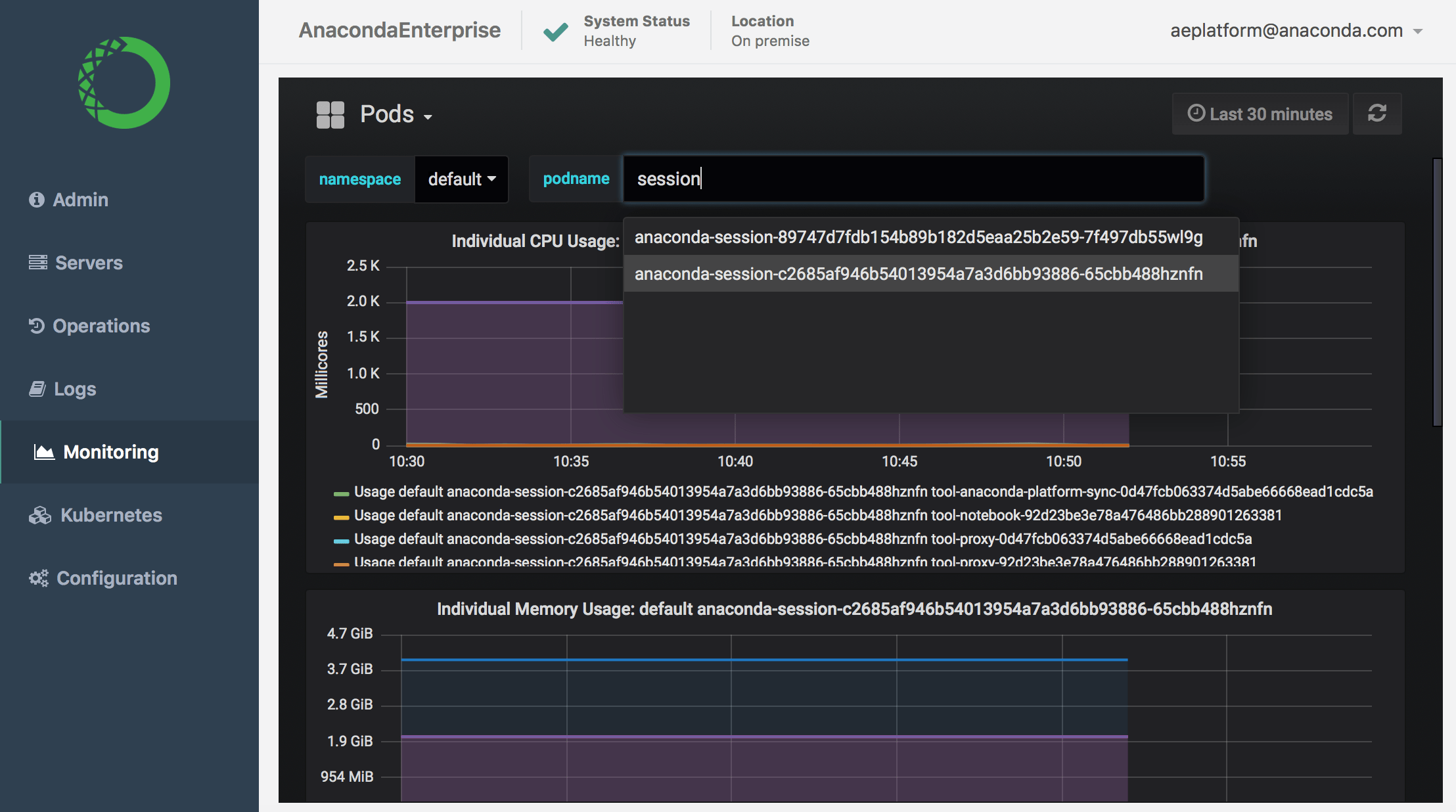
- Login to Anaconda Enterprise, click the Menu icon in the top right corner, then click the Administrative Console link in the bottom of the slideout menu.
- Click Manage Users.
- In the Manage menu on the left, click Users.
- On the Lookup tab, click View all users to list every user in the system, or search the user database for all users that match the criteria you enter, based on their first name, last name, or email address.
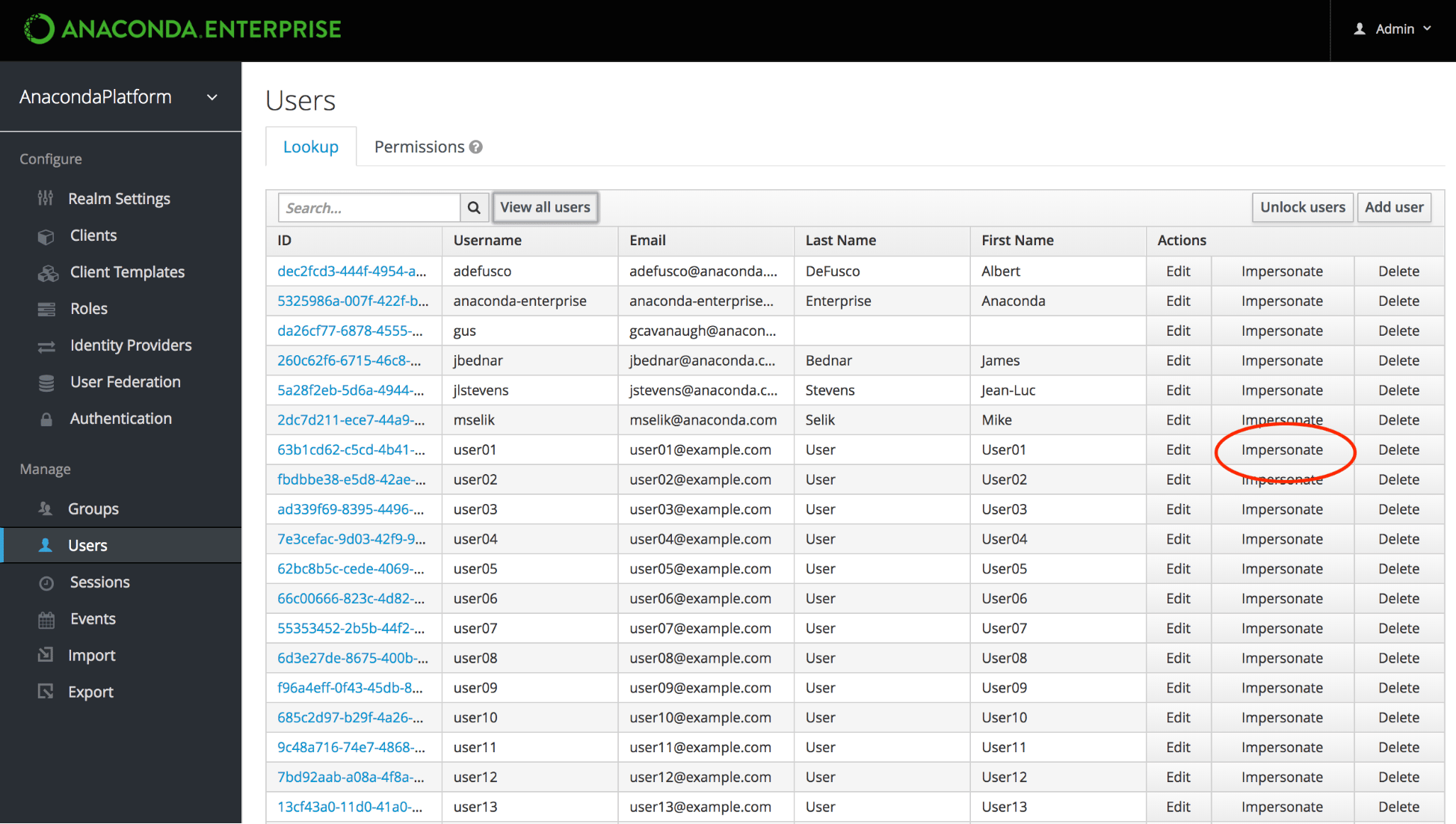
- Click Impersonate in the row of Actions for the user to display a table of all Applications this user has interacted with on the platform, including editor sessions and deployments.
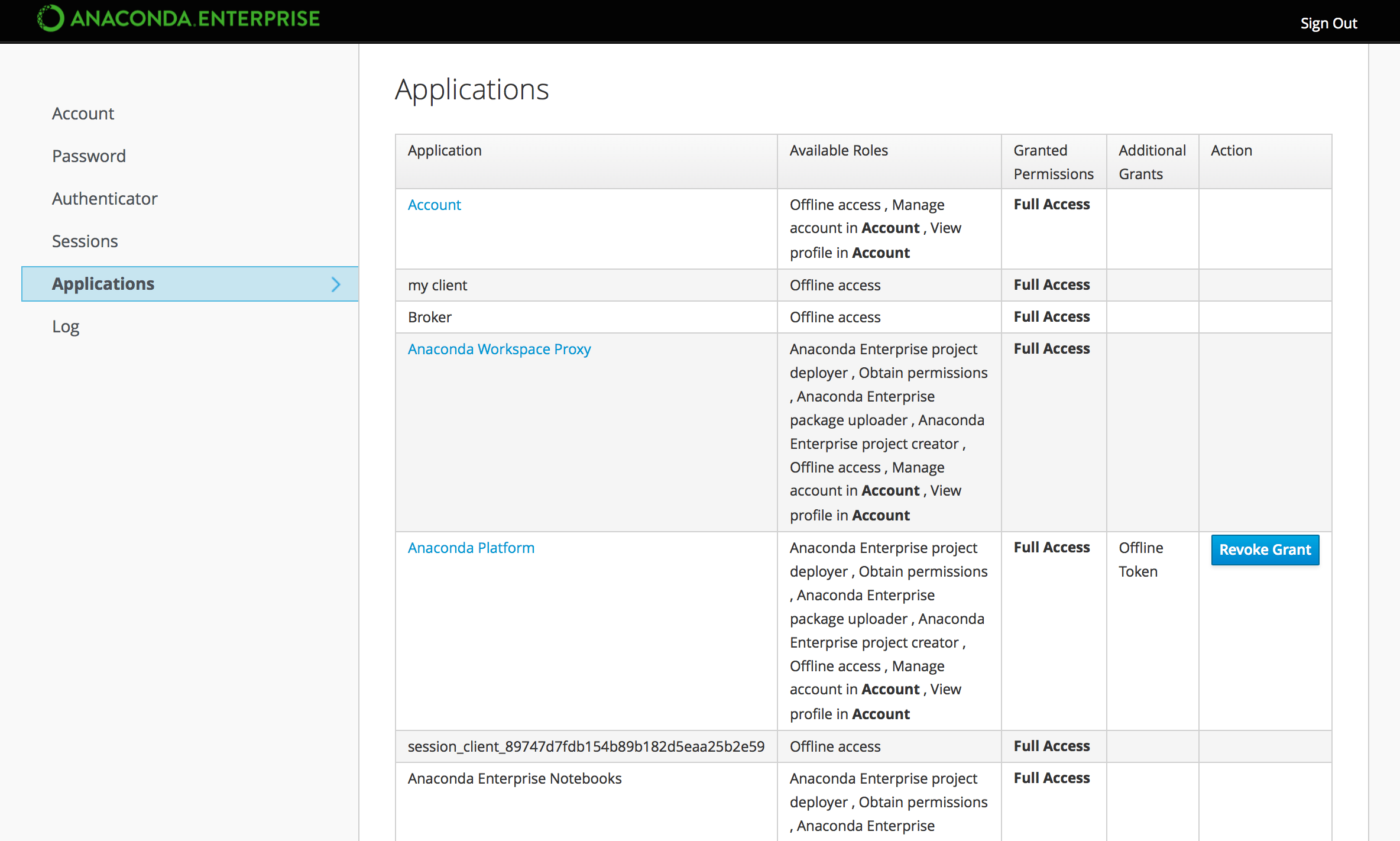
- Click the Anaconda Platform link to interact with Anaconda Enterprise as the user.
Editor sessions
To help you troubleshoot issues with editor sessions, it might be helpful to understand what is happening “behind the scenes”.- When a user starts a session, Anaconda Enterprise launches the appropriate editor for them to work with their project files. In the background, the editor environment and other services are running in Docker containers.
- To improve startup time for projects, the editor container includes conda environments for each of the project template environments provided by the platform. These environments are stored in
/opt/continuum/anaconda/envs, along with any custom environments created during the editor session. - The project repository is cloned into
/opt/continuum/project. (Only changes to files in this directory can be saved to the repository.) - The
anaconda-project preparecommand runs, scans the project’sanaconda-project.ymlfile for new packages and environments, and installs them into the running session.
/opt/continuum/preparing.
When this process completes, the /opt/continuum/prepare.log is created.
Helm rollback fails with a kubernetes-dashboard-csrf conflict
Runninghelm rollback anaconda-enterprise <REVISION> can fail with an error similar to:
kubernetes-dashboard-csrf secret is managed by both the Helm chart and the Kubernetes Dashboard application, which writes its own CSRF token to the same secret at runtime. helm rollback reapplies the secret content captured at the time of the target revision, which is typically out of date by the time a rollback is needed, causing Kubernetes to reject the conflicting write. This affects Workbench chart versions prior to ae-helm-chart-1.1-364, on both K3s and BYOK8s installations.
To resolve it:
-
Delete the conflicting secret and retry the rollback:
-
Restart the Workbench Dashboard pod so it picks up the recreated secret (it caches its token at startup and will not notice the change otherwise):
If no pods match this selector in your environment, locate the pod by name and delete it directly:
-
Confirm the secret and pod are healthy:
The
csrffield should return a non-empty base64 value, and the Dashboard pod should show1/1 Running.