

Token Types
There are two types of tokens within Package Security Manager:Resource tokens
Resource tokens provide the token holder with read, write, or manage permissions for a specific set of channels.Scope tokens
Scope tokens provide the token holder with a fine-grained set of custom user permissions, limiting the available actions that they are able to perform. A scope combines permission categories with specific actions users can perform into a concatenated string, like this:category:action or category.subcategory:action
Tokens cannot contain both resources and scopes.
channel:edit, you are also providing manage level permissions over channels.
Available scopes
Available scopes
Generating tokens
Resource tokens
To provide token holders with access to a channel:- Log in to Package Security Manager.
- Open the My Account dropdown menu and select Tokens.
- Click Generate Token.
- Enter a name for your token.
- Set an expiration date for your token.
- Open the Type dropdown menu and select Resources.
- Open the Channel dropdown menu and select an available channel to associate with this token.
- Select the level of permissions to associate with this token.
- If necessary, click the Add Resource button to include an additional channel with this token, repeat as needed.
- Provide a brief description of the token’s use.
-
Click Create.
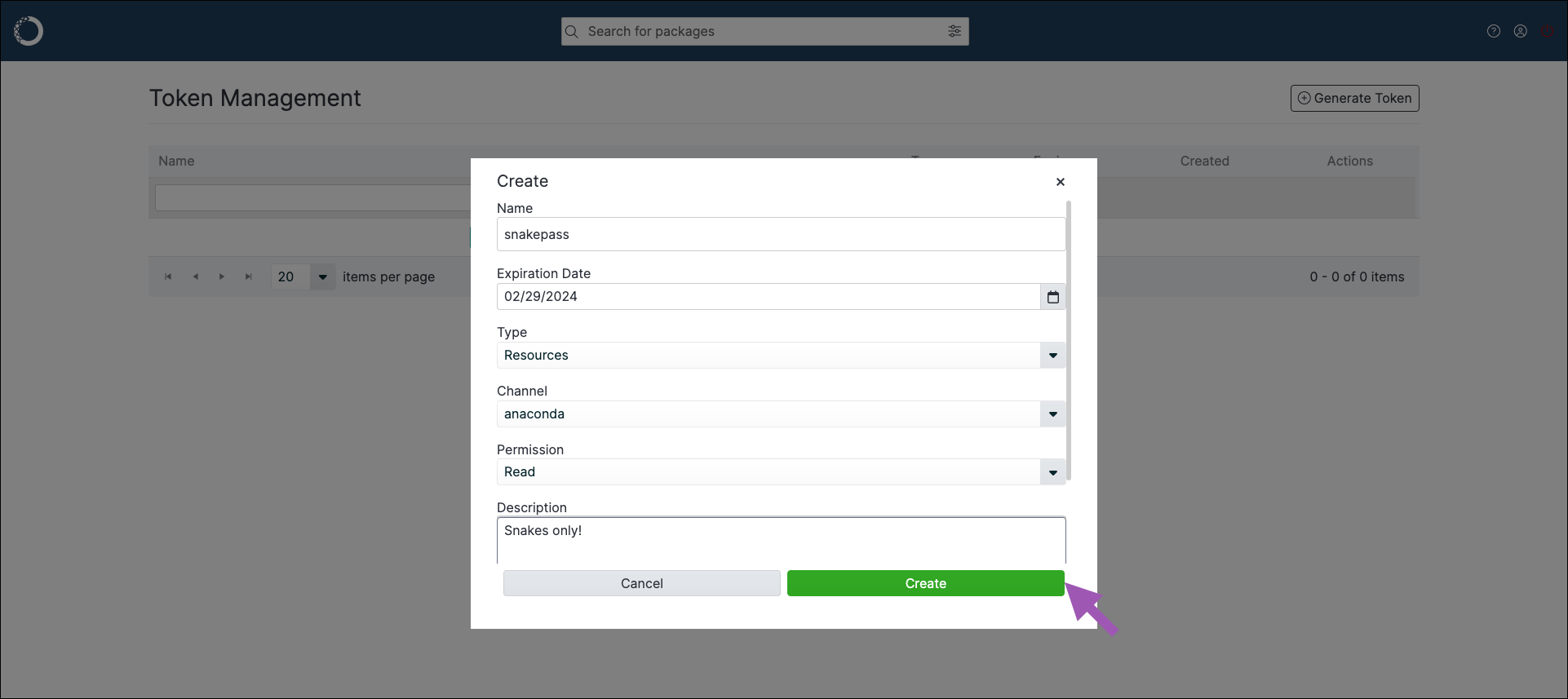
- Save your token in a secure location.
Scope tokens
To provide token holders with a custom set of permissions:- Log in to Package Security Manager.
- Open the My Account dropdown menu and select Tokens.
- Click Generate Token.
- Enter a name for your token.
- Set an expiration date for your token.
- Open the Type dropdown menu and select Scopes.
- Open the Select a scope dropdown menu and select a scope to add to the token. Repeat as necessary to build a custom set of permissions for your token holders.
-
Click Create.
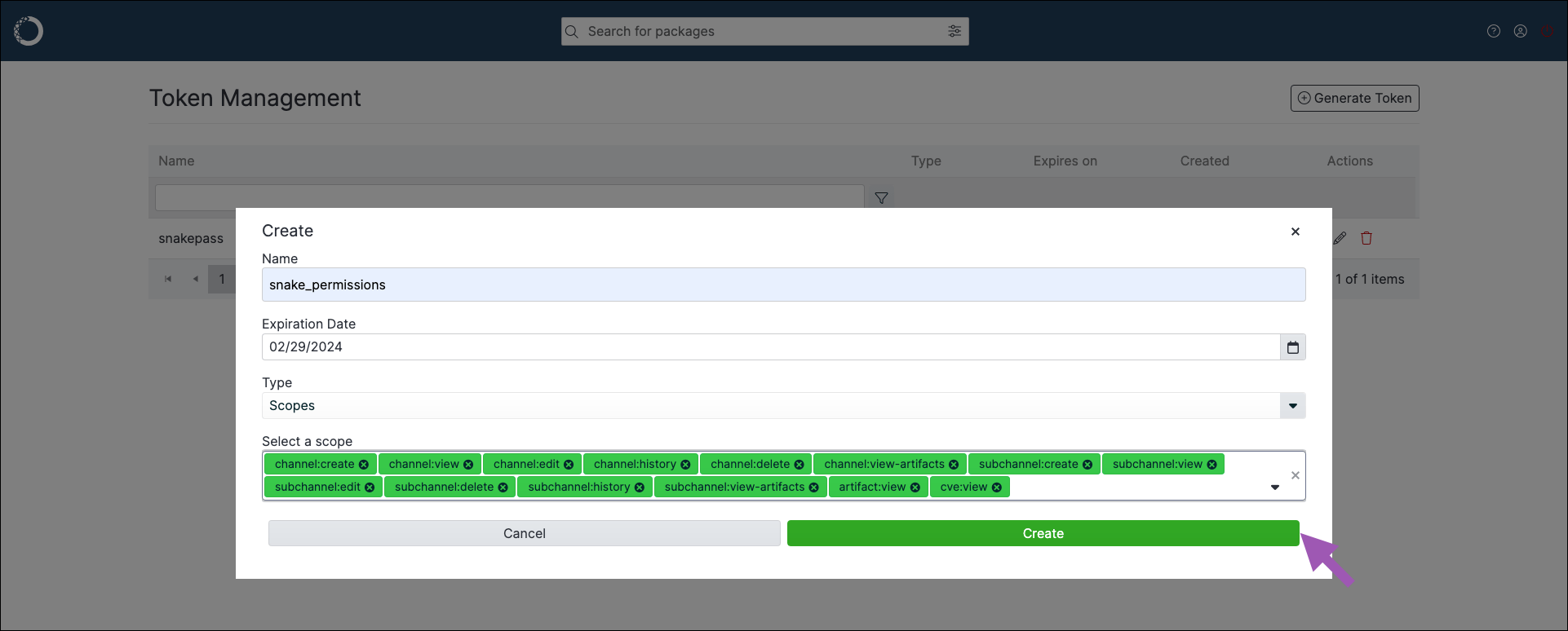
- Save your token in a secure location.
Editing a token
You can edit a token to change its name or to update its expiration date. You can choose to issue a new token while editing as well, which will invalidate the previous string associated with the token. To edit a token:- Log in to Package Security Manager.
- Open the My Account dropdown menu and select Tokens.
- Select the token’s edit icon.
- Make any necessary changes to the token.
- If necessary, select the Issue a new token checkbox. A warning appears at the top of the window to inform you that you will receive a new token.
- Click Edit.
Deleting a token
To delete a token:- Log in to Package Security Manager.
- Open the My Account dropdown menu and select Tokens.
- Select the token’s delete icon.
- Click Delete.
Setting/using a token
Once you have generated a token, you can share it with other users by any method you wish. If you have received a resource token from another user and you would like to use it to access packages on a channel, add the channel to your.condarc file by running the following command: