

- Uploading a package
- Downloading a package
- Viewing package details
- Viewing package metadata
- Managing a package
- Deleting a package
Uploading a package
Preparation for uploading packages differs depending on your package type. Please follow the relevant guide for your respective packages: Via the UI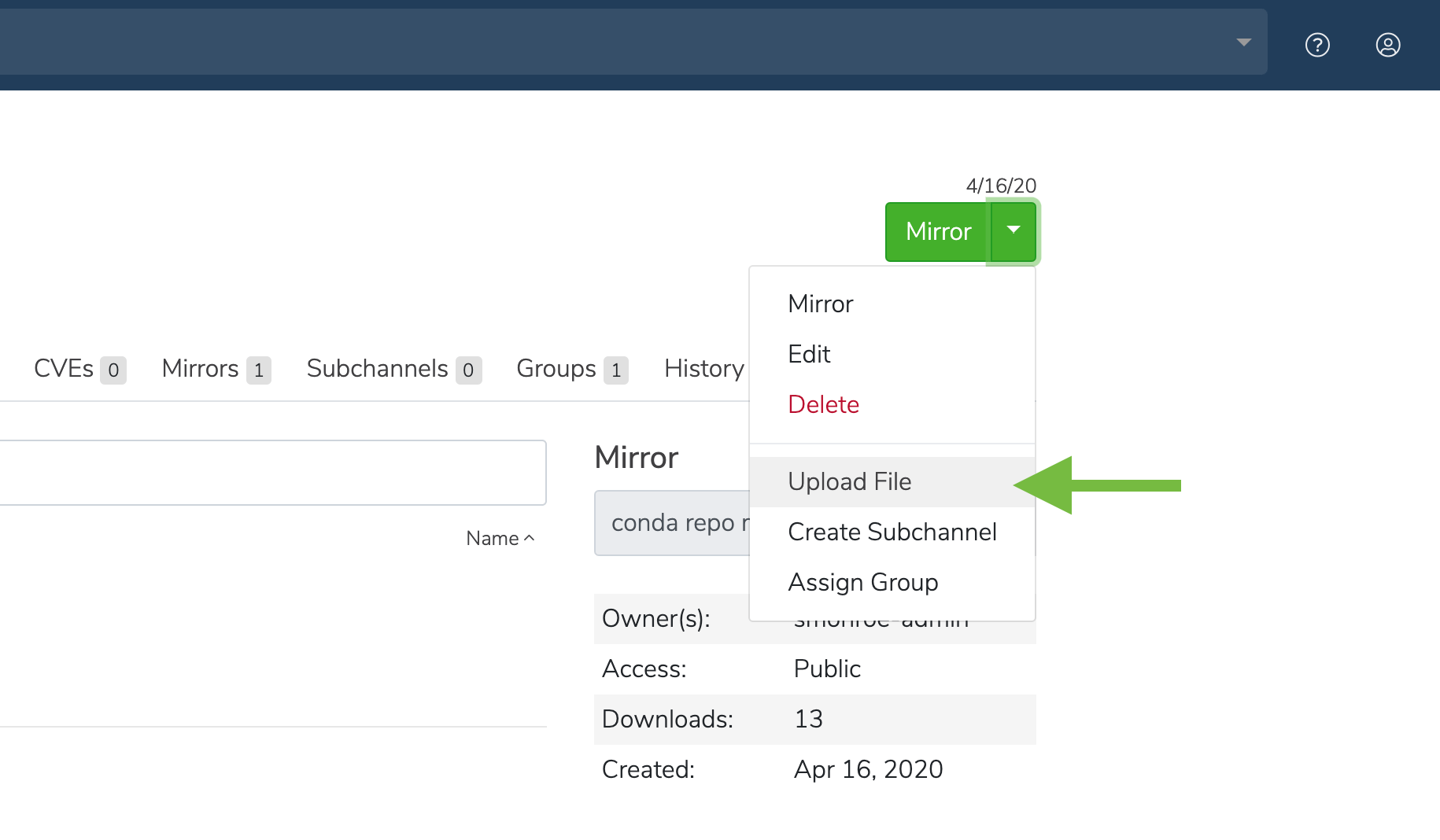
- Click the green dropdown button in the top right corner, and then click Upload File.
- On the Upload a File screen, select the type of file you’d like to upload from the dropdown.
- Click the Browse button to find your file and add it to the page.
- Click Upload.
Downloading a package
On a package details page, click on a file name to download the file.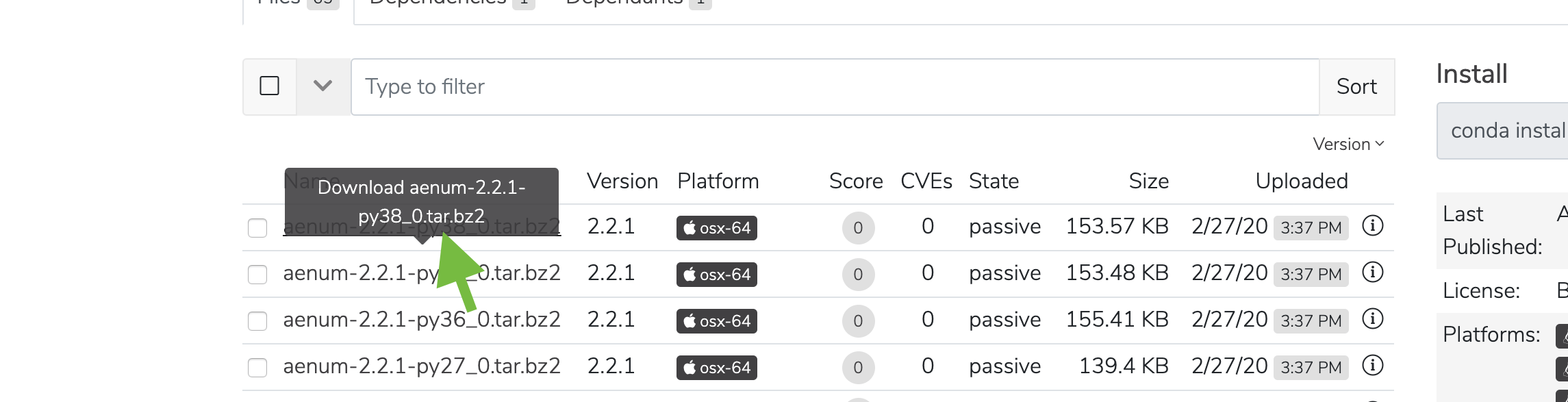
Viewing package details
Via the UI Click anywhere on a package to view its details. You can then click the Sort button to sort files by version, size, platform, and name.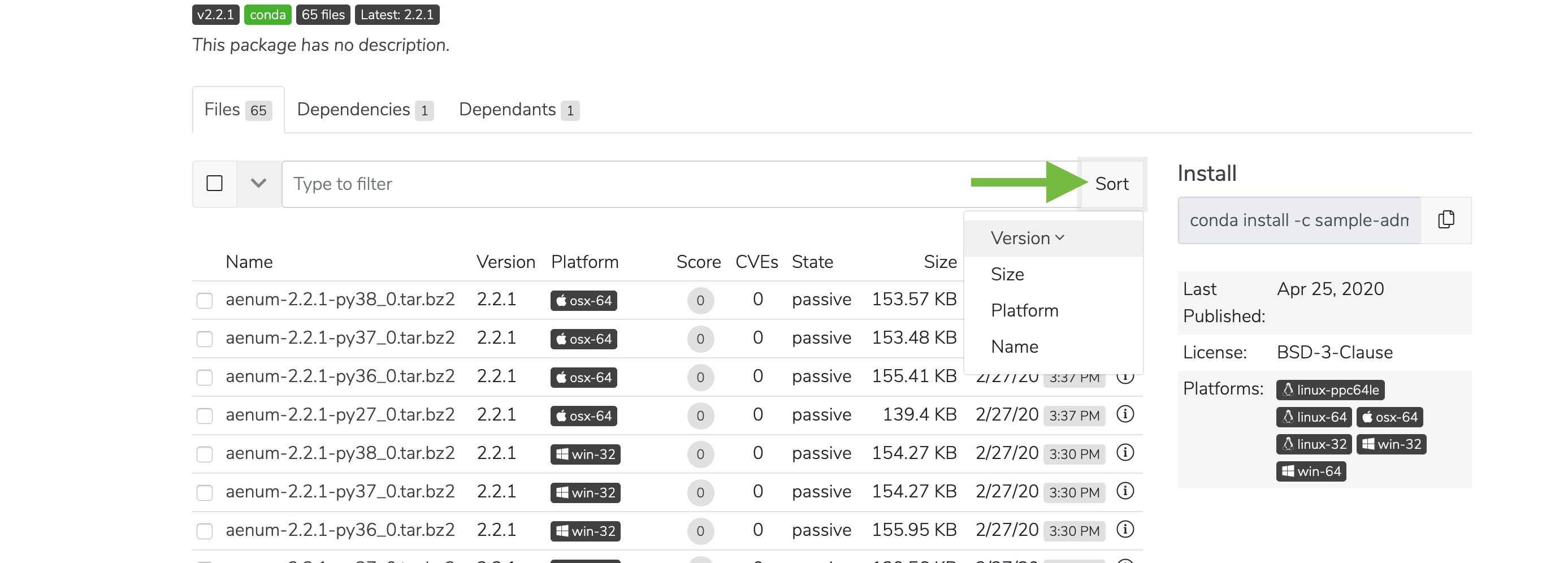
Viewing package metadata
Click the information icon to view a file’s metadata.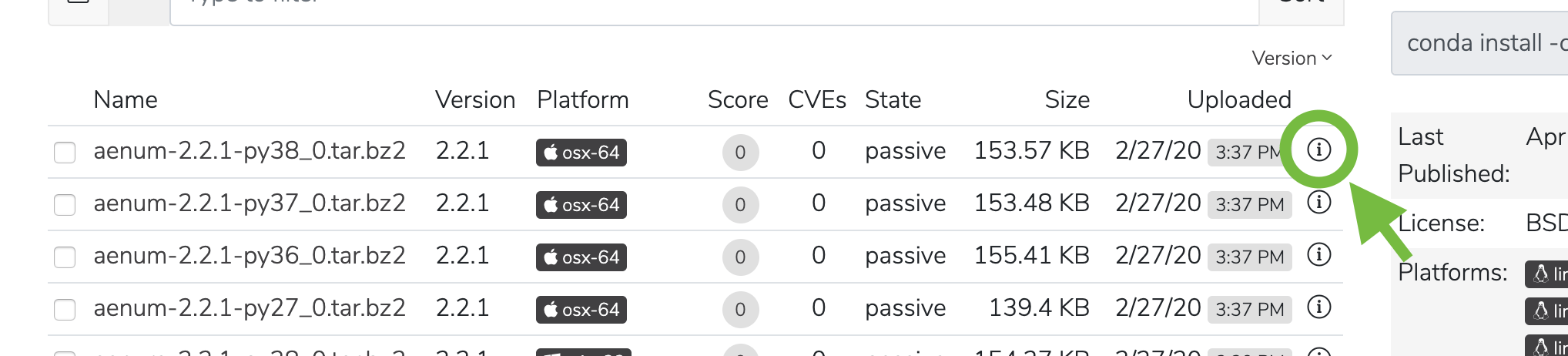
Managing a package
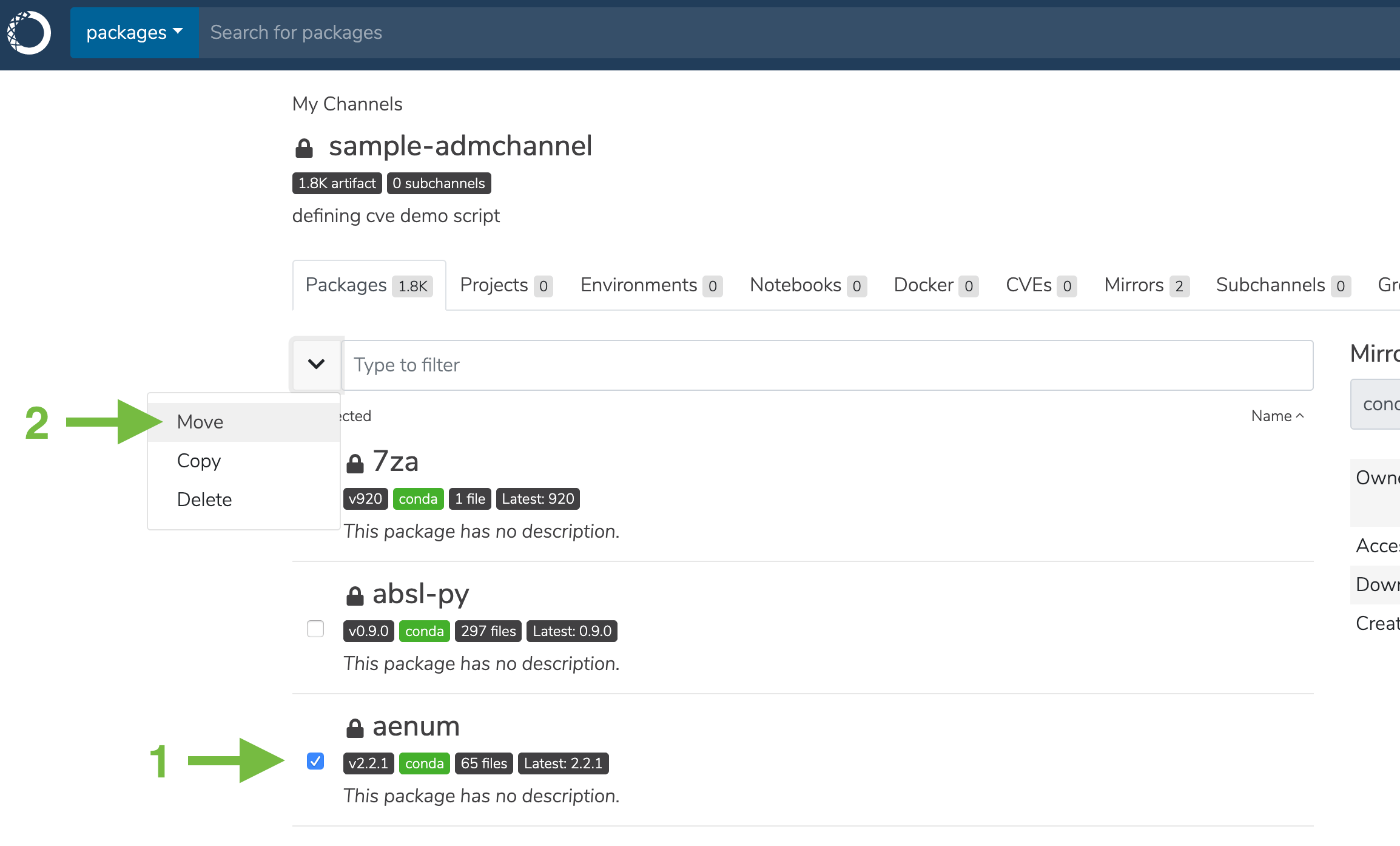
- Select the checkbox next to a package.
-
Click the dropdown next to the search bar. You may then move, copy, or delete the package.
Deleting a package
Click the green Delete button to delete a package. You will be prompted to confirm that you want to delete the Package. Click Delete to confirm.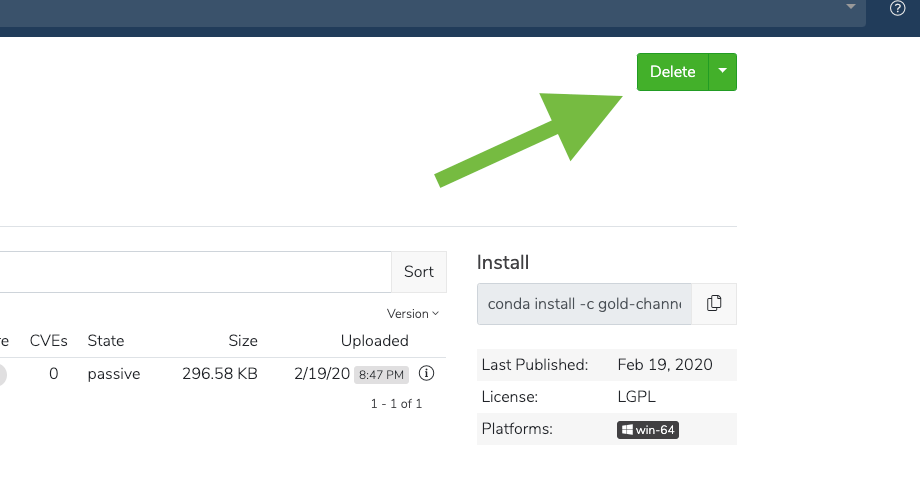
- On a package details page, navigate to the Files tab to see all the versions of a given package.
- Select one or more packages, and then click on the down arrow to the left of the filter field and click Delete.