These instructions refer to Anaconda Distribution exclusively, but will also work with Miniconda.
Creating a conda environment in VS Code
Before starting your Python project, Anaconda recommends creating a conda environment to isolate your project’s software packages and manage their dependencies.You must have the Python for Visual Studio Code extension installed to create new conda environments from within VS Code on Windows.
If VS Code doesn’t display your conda environments, make sure at least one environment has Python installed. The
If VS Code doesn’t display your conda environments, make sure at least one environment has Python installed. The
base environment alone might not be sufficient for VS Code to detect conda. See Creating a new environment for details on creating environments with Python.- Windows
- macOS/Linux
- Open the Command Palette by pressing Ctrl+Shift+P.
- Select Python: Create Environment…
- Select the environment type:
- Conda
- Venv
Creates a
.conda environment in your workspace. Select the Python version to install in the environment.Selecting Anaconda as a Python interpreter
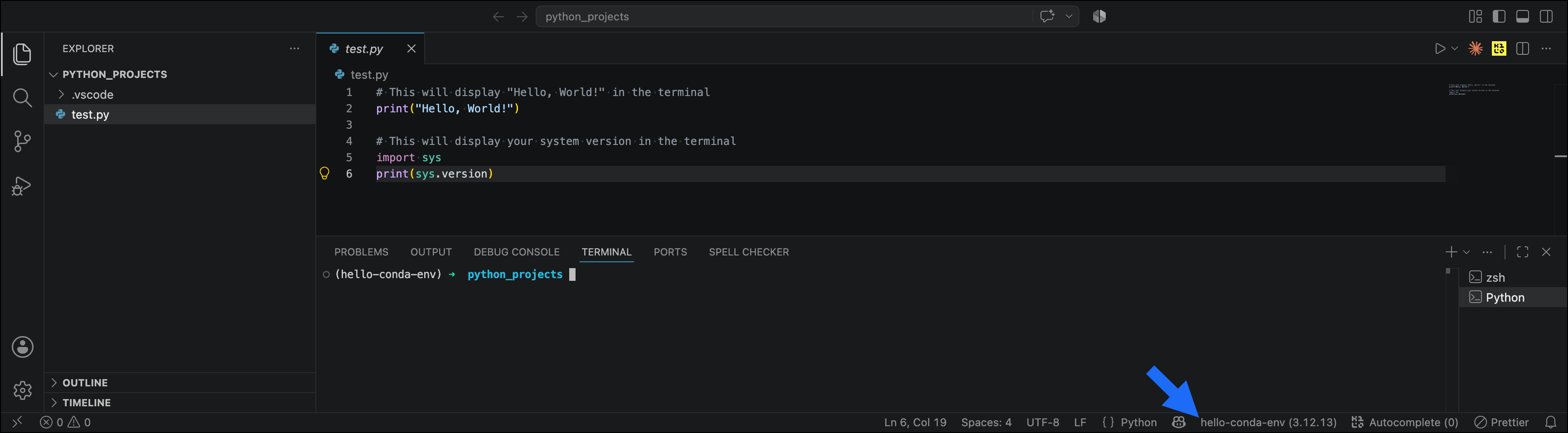
Now that your conda environment has been created, select the environment as an interpreter. This ensures that your code has access to the correct Python version and packages installed in your conda environment.- Open any Python file.
- Open the Command Palette by pressing Ctrl+Shift+P (Windows, Linux)/Cmd+Shift+P (macOS).
- Select Python: Select Interpreter.
- Select the conda environment you want to use. Conda environments appear with the environment name, Python version, and path (for example,
hello-conda-env (3.12.13) ~/miniconda3/envs/hello-conda-env/bin/python).
Adding packages to your environment
To add packages to your environment in VS Code:- Open a new terminal by pressing Ctrl+`.
- Run the following command:
On Windows, you can run conda commands in both PowerShell and Command Prompt terminals in VS Code.
Testing your setup
You are now ready to run Python scripts in VS Code!- Create a new Python (.py) file.
-
Add the following code to your file:
- Save the file.
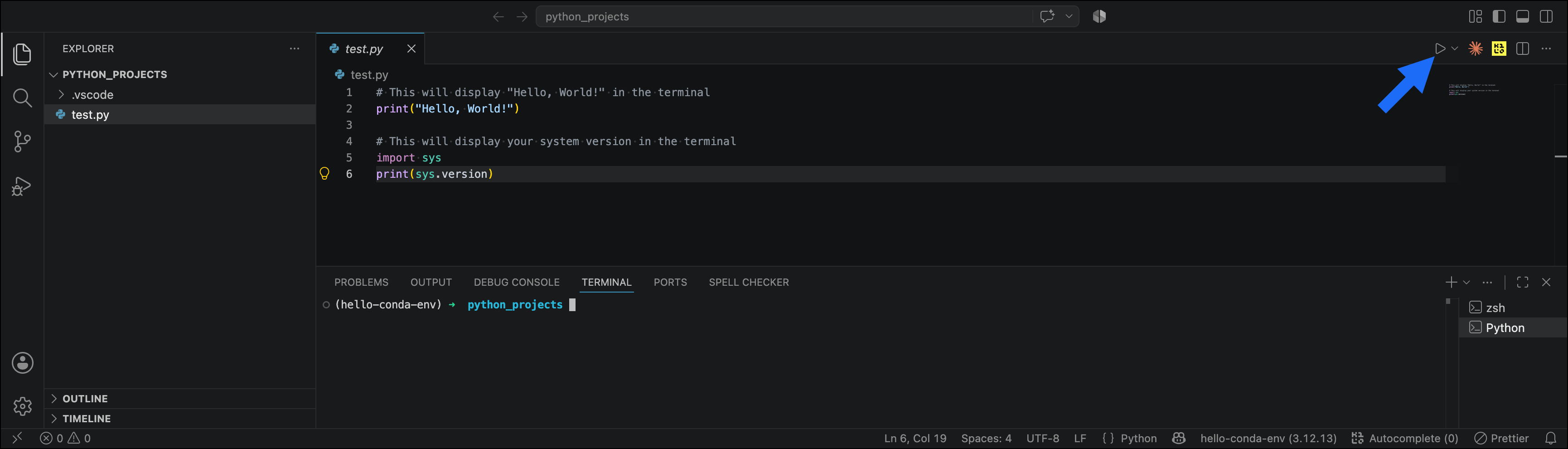
- Click Run Python File.