> ## Documentation Index
> Fetch the complete documentation index at: https://anaconda.com/docs/llms.txt
> Use this file to discover all available pages before exploring further.
# Mirrors
export const Danger = ({children}) => {
return
{children}
;
};
export const MirrorFolder = () => {
return ;
};
Mirroring is the process of copying data from a source and then storing it in a new location, often on a scheduled basis. When the mirror's source updates its contents, the mirror's contents update to match the next time it runs. It is possible to mirror just a subset of the source's contents as well, if the source contains more data than you need or can store. Mirroring ensures your channels are always up to date with the latest packages from the source.
Anaconda recommends that channels contain *only one mirror each* to prevent conflicts between package sources.
Mirroring is restricted to users whose [role](/docs/psm-on-prem/6.8.0/admin/user_config/permissions#permission-levels) provides `write` or `manage` permissions for **Channel Mirrors** and/or **Subchannel Mirrors** categories.
## Creating a mirror
When creating a mirror, the recommended workflow is:
1. Select a channel you want to contain your mirror.
2. Freeze your channel.
3. Open the **Manage** dropdown and select *Create Mirror*.
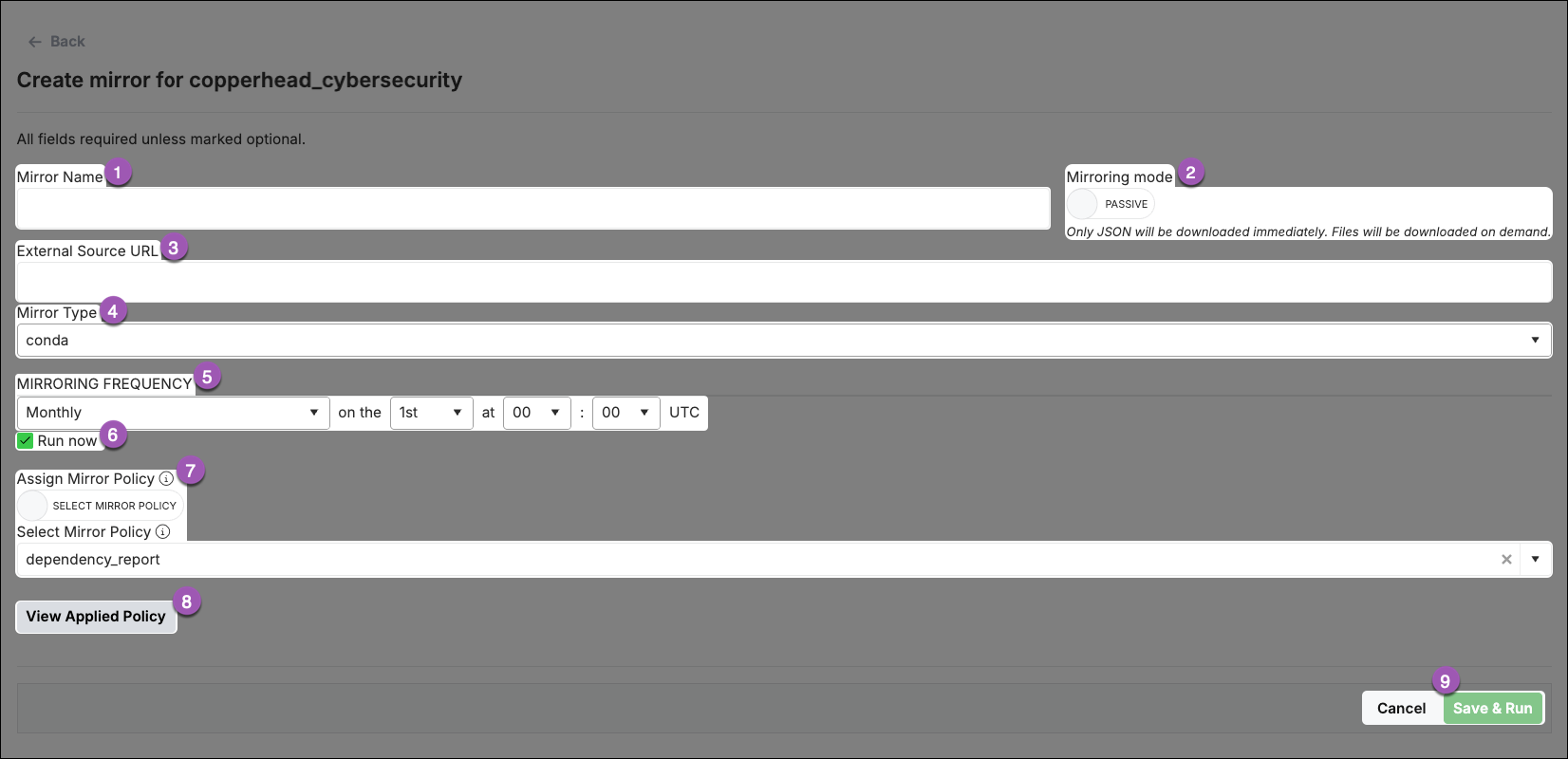
4. Complete the **Create mirror** form. Configuration options differ based on the type of mirror you are creating:
Enter a name for your mirror. Anaconda recommends you name your mirror something descriptive for your end users.
Choose whether you want your mirror to be active or passive.
**Active Mirroring**: Downloads packages from the source channel immediately to your local server.
Some repository channels require a large amount of storage (for example, Anaconda's public repository is 700GB, conda-forge is 3TB, and PyPI is 10TB), and as a rule, the larger the mirror, the longer the wait time for it to complete.
**Passive Mirroring**: Creates a metadata file listing all packages on the mirrored server. Packages are downloaded when users request them via `conda install `.
Anaconda recommends establishing your mirrors as passive. Active mirrors take longer to complete than passive mirrors, but regardless of which mirroring mode you choose, the available packages are the same.
Enter the URL of the conda channel to mirror.
**Anaconda recommends creating mirrors for the following channels:**
* `https://repo.anaconda.cloud/pkgs/main`
* `https://repo.anaconda.cloud/pkgs/r` Deprecated
* `https://repo.anaconda.cloud/pkgs/msys2`
* `https://repo.anaconda.cloud/repo/main-x` Beta
If your external source channel is another Package Security Manager channel, you *must* use the format `https:///api/repo/`.
***
If your external source channel is another Package Security Manager channel *that contains CRAN R packages*, you *must* use the format `https:///api/repo//cran`.
***
If your external source channel is a *virtual* channel from Package Security Manager (Cloud), you *must* use the format `https://repo.anaconda.cloud/repo/t///`.
***
If your external source channel is one of the **Anaconda Channels** or **Community Package Channels** from Package Security Manager (Cloud), you *must* use the format `https://repo.anaconda.cloud/t//repo/`.
***
When creating mirrors that use Package Security Manager (Cloud) channels as the external source, replace `` with your [organization access token](/docs/anaconda-platform/user/tokens), and `` with your [organization ID](/docs/anaconda-platform/admin/organizations#creating-an-organization).
Select **Conda** as the mirror type. This ensures that only conda packages (`.conda`, `.tar.bz2`) will be mirrored from the external source channel. Packages in the source channel that are not conda packages are not mirrored.
Set the frequency you want your mirror to run and update your packages. The default value instructs the mirror to update at midnight on the first day of every month.
Custom frequencies use [cron expressions](https://crontab.cronhub.io/) to determine when they run.
Mirroring large repositories can take several hours. Anaconda recommends against setting a frequency greater than *Daily* to avoid collisions between currently running and updating mirrors.
Select this checkbox to start your mirror when you click **Save & Run**. If the **Run Now** checkbox is not selected, your changes are saved, and the mirror runs the next time its frequency configuration instructs it to do so.
Toggle between using the policy that is applied to the channel or selecting a policy to apply to the mirror. For more information about policies, see [Policies](/docs/psm-on-prem/6.8.0/admin/policies).
You cannot apply a policy to a mirror if it is already applied to the channel.
***
Mirror policies override channel policies.
View details of the policy applied to the mirror.
Click **Cancel** at any time to quit your mirror form completion and discard any set parameters. Click **Save & Run** to start your mirror.
Enter a name for your mirror. Anaconda recommends you name your mirror something descriptive for your end users.
Choose whether you want your mirror to be active or passive.
**Active Mirroring**: Downloads packages from the source channel immediately to your local server.
Some repository channels require a large amount of storage (for example, Anaconda's public repository is 700GB, conda-forge is 3TB, and PyPI is 10TB), and as a rule, the larger the mirror, the longer the wait time for it to complete.
**Passive Mirroring**: Creates a metadata file listing all packages on the mirrored server. Packages are downloaded when users request them via `conda install `.
Anaconda recommends establishing your mirrors as passive. Active mirrors take longer to complete than passive mirrors, but regardless of which mirroring mode you choose, the available packages are the same.
Enter the URL of the Python package repository to mirror.
Select **Std Python** as the mirror type. This ensures that only Python packages (`.py`, `.pyc`, `.pyd`, `.whl`, `.egg`, `.tar.gz`, for example) are mirrored from the source repository. Packages in the source channel that are not Python packages are not mirrored.
Set the frequency you want your mirror to run and update your packages. The default value instructs the mirror to update at midnight on the first day of every month.
Custom frequencies use [cron expressions](https://crontab.cronhub.io/) to determine when they run.
Mirroring large repositories can take several hours. Anaconda recommends against setting a frequency greater than *Daily* to avoid collisions between currently running and updating mirrors.
If you are mirroring the full PyPI repository, set your frequency to run once yearly. Once the PyPI mirror is complete, any attempts to re-run the mirror will cause issues. Consider using selective mirroring for specific packages instead of the full PyPI repository.
Select this checkbox to start your mirror when you click **Save & Run**. If the **Run Now** checkbox is not selected, your changes are saved, and the mirror runs the next time its frequency configuration instructs it to do so.
Because policy filters only work for conda mirrors, Standard Python mirrors must use the **Mirroring Filters** section to specify which packages should be mirrored from the source channel.
List packages to exclude from the mirror by name here. You can also exclude packages by using wildcards. For example, `p*` excludes all packages that start with the letter `p`.
List exceptions to the exclusion list here. For example, if you want to include Python in your mirror, but you have used the exclusion filter `p*` to exclude all packages that start with the letter `p`, you can include Python by adding `python` here.
View details of the **Mirroring Filters** applied to the channel.
Click **Cancel** at any time to quit your mirror form completion and discard any set parameters. Click **Save & Run** to start your mirror.
Enter a name for your mirror. Anaconda recommends you name your mirror something descriptive for your end users.
Choose whether you want your mirror to be active or passive.
**Active Mirroring**: Downloads packages from the source channel immediately to your local server.
Some repository channels require a large amount of storage (for example, Anaconda's public repository is 700GB, conda-forge is 3TB, and PyPI is 10TB), and as a rule, the larger the mirror, the longer the wait time for it to complete.
**Passive Mirroring**: Creates a metadata file listing all packages on the mirrored server. Packages are downloaded when users request them via `conda install `.
Anaconda recommends establishing your mirrors as passive. Active mirrors take longer to complete than passive mirrors, but regardless of which mirroring mode you choose, the available packages are the same.
Enter the URL of the R package repository to mirror.
Select "Std R" as the mirror type. This ensures that only R packages (`.R`, `.RData`, `.rda`, `.RDS`, `.Rd`, `.Rproj`, for example) are mirrored from the source repository. Packages in the source channel that are not R packages are not mirrored.
Set the frequency you want your mirror to run and update your packages. The default value instructs the mirror to update at midnight on the first day of every month.
Custom frequencies use [cron expressions](https://crontab.cronhub.io/) to determine when mirrors run.
Mirroring large repositories can take several hours. Anaconda recommends against setting a frequency greater than *Daily* to avoid collisions between currently running and updating mirrors.
Select this checkbox to start your mirror when you click **Save & Run**. If the **Run Now** checkbox is not selected, your changes are saved, and the mirror runs the next time its frequency configuration instructs it to do so.
Because policy filters only work for conda mirrors, Standard R mirrors must use the **Mirroring Filters** to specify which packages should be mirrored from the source channel.
List packages to exclude from the mirror by name here. You can also exclude packages by using wildcards. For example, `p*` excludes all packages that start with the characters `p`.
R packages can also be excluded by License type.
List exceptions to the exclusion list here. For example, if you want to include the `plumber` package in your mirror, but you have used the exclusion filter `p*` to exclude all packages that start with the characters `p`, you can include plumber by adding `plumber` here.
View details of the **Mirroring Filters** applied to the channel.
Click **Cancel** at any time to quit your mirror form completion and discard any set parameters. Click **Save & Run** to start your mirror.
5. Allow the mirror time to complete.
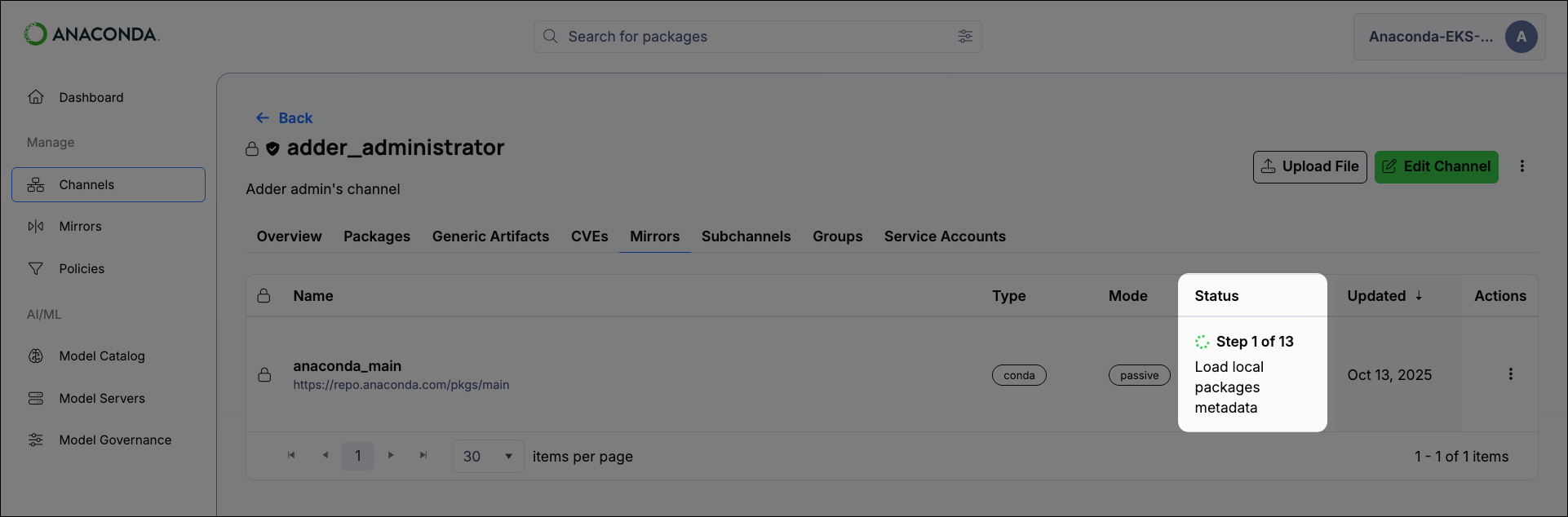
You can view the status of in-progress mirrors from the from the channel's **Mirrors** tab. In-progress mirrors display which step is currently being performed with a brief description of the operation. When a mirror completes, the status updates to **Completed** and the date and time of completion is displayed.
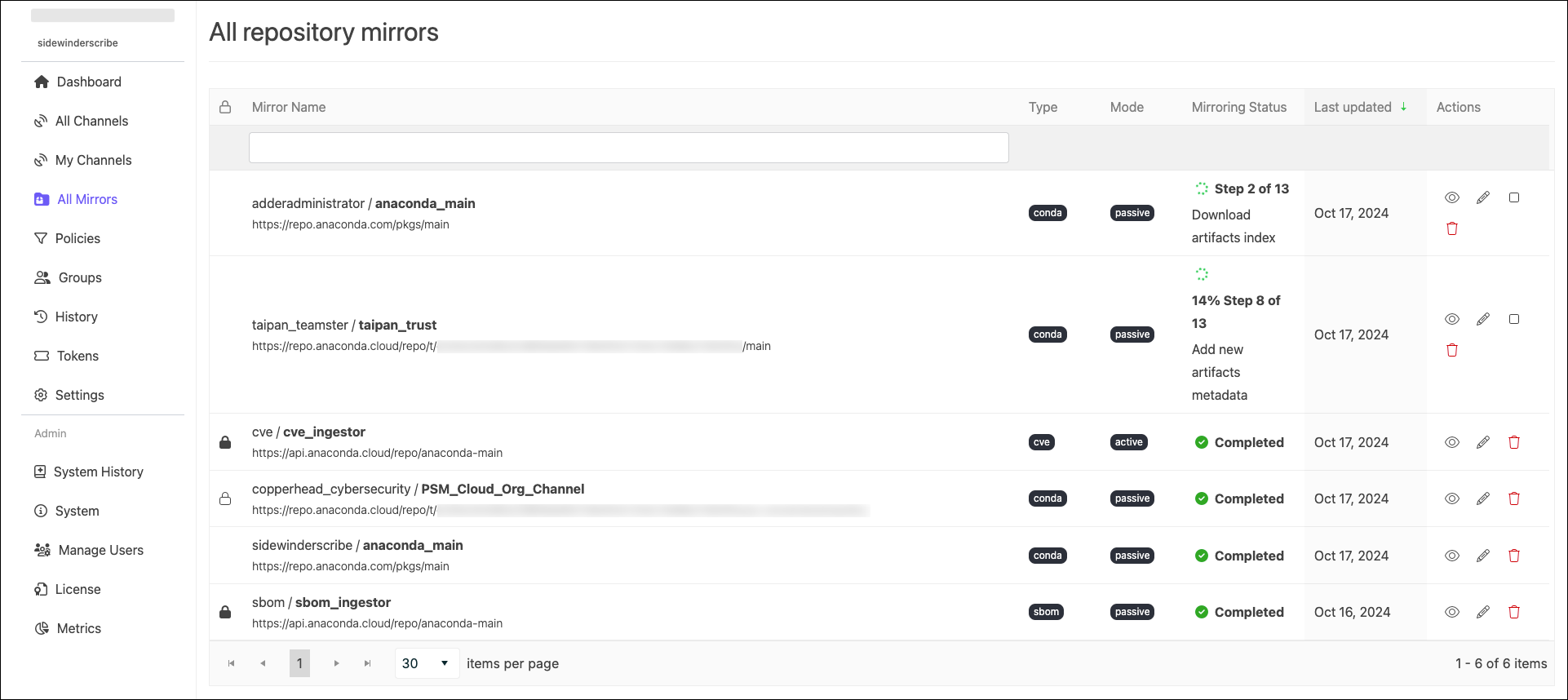
Administrators can view the status of all mirrors from the **Mirrors** page.
6. Unfreeze your channel.
For more information on freezing and unfreezing a channel, see [Freezing/Unfreezing Channels](/docs/psm-on-prem/6.8.0/user/channel#freezing-and-unfreezing-channels).
## Managing mirrors
Select **All Mirrors** from the left-hand navigation to view mirrors globally for all users.
This view is only available to users whose role provides `Manage` permissions for the **mirror** attribute. This value must be assigned in Keycloak.
Use the search box to locate a mirror by name. Click a column header to sort mirrors by **Type**, **Mode**, **Mirroring Status**, or **Last Updated**.
### Mirror actions
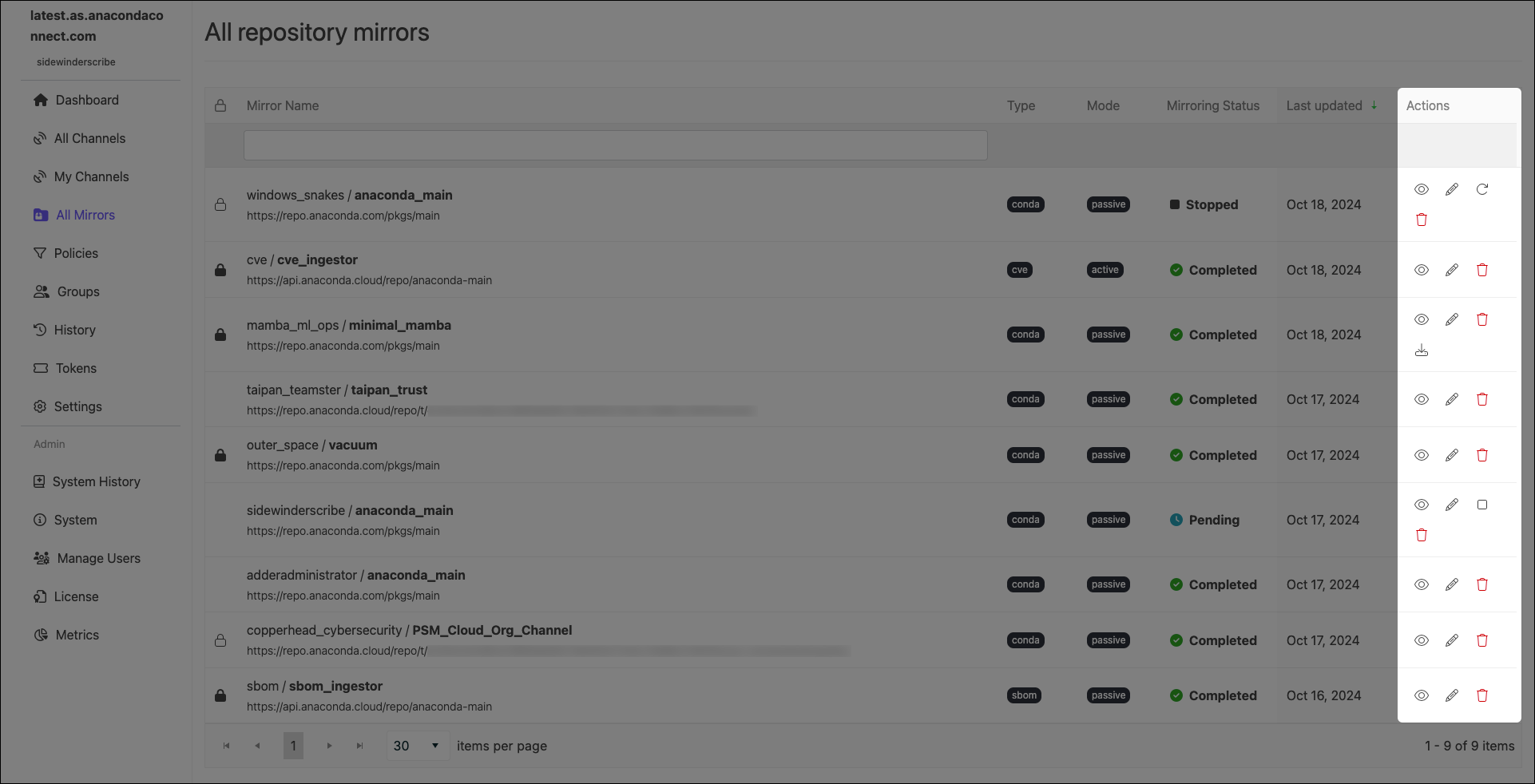
Use the icons in the **Actions** column to manage your mirrors:
Mirror actions can also be performed from a channel’s **Mirrors** tab.
}>
Edit a mirror's configurations.
You cannot edit the mode of an established mirror.
}>
Stop an in-progress mirror.
It can take up to 10 minutes for a mirror to fully stop. A mirror in the process of stopping will display **Stopping** as its mirroring status. Once it is complete, it will display **Stopped** as its status. Stopping a mirror does not discard the progress the mirror has made, and some packages may appear in your channel’s **Packages** tab.
}>
Restart a stopped mirror.
Restarted mirrors run from the beginning of the mirroring process, not from where you stopped the run.
}>
View information about how many packages were filtered from the source, reasons for their exclusion, and whether packages were mirrored passively or actively.
}>
Delete a mirror.
}>
Download a dependency report (if available).
A dependency report is a detailed list of all the software packages required for your specified packages to function correctly. It includes both direct dependencies (packages your specified packages require to run) and indirect dependencies (packages the dependencies require to run). A package dependency report can help you identify exactly which packages are necessary for your channel to be able to create a working environment using conda.
Dependency reports are only available for mirrors that have policies with specific configurations applied:
* You must set package rules to allow packages by their names using [MatchSpec protocol](https://docs.conda.io/projects/conda/en/stable/dev-guide/api/conda/models/match_spec/index.html)—a syntax for specifying package names and versions in conda
* You must select the **Include dependencies** checkbox.