> ## Documentation Index
> Fetch the complete documentation index at: https://anaconda.com/docs/llms.txt
> Use this file to discover all available pages before exploring further.
# Licenses
Your license determines the number of users and channels available to your instance.
Licenses are issued for their designated contract period. New licenses will be issued by Anaconda at the time of renewal.
## Obtaining a license
You can get a new license or upgrade an existing license by [contacting the Anaconda sales team](https://www.anaconda.com/contact) or one of our OEM partners.
## Enabling your license
Package Security Manager prompts you to enter your license on your initial login to the application. Once a valid license is entered, you are directed to the dashboard.
 ## Viewing your license
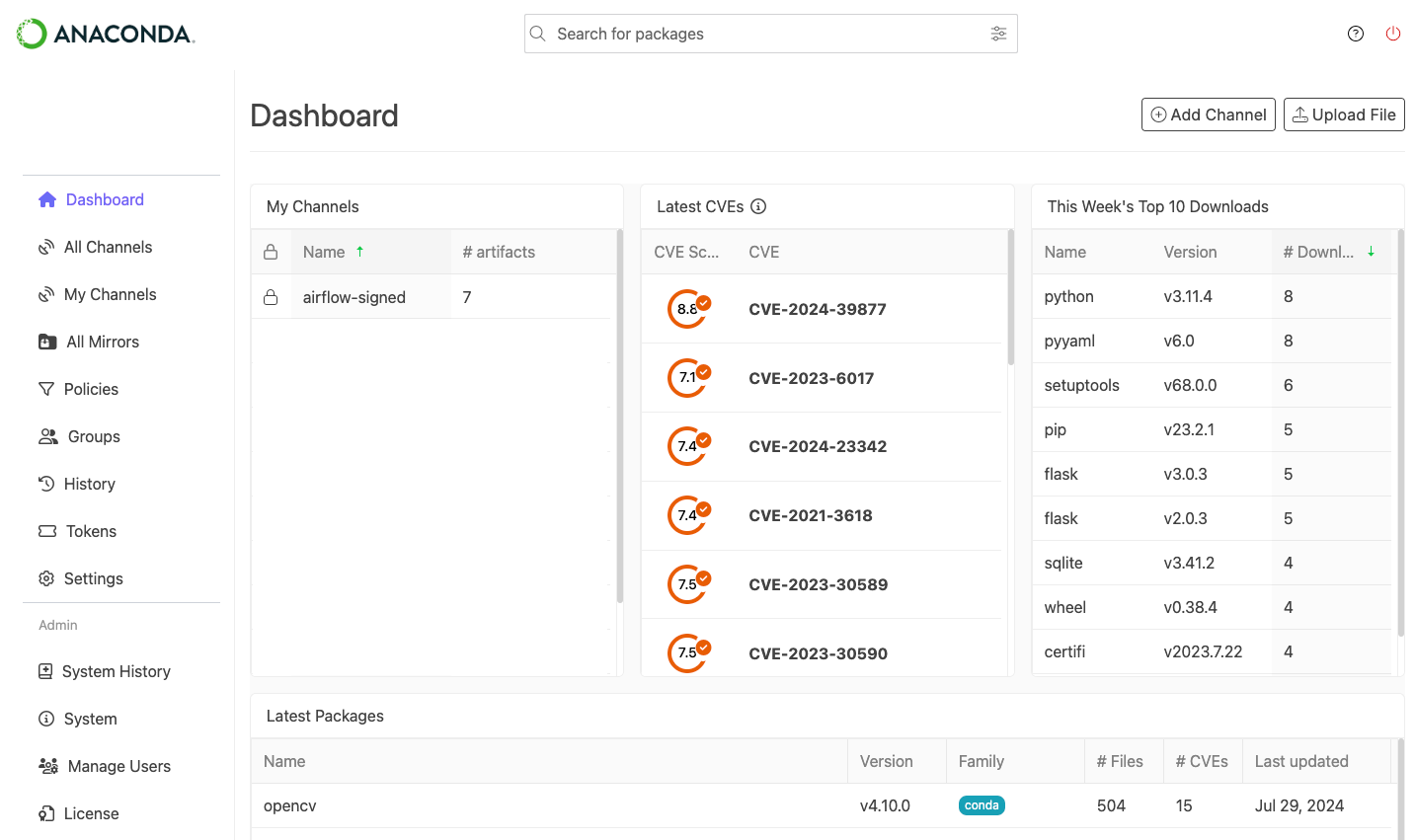
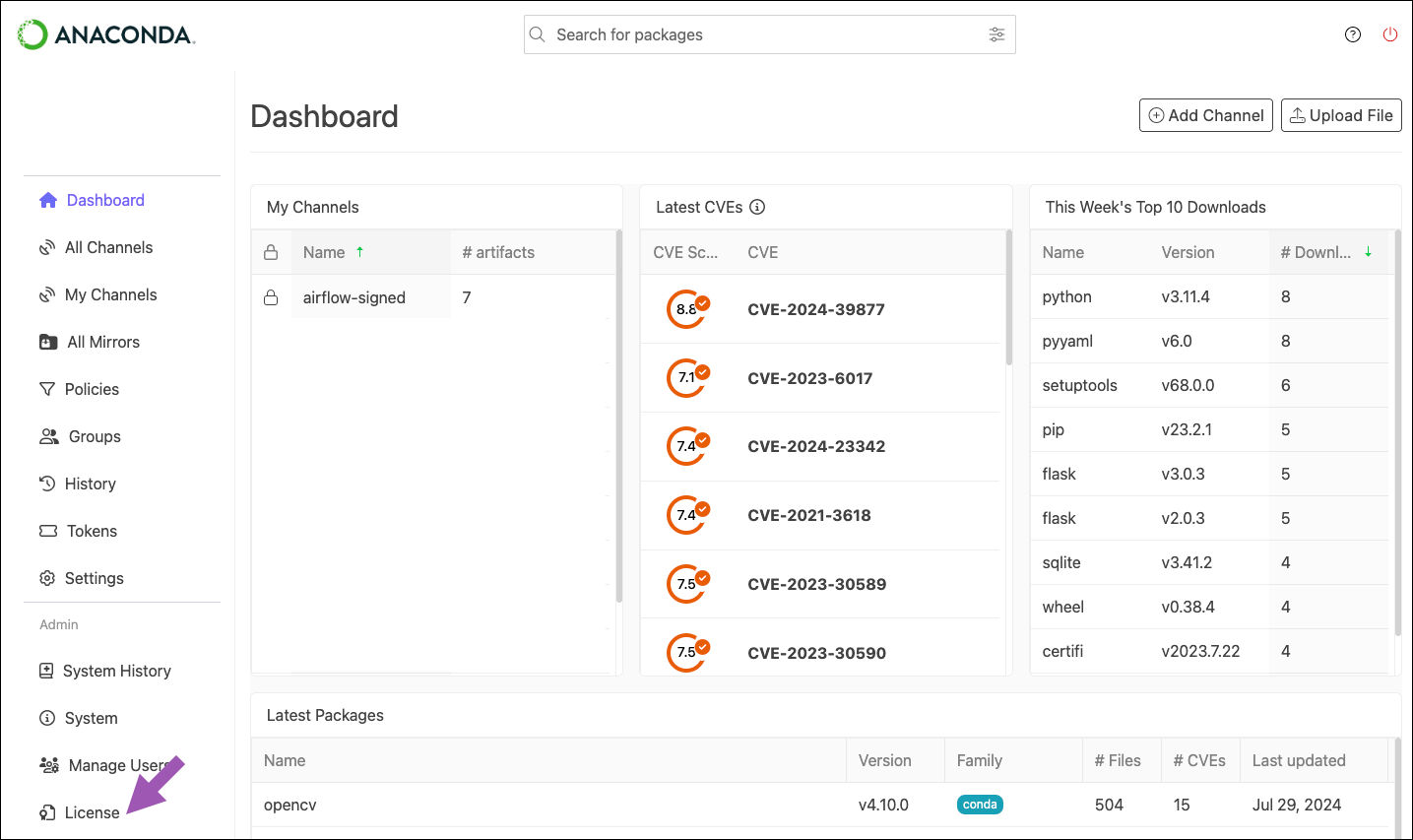
To view your license, select **License** from the left-hand navigation.
## Viewing your license
To view your license, select **License** from the left-hand navigation.
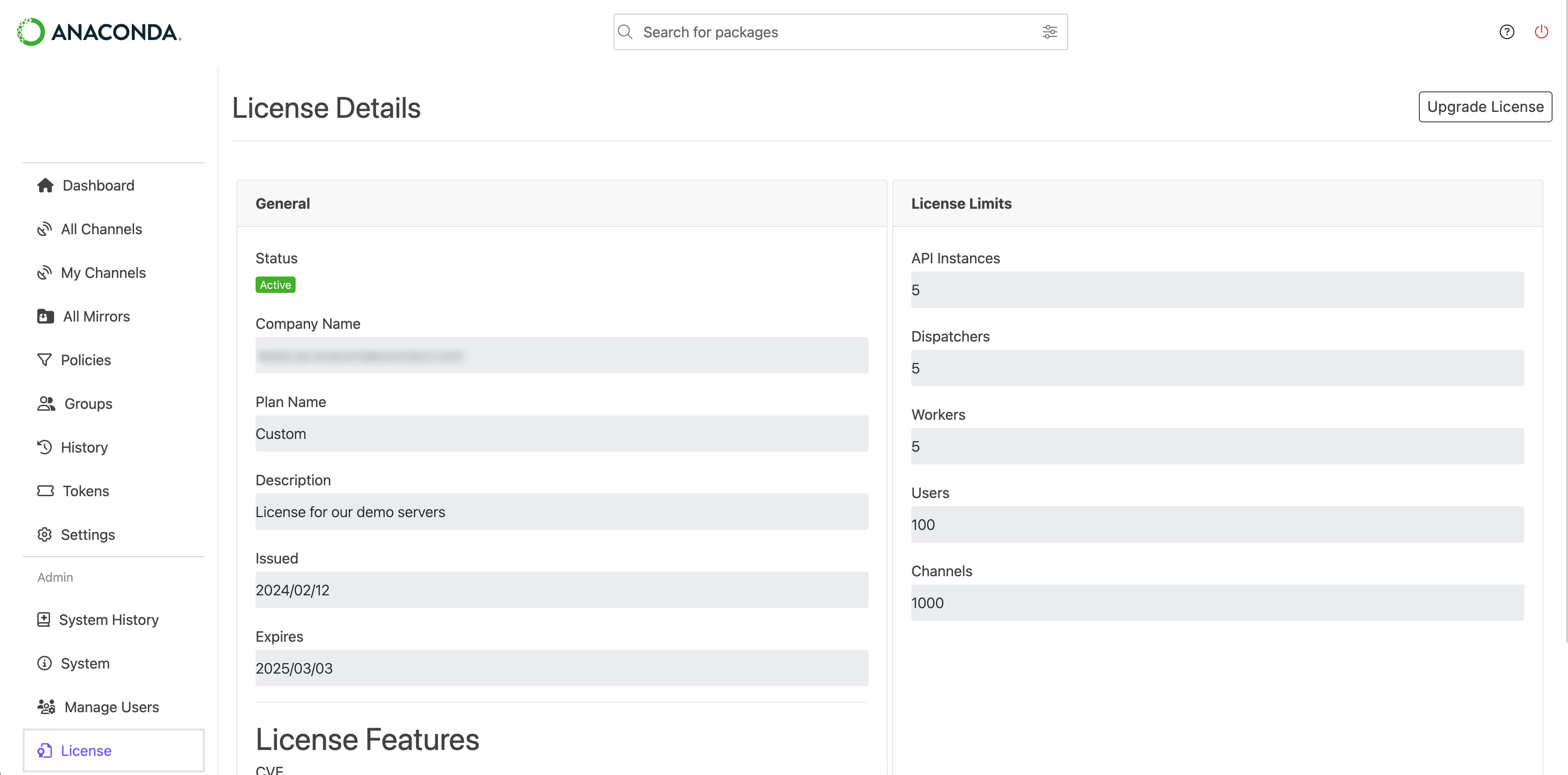
 You will be presented with the License Details page:
 ## Updating your license
If you obtain a new license, you’ll need to update your license by completing the following steps:
1. Select **License** from the left-hand navigation.
2. Click **Upgrade License** in the upper-right corner.
3. Copy and paste your new license into the field, then click **Upgrade**.
## Understanding licensing limitations
A license will limit you to a certain number of users/workers. These limitations are used to track your usage of resources, such as the number of users in your Package Security Manager instance.
Banners at the top of Package Security Manager will inform you of any limits you are reaching or have already passed. For example, if your user count exceeds its limit, you may receive a banner like the following:
## Updating your license
If you obtain a new license, you’ll need to update your license by completing the following steps:
1. Select **License** from the left-hand navigation.
2. Click **Upgrade License** in the upper-right corner.
3. Copy and paste your new license into the field, then click **Upgrade**.
## Understanding licensing limitations
A license will limit you to a certain number of users/workers. These limitations are used to track your usage of resources, such as the number of users in your Package Security Manager instance.
Banners at the top of Package Security Manager will inform you of any limits you are reaching or have already passed. For example, if your user count exceeds its limit, you may receive a banner like the following:
 Package Security Manager user account limitations are triggered by the first login of a new user, *not* from the creation of that user’s account in Keycloak.
## License notifications
Package Security Manager notifies you when you approach or exceed the limits of your license, when your license is about to expire, or if your license is expired. If you exceed the limits of your license, *you won’t be able to use most of Package Security Manager’s features*.
Usually, you’re not allowed to exceed the limits of your license, as you would get a warning. This does not apply to the creation of users. You can create users *without limit*, but you will not be able to use Package Security Manager’s features once you exceed your license’s allowed number of users.
You can [update your license](#updating-your-license) to add more users or channels, or [manage your users](/docs/psm-on-prem/6.8.0/admin/user_config/user_roles) and [channels](/docs/psm-on-prem/6.8.0/user/channel) to keep within the limitations of your license.
Package Security Manager user account limitations are triggered by the first login of a new user, *not* from the creation of that user’s account in Keycloak.
## License notifications
Package Security Manager notifies you when you approach or exceed the limits of your license, when your license is about to expire, or if your license is expired. If you exceed the limits of your license, *you won’t be able to use most of Package Security Manager’s features*.
Usually, you’re not allowed to exceed the limits of your license, as you would get a warning. This does not apply to the creation of users. You can create users *without limit*, but you will not be able to use Package Security Manager’s features once you exceed your license’s allowed number of users.
You can [update your license](#updating-your-license) to add more users or channels, or [manage your users](/docs/psm-on-prem/6.8.0/admin/user_config/user_roles) and [channels](/docs/psm-on-prem/6.8.0/user/channel) to keep within the limitations of your license.