> ## Documentation Index
> Fetch the complete documentation index at: https://anaconda.com/docs/llms.txt
> Use this file to discover all available pages before exploring further.
# Service accounts
export const Danger = ({children}) => {
return ;
};
Service accounts enable programmatic access to channels by allowing users to generate [resource tokens](/docs/psm-on-prem/6.7.2/user/auth_token#token-types) that are not tied to individual user credentials. Service accounts are especially useful for scenarios where access needs to persist beyond the lifecycle of a user account.
Service accounts count as a user against your [license limit](/docs/psm-on-prem/6.7.2/admin/license#viewing-your-license)!
## Viewing service accounts
You can view your service accounts at any time by selecting **Service Accounts** from the left-hand navigation.
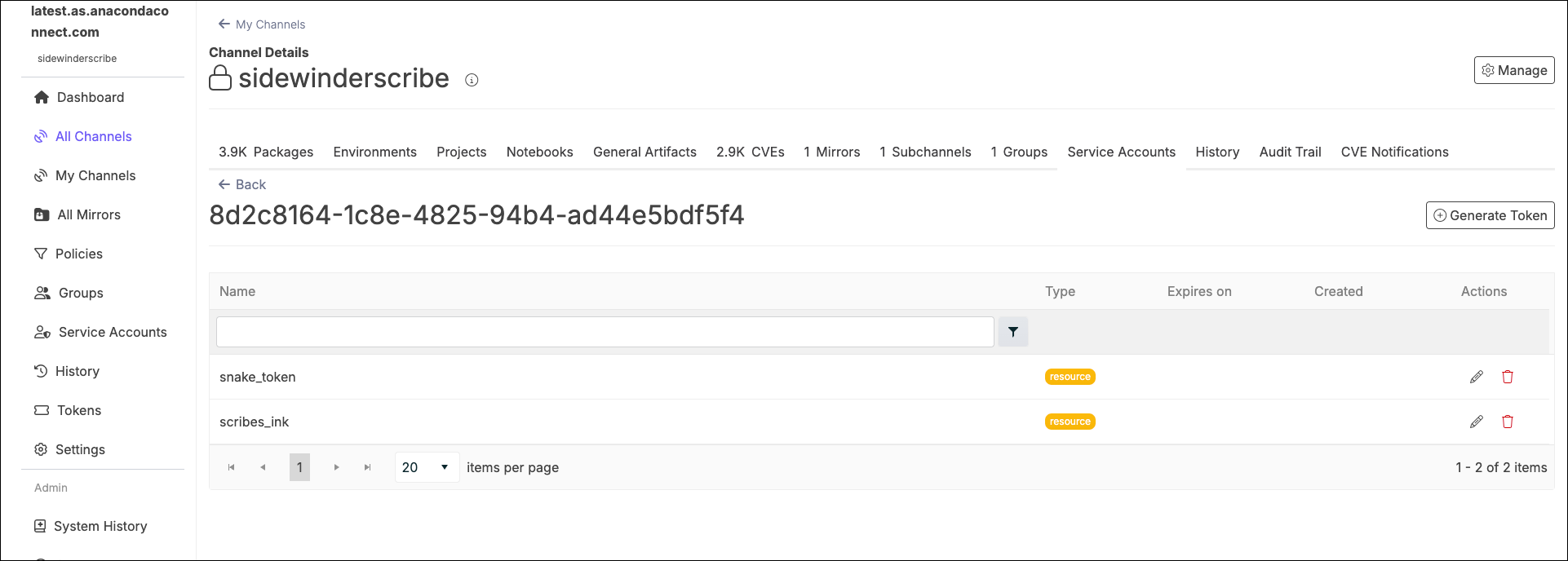
Select a service account from the list to view the tokens associated with that service account.
 ## Creating a service account
To create a service account for a channel, you must belong to the channel’s `_owners` group.
1. Select **Service Accounts** from the left-hand navigation.
2. Click **Create Service Account** beside the channel you want to create a service account for.
This is disabled for channels that have an existing service account.
3. Click **Create**.
Service accounts are created with the name `service-account-channel-`.
## Creating a service account token
Service accounts can have multiple resource tokens, each configured with unique permissions, descriptions, and expiration dates.
1. Select **Service Accounts** from the left-hand navigation.
2. Select the service account you want to generate a token for.
3. Click **Generate Token**.
4. Enter a unique name for your token.
5. (Optional) Provide a description of the token’s intended purpose.
6. Select an expiration date for your token.
7. Open the **Permission** dropdown and select a permission level for this token.
You can only grant permissions to the service account token that you currently hold.
8. Open the **Channel** dropdown and select the channel that this token provides access to.
Setting the value for the **Channel** dropdown automatically updates the **Resource** dropdown. Skip that field.
9. If you want to add an additional resource to this token, select **Add Resource** and repeat the process.
10. Click **Create**.
11. Your service account token appears in the upper-right corner. Copy this value, then close the notification.
The notification containing your service account token remains visible until you close it, giving you plenty of time to copy the value. Once closed, the token value cannot be retrieved again, and you will need to generate a new token.
Treat tokens like they are sensitive credentials. If a token is compromised, delete it immediately.
## Managing service account tokens
### Token actions
**Edit**: You can edit the name, description, and expiration date of your token without changing the token’s value. If you want to invalidate and replace the previous token, select **Issue a note token**.
**Delete**: You can delete your token at any time.
Issuing a new token or deleting a token will break any workflows that have these values embedded.
## Adding a service account to a channel
If you want your service account to be able to provide access to another channel, you must request that the channel owner add your service account to their channel’s `_owners` group. For instructions, see [Adding members to a group](/docs/psm-on-prem/6.7.2/user/groups#adding-members-to-a-group).
## Creating a service account
To create a service account for a channel, you must belong to the channel’s `_owners` group.
1. Select **Service Accounts** from the left-hand navigation.
2. Click **Create Service Account** beside the channel you want to create a service account for.
This is disabled for channels that have an existing service account.
3. Click **Create**.
Service accounts are created with the name `service-account-channel-`.
## Creating a service account token
Service accounts can have multiple resource tokens, each configured with unique permissions, descriptions, and expiration dates.
1. Select **Service Accounts** from the left-hand navigation.
2. Select the service account you want to generate a token for.
3. Click **Generate Token**.
4. Enter a unique name for your token.
5. (Optional) Provide a description of the token’s intended purpose.
6. Select an expiration date for your token.
7. Open the **Permission** dropdown and select a permission level for this token.
You can only grant permissions to the service account token that you currently hold.
8. Open the **Channel** dropdown and select the channel that this token provides access to.
Setting the value for the **Channel** dropdown automatically updates the **Resource** dropdown. Skip that field.
9. If you want to add an additional resource to this token, select **Add Resource** and repeat the process.
10. Click **Create**.
11. Your service account token appears in the upper-right corner. Copy this value, then close the notification.
The notification containing your service account token remains visible until you close it, giving you plenty of time to copy the value. Once closed, the token value cannot be retrieved again, and you will need to generate a new token.
Treat tokens like they are sensitive credentials. If a token is compromised, delete it immediately.
## Managing service account tokens
### Token actions
**Edit**: You can edit the name, description, and expiration date of your token without changing the token’s value. If you want to invalidate and replace the previous token, select **Issue a note token**.
**Delete**: You can delete your token at any time.
Issuing a new token or deleting a token will break any workflows that have these values embedded.
## Adding a service account to a channel
If you want your service account to be able to provide access to another channel, you must request that the channel owner add your service account to their channel’s `_owners` group. For instructions, see [Adding members to a group](/docs/psm-on-prem/6.7.2/user/groups#adding-members-to-a-group).