> ## Documentation Index
> Fetch the complete documentation index at: https://anaconda.com/docs/llms.txt
> Use this file to discover all available pages before exploring further.
# Projects
Projects contain all of the components needed to use or run an application. This includes relevant packages, channels, scripts, notebooks, files, environment variables, services and commands, and a core configuration file named `anaconda-project.yml`. They provide a method to accurately reproduce your work and collaborate on it with other team members. Projects automate setup steps such as installing packages, downloading files, setting environment variables, and running commands.
Use `Anaconda Project` to archive your project directory into a `.tar.bz2`, `.tar.gz`, or `.zip` file for portability purposes and to share with others. For more information, see the official [Anaconda Project documentation](https://anaconda-project.readthedocs.io/en/latest/).
Package Security Manager enables you to upload and share Anaconda Project files within a channel. You can move, copy, and share your project with your team or provide authorized users access to the channel.
## Uploading a project
The process for preparing a project for upload differs depending on the project type. Please follow the relevant guide to prepare your project for upload before continuing:
* [sdist and wheels](https://packaging.python.org/tutorials/packaging-projects/#generating-distribution-archives)
* [cran](https://r-pkgs.org/structure)
* [conda-build](https://docs.conda.io/projects/conda-build/en/latest/)
1. Log in to Package Security Manager.
2. Select a channel that you want to upload a project to.
3. Open the **Manage** dropdown menu and select **Upload File**.
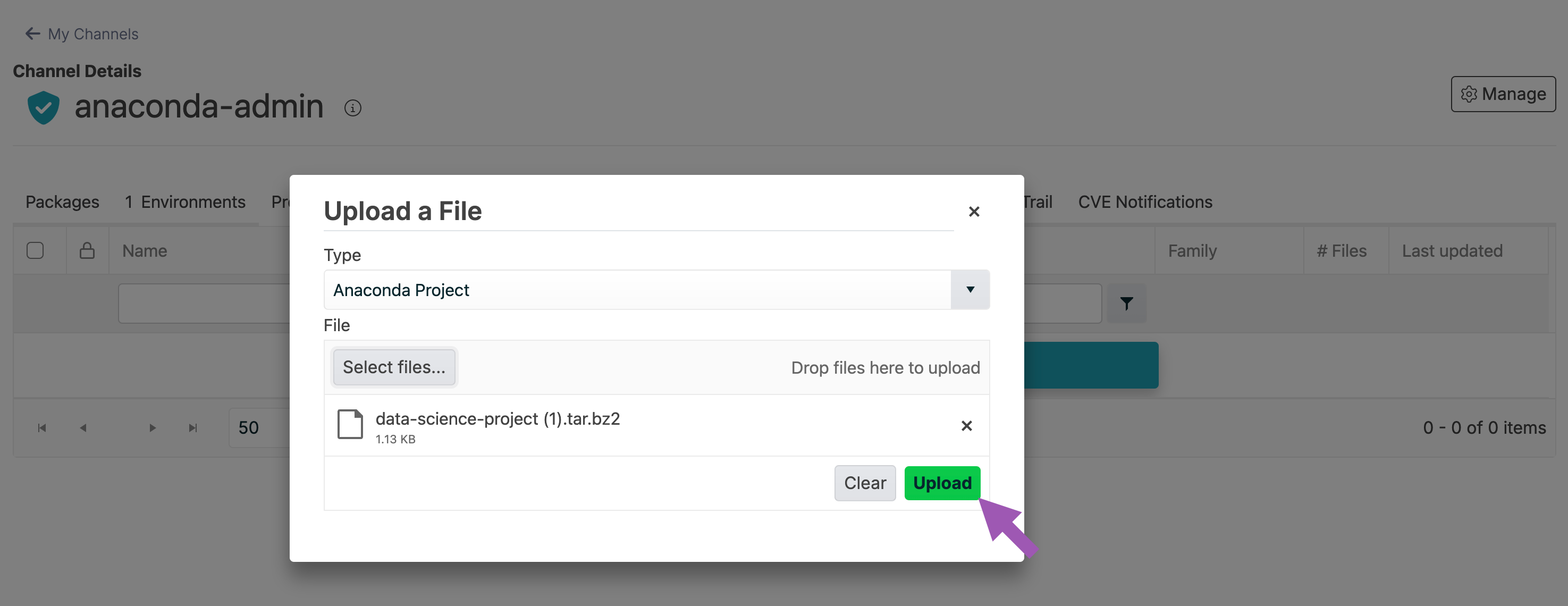
4. Open the **Type** dropdown menu and select **Anaconda Project**.
5. Click **Select files…** then locate and upload your project file, or drag and drop your project file into the field.
6. Click **Upload**.
 ## Downloading a project
To download a notebook from a channel or subchannel:
1. From the channel or subchannel details page, select the **Projects** tab.
2. Select a project to view its details page.
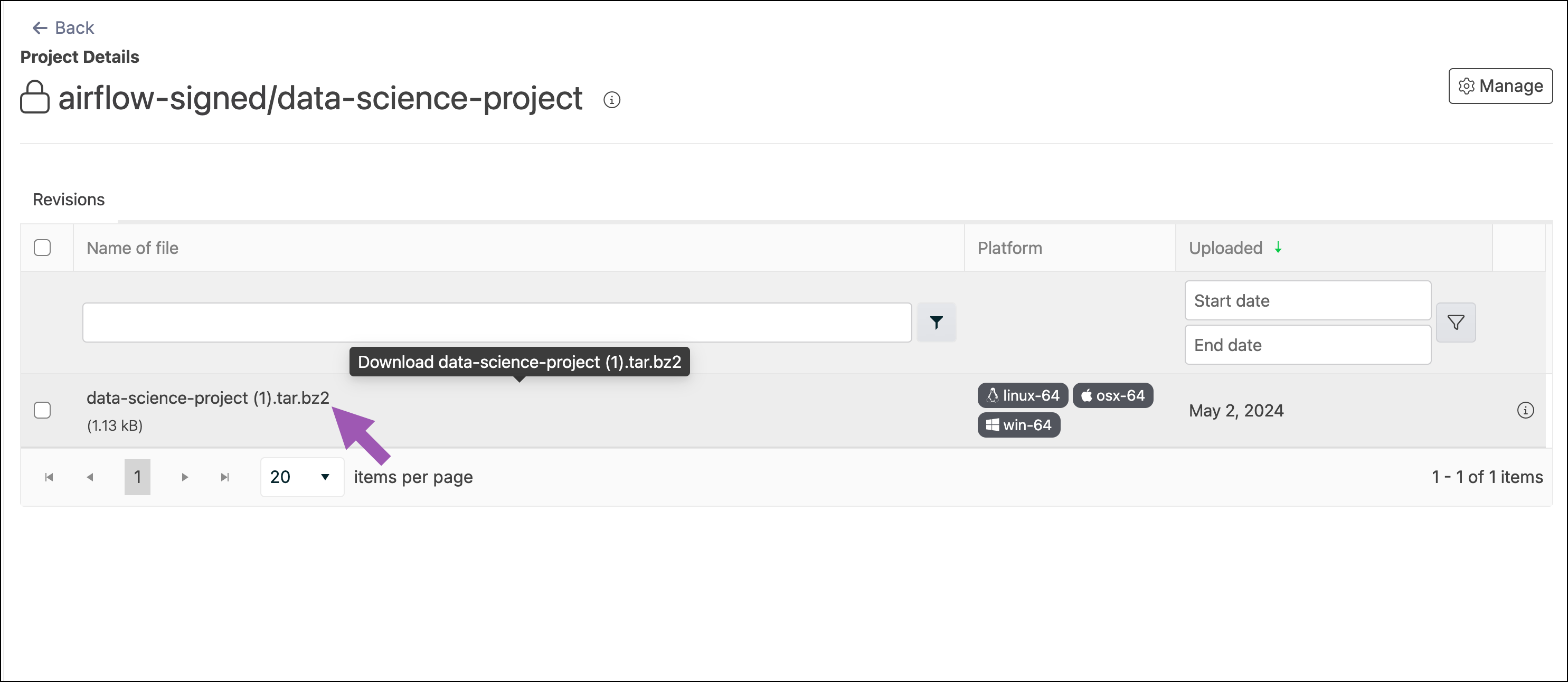
3. Click the project name to download it.
## Downloading a project
To download a notebook from a channel or subchannel:
1. From the channel or subchannel details page, select the **Projects** tab.
2. Select a project to view its details page.
3. Click the project name to download it.
 ## Viewing project metadata
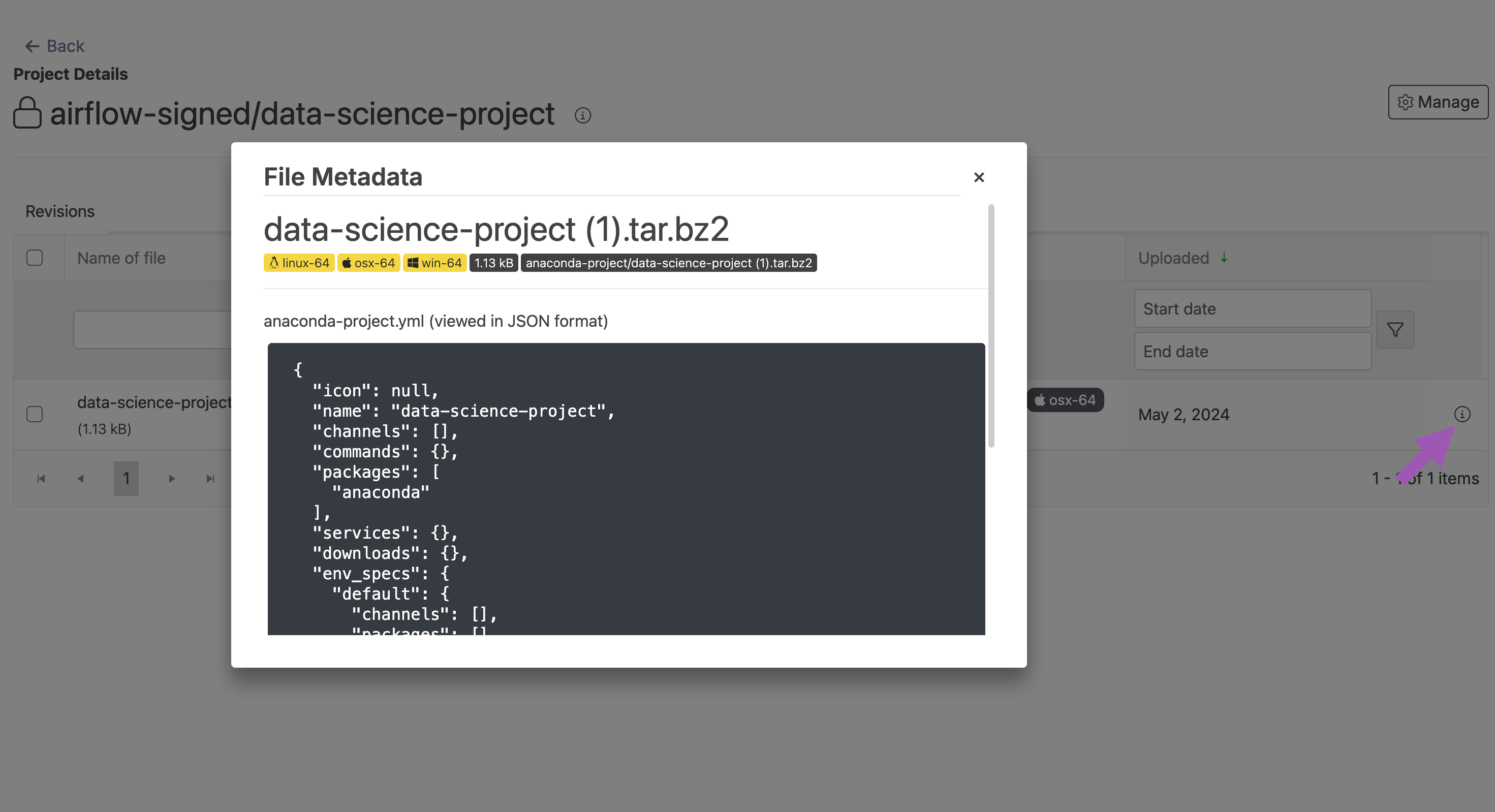
From the project details page, click the information to view a file’s metadata.
## Viewing project metadata
From the project details page, click the information to view a file’s metadata.
 ## Moving a project
1. From the channel or subchannel details page, select the **Projects** tab.
2. Select the checkbox beside the projects you want to move. File management buttons appear at the top of the list.
3. Click **Move # projects**.
4. Open the **Move To:** dropdown menu and select a destination channel or subchannel for your project.
5. Click **Move**.
Moving a project will remove it from its origin channel.
### Copying a project
To copy a project from one channel or subchannel to another:
1. From the channel or subchannel details page, select the **Projects** tab.
2. Select the checkbox beside the projects you want to copy. File management buttons appear at the top of the list.
3. Click **Copy # projects**.
4. Open the **Copy To:** dropdown menu and select a destination channel for your projects.
5. Click **Copy**.
Copying a project will not remove it from its origin channel.
### Deleting a project
To delete a project from a channel or subchannel:
1. From the channel or subchannel details page, select the **Projects** tab.
2. Select the checkbox beside the projects you want to delete. File management buttons appear at the top of the list.
3. Click **Delete # projects**.
4. Click **Delete** to verify you want to delete your selected projects.
## Moving a project
1. From the channel or subchannel details page, select the **Projects** tab.
2. Select the checkbox beside the projects you want to move. File management buttons appear at the top of the list.
3. Click **Move # projects**.
4. Open the **Move To:** dropdown menu and select a destination channel or subchannel for your project.
5. Click **Move**.
Moving a project will remove it from its origin channel.
### Copying a project
To copy a project from one channel or subchannel to another:
1. From the channel or subchannel details page, select the **Projects** tab.
2. Select the checkbox beside the projects you want to copy. File management buttons appear at the top of the list.
3. Click **Copy # projects**.
4. Open the **Copy To:** dropdown menu and select a destination channel for your projects.
5. Click **Copy**.
Copying a project will not remove it from its origin channel.
### Deleting a project
To delete a project from a channel or subchannel:
1. From the channel or subchannel details page, select the **Projects** tab.
2. Select the checkbox beside the projects you want to delete. File management buttons appear at the top of the list.
3. Click **Delete # projects**.
4. Click **Delete** to verify you want to delete your selected projects.