> ## Documentation Index
> Fetch the complete documentation index at: https://anaconda.com/docs/llms.txt
> Use this file to discover all available pages before exploring further.
# Enable and configure SSL post installation
## Enabling SSL
Because Package Security Manager does not require SSL certificates to operate, you’ll need to perform some additional steps in order to enable SSL on an existing HTTP based instance.
1. Open a terminal and connect to your instance of Package Security Manager.
2. Enter your installer directory (`ate-installer-*`).
This directory contains both the `docker-compose.yml` and `.env` files.
3. Using your preferred file editor, open the `docker-compose.yml` file.
1. Find the `services: nginx_proxy:` section near the top of the file and add the following lines:
```yaml theme={null}
secrets:
- source: nginx_key
target: /etc/nginx/certs/tls.key
- source: nginx_cert
target: /etc/nginx/certs/tls.crt
```
For example:
```yaml theme={null}
services:
...
nginx_proxy:
secrets:
- source: nginx_key
target: /etc/nginx/certs/tls.key
- source: nginx_cert
target: /etc/nginx/certs/tls.crt
```
2. Find the `keycloak: environment:` section further down in the file and add the following lines:
```yaml theme={null}
- PROXY_ADDRESS_FORWARDING=true
```
4. Edit your `.env` file.
1. Change `DOMAIN` to new FQDN, if applicable.
2. Change `NGINX_PROXY_PORT` to `443`.
3. Change `PROTOCOL` to `https`
## Configuring SSL
The following steps will allow you to configure the SSL:
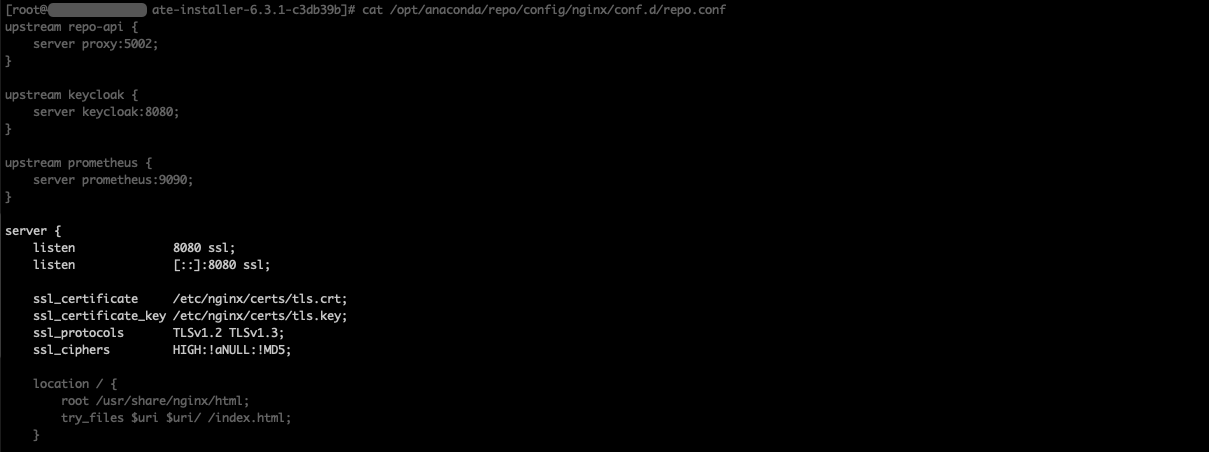
1. Add or remove the following lines relating to the SSL in `/config/nginx/conf.d/repo.conf`:
By default, the `` is `/opt/anaconda/repo`.
```
listen 8080 ssl;
listen [::]:8080 ssl;
ssl_certificate /etc/nginx/certs/tls.crt;
ssl_certificate_key /etc/nginx/certs/tls.key;
ssl_protocols TLSv1.2 TLSv1.3;
ssl_ciphers HIGH:!aNULL:!MD5;
```
 2. Add or remove certificates from the `/config/nginx/certs` directory.
The certificate and key files must be named `tls.crt` and `tls.key`.
3. Run the following commands:
```sh theme={null}
docker compose stop nginx_proxy
docker compose up --detach
```
Refer to nginx’s documentation for the standard [SSL configuration](https://nginx.org/en/docs/http/configuring_https_servers.html) procedure.
## Updating URL/URIs in Keycloak
Once your SSL cert and key are in place, you will need to update Keycloak to point to your new root URL and any valid URI redirects to your domain.
1. Navigate to your Keycloak instance at `/auth/admin` and log in.
2. Open the dropdown in the left-hand navigation and select the **Anaconda Login (dev)** realm.
3. Select **Clients** from the left-hand navigation.
4. Select **repo-service** from the list of available clients.
5. On the **Settings** tab, update your root URL and any necessary valid redirect URI’s.
6. Click **Save** at the bottom of the page.
7. Select **Clients** from the left-hand navigation.
8. Select **repo-account-sync** from the list of available clients.
9. On the **Settings** tab, update your root URL.
10. Click **Save** at the bottom of the page.
## Rebuilding your channel index
Migrating from `HTTP` to `HTTPS` or updating your `FQDN` will alter the file path to your channel’s packages. You must [rebuild your channel index](/docs/psm-on-prem/6.7.2/user/channel#rebuilding-your-channel-index) to correct the file path. If you do not, you will be unable to successfully download packages after migrating.
2. Add or remove certificates from the `/config/nginx/certs` directory.
The certificate and key files must be named `tls.crt` and `tls.key`.
3. Run the following commands:
```sh theme={null}
docker compose stop nginx_proxy
docker compose up --detach
```
Refer to nginx’s documentation for the standard [SSL configuration](https://nginx.org/en/docs/http/configuring_https_servers.html) procedure.
## Updating URL/URIs in Keycloak
Once your SSL cert and key are in place, you will need to update Keycloak to point to your new root URL and any valid URI redirects to your domain.
1. Navigate to your Keycloak instance at `/auth/admin` and log in.
2. Open the dropdown in the left-hand navigation and select the **Anaconda Login (dev)** realm.
3. Select **Clients** from the left-hand navigation.
4. Select **repo-service** from the list of available clients.
5. On the **Settings** tab, update your root URL and any necessary valid redirect URI’s.
6. Click **Save** at the bottom of the page.
7. Select **Clients** from the left-hand navigation.
8. Select **repo-account-sync** from the list of available clients.
9. On the **Settings** tab, update your root URL.
10. Click **Save** at the bottom of the page.
## Rebuilding your channel index
Migrating from `HTTP` to `HTTPS` or updating your `FQDN` will alter the file path to your channel’s packages. You must [rebuild your channel index](/docs/psm-on-prem/6.7.2/user/channel#rebuilding-your-channel-index) to correct the file path. If you do not, you will be unable to successfully download packages after migrating.