> ## Documentation Index
> Fetch the complete documentation index at: https://anaconda.com/docs/llms.txt
> Use this file to discover all available pages before exploring further.
# Backup and restore
[Open a support ticket](https://support.anaconda.com/hc/en-us) to get assistance from Anaconda if you are upgrading your operating system or plan on migrating your instance of Package Security Manager to a new operating system architecture, as this could severely impact your Package Security Manager instance!
## Prerequisites
* pg\_dump version 9.6.4+
* pg\_restore version 9.6.4+
* Linux’s open file maximum must be set to 300,000
To increase the number of files that are allowed to be open at once in Linux, run the following command:
```
sysctl -w fs.file-max=300000
```
## Backing up Package Security Manager
Follow these steps to back up your instance of Package Security Manager:
1. Open a terminal and connect to your instance of Package Security Manager.
2. Enter your installer directory.
3. Create a backup of the `docker-compose.yml` and `.env` files. These files contain your server’s custom configurations and are overwritten during reinstallation.
4. Using your preferred file editor, open the `docker-compose.yml` file.
5. Locate the `postgres: expose:` section of the file.
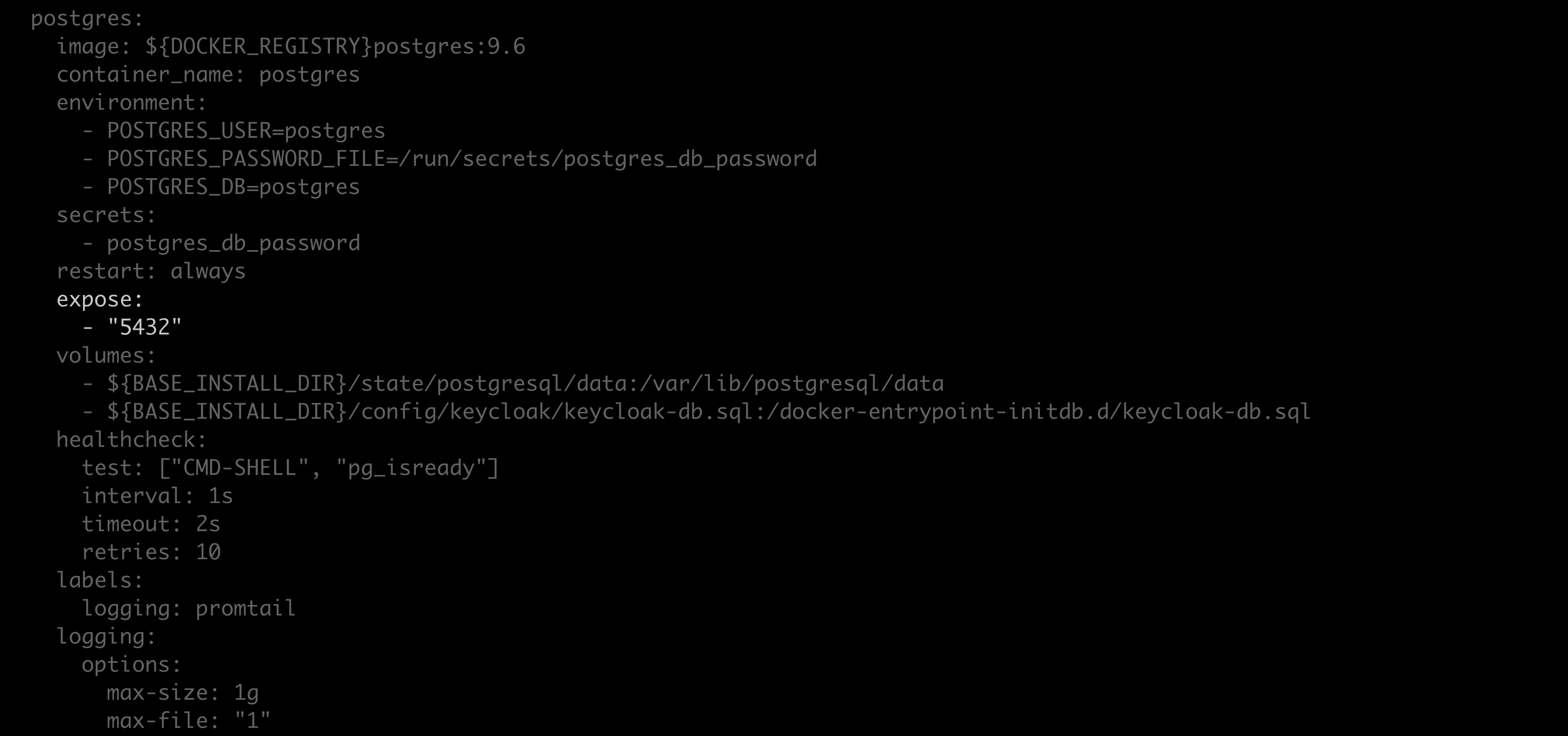 6. Replace `expose` with `ports`, and replace `"5432"` with `"5432:5432"`.
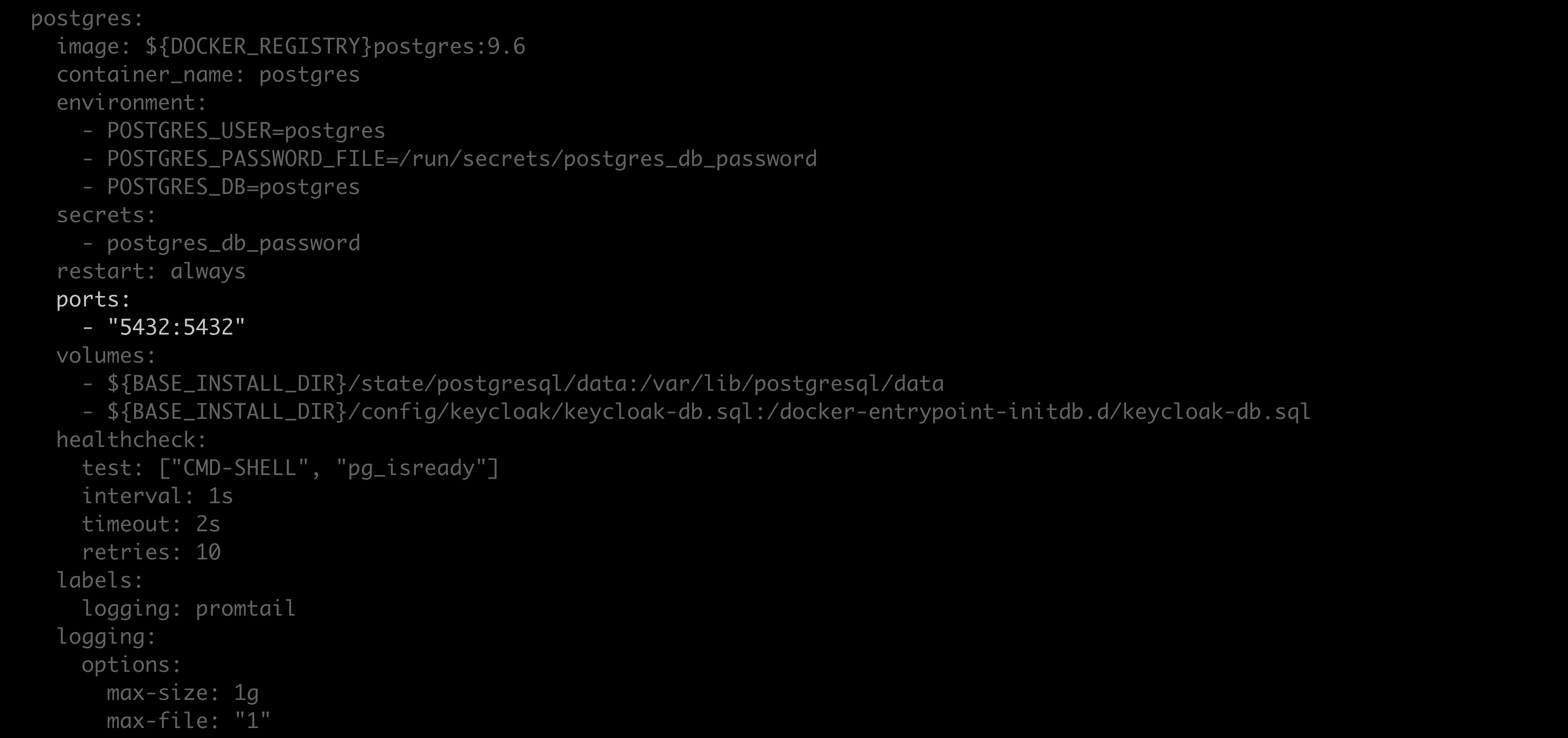 7. Save your work and close the file.
8. Restart your containers by running the following command:
```sh theme={null}
docker compose up --detach
```
9. Run the following command from the install directory:
```sh theme={null}
# Replace with your postgres password
./repo-tools backup --database-uri postgresql://postgres:@localhost:5432/postgres --keycloak-database-uri postgresql://postgres:@localhost:5432/keycloak --blob-dir /opt/anaconda/repo/state/internal/blobs/ > repo.backup.zip
```
You can find your postgres password here: `/config/postgres/postgres_db_password.txt`.
By default, the `` is `/opt/anaconda/repo`.
10. Save the `repo.backup.zip` file to a secure location.
11. Revert the changes made to the `postgres: expose:` section of the `docker-compose.yml` file.
12. Restart your containers by running the following command:
```sh theme={null}
docker compose up --detach
```
## Restoring Package Security Manager
Follow these steps to restore your instance of Package Security Manager:
1. [Reinstall Package Security Manager](/docs/psm-on-prem/6.7.2/install/instructions).
2. Open a terminal and connect to your instance of Package Security Manager.
3. Enter your installer directory (`ate-installer-*`).
4. Using your preferred file editor, open the `docker-compose.yml` file.
5. Locate the `postgres: expose:` section of the file.
6. Replace `expose` with `ports`, and replace `"5432"` with `"5432:5432"`.
7. Save your work and close the file.
8. Restart your containers by running the following command:
```sh theme={null}
docker compose up --detach
```
9. Copy the `repo.backup.zip` file to your Package Security Manager’s server.
10. Run the following command from the install directory:
```sh theme={null}
# Replace with your postgres password
./repo-tools restore repo.backup.zip --database-uri postgresql://postgres:@localhost:5432/postgres --keycloak-database-uri postgresql://postgres:@localhost:5432/keycloak --blob-dir /opt/anaconda/repo/state/internal/blobs/
```
You can find your postgres password here: `/config/postgres/postgres_db_password.txt`.
By default, the `` is `/opt/anaconda/repo`.
11. Overwrite the modified `docker-compose.yml` with the backup copy to restore your configurations.
12. Using your preferred file editor, open the new installation’s `.env` file.
13. Manually edit the new installation’s `.env` file to include any custom environmental variables from the backup `.env` file.
Do not overwrite the new `.env` file with the backup. The new `.env` file contains passwords that are required for proper functionality.
14. Replace these values in the `.env` file with the values from the backup file:
```
REPO_TOKEN_CLIENT_SECRET
REPO_KEYCLOAK_SYNC_CLIENT_SECRET
```
15. Run the following command in the install directory:
```
docker compose up --detach repo_api
```
7. Save your work and close the file.
8. Restart your containers by running the following command:
```sh theme={null}
docker compose up --detach
```
9. Run the following command from the install directory:
```sh theme={null}
# Replace with your postgres password
./repo-tools backup --database-uri postgresql://postgres:@localhost:5432/postgres --keycloak-database-uri postgresql://postgres:@localhost:5432/keycloak --blob-dir /opt/anaconda/repo/state/internal/blobs/ > repo.backup.zip
```
You can find your postgres password here: `/config/postgres/postgres_db_password.txt`.
By default, the `` is `/opt/anaconda/repo`.
10. Save the `repo.backup.zip` file to a secure location.
11. Revert the changes made to the `postgres: expose:` section of the `docker-compose.yml` file.
12. Restart your containers by running the following command:
```sh theme={null}
docker compose up --detach
```
## Restoring Package Security Manager
Follow these steps to restore your instance of Package Security Manager:
1. [Reinstall Package Security Manager](/docs/psm-on-prem/6.7.2/install/instructions).
2. Open a terminal and connect to your instance of Package Security Manager.
3. Enter your installer directory (`ate-installer-*`).
4. Using your preferred file editor, open the `docker-compose.yml` file.
5. Locate the `postgres: expose:` section of the file.
6. Replace `expose` with `ports`, and replace `"5432"` with `"5432:5432"`.
7. Save your work and close the file.
8. Restart your containers by running the following command:
```sh theme={null}
docker compose up --detach
```
9. Copy the `repo.backup.zip` file to your Package Security Manager’s server.
10. Run the following command from the install directory:
```sh theme={null}
# Replace with your postgres password
./repo-tools restore repo.backup.zip --database-uri postgresql://postgres:@localhost:5432/postgres --keycloak-database-uri postgresql://postgres:@localhost:5432/keycloak --blob-dir /opt/anaconda/repo/state/internal/blobs/
```
You can find your postgres password here: `/config/postgres/postgres_db_password.txt`.
By default, the `` is `/opt/anaconda/repo`.
11. Overwrite the modified `docker-compose.yml` with the backup copy to restore your configurations.
12. Using your preferred file editor, open the new installation’s `.env` file.
13. Manually edit the new installation’s `.env` file to include any custom environmental variables from the backup `.env` file.
Do not overwrite the new `.env` file with the backup. The new `.env` file contains passwords that are required for proper functionality.
14. Replace these values in the `.env` file with the values from the backup file:
```
REPO_TOKEN_CLIENT_SECRET
REPO_KEYCLOAK_SYNC_CLIENT_SECRET
```
15. Run the following command in the install directory:
```
docker compose up --detach repo_api
```