> ## Documentation Index
> Fetch the complete documentation index at: https://anaconda.com/docs/llms.txt
> Use this file to discover all available pages before exploring further.
# Policies
Policy filters only work for conda repositories.
A policy is a security control you can apply to a channel or mirror to restrict the packages users can source from them. Enforcing policies ensures that only approved software is available, helping maintain consistency across team environments and reducing security risks. Policies allow you to filter packages based on criteria such as package name, platform architecture, license, and [Common Vulnerabilities and Exposures (CVE)](./cve) score and status to meet your organization’s compliance and security requirements.
## Creating a policy
Creating and applying policies is restricted to users whose [role](./keycloak_config/permissions#permission-levels) provides `Manage` permissions for the **Policy Engine** category.
1. Log in to Package Security Manager.
2. Select **Policies** from the left-hand navigation.
3. Click **Create policy**.
4. Complete the [Create policy form](#create-policy-form).
5. Click **Create Policy**.
### Create policy form
The **Create policy** form provides a step-by-step approach to building policies for your channels and mirrors. Let’s take a look at the different sections of the **Create policy** form and what configurations they control:
* Each section of the form provides a tip to help you understand and complete the process.
* As you build the policy, a real-time summary appears on the right, explaining in plain language what the policy enforces.
* Click **Previous** or **Next** to navigate the different sections of the **Create policy** form.
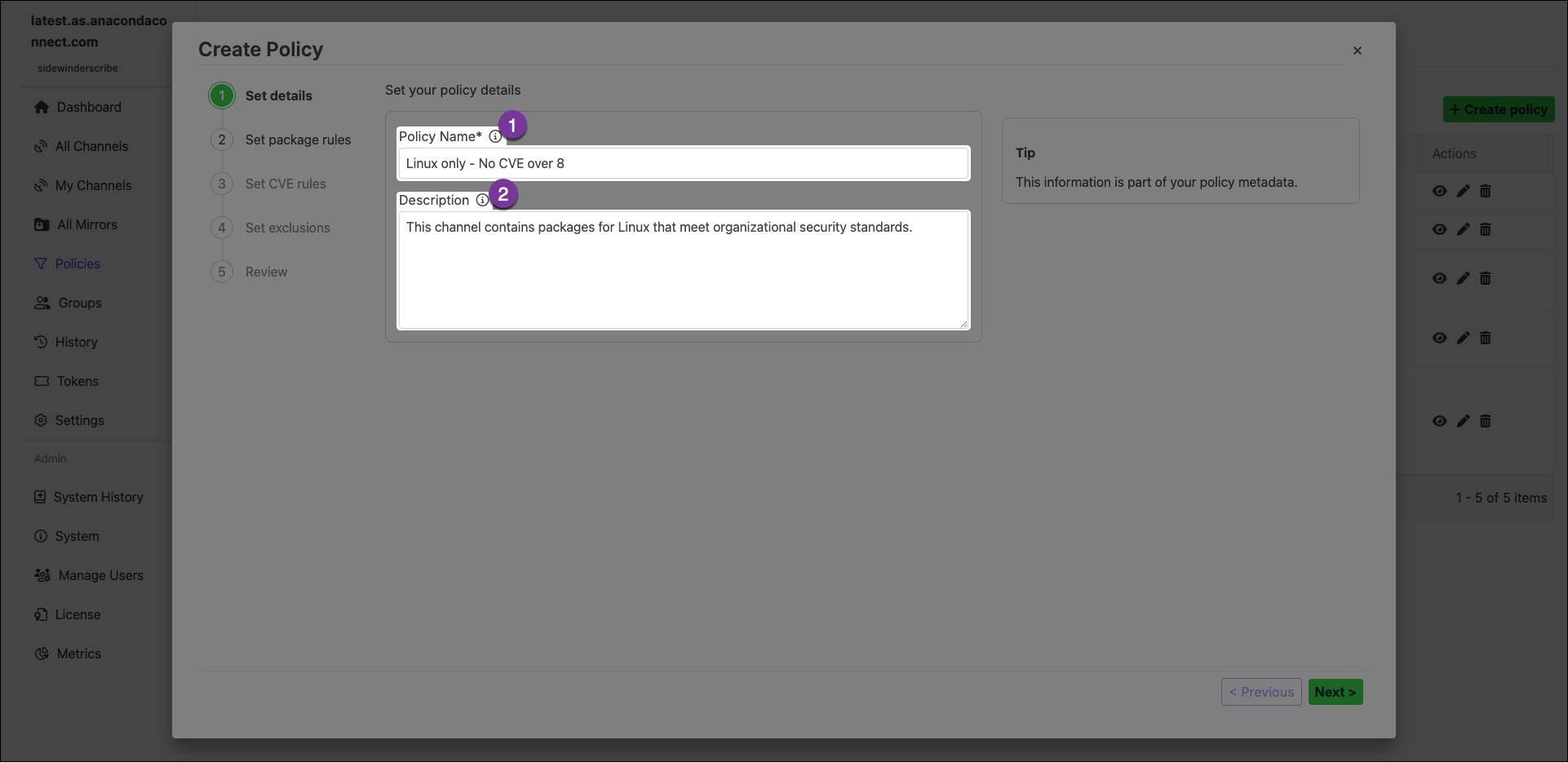 1. **Policy Name**\
Provide a unique name for your policy. Anaconda recommends using a descriptive name that helps users understand its purpose.
2. **Description**\
Enter a brief description of what effect the policy will have on a channel or mirror.
1. **Policy Name**\
Provide a unique name for your policy. Anaconda recommends using a descriptive name that helps users understand its purpose.
2. **Description**\
Enter a brief description of what effect the policy will have on a channel or mirror.
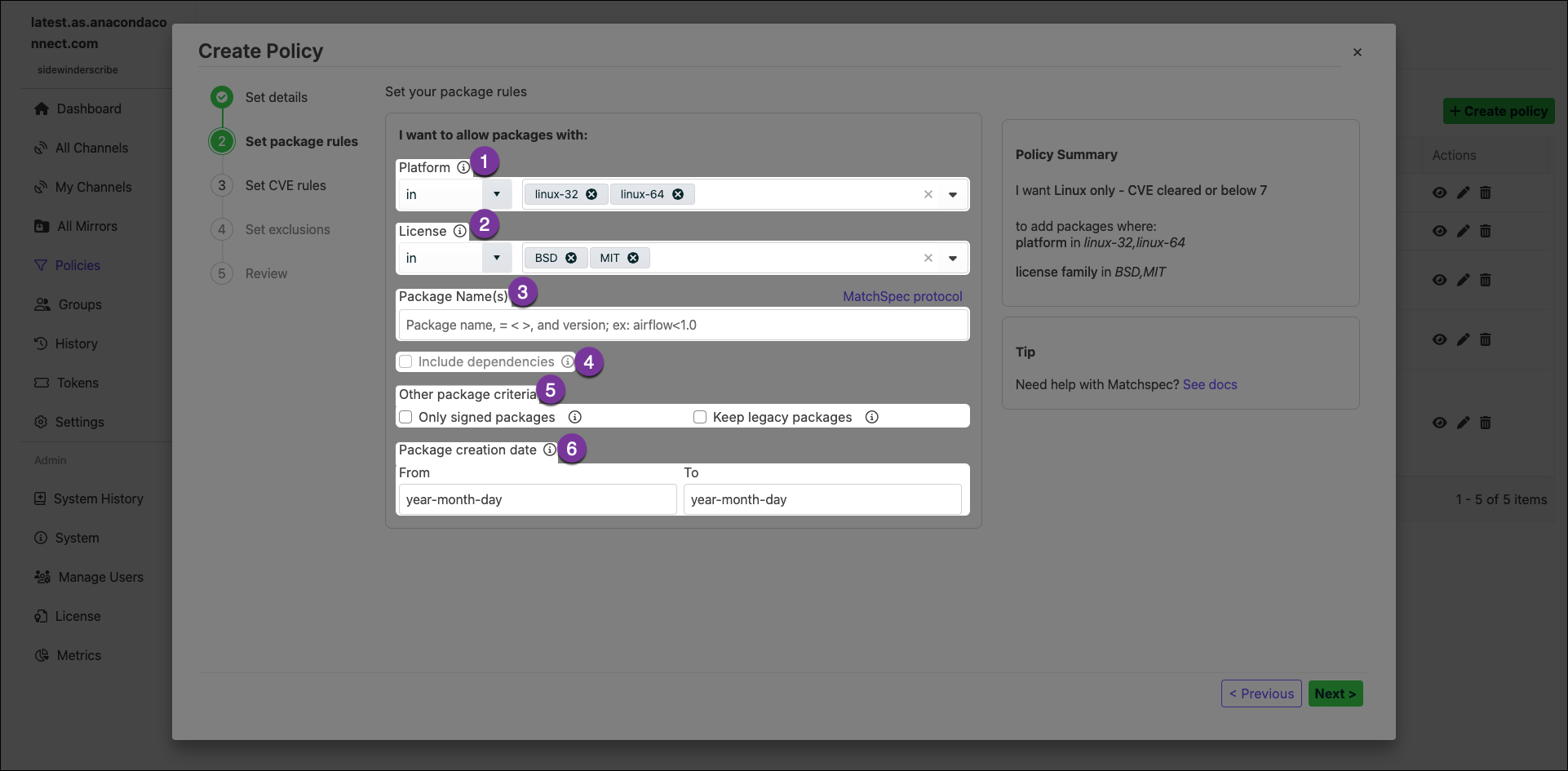 1. **Platform**\
Restrict packages based on their platform architecture.
Package Security Manager automatically includes any `noarch` package dependencies in your channel when you apply a policy that restricts packages by platform architecture.
2. **License**\
Restrict packages based on their license type. Multiple license types can be specified for the policy. For more information on licenses, see [License types](/docs/psm-on-prem/6.7.2/reference/licensetypes).
3. **Package Name(s)**\
If you know the specific packages you want your channel or mirror to contain, enter their names here.
Specifying packages by name does not automatically populate the channel with their dependencies.
4. **Include Dependencies**\
Select this checkbox to include dependencies for the packages specified in the **Package Name(s)** field.
5. **Other Package Criteria**
* **Only Signed Packages**\
Select this checkbox to only mirror packages that have Anaconda signatures from the source mirror.
* **Legacy Packages**\
Select this checkbox to include `.tar.bz2` package files along with `.conda` files for packages. *This effectively doubles your required storage space*.
When left unselected, if `.tar.bz2` files are the only ones available in the source, they are included.
6. **Date Range**\
Instruct the policy to only include packages that were created within the range selected.
1. **Platform**\
Restrict packages based on their platform architecture.
Package Security Manager automatically includes any `noarch` package dependencies in your channel when you apply a policy that restricts packages by platform architecture.
2. **License**\
Restrict packages based on their license type. Multiple license types can be specified for the policy. For more information on licenses, see [License types](/docs/psm-on-prem/6.7.2/reference/licensetypes).
3. **Package Name(s)**\
If you know the specific packages you want your channel or mirror to contain, enter their names here.
Specifying packages by name does not automatically populate the channel with their dependencies.
4. **Include Dependencies**\
Select this checkbox to include dependencies for the packages specified in the **Package Name(s)** field.
5. **Other Package Criteria**
* **Only Signed Packages**\
Select this checkbox to only mirror packages that have Anaconda signatures from the source mirror.
* **Legacy Packages**\
Select this checkbox to include `.tar.bz2` package files along with `.conda` files for packages. *This effectively doubles your required storage space*.
When left unselected, if `.tar.bz2` files are the only ones available in the source, they are included.
6. **Date Range**\
Instruct the policy to only include packages that were created within the range selected.
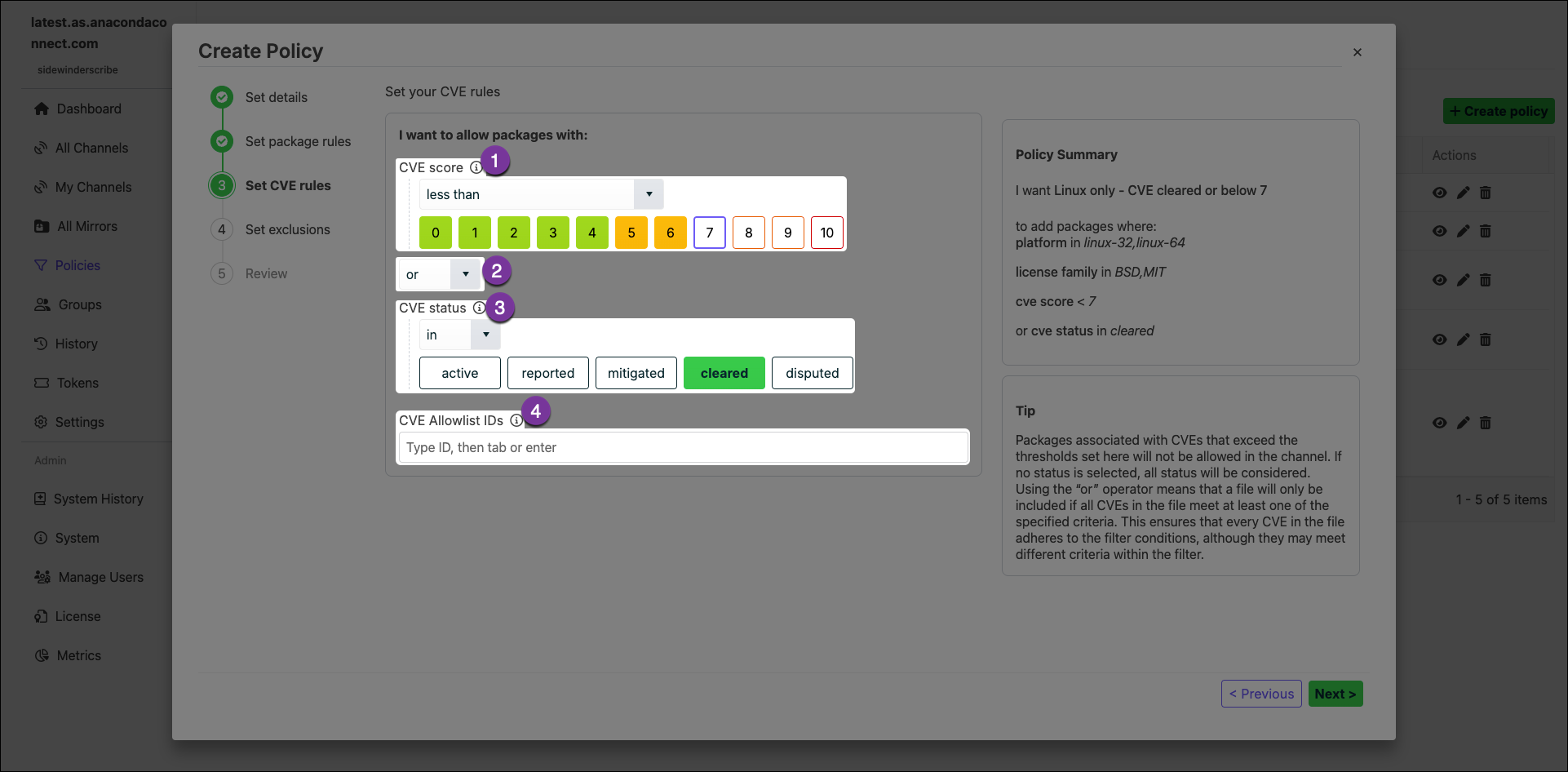 1. **CVE Score**\
Restrict packages based on their associated [CVE Scores](./cve#cve-scores).
2. **and/or**
* The *and* operator includes package files that meet *all* the specified criteria.
* The *or* operator includes package files that meet *at least one* of the specified criteria.
3. **CVE Status**\
Restrict packages based on their associated [CVE Status](./cve#cve-statuses).
4. **CVE Allowlist IDs**\
CVEs listed here are not considered for package file filtering criteria.
1. **CVE Score**\
Restrict packages based on their associated [CVE Scores](./cve#cve-scores).
2. **and/or**
* The *and* operator includes package files that meet *all* the specified criteria.
* The *or* operator includes package files that meet *at least one* of the specified criteria.
3. **CVE Status**\
Restrict packages based on their associated [CVE Status](./cve#cve-statuses).
4. **CVE Allowlist IDs**\
CVEs listed here are not considered for package file filtering criteria.
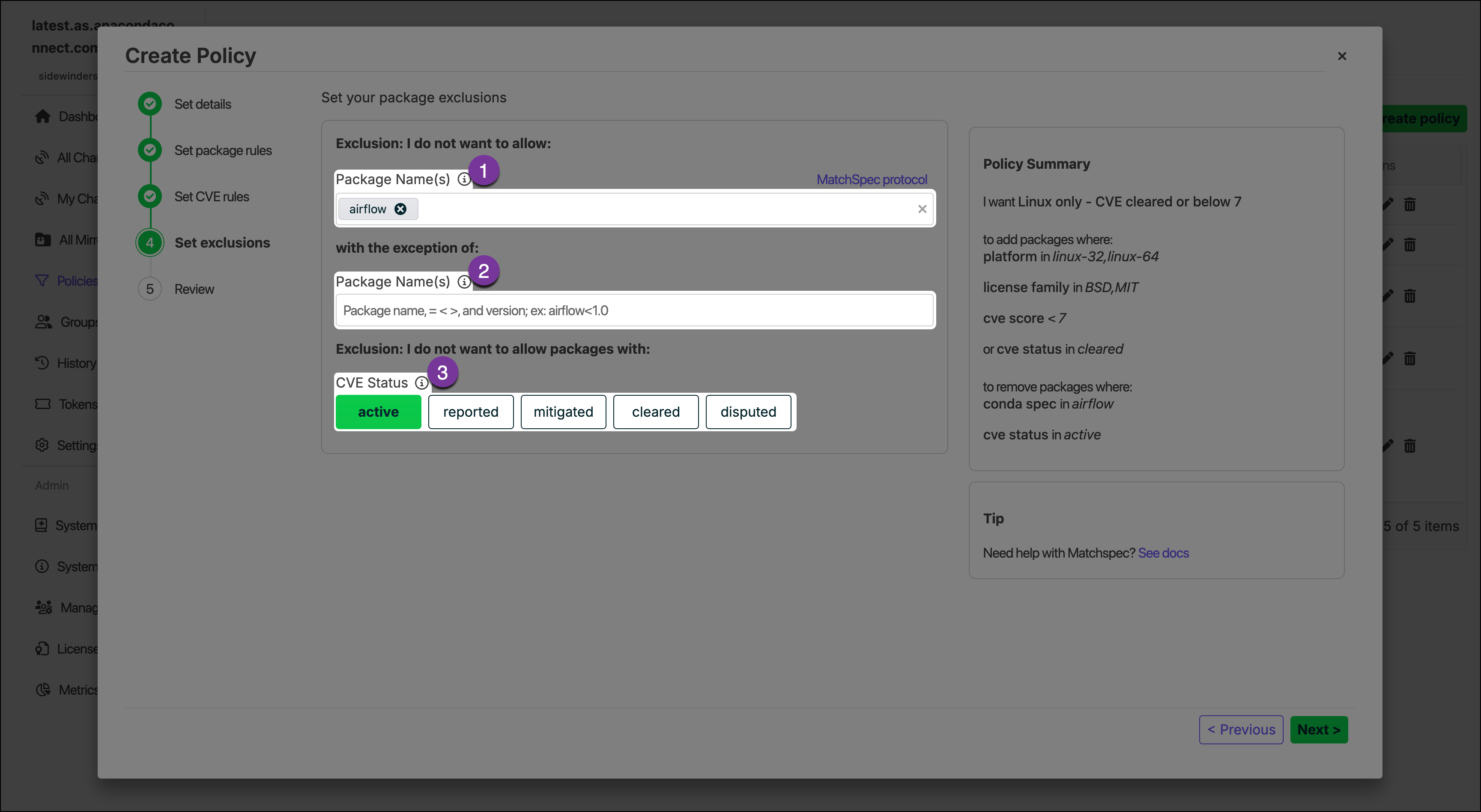 1. **Exclude Packages**\
Enter the name of any packages you want to exclude. To list multiple packages, press the Tab key after entering each package name.
2. **Exclusion Exceptions**\
Include specific packages that would otherwise be removed by the exclude packages filter by listing them here.
3. **CVE Status**\
Choose to restrict packages by [CVE Status](./cve#cve-statuses).
Packages can be excluded and included against non-exact values by including wildcard `*` and `>/<` ranges (where supported).\
For example, if you choose to exclude the package `p*`, Package Security Manager excludes all packages that start with the letter “p”. For more information about using non-exact value search queries, see [Package Match Specifications](https://docs.conda.io/projects/conda/en/latest/user-guide/concepts/pkg-specs.html#package-match-specifications) in the official conda documentation.
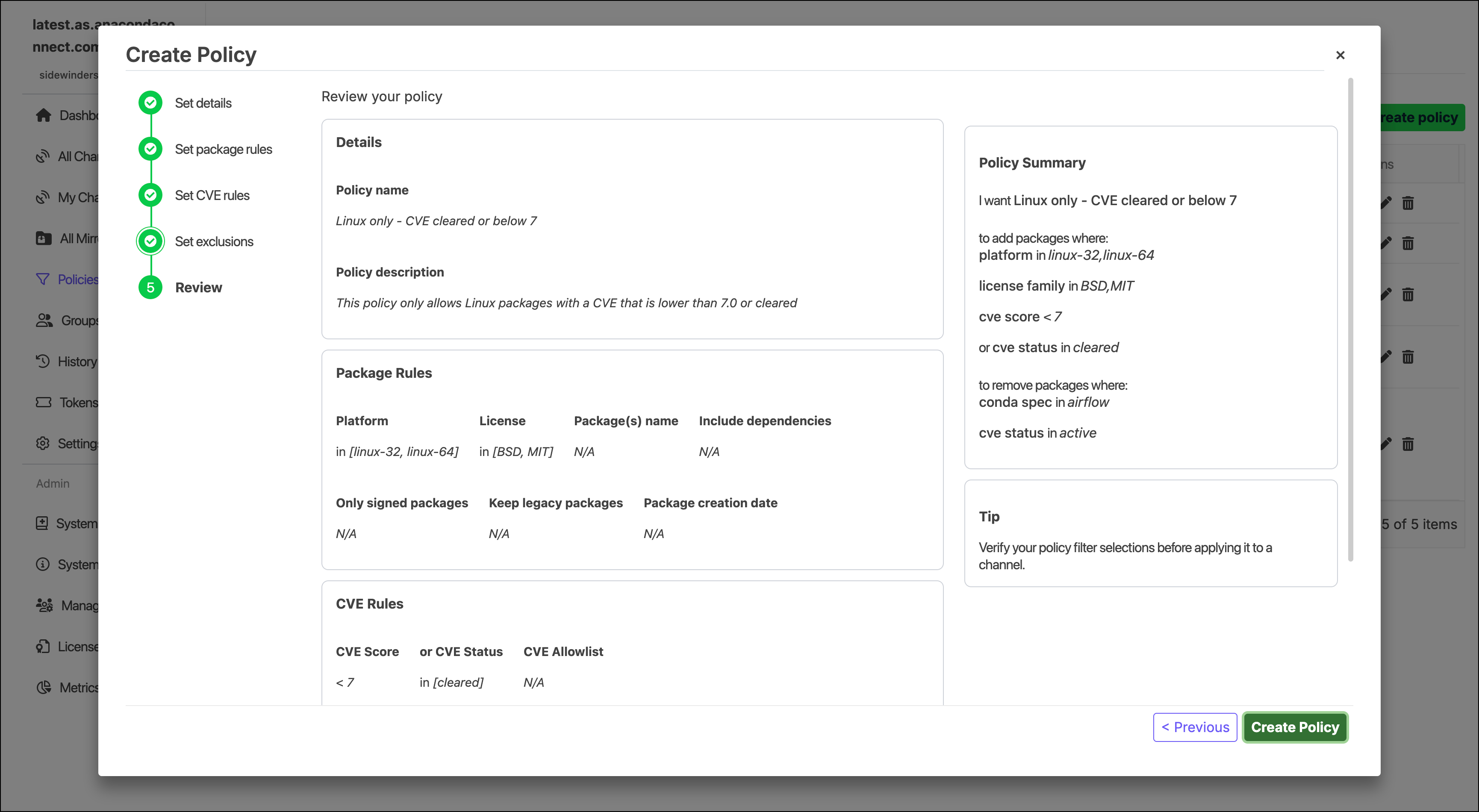
Review the rules that your policy will enforce.
1. **Exclude Packages**\
Enter the name of any packages you want to exclude. To list multiple packages, press the Tab key after entering each package name.
2. **Exclusion Exceptions**\
Include specific packages that would otherwise be removed by the exclude packages filter by listing them here.
3. **CVE Status**\
Choose to restrict packages by [CVE Status](./cve#cve-statuses).
Packages can be excluded and included against non-exact values by including wildcard `*` and `>/<` ranges (where supported).\
For example, if you choose to exclude the package `p*`, Package Security Manager excludes all packages that start with the letter “p”. For more information about using non-exact value search queries, see [Package Match Specifications](https://docs.conda.io/projects/conda/en/latest/user-guide/concepts/pkg-specs.html#package-match-specifications) in the official conda documentation.
Review the rules that your policy will enforce.
 ## Managing policies
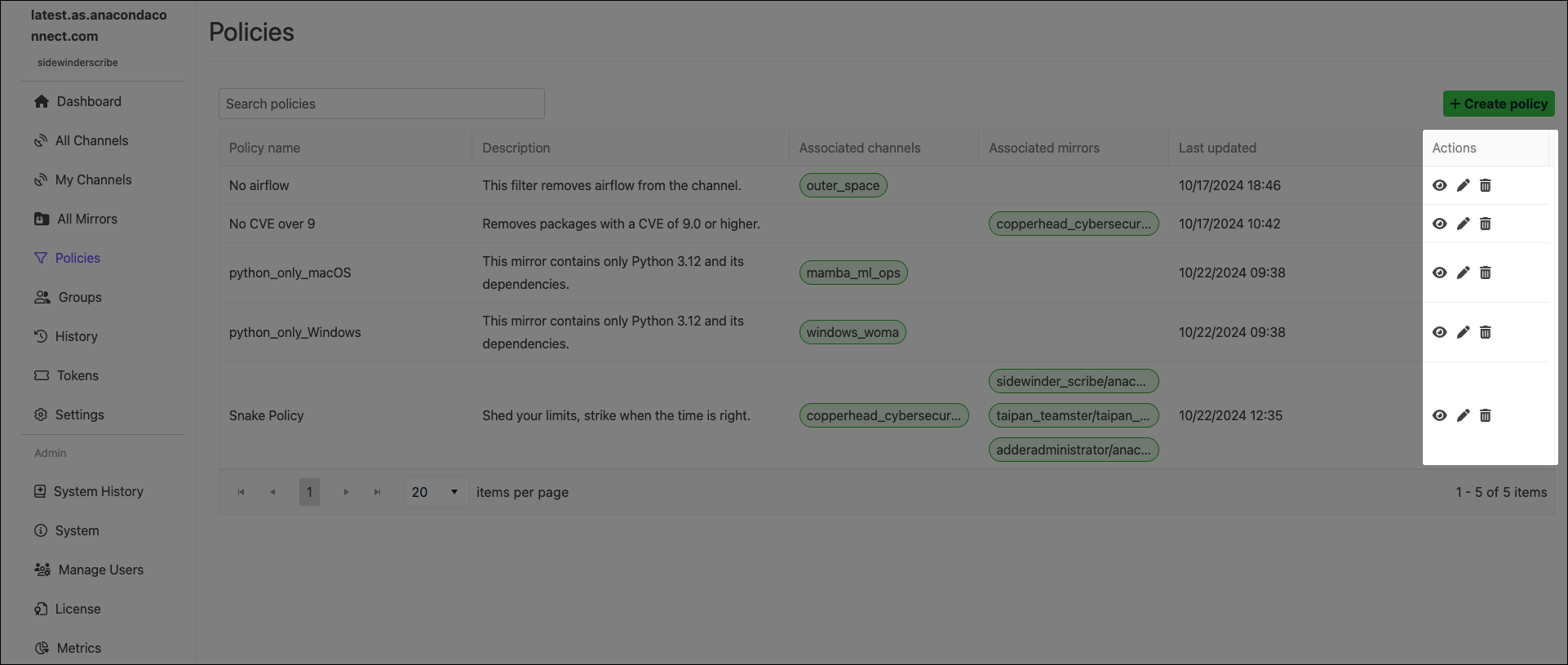
Select **Policies** from the left-hand navigation to view all policies and which channels and mirrors they are associated with.
## Managing policies
Select **Policies** from the left-hand navigation to view all policies and which channels and mirrors they are associated with.
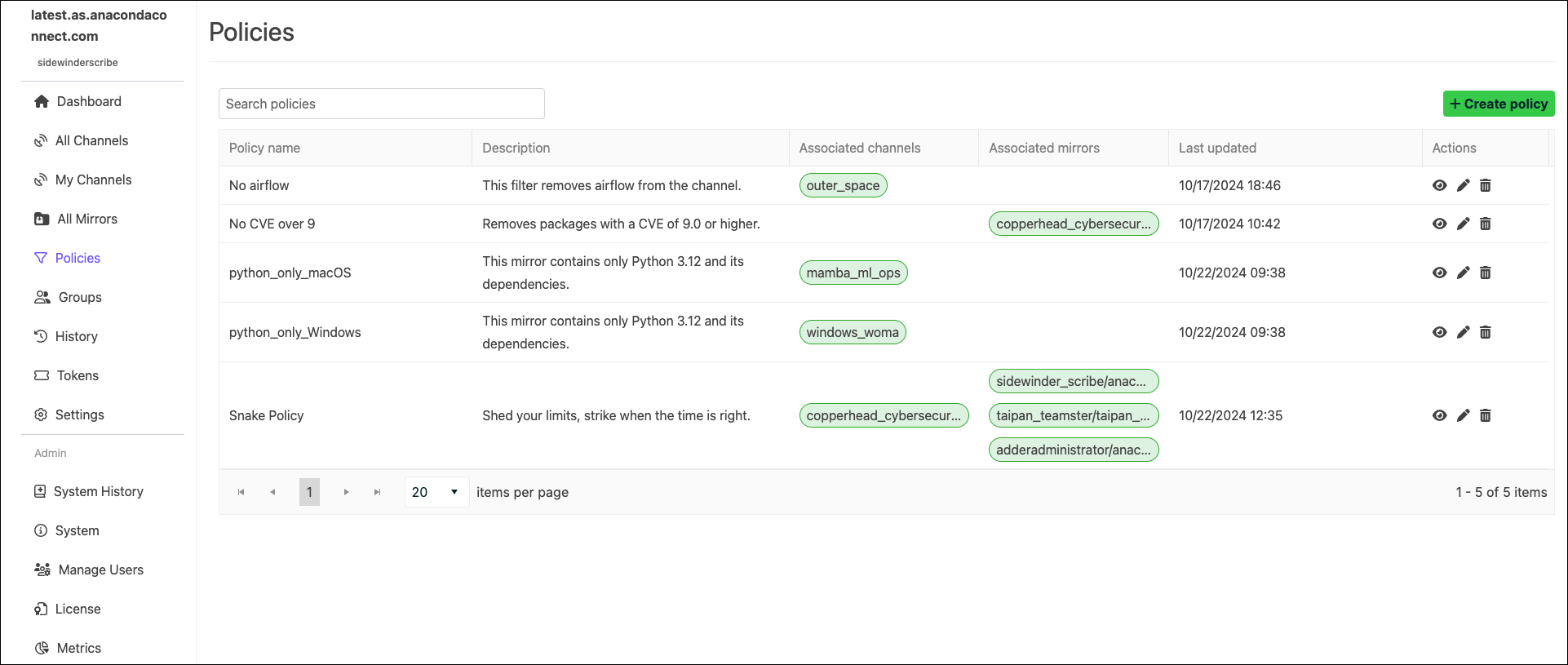 Use the search box to locate a policy by name.
### Policy actions
Use the icons in the **Actions** column to manage your policies. You can view, edit, or delete your organization’s policies, as well as search for specific policies and see their assigned channels and descriptions.
Use the search box to locate a policy by name.
### Policy actions
Use the icons in the **Actions** column to manage your policies. You can view, edit, or delete your organization’s policies, as well as search for specific policies and see their assigned channels and descriptions.