> ## Documentation Index
> Fetch the complete documentation index at: https://anaconda.com/docs/llms.txt
> Use this file to discover all available pages before exploring further.
# Viewing user login activity
You can directly query the Keycloak application programming interface (API) to view your Package Security Manager user login activity.
## Prerequisites
You must have **Events** enabled within Keycloak to track login events.
1. [Log in to the Keycloak administrative console](./user_roles#accessing-the-keycloak-administrative-console).
2. Verify you are on the **dev** realm.
3. Select **Realm settings** from the left-hand navigation, then open the **Events** tab.
4. Select the **User events settings** tab.
5. Verify the **Save Events** toggle is set to `ON`.
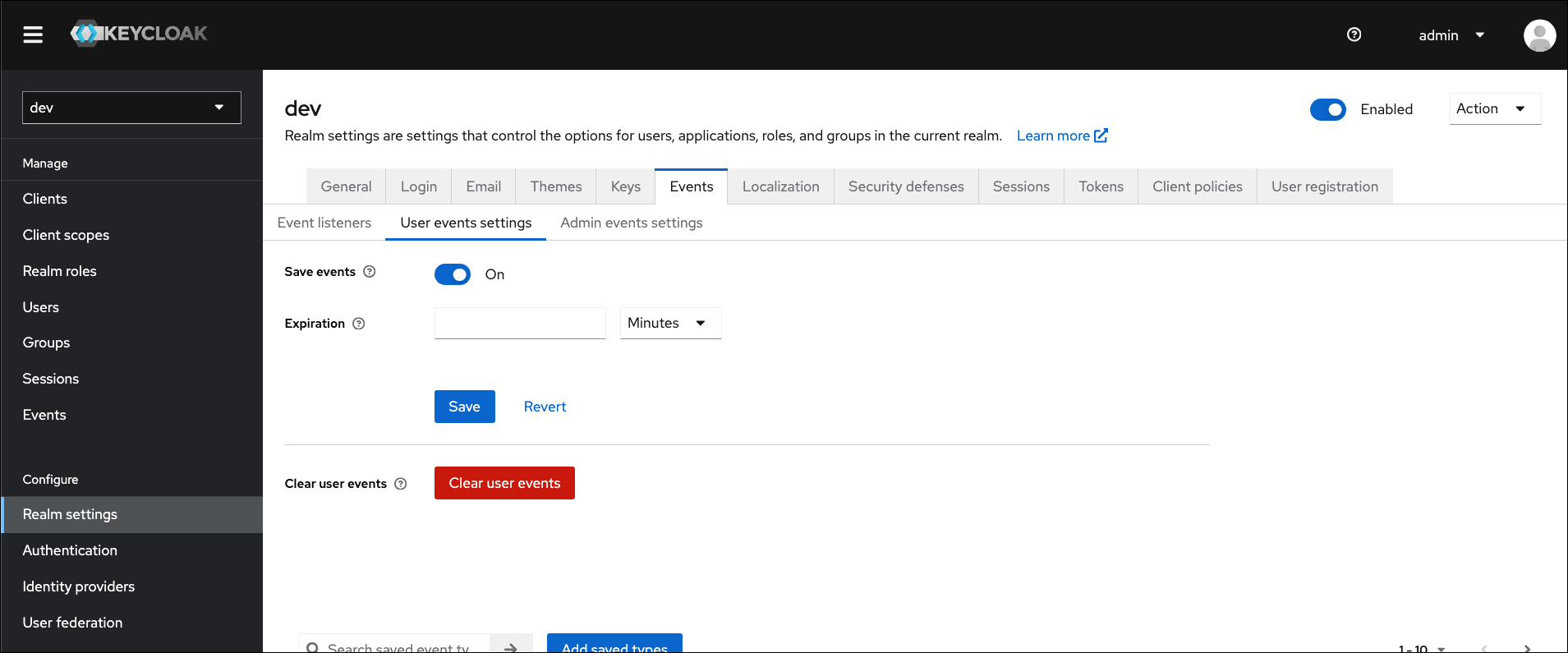 6. Click **Save**.
## Querying the Keycloak API
1. Open a terminal. Generate a temporary token and store it as an environment variable for the Keycloak API by running the following command:
```sh theme={null}
# Replace with your Package Security Manager URL
# Replace with your Keycloak admin user name
# Replace with your Keycloak admin password
export TKN=$(curl -X POST '/auth/realms/master/protocol/openid-connect/token' -H "Content-Type: application/x-www-form-urlencoded" --data-urlencode "username=" --data-urlencode 'password=' --data-urlencode 'grant_type=password' --data-urlencode 'client_id=admin-cli' | jq -r '.access_token')
```
You can verify that your command generated a token by running the command `echo $TKN`.
This temporary token expires after 60 seconds, and the next command needs to be entered before the token expires! Don’t worry though, you can always generate another temporary token, if necessary.
2. Query the Keycloak API for `LOGIN` events by running the following command:
```sh theme={null}
# Replace with your Package Security Manager URL
curl -X GET /auth/admin/realms/dev/events -H "accept: application/json" -H "Authorization: Bearer $TKN " -d "{\"type\":\"LOGIN\"}" | jq
```
### Example
Let’s say your Package Security Manager URL is `https://data_science_snakes.anaconda.com`, and your Keycloak administrator’s username is *admin* and their password is *password*.
Once you’ve verified that Keycloak is saving user login events, request a temporary token from the Keycloak API with the following command:
```sh theme={null}
export TKN=$(curl -X POST 'https://data_science_snakes.anaconda.com/auth/realms/master/protocol/openid-connect/token' -H "Content-Type: application/x-www-form-urlencoded" --data-urlencode "username=admin" --data-urlencode 'password=password' --data-urlencode 'grant_type=password' --data-urlencode 'client_id=admin-cli' | jq -r '.access_token')
```
Before the token expires, run the following command to query the Keycloak API for Package Security Manager user login events:
```sh theme={null}
curl -X GET https://data_science_snakes.anaconda.com/auth/admin/realms/dev/events -H "accept: application/json" -H "Authorization: Bearer $TKN " -d "{\"type\":\"LOGIN\"}" | jq
```
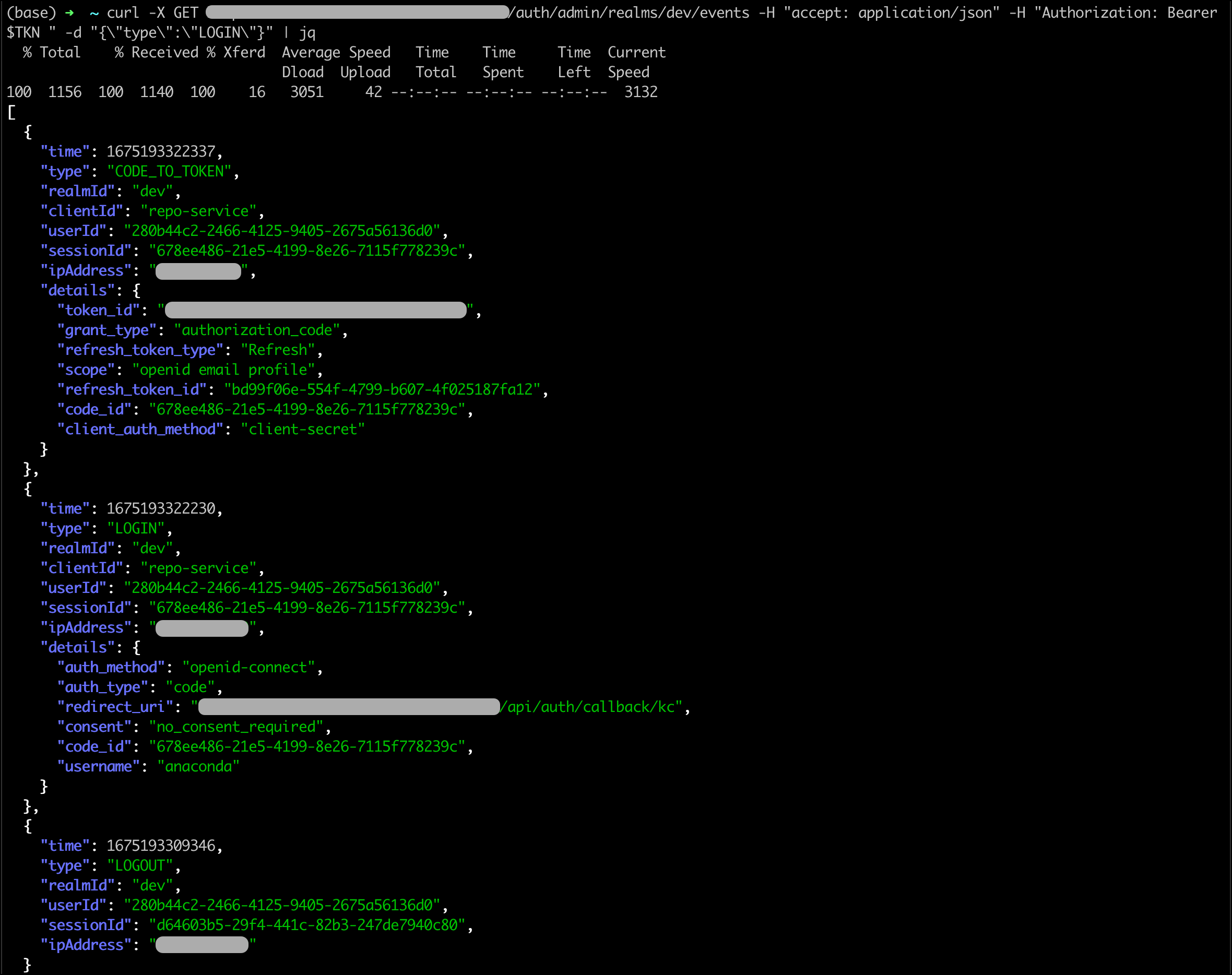
If your query is processed correctly, your return will look something like this:
6. Click **Save**.
## Querying the Keycloak API
1. Open a terminal. Generate a temporary token and store it as an environment variable for the Keycloak API by running the following command:
```sh theme={null}
# Replace with your Package Security Manager URL
# Replace with your Keycloak admin user name
# Replace with your Keycloak admin password
export TKN=$(curl -X POST '/auth/realms/master/protocol/openid-connect/token' -H "Content-Type: application/x-www-form-urlencoded" --data-urlencode "username=" --data-urlencode 'password=' --data-urlencode 'grant_type=password' --data-urlencode 'client_id=admin-cli' | jq -r '.access_token')
```
You can verify that your command generated a token by running the command `echo $TKN`.
This temporary token expires after 60 seconds, and the next command needs to be entered before the token expires! Don’t worry though, you can always generate another temporary token, if necessary.
2. Query the Keycloak API for `LOGIN` events by running the following command:
```sh theme={null}
# Replace with your Package Security Manager URL
curl -X GET /auth/admin/realms/dev/events -H "accept: application/json" -H "Authorization: Bearer $TKN " -d "{\"type\":\"LOGIN\"}" | jq
```
### Example
Let’s say your Package Security Manager URL is `https://data_science_snakes.anaconda.com`, and your Keycloak administrator’s username is *admin* and their password is *password*.
Once you’ve verified that Keycloak is saving user login events, request a temporary token from the Keycloak API with the following command:
```sh theme={null}
export TKN=$(curl -X POST 'https://data_science_snakes.anaconda.com/auth/realms/master/protocol/openid-connect/token' -H "Content-Type: application/x-www-form-urlencoded" --data-urlencode "username=admin" --data-urlencode 'password=password' --data-urlencode 'grant_type=password' --data-urlencode 'client_id=admin-cli' | jq -r '.access_token')
```
Before the token expires, run the following command to query the Keycloak API for Package Security Manager user login events:
```sh theme={null}
curl -X GET https://data_science_snakes.anaconda.com/auth/admin/realms/dev/events -H "accept: application/json" -H "Authorization: Bearer $TKN " -d "{\"type\":\"LOGIN\"}" | jq
```
If your query is processed correctly, your return will look something like this: