> ## Documentation Index
> Fetch the complete documentation index at: https://anaconda.com/docs/llms.txt
> Use this file to discover all available pages before exploring further.
# Backup and restore
[Open a support ticket](https://support.anaconda.com/hc/en-us) to get assistance from Anaconda if you are upgrading your operating system or plan on migrating your instance of Package Security Manager to a new operating system architecture, as this could severely impact your Package Security Manager instance!
## Prerequisites
* pg\_dump version 9.6.4+
* pg\_restore version 9.6.4+
* Linux’s open file maximum must be set to 300,000
To increase the number of files that are allowed to be open at once in Linux, run the following command:
```sh theme={null}
sysctl -w fs.file-max=300000
```
## Backing up Package Security Manager
Follow these steps to back up your instance of Package Security Manager:
1. Open a terminal and connect to your instance of Package Security Manager. Work with your IT administrator if you need help with this step.
2. Enter your installer directory.
3. Using your preferred file editor, open the `docker-compose.yml` file.
4. Locate the `postgres: expose:` section of the file.
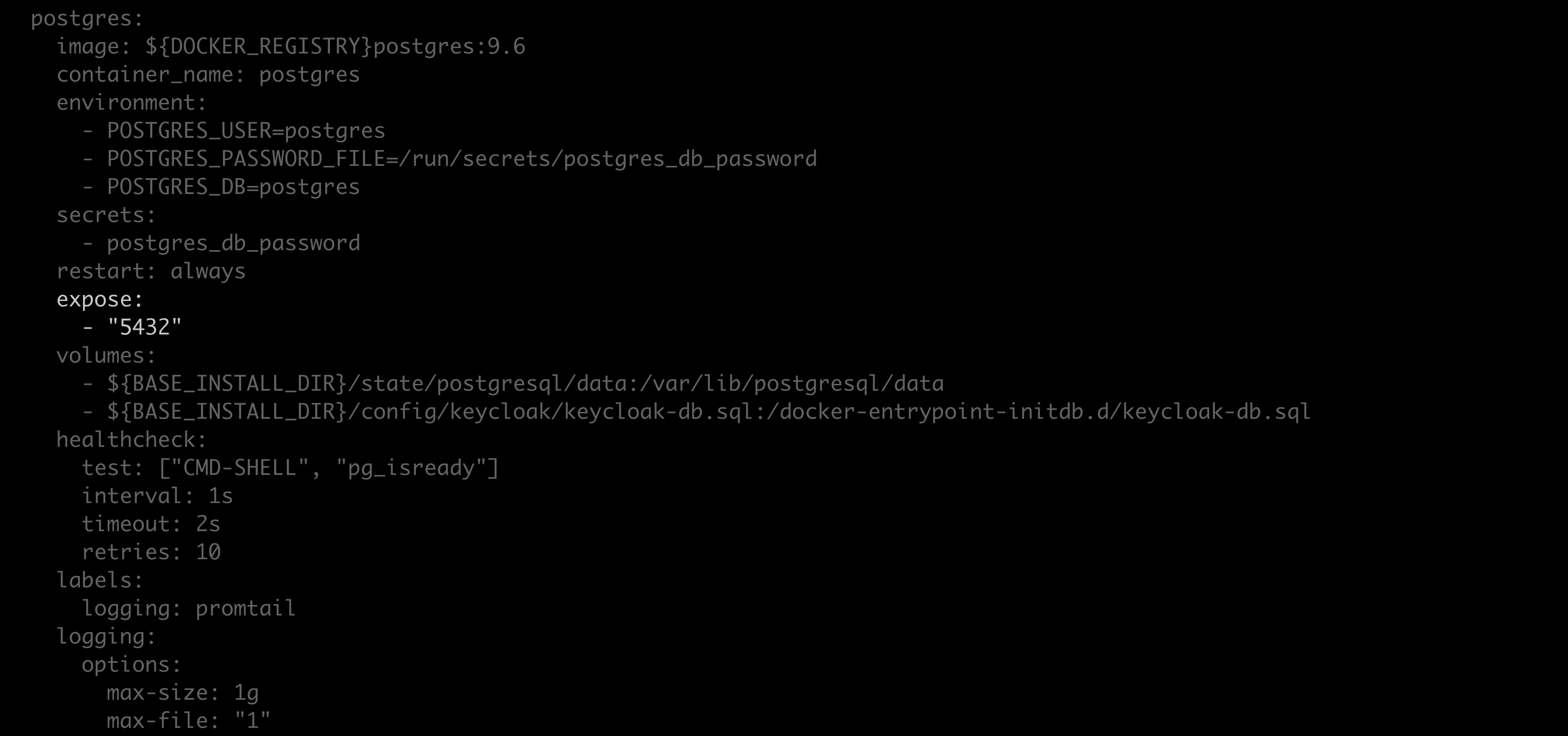 5. Replace `expose` with `ports`, and replace `"5432"` with `"5432:5432"`.
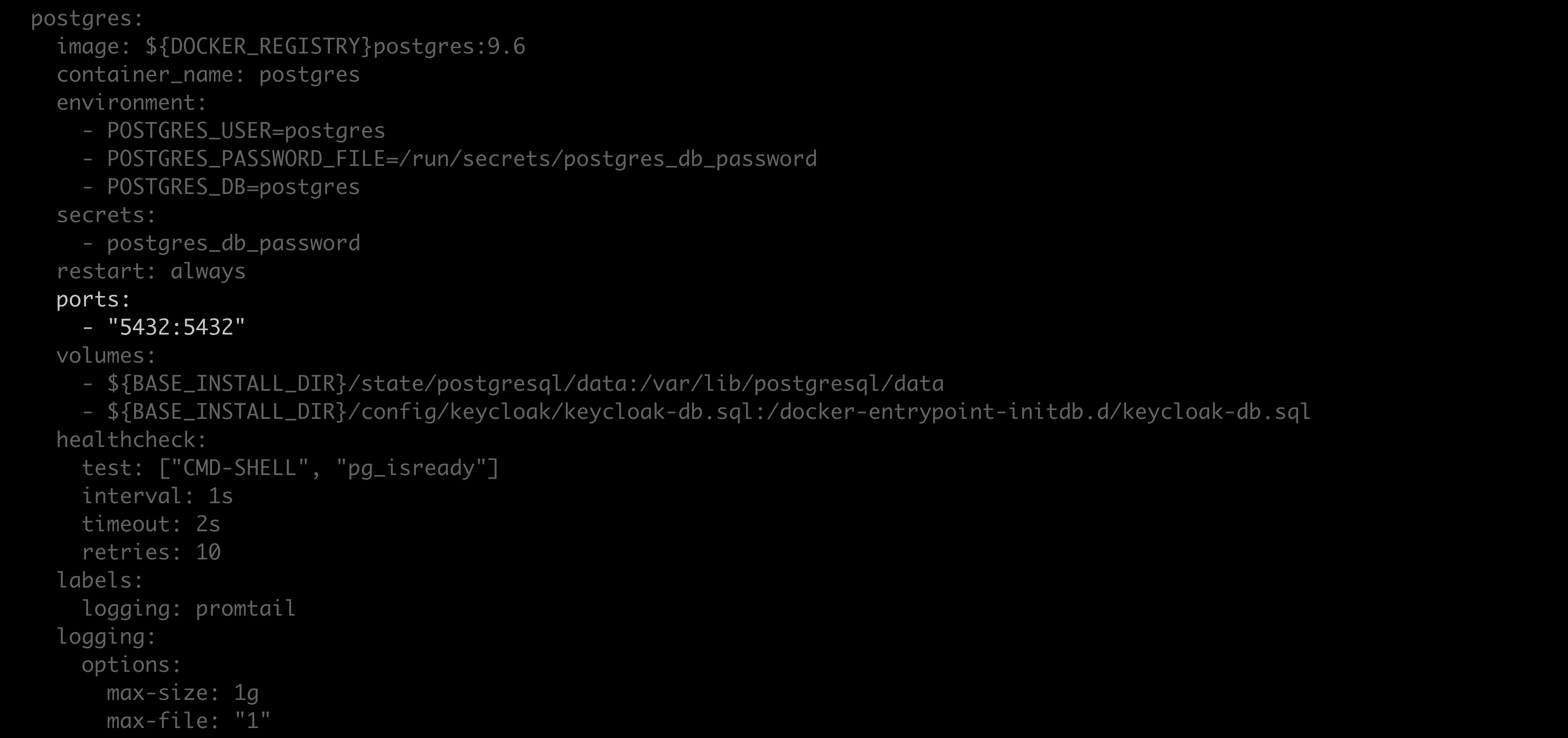 6. Save your work and close the file.
7. Restart your containers by running the following command:
```sh theme={null}
docker compose up -d
```
8. Create a backup of the `docker-compose.yml` and `.env` files. These files contain your server’s custom configurations and are overwritten during reinstallation.
9. Run the following command from the install directory:
```sh theme={null}
# Replace with your postgres password
./repo-tools backup --database-uri postgresql://postgres:@localhost:5432/postgres --keycloak-database-uri postgresql://postgres:@localhost:5432/keycloak --blob-dir /opt/anaconda/repo/state/internal/blobs/ > repo.backup.zip
```
You can find your postgres password here: `/config/postgres/postgres_db_password.txt`.
By default, the `` is `/opt/anaconda/repo`.
10. Save the `repo.backup.zip` file to a secure location.
11. Revert the changes made to the `postgres: expose:` section of the `docker-compose.yml` file.
12. Restart your containers by running the following command:
```sh theme={null}
docker compose up -d
```
## Restoring Package Security Manager
Follow these steps to restore your instance of Package Security Manager:
1. [Reinstall Package Security Manager](/docs/psm-on-prem/6.7.1/install/instructions).
2. Open a terminal and connect to your instance of Package Security Manager. Get help from your IT administrator if you need help with this step.
3. Enter your installer directory.
4. Using your preferred file editor, open the `docker-compose.yml` file.
5. Locate the `postgres: expose:` section of the file.
6. Replace `expose` with `ports`, and replace `"5432"` with `"5432:5432"`.
7. Save your work and close the file.
8. Restart your containers by running the following command:
```sh theme={null}
docker compose up -d
```
9. Copy the `repo.backup.zip` file.
10. Run the following command from the install directory:
```sh theme={null}
# Replace with your postgres password
./repo-tools restore repo.backup.zip --database-uri postgresql://postgres:@localhost:5432/postgres --keycloak-database-uri postgresql://postgres:@localhost:5432/keycloak --blob-dir /opt/anaconda/repo/state/internal/blobs/
```
You can find your postgres password here: `/config/postgres/postgres_db_password.txt`.
By default, the `` is `/opt/anaconda/repo`.
11. Open your `docker-compose.yml` file.
12. Revert the changes to the `postgres: expose:` section of the file and restore your server’s custom configurations.
13. Save your changes and close the file.
14. Open the `.env` file and restore your server’s custom configurations.
15. Save your changes and close the file.
16. Run the following in the install directory:
```sh theme={null}
docker compose up -d repo_api
```
6. Save your work and close the file.
7. Restart your containers by running the following command:
```sh theme={null}
docker compose up -d
```
8. Create a backup of the `docker-compose.yml` and `.env` files. These files contain your server’s custom configurations and are overwritten during reinstallation.
9. Run the following command from the install directory:
```sh theme={null}
# Replace with your postgres password
./repo-tools backup --database-uri postgresql://postgres:@localhost:5432/postgres --keycloak-database-uri postgresql://postgres:@localhost:5432/keycloak --blob-dir /opt/anaconda/repo/state/internal/blobs/ > repo.backup.zip
```
You can find your postgres password here: `/config/postgres/postgres_db_password.txt`.
By default, the `` is `/opt/anaconda/repo`.
10. Save the `repo.backup.zip` file to a secure location.
11. Revert the changes made to the `postgres: expose:` section of the `docker-compose.yml` file.
12. Restart your containers by running the following command:
```sh theme={null}
docker compose up -d
```
## Restoring Package Security Manager
Follow these steps to restore your instance of Package Security Manager:
1. [Reinstall Package Security Manager](/docs/psm-on-prem/6.7.1/install/instructions).
2. Open a terminal and connect to your instance of Package Security Manager. Get help from your IT administrator if you need help with this step.
3. Enter your installer directory.
4. Using your preferred file editor, open the `docker-compose.yml` file.
5. Locate the `postgres: expose:` section of the file.
6. Replace `expose` with `ports`, and replace `"5432"` with `"5432:5432"`.
7. Save your work and close the file.
8. Restart your containers by running the following command:
```sh theme={null}
docker compose up -d
```
9. Copy the `repo.backup.zip` file.
10. Run the following command from the install directory:
```sh theme={null}
# Replace with your postgres password
./repo-tools restore repo.backup.zip --database-uri postgresql://postgres:@localhost:5432/postgres --keycloak-database-uri postgresql://postgres:@localhost:5432/keycloak --blob-dir /opt/anaconda/repo/state/internal/blobs/
```
You can find your postgres password here: `/config/postgres/postgres_db_password.txt`.
By default, the `` is `/opt/anaconda/repo`.
11. Open your `docker-compose.yml` file.
12. Revert the changes to the `postgres: expose:` section of the file and restore your server’s custom configurations.
13. Save your changes and close the file.
14. Open the `.env` file and restore your server’s custom configurations.
15. Save your changes and close the file.
16. Run the following in the install directory:
```sh theme={null}
docker compose up -d repo_api
```