> ## Documentation Index
> Fetch the complete documentation index at: https://anaconda.com/docs/llms.txt
> Use this file to discover all available pages before exploring further.
# Jupyter Notebooks
Notebooks are interactive documents that can contain code, equations, visualizations, media, and other computational inputs and outputs.
For detailed instructions on using Jupyter Notebooks, please visit the official [Jupyter Notebooks documentation](https://jupyter-notebook.readthedocs.io/en/latest/notebook.html).
More of a visual learner? Check out our free **Jupyter Notebook Basics** course in Anaconda Learning linked below!
## Uploading an existing notebook to a channel
1. Preparation for uploading notebooks differs depending on your notebook type. Please follow the relevant guide for your respective notebooks:
* [sdist and wheels](https://packaging.python.org/tutorials/packaging-projects/#generating-distribution-archives)
* [cran](https://r-pkgs.org/structure)
* [conda-build](https://docs.conda.io/projects/conda-build/en/latest/)
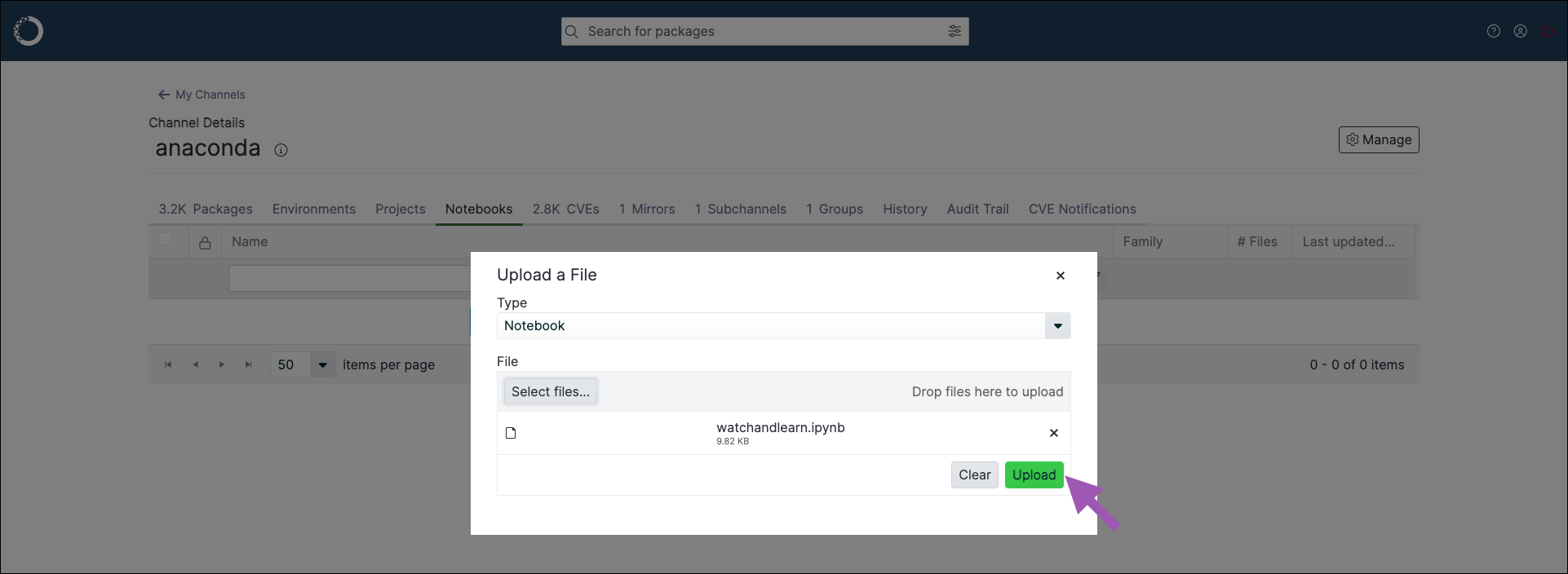
2. Open the **Manage** dropdown menu and select *Upload File*.
3. Open the **Type** dropdown menu and select *Notebook*.
4. Click **Select files…** then locate and upload your notebook, or drag and drop the notebook file into the field.
5. Click **Upload**.
 ## Previewing a notebook
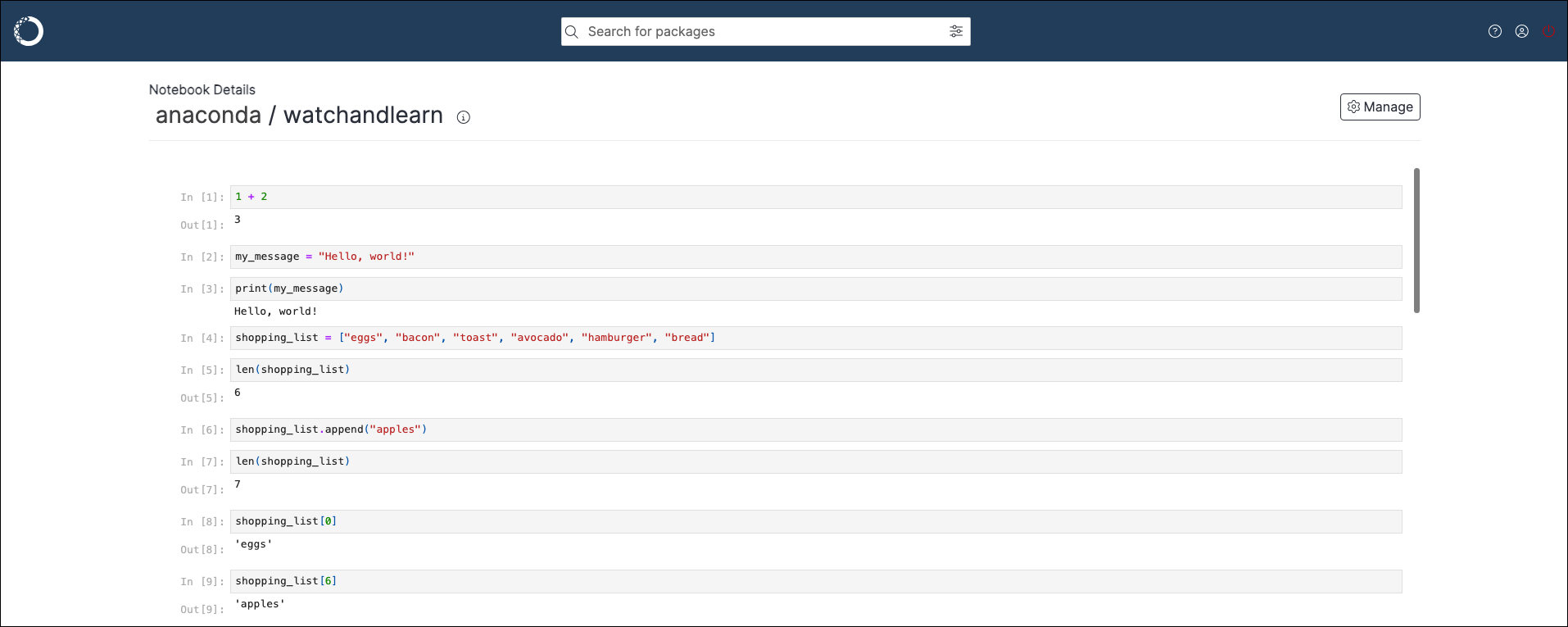
Click on a notebook to preview it in Package Security Manager (On-prem).
## Previewing a notebook
Click on a notebook to preview it in Package Security Manager (On-prem).
 ## Downloading a notebook
To download a notebook from a channel or subchannel:
1. From the channel or subchannel details page, select the **Notebooks** tab.
2. Preview the notebook you want to download.
3. Open the **Manage** dropdown menu and select *Download*.
## Moving a notebook
To move a notebook from one channel or subchannel to another:
1. From the channel or subchannel details page, select the **Notebooks** tab.
2. Select the checkbox next to the notebooks you want to move. File management buttons appear at the top of the list.
3. Click **Move # notebooks**.
4. Open the **Move To:** dropdown menu and select a destination channel or subchannel for your notebook.
5. Click **Move**.
Moving a notebook will remove it from its origin channel.
## Copying a notebook
To copy a notebook from one channel or subchannel to another:
1. From the channel or subchannel details page, select the **Notebooks** tab.
2. Select the checkbox next to the notebooks you want to copy. File management buttons appear at the top of the list.
3. Click **Copy # notebooks**.
4. Open the **Copy To:** dropdown menu and select a destination channel for your notebooks.
5. Click **Copy**.
Copying a notebook will not remove it from its origin channel.
## Deleting a notebook
To delete a notebook from a channel or subchannel:
1. From the channel or subchannel details page, select the **Notebooks** tab.
2. Select the checkbox next to the notebooks you want to delete. File management buttons appear at the top of the list.
3. Click **Delete # notebooks**.
4. Click **Delete** to verify you want to delete your selected notebook.
## Downloading a notebook
To download a notebook from a channel or subchannel:
1. From the channel or subchannel details page, select the **Notebooks** tab.
2. Preview the notebook you want to download.
3. Open the **Manage** dropdown menu and select *Download*.
## Moving a notebook
To move a notebook from one channel or subchannel to another:
1. From the channel or subchannel details page, select the **Notebooks** tab.
2. Select the checkbox next to the notebooks you want to move. File management buttons appear at the top of the list.
3. Click **Move # notebooks**.
4. Open the **Move To:** dropdown menu and select a destination channel or subchannel for your notebook.
5. Click **Move**.
Moving a notebook will remove it from its origin channel.
## Copying a notebook
To copy a notebook from one channel or subchannel to another:
1. From the channel or subchannel details page, select the **Notebooks** tab.
2. Select the checkbox next to the notebooks you want to copy. File management buttons appear at the top of the list.
3. Click **Copy # notebooks**.
4. Open the **Copy To:** dropdown menu and select a destination channel for your notebooks.
5. Click **Copy**.
Copying a notebook will not remove it from its origin channel.
## Deleting a notebook
To delete a notebook from a channel or subchannel:
1. From the channel or subchannel details page, select the **Notebooks** tab.
2. Select the checkbox next to the notebooks you want to delete. File management buttons appear at the top of the list.
3. Click **Delete # notebooks**.
4. Click **Delete** to verify you want to delete your selected notebook.