> ## Documentation Index
> Fetch the complete documentation index at: https://anaconda.com/docs/llms.txt
> Use this file to discover all available pages before exploring further.
# Configure realm email settings
Administrators can configure email for both themselves and users within a realm. This will allow Keycloak to send emails for the following tasks:
* Verifying an email address
* Resetting a password
* Enabling notifications for server events
## Configuring email settings for a realm
To enable Keycloak to send emails, you need to provide Keycloak with your Simple Mail Transfer Protocol (SMTP) server settings.
1. [Log in to the Keycloak administrative console](/docs/psm-on-prem/6.6.2/admin/keycloak_config/user_roles#accessing-the-keycloak-administrative-console).
2. Verify that you are on the **master** realm.
3. Select **Realm Settings** from the left-hand navigation.
4. Select the **Email** tab.
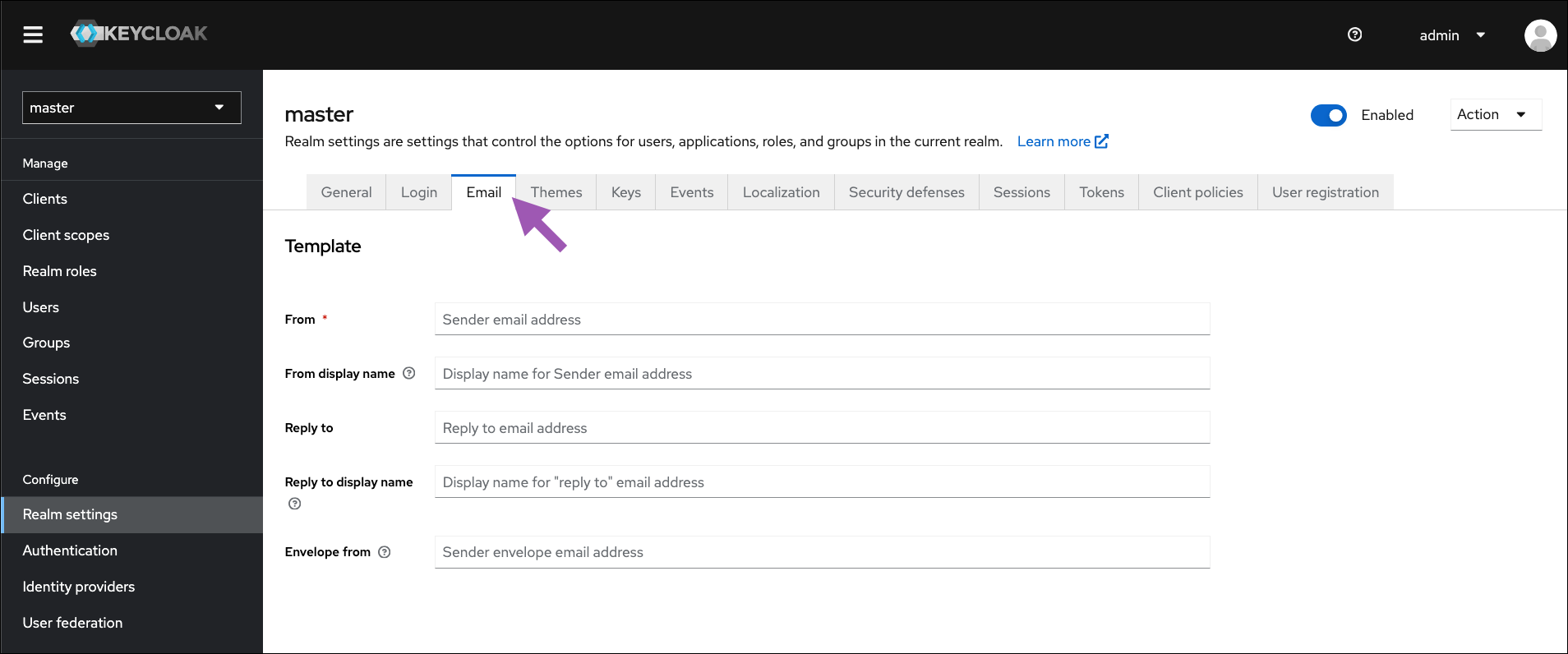 5. Enter your SMTP server information and configure your settings as needed:
* **From**: Address used for the `From` SMTP-Header for emails sent.
* **From display name**: Configure a user-friendly email address alias. If not set, the standard `From` email address will be displayed.
* **Reply to**: Address used for the `Reply-To` SMTP-Header for emails sent. If not set, the standard `From` email address will be displayed.
* **Reply to display name**: Configure a user-friendly email address alias. If not set, the standard `Reply-To` email address will be displayed.
* **Envelope from**: Return address used for the `Return-Path` SMTP-Header for emails sent.
* **Host**: SMTP server hostname used for sending emails.
* **Port**: SMTP server port.
You will most likely need to update the Port to `465`. This is the default port for SSL/TLS.
* **Enable SSL** and **Enable Start TLS**: Select these checkboxes to enable username and password recovery emails to be sent by Keycloak, especially if the SMTP server is on an external network.
* **Authentication**: Enable this setting if your SMTP server requires authentication. When prompted, supply the username and password.
The value of the **Password** field can refer a value from an external vault.
## Gmail configuration
To configure an admin Gmail account:
1. In **Realm Settings**, fill in the fields as follows:
* **From**: *Admin email address*
* **Host**: smtp.gmail.com
* **Port**: 587 (for SSL, use 465)
* **Enable StartTLS**: selected (for SSL, use Enable SSL)
* **Enable Authentication**: selected
* **Username**: *Admin username*
* **Password**: *Admin password*
2. Click **Save**.
3. In a browser, log in to the Gmail account.
4. Visit Google’s [Less secure app access](https://www.google.com/settings/security/lesssecureapps) page, then turn on the **Allow less secure apps** toggle.
5. Enter your SMTP server information and configure your settings as needed:
* **From**: Address used for the `From` SMTP-Header for emails sent.
* **From display name**: Configure a user-friendly email address alias. If not set, the standard `From` email address will be displayed.
* **Reply to**: Address used for the `Reply-To` SMTP-Header for emails sent. If not set, the standard `From` email address will be displayed.
* **Reply to display name**: Configure a user-friendly email address alias. If not set, the standard `Reply-To` email address will be displayed.
* **Envelope from**: Return address used for the `Return-Path` SMTP-Header for emails sent.
* **Host**: SMTP server hostname used for sending emails.
* **Port**: SMTP server port.
You will most likely need to update the Port to `465`. This is the default port for SSL/TLS.
* **Enable SSL** and **Enable Start TLS**: Select these checkboxes to enable username and password recovery emails to be sent by Keycloak, especially if the SMTP server is on an external network.
* **Authentication**: Enable this setting if your SMTP server requires authentication. When prompted, supply the username and password.
The value of the **Password** field can refer a value from an external vault.
## Gmail configuration
To configure an admin Gmail account:
1. In **Realm Settings**, fill in the fields as follows:
* **From**: *Admin email address*
* **Host**: smtp.gmail.com
* **Port**: 587 (for SSL, use 465)
* **Enable StartTLS**: selected (for SSL, use Enable SSL)
* **Enable Authentication**: selected
* **Username**: *Admin username*
* **Password**: *Admin password*
2. Click **Save**.
3. In a browser, log in to the Gmail account.
4. Visit Google’s [Less secure app access](https://www.google.com/settings/security/lesssecureapps) page, then turn on the **Allow less secure apps** toggle.