> ## Documentation Index
> Fetch the complete documentation index at: https://anaconda.com/docs/llms.txt
> Use this file to discover all available pages before exploring further.
# Environments
An environment is a folder or directory that contains a specific collection of conda packages and their dependencies.
Working in separate environments allows you to maintain and run packages without interference from other collections of packages. For example, you may use a conda environment for only Python 2 and Python 2 packages and maintain another conda environment with only Python 3 and Python 3 packages.
## Uploading an environment file
1. [Create your environment.yml file](https://docs.conda.io/projects/conda/en/latest/user-guide/tasks/manage-environments.html#create-env-file-manually).
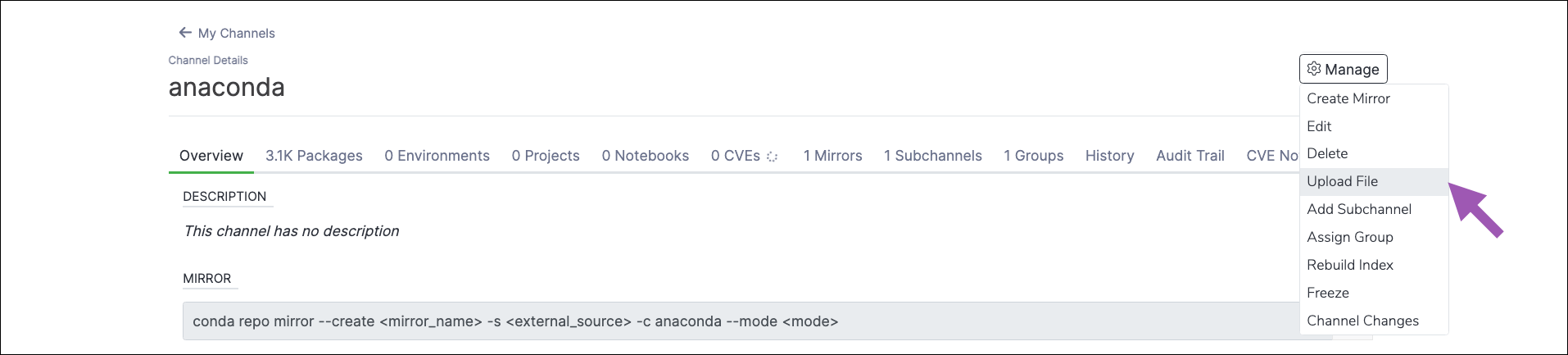
2. Open the **Manage** dropdown menu and select *Upload File*.
 3. Open the **Type** dropdown menu and select *Anaconda Environment*.
4. Click **Select files…** then locate and upload your environment file, or drag and drop the environment file into the field.
5. Click **Upload**.
## Downloading an environment file
1. From the channel details page, select the **Environments** tab.
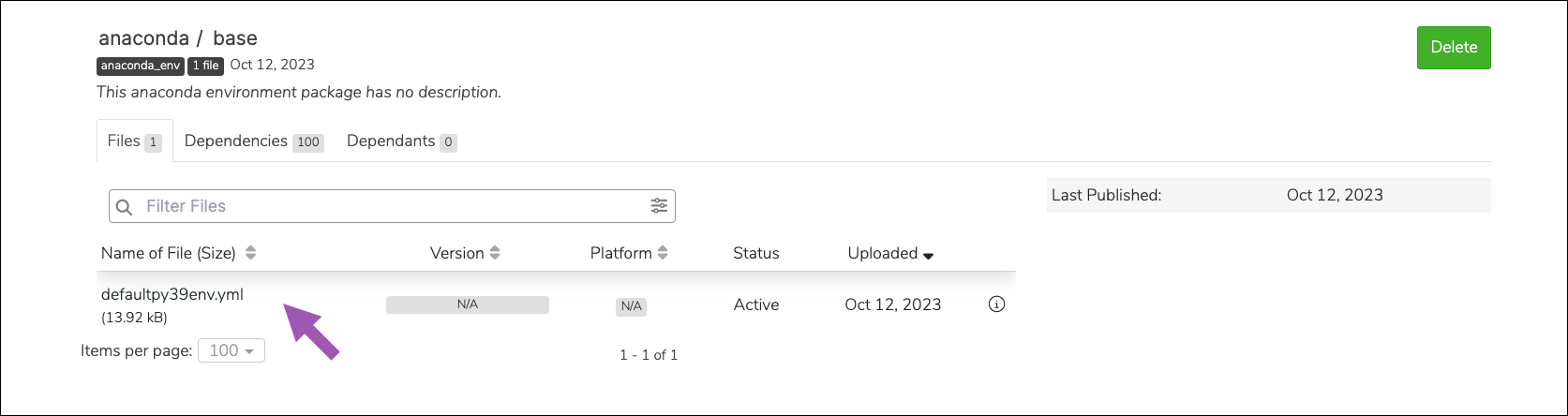
2. Select an environment, then click on an environment file to download it.
3. Open the **Type** dropdown menu and select *Anaconda Environment*.
4. Click **Select files…** then locate and upload your environment file, or drag and drop the environment file into the field.
5. Click **Upload**.
## Downloading an environment file
1. From the channel details page, select the **Environments** tab.
2. Select an environment, then click on an environment file to download it.
 ## Viewing environment dependencies
1. From the channel details page, select the **Environments** tab.
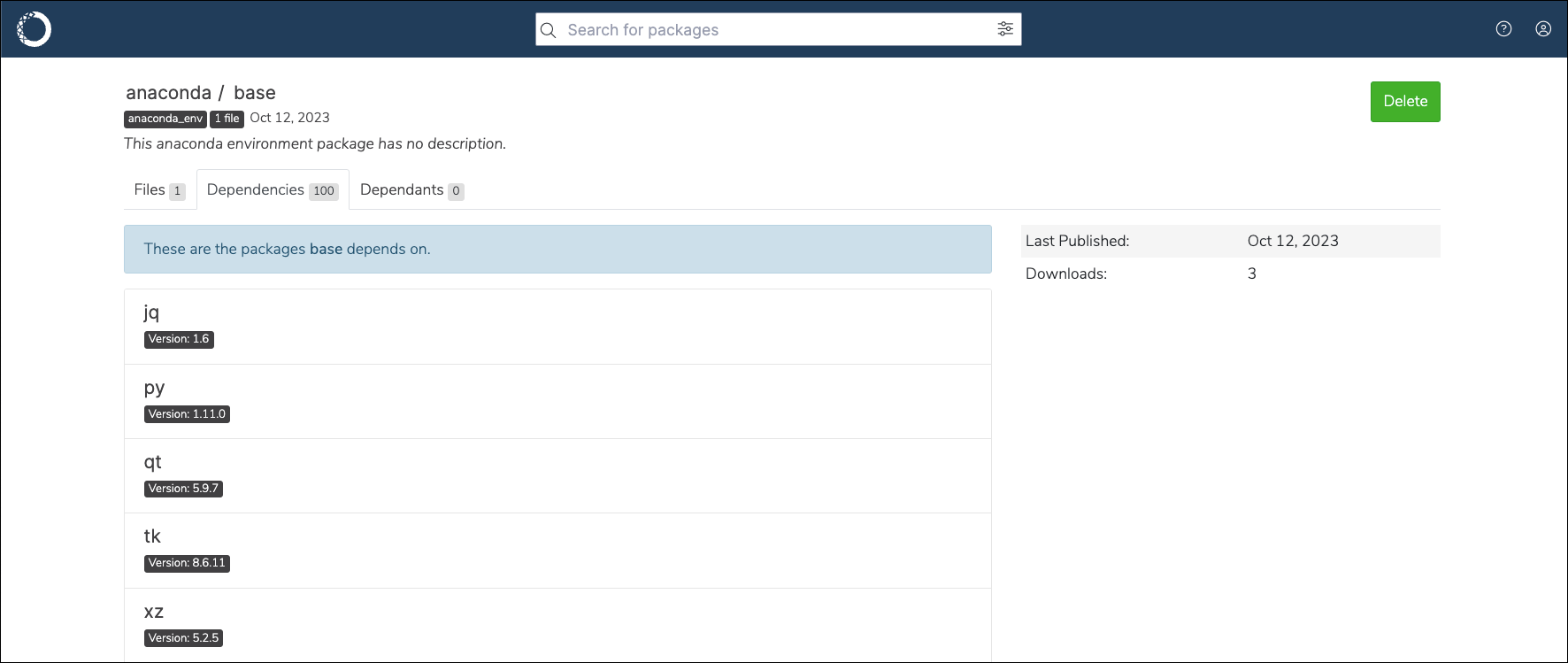
2. Click on an environment, then select the **Dependencies** tab to view the packages your environment depends on.
## Viewing environment dependencies
1. From the channel details page, select the **Environments** tab.
2. Click on an environment, then select the **Dependencies** tab to view the packages your environment depends on.
 ## Viewing environment metadata
1. From the channel details page, select the **Environments** tab.
2. Click on an environment.
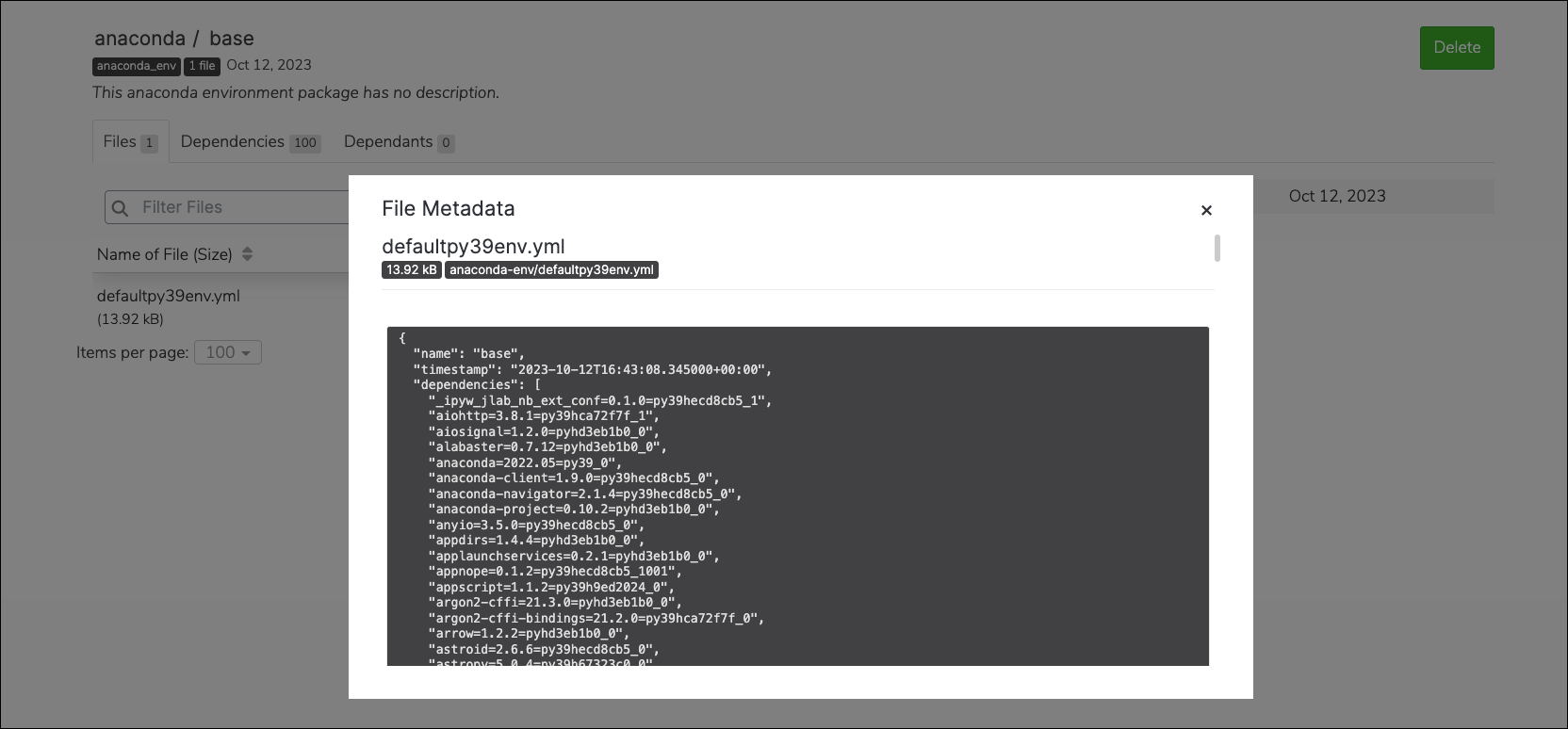
3. Click the information icon next to the `.yml` file to view its metadata.
## Viewing environment metadata
1. From the channel details page, select the **Environments** tab.
2. Click on an environment.
3. Click the information icon next to the `.yml` file to view its metadata.
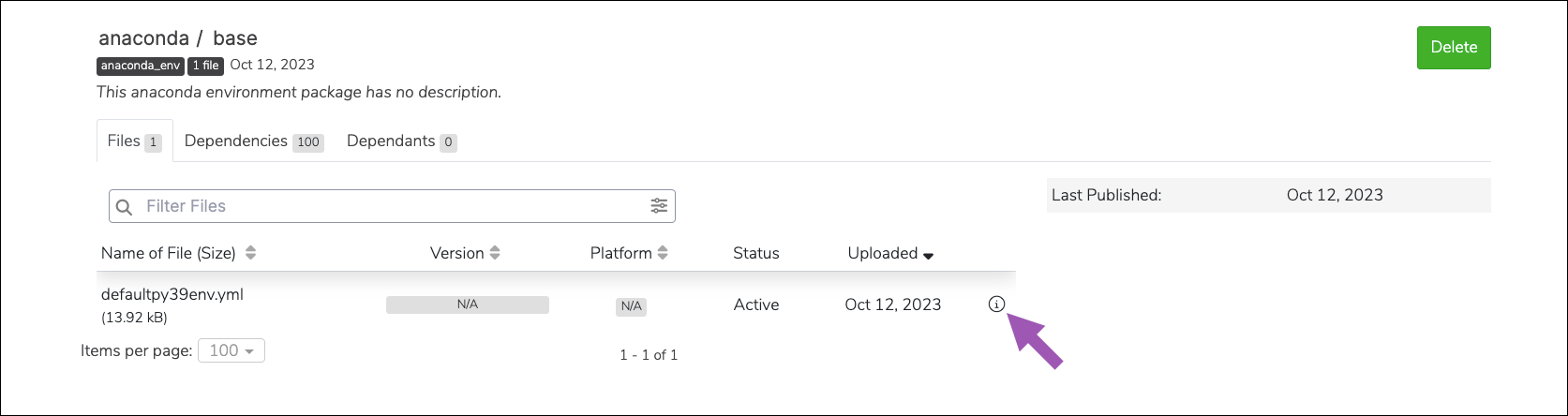 You will be presented with the environment’s metadata.
 ## Moving an environment file
To move an environment file from one channel or subchannel to another:
1. From the channel details page, select the **Environments** tab.
2. Select the checkbox next to the environment file you want to move.
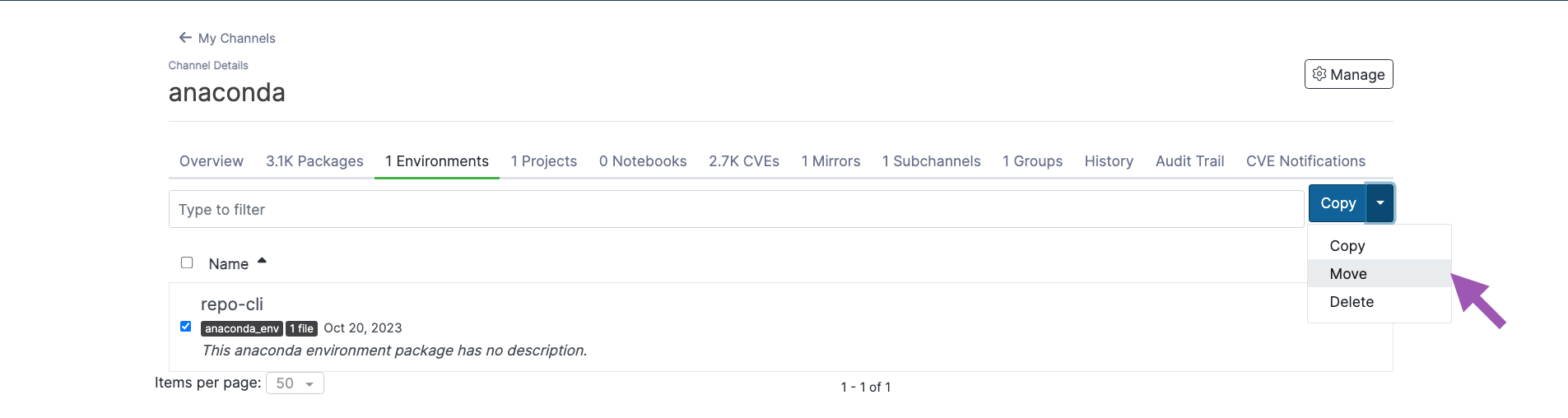
3. Open the **Copy** dropdown menu and select *Move*.
## Moving an environment file
To move an environment file from one channel or subchannel to another:
1. From the channel details page, select the **Environments** tab.
2. Select the checkbox next to the environment file you want to move.
3. Open the **Copy** dropdown menu and select *Move*.
 4. Open the **Move To:** dropdown menu and select a destination channel for your environment file.
5. Click **Move**.
Moving an environment file will remove it from its origin channel.
## Copying an environment file
To copy an environment file from one channel or subchannel to another:
1. From the channel details page, select the **Environments** tab.
2. Select the checkbox next to the environment file you want to copy.
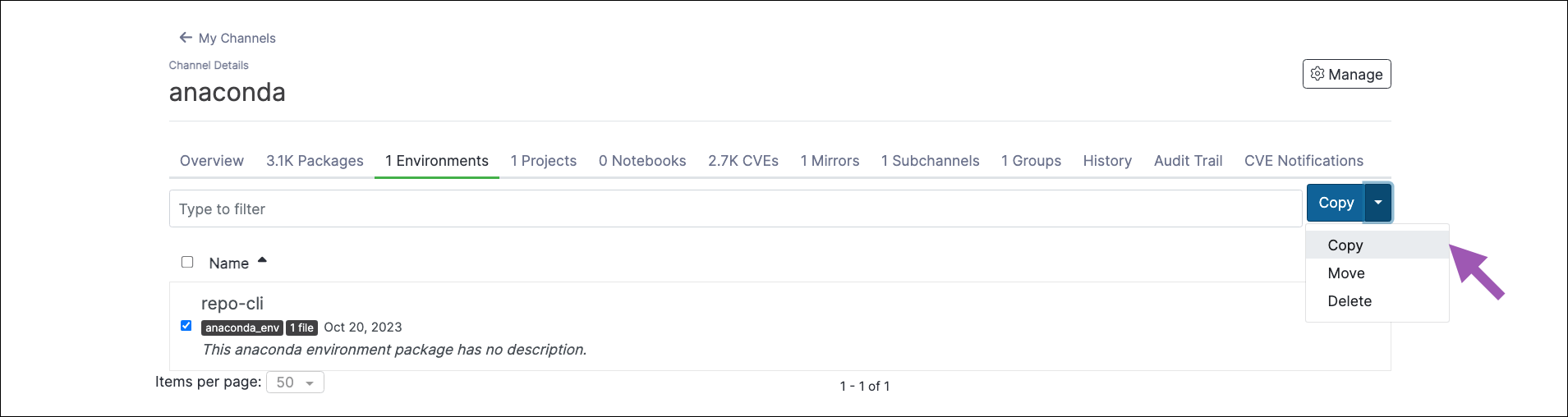
3. Open the **Copy** dropdown menu and select *Copy*.
4. Open the **Move To:** dropdown menu and select a destination channel for your environment file.
5. Click **Move**.
Moving an environment file will remove it from its origin channel.
## Copying an environment file
To copy an environment file from one channel or subchannel to another:
1. From the channel details page, select the **Environments** tab.
2. Select the checkbox next to the environment file you want to copy.
3. Open the **Copy** dropdown menu and select *Copy*.
 4. Open the **Copy To:** dropdown menu and select a destination channel for your environment file.
5. Click **Copy**.
Copying an environment file will not remove it from its origin channel.
## Deleting an environment file
To delete an environment file from a channel or subchannel:
1. From the channel details page, select the **Environments** tab.
2. Select the checkbox next to the environment file you want to delete.
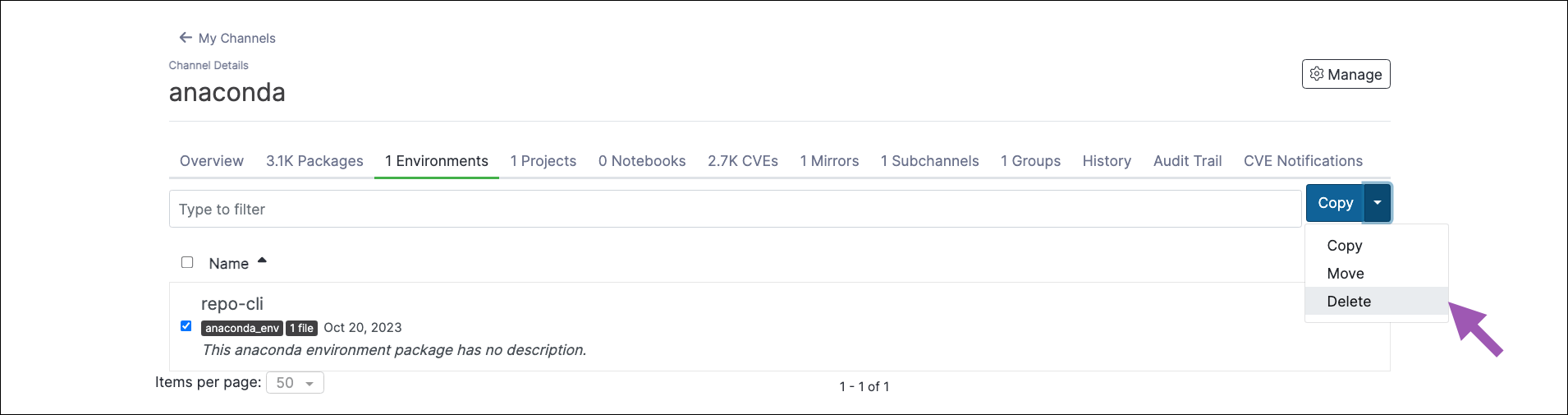
3. Open the **Copy** dropdown menu and select *Delete*.
4. Open the **Copy To:** dropdown menu and select a destination channel for your environment file.
5. Click **Copy**.
Copying an environment file will not remove it from its origin channel.
## Deleting an environment file
To delete an environment file from a channel or subchannel:
1. From the channel details page, select the **Environments** tab.
2. Select the checkbox next to the environment file you want to delete.
3. Open the **Copy** dropdown menu and select *Delete*.
 4. Click **Delete** to verify you want to delete your selected environment file.