> ## Documentation Index
> Fetch the complete documentation index at: https://anaconda.com/docs/llms.txt
> Use this file to discover all available pages before exploring further.
# Packages
## Searching for packages
If you want to know whether or not a package is available in one of your Server channels, you can search for it by entering the package name into the search bar at the top of the dashboard. Click **Show more** to view a full list of matching packages from all available channels.
You can search for channels and CVEs using the same search bar. To adjust your search parameters, open the dropdown menu to the left of the search bar, then select an option from the dropdown menu.
## Viewing package details
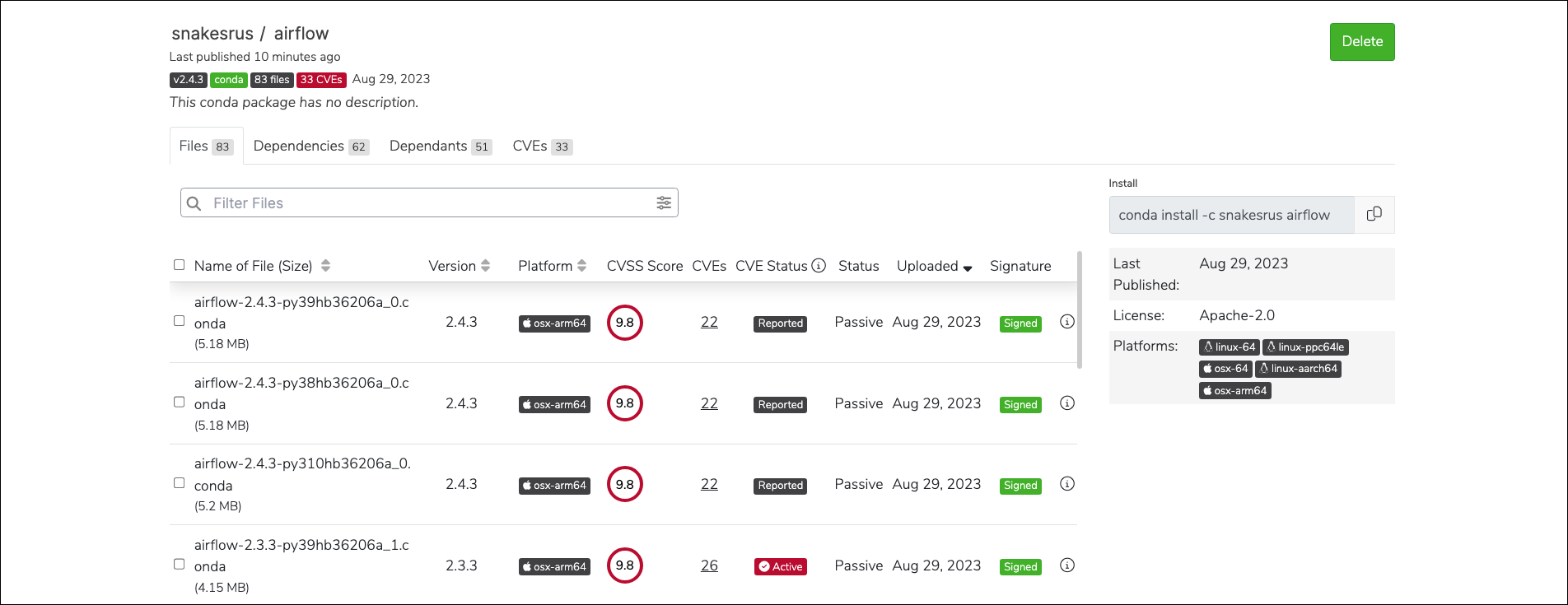
Clicking on any package in a channel will display the package details.
From here, you can view the following information:
* All the files contained within the package
* The package’s dependents (other packages that require this package to operate properly)
* The package’s dependencies (other packages that this package requires to operate properly)
* CVEs that are associated with files in the package
Conda automatically installs a package’s dependencies along with the package itself when that package is requested from the channel. If a dependency is not available due to an applied mirror filter, you will not be able to build a working environment with the packages from the current channel.
General information about the package, such as its license type, version number, architecture, signature status, CVE score and status, package status, and the last time the package was published is also available from this page.
 ## Filtering package files
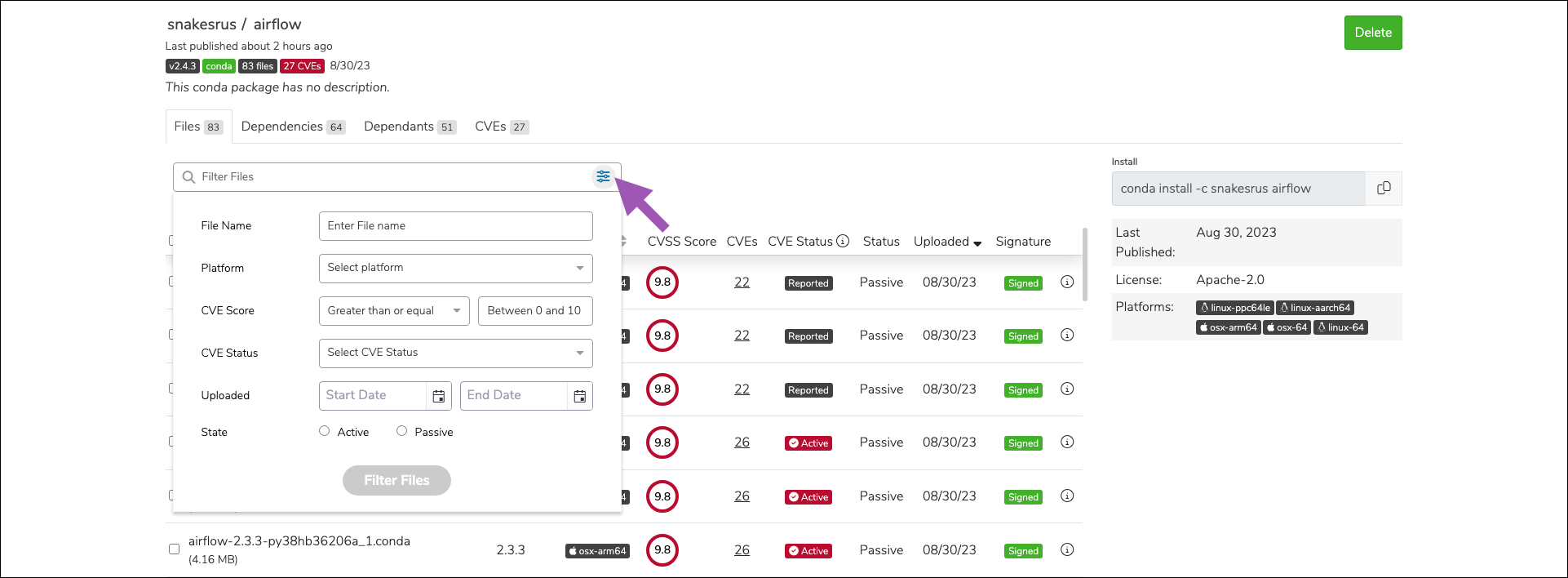
Further search the contents of a package by utilizing the file filter. Click the filter icon to open the file filter options dropdown. You can filter by package name, platform, CVE score and/or status, upload date, and active/passive state.
## Filtering package files
Further search the contents of a package by utilizing the file filter. Click the filter icon to open the file filter options dropdown. You can filter by package name, platform, CVE score and/or status, upload date, and active/passive state.
 ## Package signatures
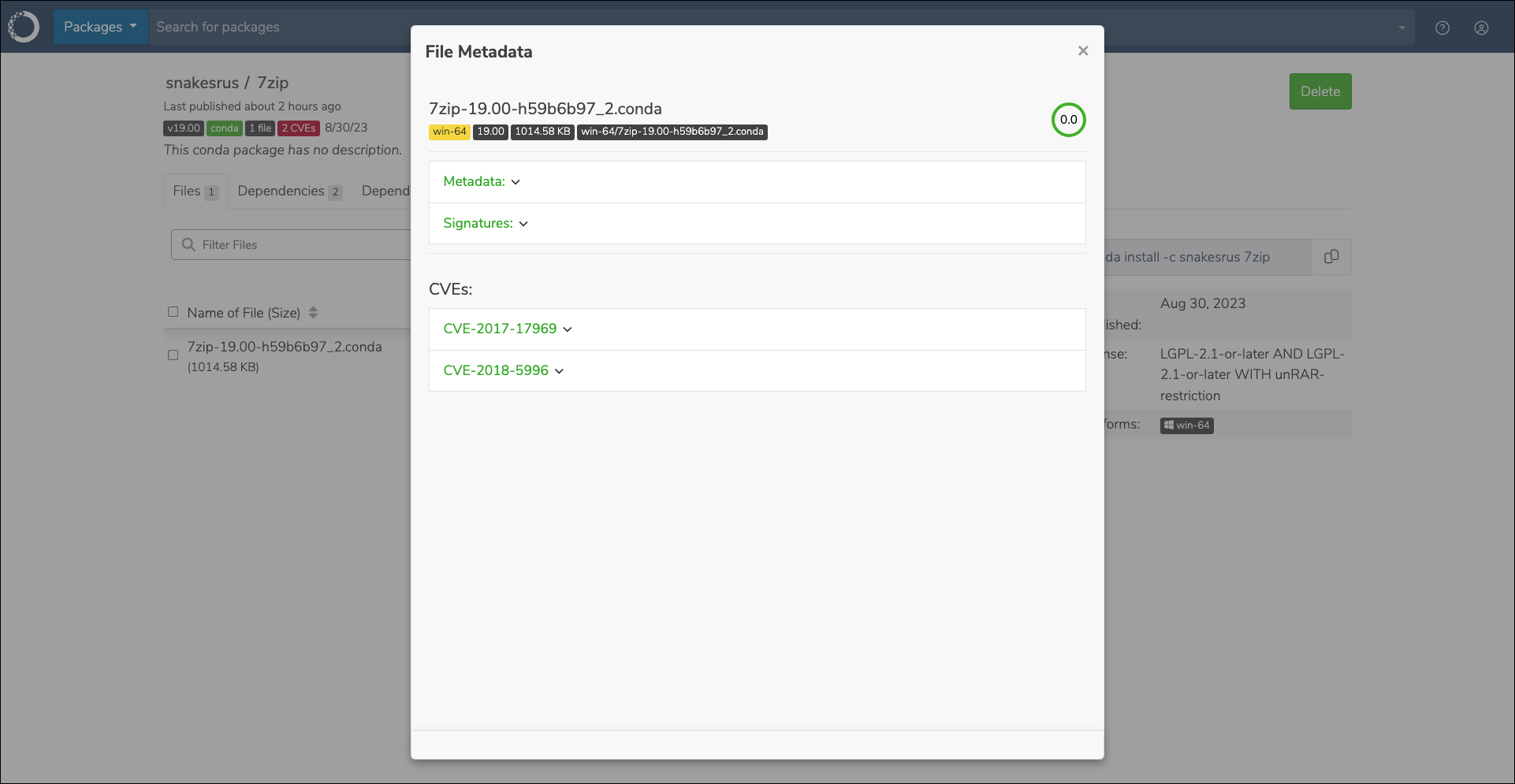
Packages in Anaconda’s repository come with a security signature: a special key value that proves that the package hasn’t been tampered with since going through Anaconda’s curation process. Files within a package that have a signature display a signed tag in the signature column. The actual signature value can be viewed at the bottom of the metadata file.
You must mirror your packages using an Anaconda Business channel as a source to view package signatures.
## Viewing file metadata
From the package details view, click the information icon for a file to view its metadata, package signature value (if applicable), and a list of CVEs that affect the file. The metadata is a `.json` formatted file that contains all of the information about the package file.
## Package signatures
Packages in Anaconda’s repository come with a security signature: a special key value that proves that the package hasn’t been tampered with since going through Anaconda’s curation process. Files within a package that have a signature display a signed tag in the signature column. The actual signature value can be viewed at the bottom of the metadata file.
You must mirror your packages using an Anaconda Business channel as a source to view package signatures.
## Viewing file metadata
From the package details view, click the information icon for a file to view its metadata, package signature value (if applicable), and a list of CVEs that affect the file. The metadata is a `.json` formatted file that contains all of the information about the package file.
 ## Installing a package in your environment
The package details page also provides you with a command to run if you want to install the package from this channel. Click the copy icon, then run the command in your environment. Keep in mind that all the package’s dependencies will also be installed.
## Installing a package in your environment
The package details page also provides you with a command to run if you want to install the package from this channel. Click the copy icon, then run the command in your environment. Keep in mind that all the package’s dependencies will also be installed.
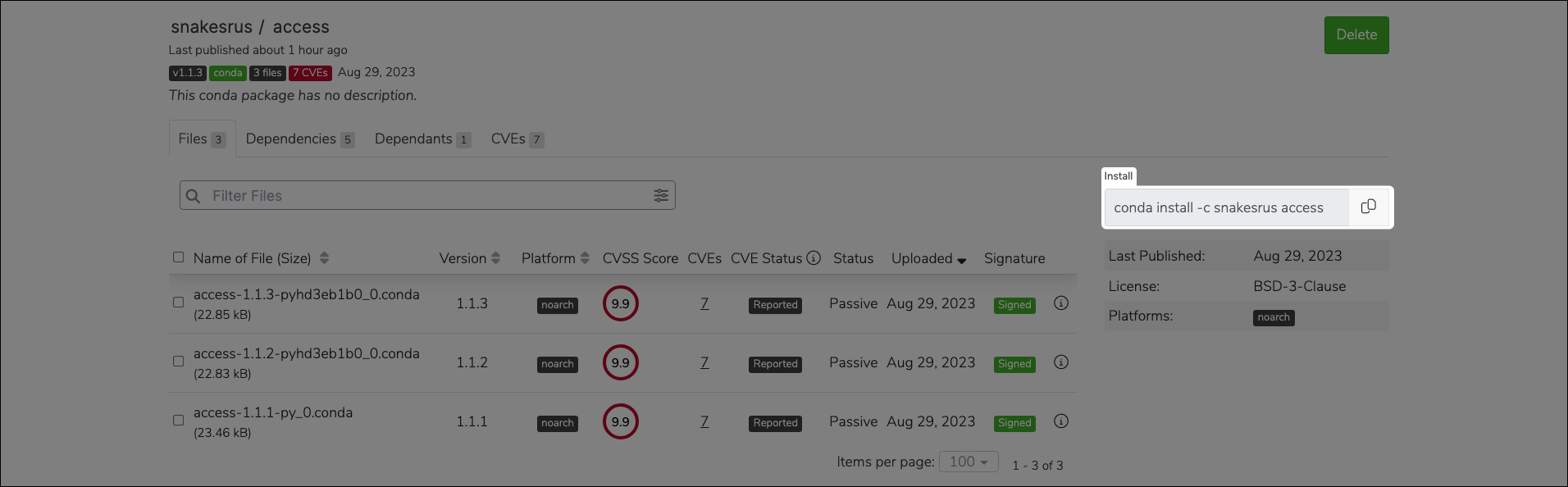 This command assumes that you have set the channel alias in your `.condarc` file to your Anaconda Server URL. For more information and help setting your channel alias, see [Set a channel alias](https://docs.conda.io/projects/conda/en/latest/user-guide/configuration/use-condarc.html#set-a-channel-alias-channel-alias) in the official conda documentation.
## Downloading a package
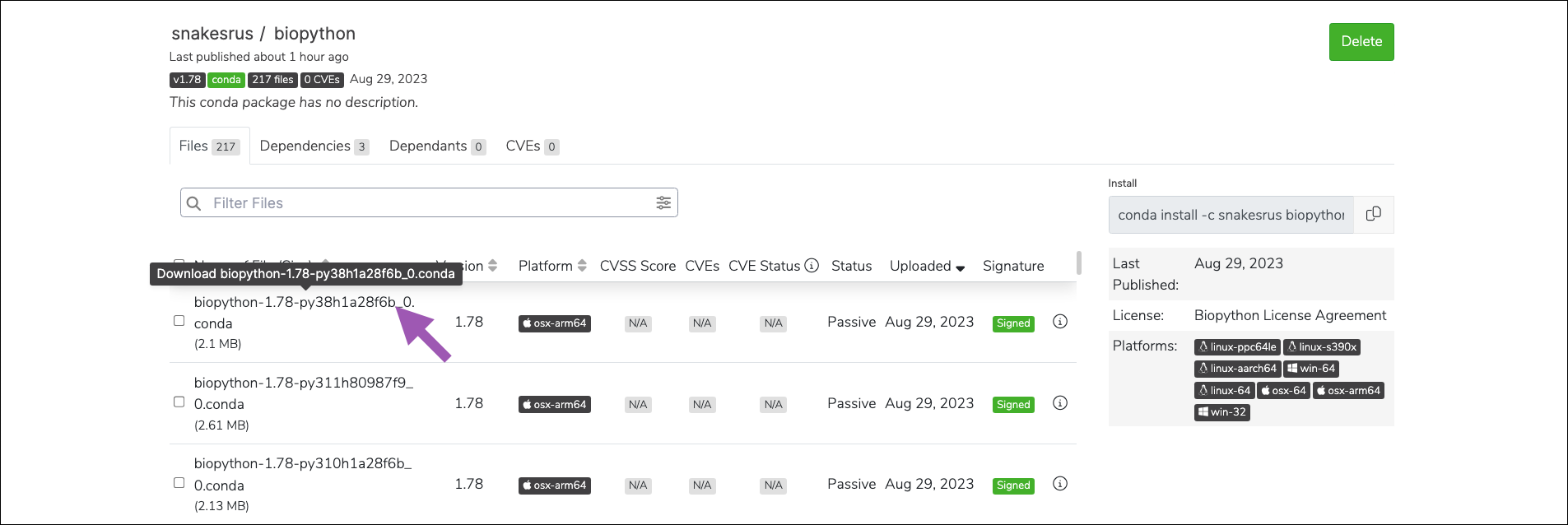
From the package details view, click on a package’s name to download it.
This command assumes that you have set the channel alias in your `.condarc` file to your Anaconda Server URL. For more information and help setting your channel alias, see [Set a channel alias](https://docs.conda.io/projects/conda/en/latest/user-guide/configuration/use-condarc.html#set-a-channel-alias-channel-alias) in the official conda documentation.
## Downloading a package
From the package details view, click on a package’s name to download it.
 ## Managing packages
### Uploading a package
The process for preparing a package for upload differs depending on the package type. Please follow the relevant guide to prepare your package for upload before continuing:
* [conda-build](https://docs.conda.io/projects/conda-build/en/latest/)
* [sdist and wheels](https://packaging.python.org/en/latest/tutorials/packaging-projects/#generating-distribution-archives)
* [cran](https://r-pkgs.org/structure)
Once the package is ready for upload:
1. Log in to Anaconda Server.
2. Navigate to the channel/subchannel you want to upload your package to.
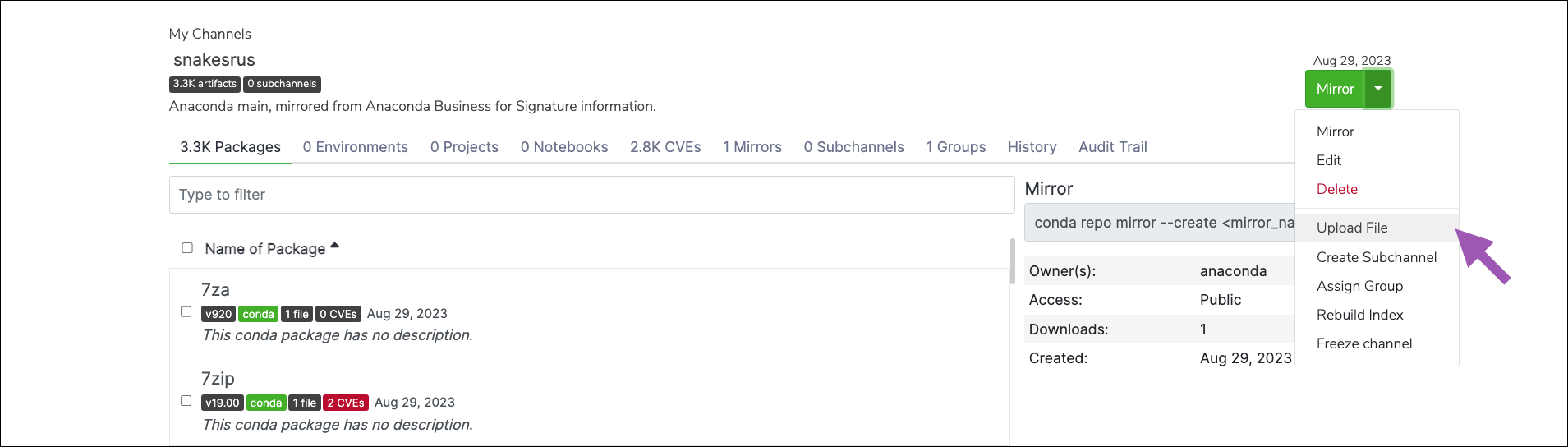
3. Open the actions dropdown menu and select **Upload File**.
## Managing packages
### Uploading a package
The process for preparing a package for upload differs depending on the package type. Please follow the relevant guide to prepare your package for upload before continuing:
* [conda-build](https://docs.conda.io/projects/conda-build/en/latest/)
* [sdist and wheels](https://packaging.python.org/en/latest/tutorials/packaging-projects/#generating-distribution-archives)
* [cran](https://r-pkgs.org/structure)
Once the package is ready for upload:
1. Log in to Anaconda Server.
2. Navigate to the channel/subchannel you want to upload your package to.
3. Open the actions dropdown menu and select **Upload File**.
 4. Open the **Type** dropdown menu and select your applicable file type.
5. Click **Browse**, locate the file on your computer, and then click **Upload**.
### Moving a package
To move a package from one channel or subchannel to another:
1. From the channel details page, select the packages you want to move from this channel.
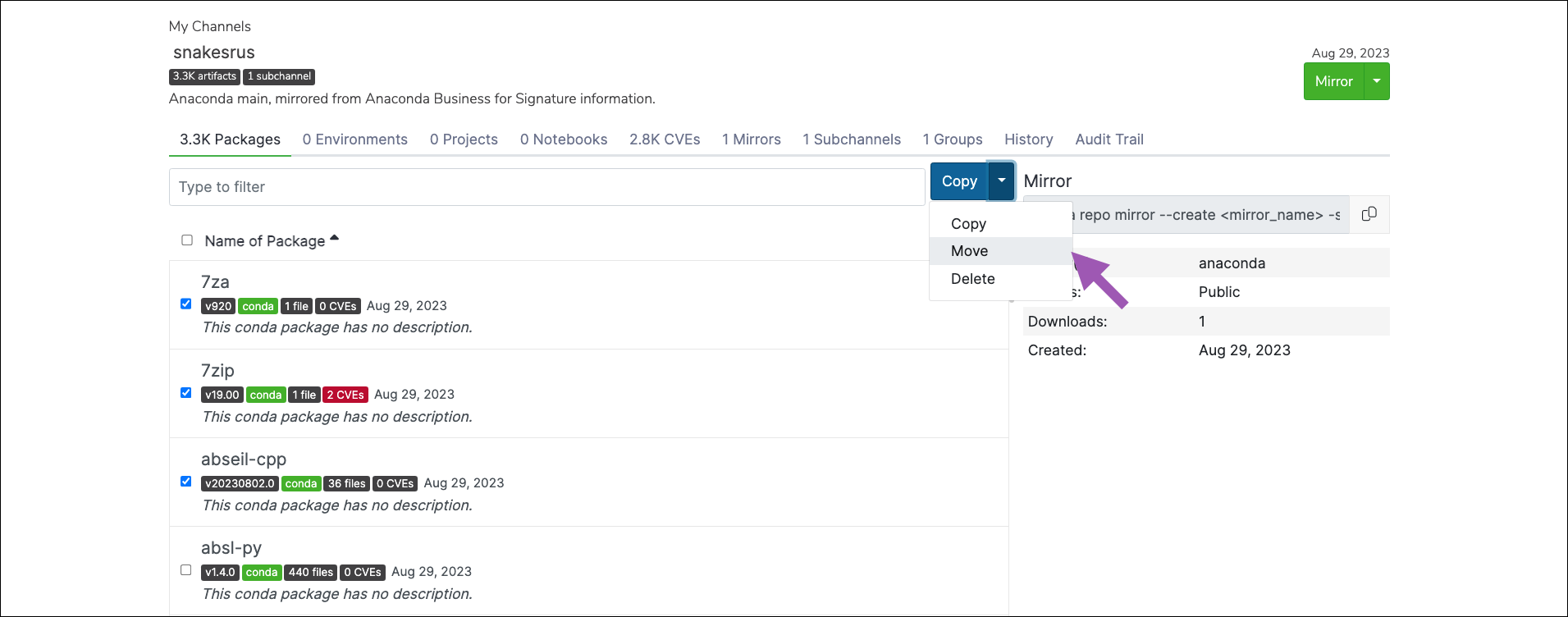
2. Open the package actions dropdown menu and select *Move*.
4. Open the **Type** dropdown menu and select your applicable file type.
5. Click **Browse**, locate the file on your computer, and then click **Upload**.
### Moving a package
To move a package from one channel or subchannel to another:
1. From the channel details page, select the packages you want to move from this channel.
2. Open the package actions dropdown menu and select *Move*.
 3. Open the **Move To:** dropdown menu and select a destination channel for your packages.
4. Click **Move**.
Moving a package will remove it from its origin channel.
### Copying a package
To copy a package from one channel or subchannel to another:
1. From the channel details page, select the packages you want to copy from this channel.
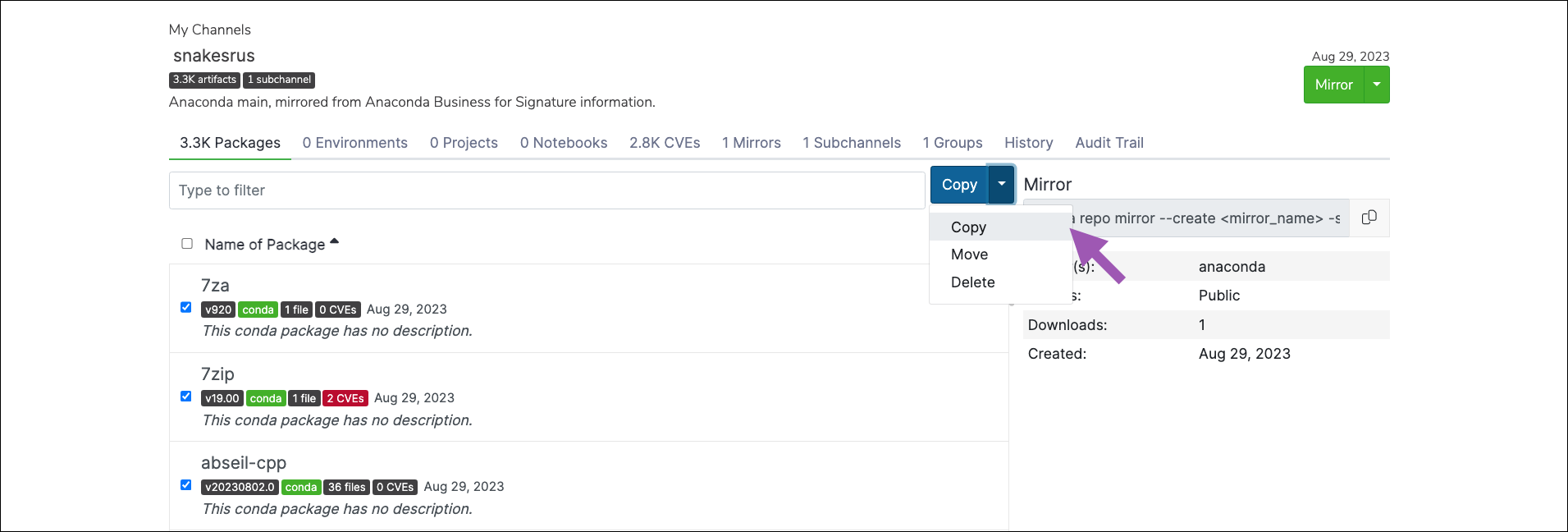
2. Open the package actions dropdown menu and select *Copy*.
3. Open the **Move To:** dropdown menu and select a destination channel for your packages.
4. Click **Move**.
Moving a package will remove it from its origin channel.
### Copying a package
To copy a package from one channel or subchannel to another:
1. From the channel details page, select the packages you want to copy from this channel.
2. Open the package actions dropdown menu and select *Copy*.
 3. Open the **Copy To:** dropdown menu and select a destination channel for your packages.
4. Click **Copy**.
Copying a package will not remove it from its origin channel.
### Deleting a package
To delete a package from a channel or subchannel:
1. From the channel details page, select the packages you want to copy from this channel.
2. Open the package actions dropdown menu and select *Delete*.
3. Open the **Copy To:** dropdown menu and select a destination channel for your packages.
4. Click **Copy**.
Copying a package will not remove it from its origin channel.
### Deleting a package
To delete a package from a channel or subchannel:
1. From the channel details page, select the packages you want to copy from this channel.
2. Open the package actions dropdown menu and select *Delete*.
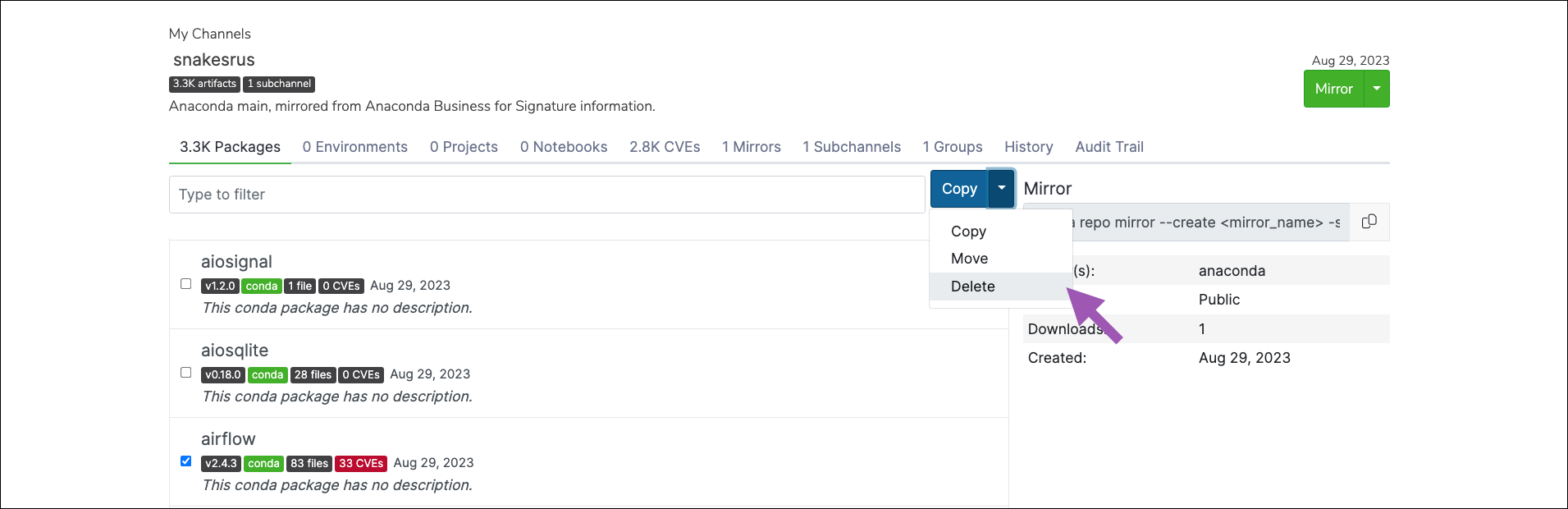 3. Click **Delete** to verify you want to delete your selected packages.
## Managing packages with the CLI
If you want to manage your packages using the CLI, see [Anaconda Server CLI](/docs/psm-on-prem/6.5.3/user/cli#packages).
## Managing packages with the API
You can also use the API to perform various functions regarding package management. Access the API interface by opening a browser and navigating to `http(s):///swagger/ui`, replacing `` with your Anaconda Server fully qualified domain name.
The following is a list of available endpoints you can use to manage your packages in Anaconda Server.
### Viewing package details
```sh theme={null}
GET /api/channels//artifacts//
GET /api/channels//artifacts///readme
GET /api/channels//artifacts///cves
GET /api/channels//artifacts///files
GET /api/channels//artifacts///dependencies
GET /api/channels//subchannels//artifacts//
GET /api/channels//subchannels//artifacts///readme
GET /api/channels//subchannels//artifacts///cves
GET /api/channels//subchannels//artifacts///files
GET /api/channels//subchannels//artifacts///dependencies
```
### Deleting a package
```sh theme={null}
DELETE /api/channels//artifacts//
DELETE /api/channels//subchannels//artifacts//
```
3. Click **Delete** to verify you want to delete your selected packages.
## Managing packages with the CLI
If you want to manage your packages using the CLI, see [Anaconda Server CLI](/docs/psm-on-prem/6.5.3/user/cli#packages).
## Managing packages with the API
You can also use the API to perform various functions regarding package management. Access the API interface by opening a browser and navigating to `http(s):///swagger/ui`, replacing `` with your Anaconda Server fully qualified domain name.
The following is a list of available endpoints you can use to manage your packages in Anaconda Server.
### Viewing package details
```sh theme={null}
GET /api/channels//artifacts//
GET /api/channels//artifacts///readme
GET /api/channels//artifacts///cves
GET /api/channels//artifacts///files
GET /api/channels//artifacts///dependencies
GET /api/channels//subchannels//artifacts//
GET /api/channels//subchannels//artifacts///readme
GET /api/channels//subchannels//artifacts///cves
GET /api/channels//subchannels//artifacts///files
GET /api/channels//subchannels//artifacts///dependencies
```
### Deleting a package
```sh theme={null}
DELETE /api/channels//artifacts//
DELETE /api/channels//subchannels//artifacts//
```