> ## Documentation Index
> Fetch the complete documentation index at: https://anaconda.com/docs/llms.txt
> Use this file to discover all available pages before exploring further.
# Tokens
Authorization tokens can be generated by users and admins to provide others with access to private/authenticated channels or with a specific set of permissions when using the Anaconda Server CLI or API.
This token can be used in place of username-based authentication, and is particularly useful (and sometimes necessary) for third-party applications or automation tools.
## Token Types
There are two types of tokens within Anaconda Server:
### Resource tokens
Resource tokens provide the token holder with *read*, *write*, or *manage* permissions for a specific set of channels.
### Scope tokens
Scope tokens provide the token holder with a fine-grained set of custom user permissions, limiting the available actions that they are able to perform. A scope combines permission categories with specific actions users can perform into a concatenated string, like this:
`category:action` or `category.subcategory:action`
Tokens cannot contain both resources and scopes.
Some actions are also tied to permission levels. For example, if you provide the scope `channel:edit`, you are also providing `manage` level permissions over channels.
## Scopes
| Permission Categories | Available Scopes (category:action) | Associated permissions |
| :-------------------- | :--------------------------------- | :------------------------------------------------------------ |
| Artifacts | artifact:create | Write permissions to parent resource (channel or subchannel) |
| | artifact:delete | Manage permissions to parent resource (channel or subchannel) |
| | artifact:download | Read |
| | artifact:edit | Manage permissions to parent resource (channel or subchannel) |
| | artifact:view | Read |
| Channels | channel:create | Write |
| | channel:delete | Manage |
| | channel:edit | Manage |
| | channel:history | Manage |
| | channel:view | Read |
| | channel:view-artifacts | Read |
| Default Channel | channel.default-channel:edit | Manage |
| Channel groups | channel.group:edit | Manage |
| | channel.group:view | Read |
| Channel mirrors | channel.mirror:edit | Manage |
| | channel.mirror:view | Manage |
| Subchannels | subchannel:create | Manage permissions to parent channel |
| | subchannel:delete | Manage |
| | subchannel:edit | Manage |
| | subchannel:history | Manage |
| | subchannel:view | Read |
| | subchannel:view-artifacts | Read |
| Subchannel groups | subchannel.group:edit | Manage |
| | subchannel.group:view | Read |
| Subchannel mirrors | subchannel.mirror:edit | Manage permissions to parent channel |
| | subchannel.mirror:view | Manage |
| Mirrors | mirror:view | Manage |
| Licenses | system.license:edit | Manage |
| | system.license:view | Manage |
| CVEs | cve:edit | Manage |
| | cve:view | Read |
| Roles | role:edit | Manage |
| | role:view | Read |
| System blobs | system.settings:edit | Manage |
| | system:delete-blobs | Manage |
| Tokens | user.token:edit | Manage |
| | user.token:view | Manage |
## Generating tokens
### Resource tokens
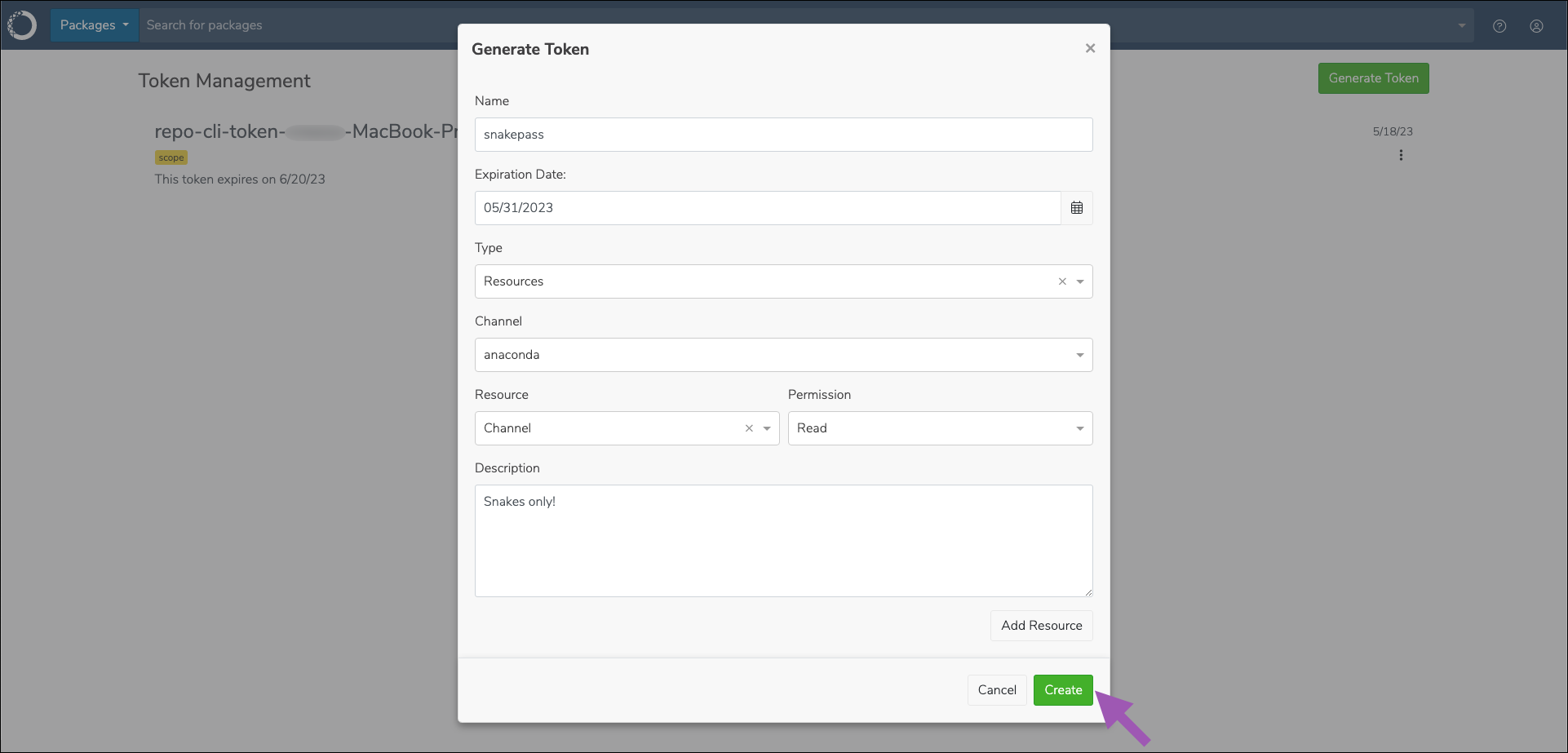
To provide token holders with access to a channel:
1. Log in to Anaconda Server.
2. Open the **My Account** dropdown menu and select **Tokens**.
3. Click **Generate Token**.
4. Enter a name for your token.
5. Set an expiration date for your token.
6. Open the **Type** dropdown menu and select **Resources**.
7. Open the **Resource** dropdown menu and select an available channel to associate with this token.
8. Select the level of permissions to associate with this token.
9. If necessary, click the **Add Resource** button to include an additional channel with this token, repeat as needed.
10. Provide a brief description of the token’s use.
11. Click **Create**.
 ### Scope tokens
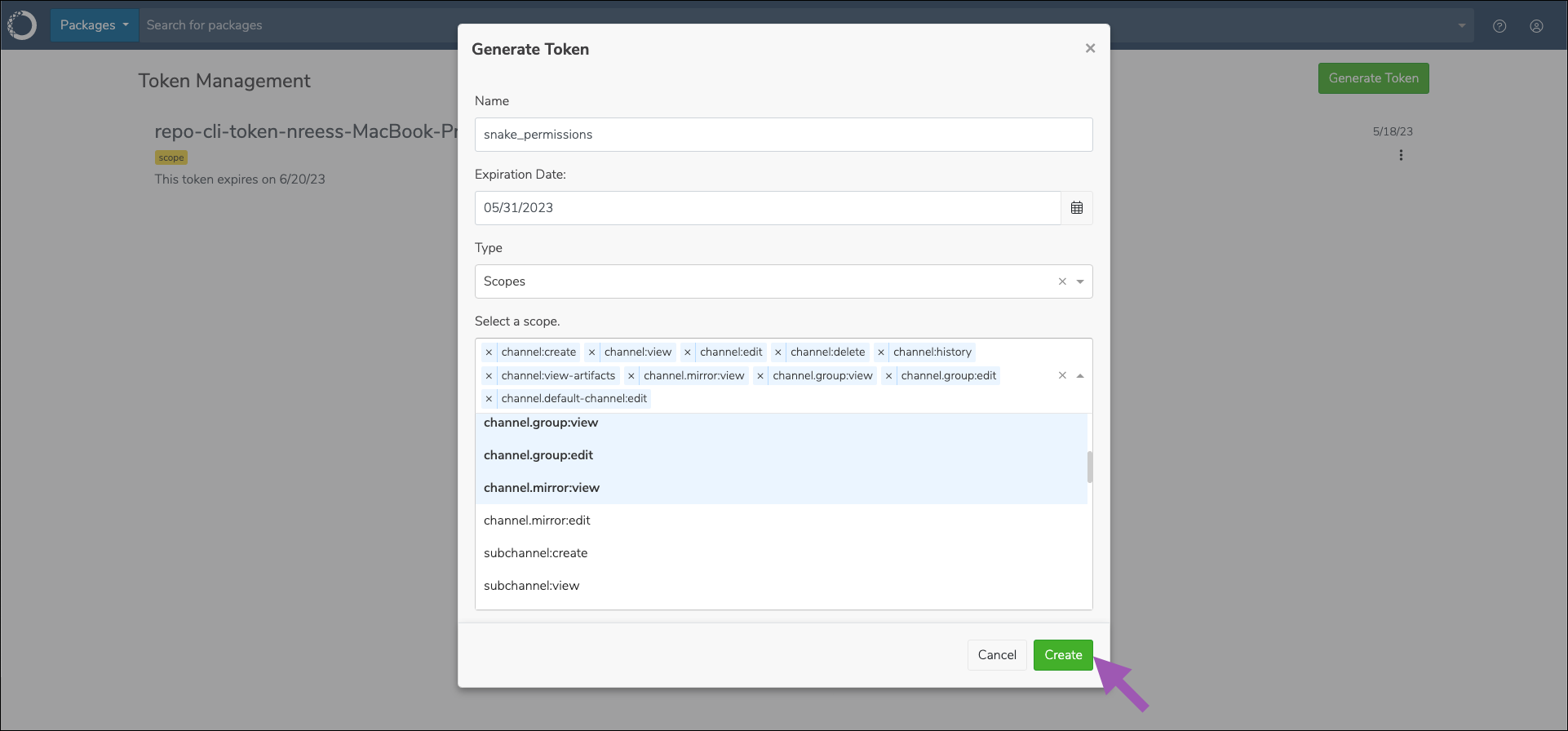
To provide token holders with a custom set of permissions:
1. Log in to Anaconda Server.
2. Open the **My Account** dropdown menu and select **Tokens**.
3. Click **Generate Token**.
4. Enter a name for your token.
5. Set an expiration date for your token.
6. Open the **Type** dropdown menu and select **Scopes**.
7. Open the **Select a scope** dropdown menu and select a scope to add to the token. Repeat as necessary to build a custom set of permissions for your token holders.
8. Click **Create**.
### Scope tokens
To provide token holders with a custom set of permissions:
1. Log in to Anaconda Server.
2. Open the **My Account** dropdown menu and select **Tokens**.
3. Click **Generate Token**.
4. Enter a name for your token.
5. Set an expiration date for your token.
6. Open the **Type** dropdown menu and select **Scopes**.
7. Open the **Select a scope** dropdown menu and select a scope to add to the token. Repeat as necessary to build a custom set of permissions for your token holders.
8. Click **Create**.
 ## Editing a token
You can edit a token to change its name or to update its expiration date. You can choose to issue a new token while editing as well, which will invalidate the previous string associated with the token.
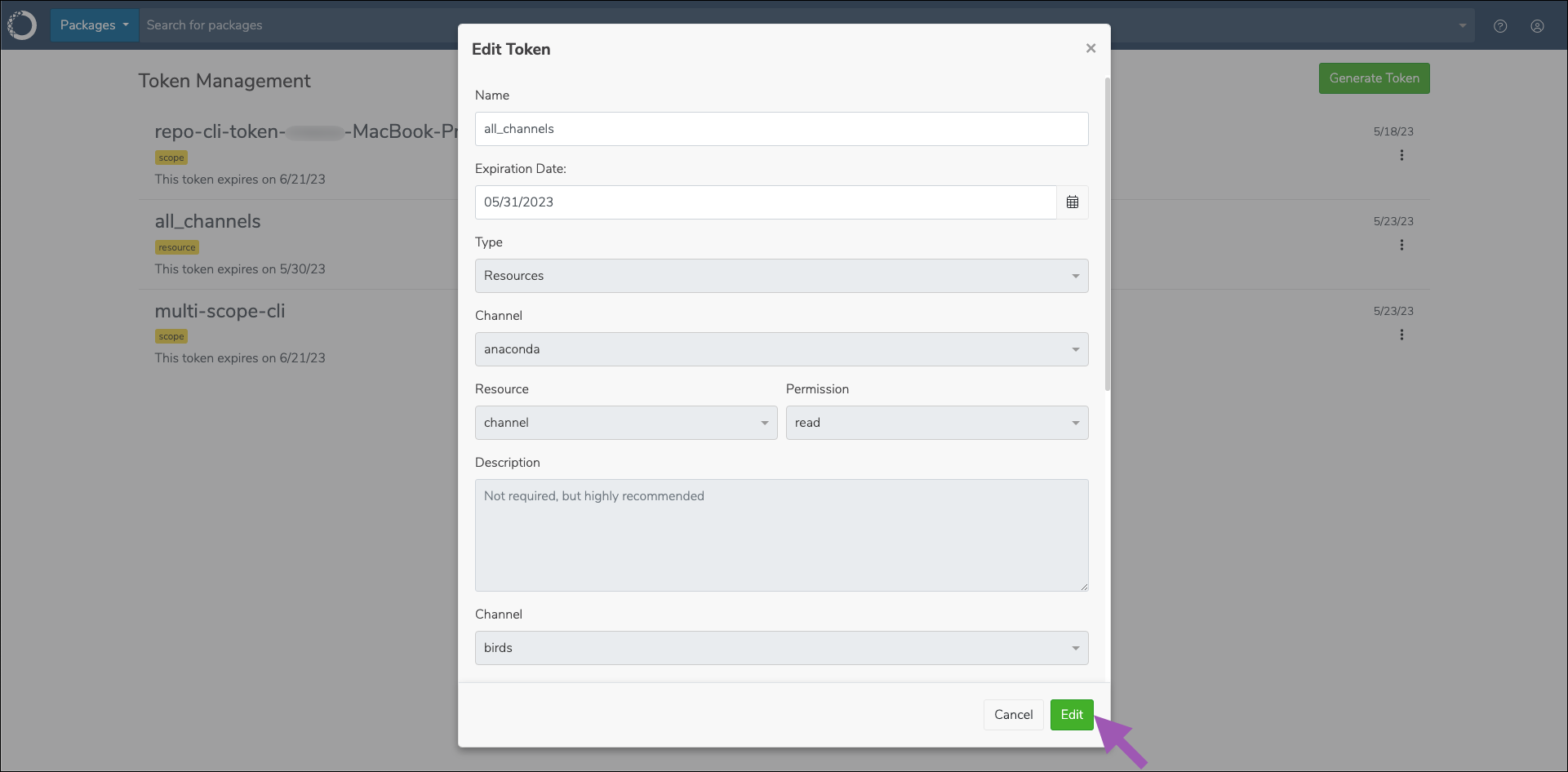
To edit a token:
1. Log in to Anaconda Server.
2. Open the **My Account** dropdown menu and select **Tokens**.
3. Select the token’s actions icon, then click **Edit**.
4. Make any necessary changes to the token.
5. If necessary, select the **Issue new token** box. A warning appears at the top of the window to inform you that you will receive a new token.
6. Click **Edit**.
## Editing a token
You can edit a token to change its name or to update its expiration date. You can choose to issue a new token while editing as well, which will invalidate the previous string associated with the token.
To edit a token:
1. Log in to Anaconda Server.
2. Open the **My Account** dropdown menu and select **Tokens**.
3. Select the token’s actions icon, then click **Edit**.
4. Make any necessary changes to the token.
5. If necessary, select the **Issue new token** box. A warning appears at the top of the window to inform you that you will receive a new token.
6. Click **Edit**.
 ## Deleting a token
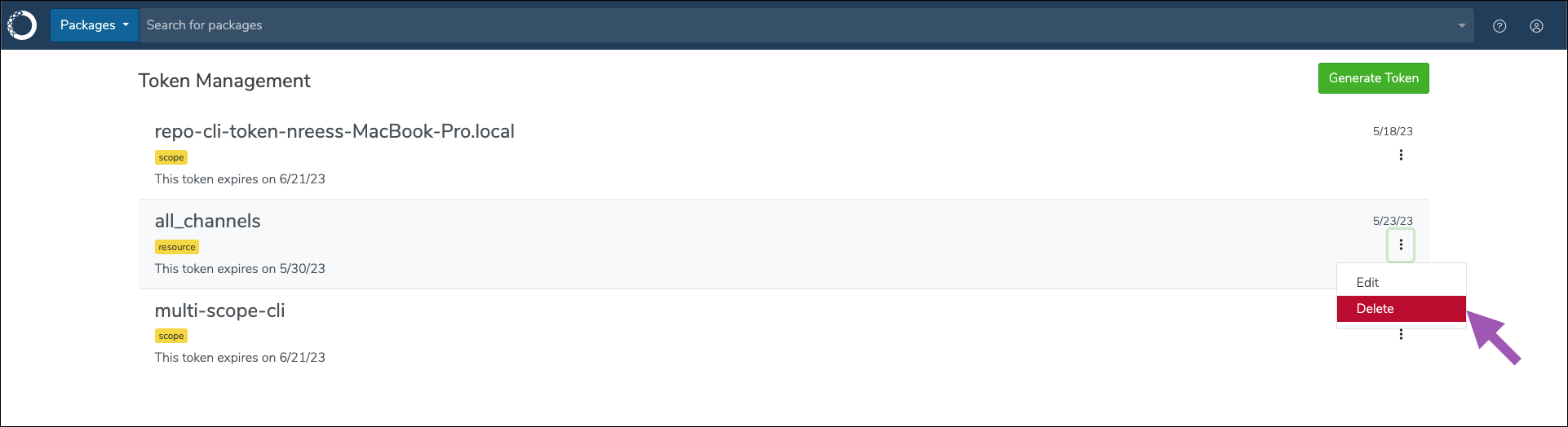
To delete a token:
1. Log in to Anaconda Server.
2. Open the **My Account** dropdown menu and select **Tokens**.
3. Select the token’s actions icon, then click **Delete**.
## Deleting a token
To delete a token:
1. Log in to Anaconda Server.
2. Open the **My Account** dropdown menu and select **Tokens**.
3. Select the token’s actions icon, then click **Delete**.
 ## Setting/using a token
Once you have generated a token, you can share it with other users by any method you wish.
If you have received a resource token from another user and you would like to use it to access packages on a channel, add the channel to your `.condarc` file by running the following command:
```sh theme={null}
# Replace with the URL of your Anaconda Server fully qualified domain name
# Replace with the shared token
# Replace with the channel name
conda config --add channels http(s):///t//
```
You can run `conda token set ` to use the shared token globally. However, this overwrites any currently set token.
## Managing tokens via the CLI
For more information on working with tokens using the CLI, see [Anaconda Server CLI](./cli#tokens).
## Managing tokens via the API
### List available authorization scopes
```sh theme={null}
GET /api/system/tokens
```
### Listing the user authorization tokens
```sh theme={null}
GET /api/account/token
```
### Create a new user authorization token
```sh theme={null}
POST /api/account/tokens
```
### Removing a user authorization token
```sh theme={null}
DELETE /api/account/tokens/
```
## Setting/using a token
Once you have generated a token, you can share it with other users by any method you wish.
If you have received a resource token from another user and you would like to use it to access packages on a channel, add the channel to your `.condarc` file by running the following command:
```sh theme={null}
# Replace with the URL of your Anaconda Server fully qualified domain name
# Replace with the shared token
# Replace with the channel name
conda config --add channels http(s):///t//
```
You can run `conda token set ` to use the shared token globally. However, this overwrites any currently set token.
## Managing tokens via the CLI
For more information on working with tokens using the CLI, see [Anaconda Server CLI](./cli#tokens).
## Managing tokens via the API
### List available authorization scopes
```sh theme={null}
GET /api/system/tokens
```
### Listing the user authorization tokens
```sh theme={null}
GET /api/account/token
```
### Create a new user authorization token
```sh theme={null}
POST /api/account/tokens
```
### Removing a user authorization token
```sh theme={null}
DELETE /api/account/tokens/
```