> ## Documentation Index
> Fetch the complete documentation index at: https://anaconda.com/docs/llms.txt
> Use this file to discover all available pages before exploring further.
# Environments
Anaconda Server enables you to upload, move, copy, share, and download an environment yaml file. An environment is a folder or directory that contains a specific collection of conda packages and their dependencies. This allows them to be maintained and run separately without interference from each other.
For example, you may use a conda environment for only Python 2 and Python 2 packages and maintain another conda environment with only Python 3 and Python 3 packages.
This topic provides guidance on the following actions:
* [Uploading an environment.yml file](#uploading-an-environment-yml-file)
* [Viewing environment dependencies](#viewing-environment-dependencies)
* [Viewing environment metadata](#viewing-environment-metadata)
* [Managing an environment](#managing-an-environment)
## Uploading an environment.yml file
1. [Create your environment file](https://docs.conda.io/projects/conda/en/latest/user-guide/tasks/manage-environments.html#create-env-file-manually)
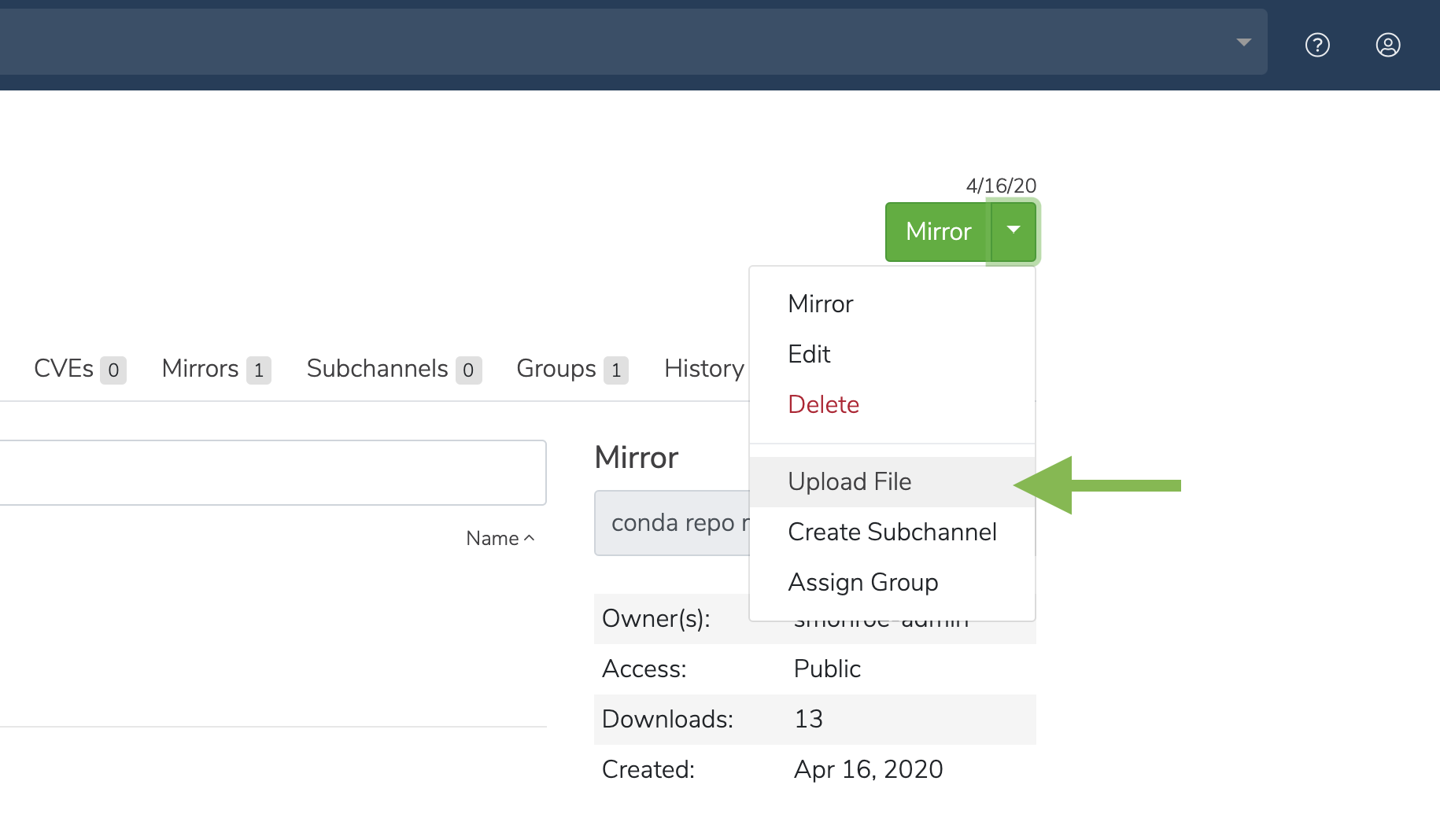
2. Click the green dropdown button in the top right corner, and then click **Upload File**.
 3. On the **Upload a File** screen, select the type of file you’d like to upload from the dropdown.
4. Click the **Browse** button to find your file and add it to the page.
5. Click **Upload**.
## Viewing environment dependencies
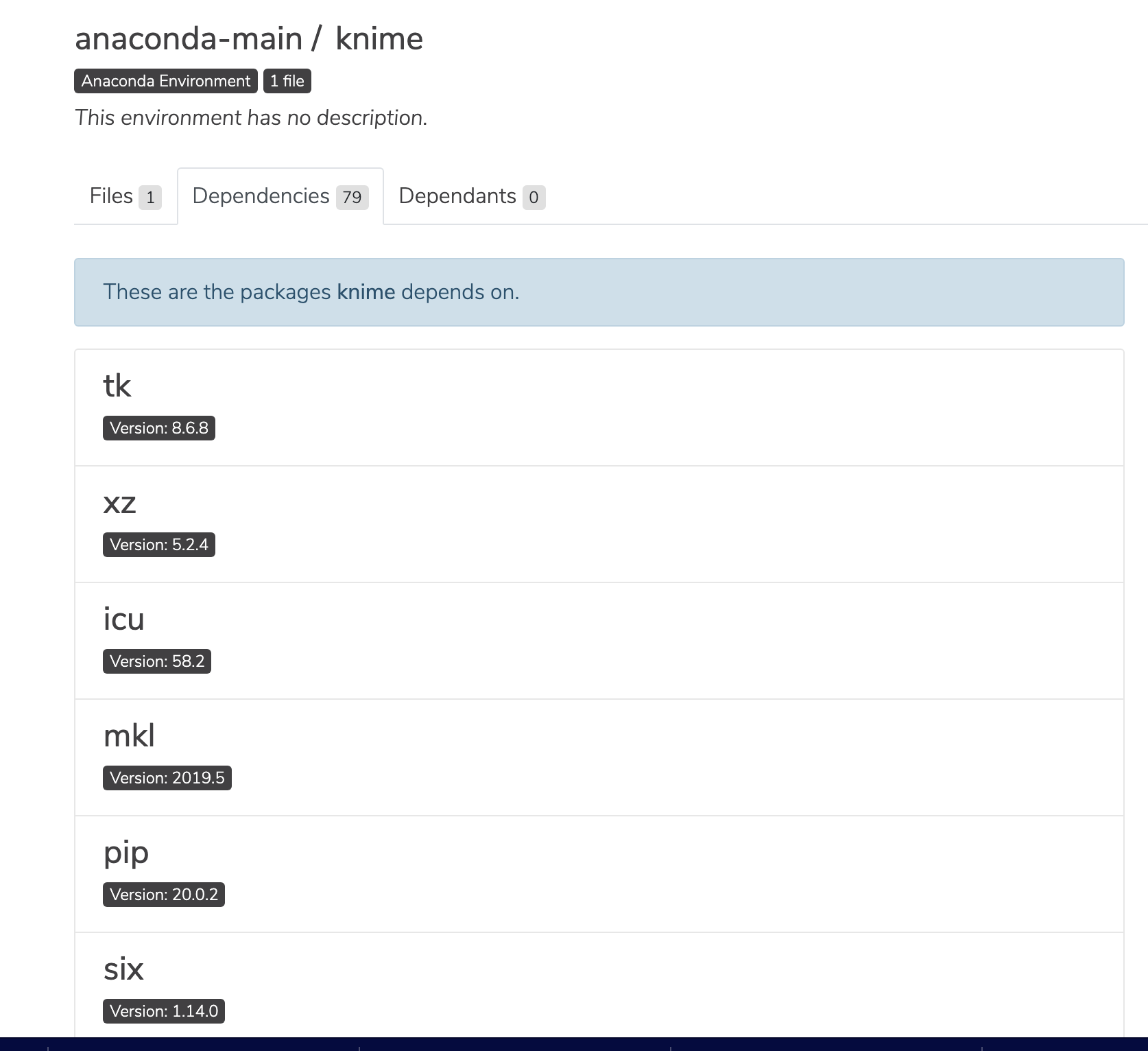
On the **Environments** tab, click anywhere on an environment to view its details.
3. On the **Upload a File** screen, select the type of file you’d like to upload from the dropdown.
4. Click the **Browse** button to find your file and add it to the page.
5. Click **Upload**.
## Viewing environment dependencies
On the **Environments** tab, click anywhere on an environment to view its details.
 ## Viewing environment metadata
Click the information icon to view a file’s metadata.
## Viewing environment metadata
Click the information icon to view a file’s metadata.
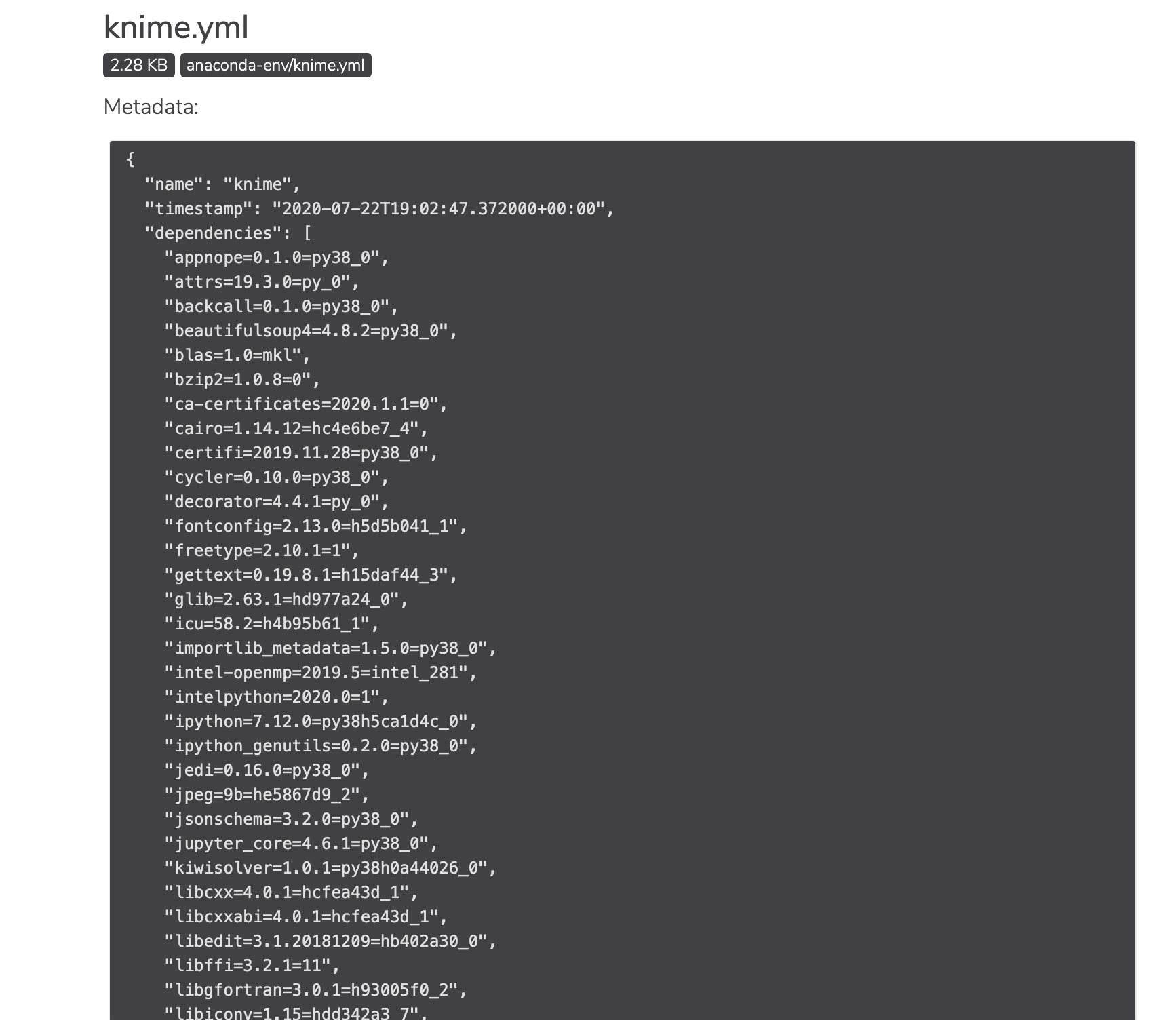
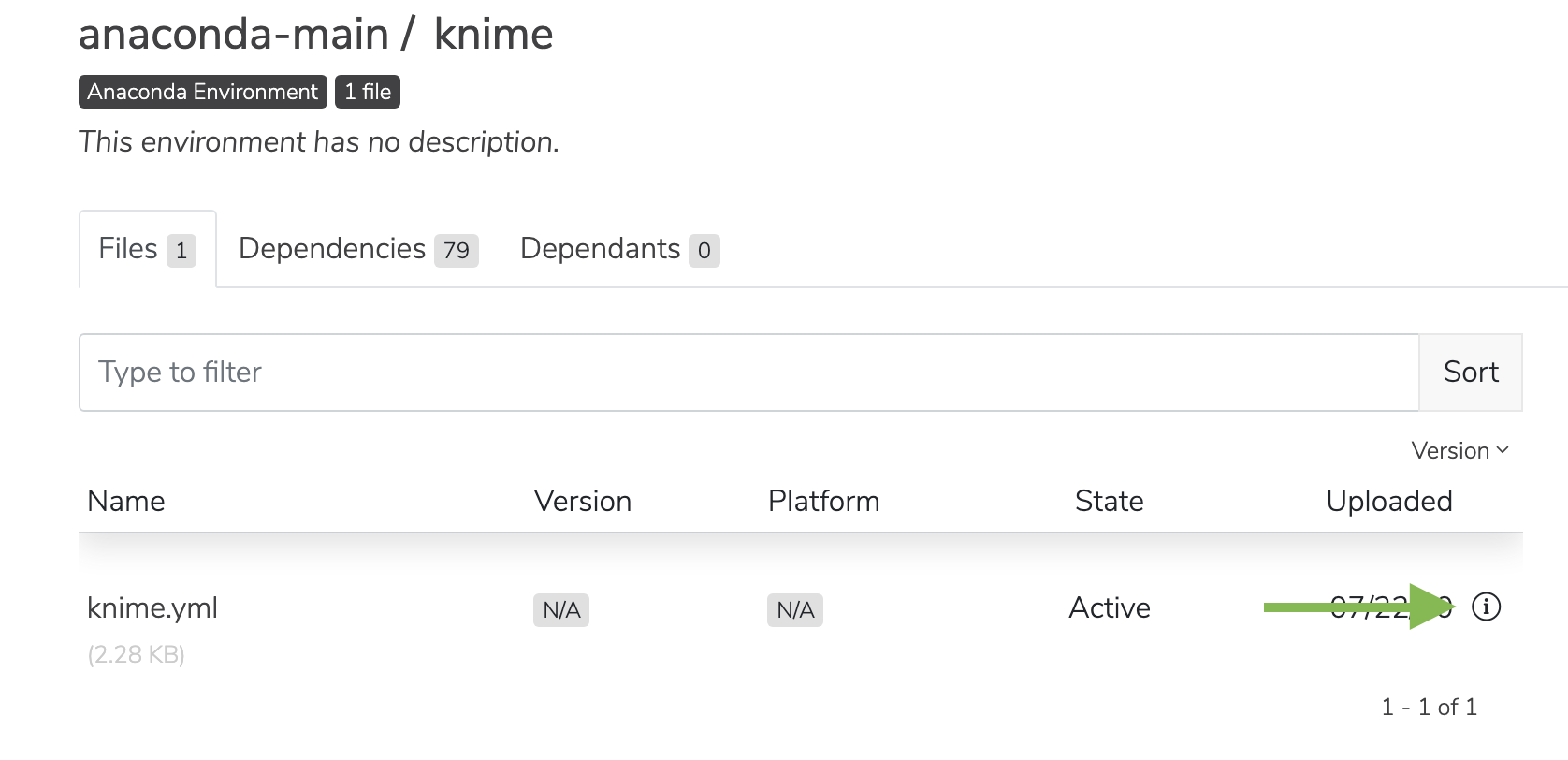 You will be presented with the environment’s metadata.
 ## Managing an environment
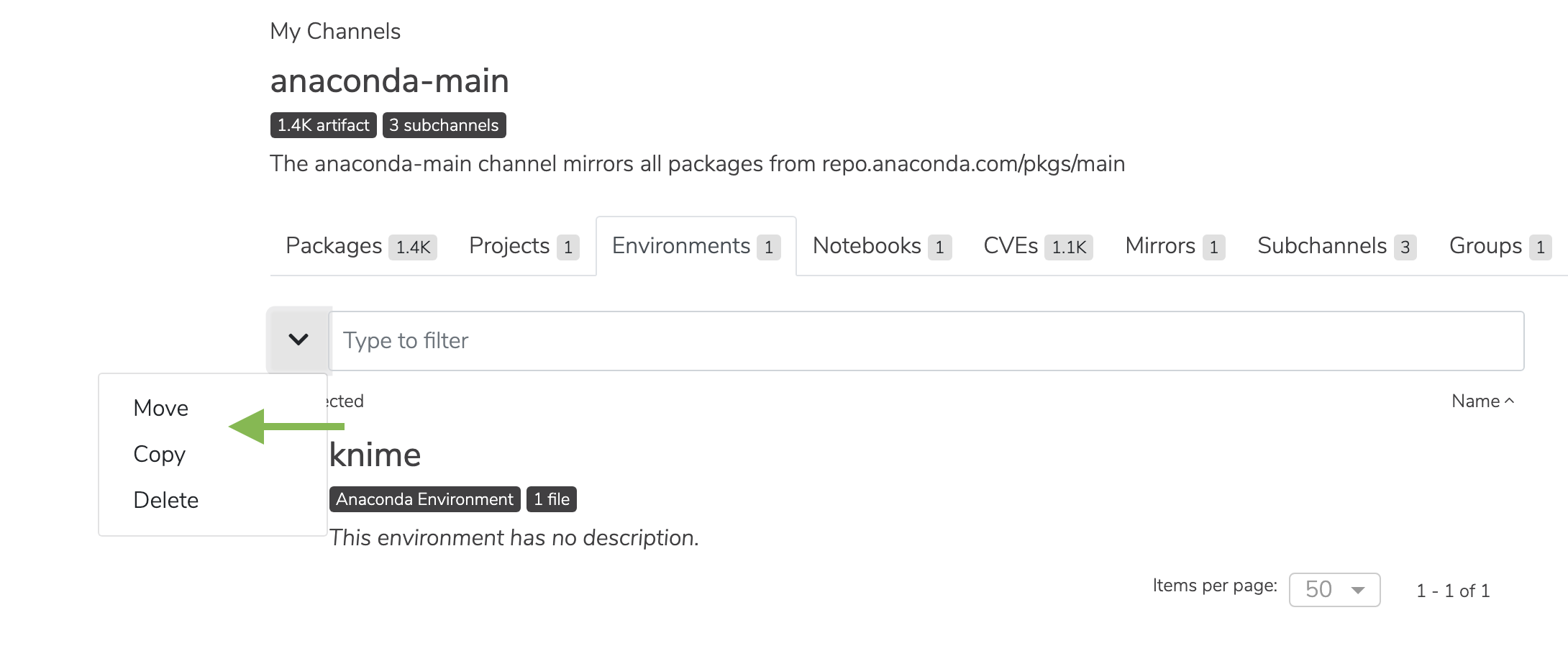
Select the checkbox next to an environment. Then, click the dropdown next to the search bar. You may then move, copy, or delete the environment.
## Managing an environment
Select the checkbox next to an environment. Then, click the dropdown next to the search bar. You may then move, copy, or delete the environment.