> ## Documentation Index
> Fetch the complete documentation index at: https://anaconda.com/docs/llms.txt
> Use this file to discover all available pages before exploring further.
# Social login integration (GitHub)
For each Keycloak installation, you must create corresponding integrations for the relevant identity provider:
1. Log in as the admin user.
2. Select **DEV** realm.
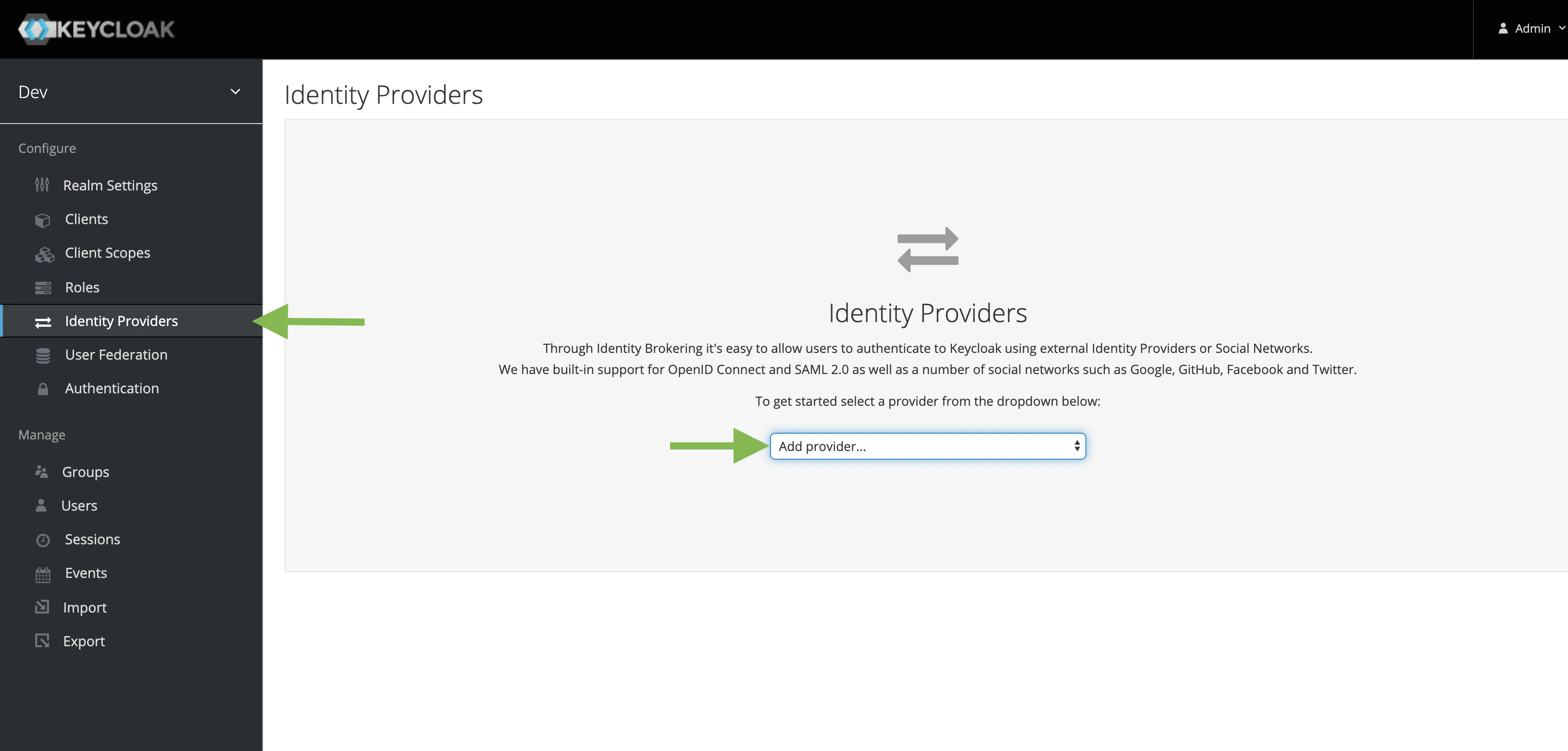
3. Navigate to **Identity Providers** and click **Add provider...**.
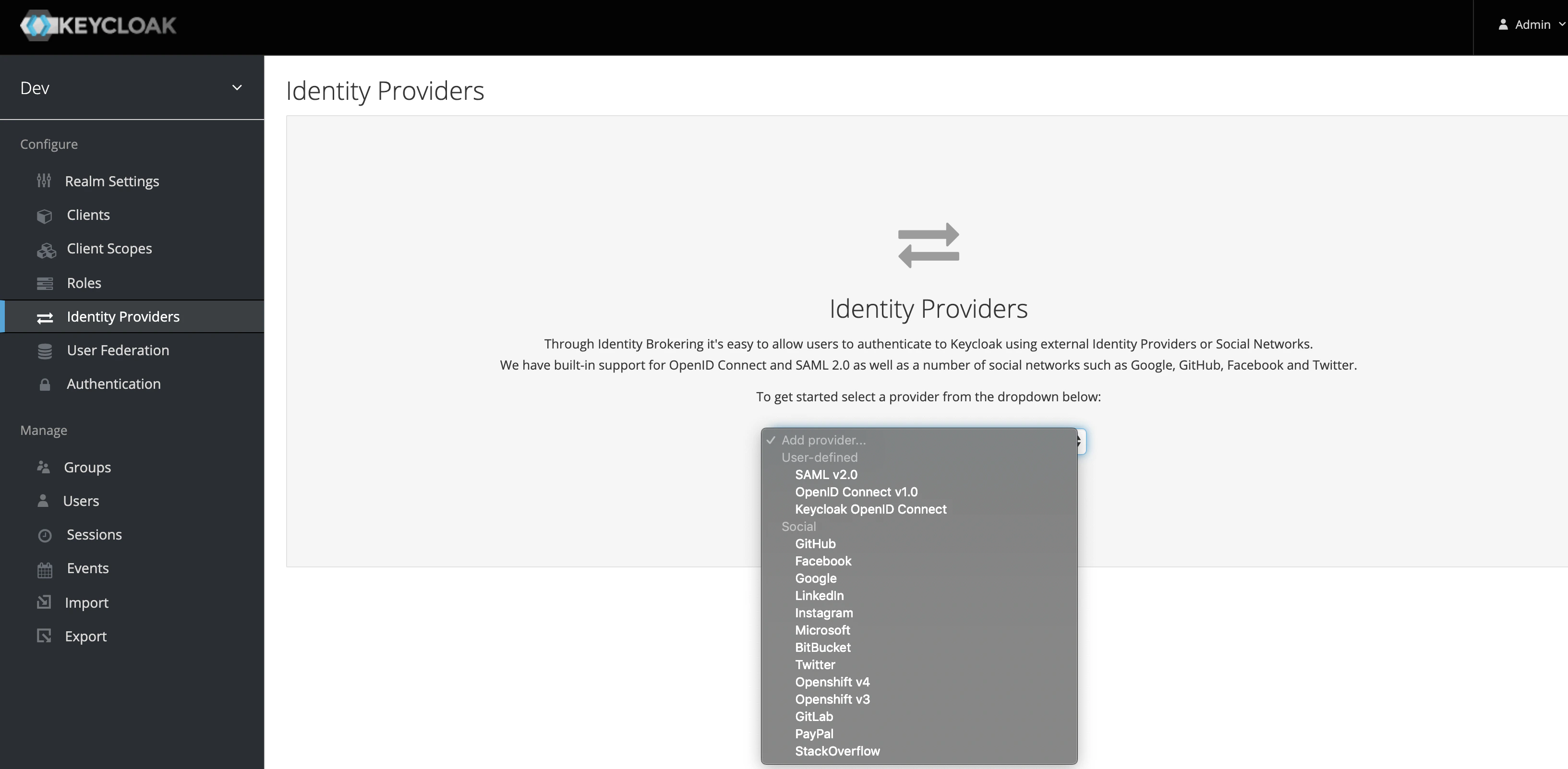
 4. From the dropdown, select **GitHub**.
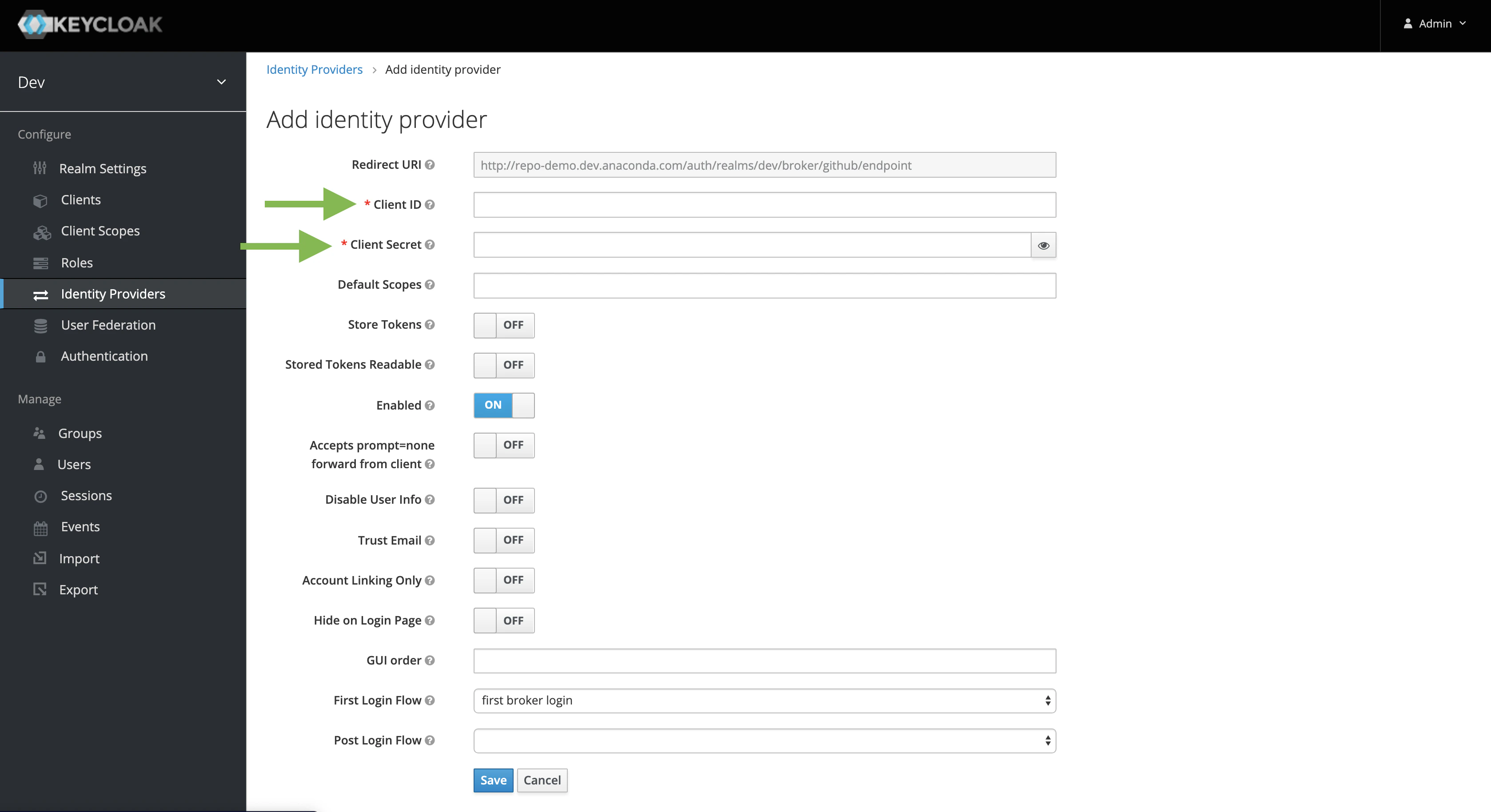
 5. Enter the ClientID/Secret from the corresponding GitHub OAuth application settings.
 You should then see a **GitHub** link on the login screen.