> ## Documentation Index
> Fetch the complete documentation index at: https://anaconda.com/docs/llms.txt
> Use this file to discover all available pages before exploring further.
# Using packages within channels/subchannels
There are several ways to get packages into a channel or subchannel:
* Upload a package file directly to a channel
* Create a mirror configuration and specify the source channel
* Copy/move specific packages from another channel
## Uploading to a channel
**Via the UI**
1. Visit the channel you want to upload packages to.
2. Click on the action button on the right side of the **Mirror** button and select the option to **Upload**.
3. In the modal that appears, select the file from your local computer that you want to upload.
A toast notification will appear informing you of success or failure.
**or**
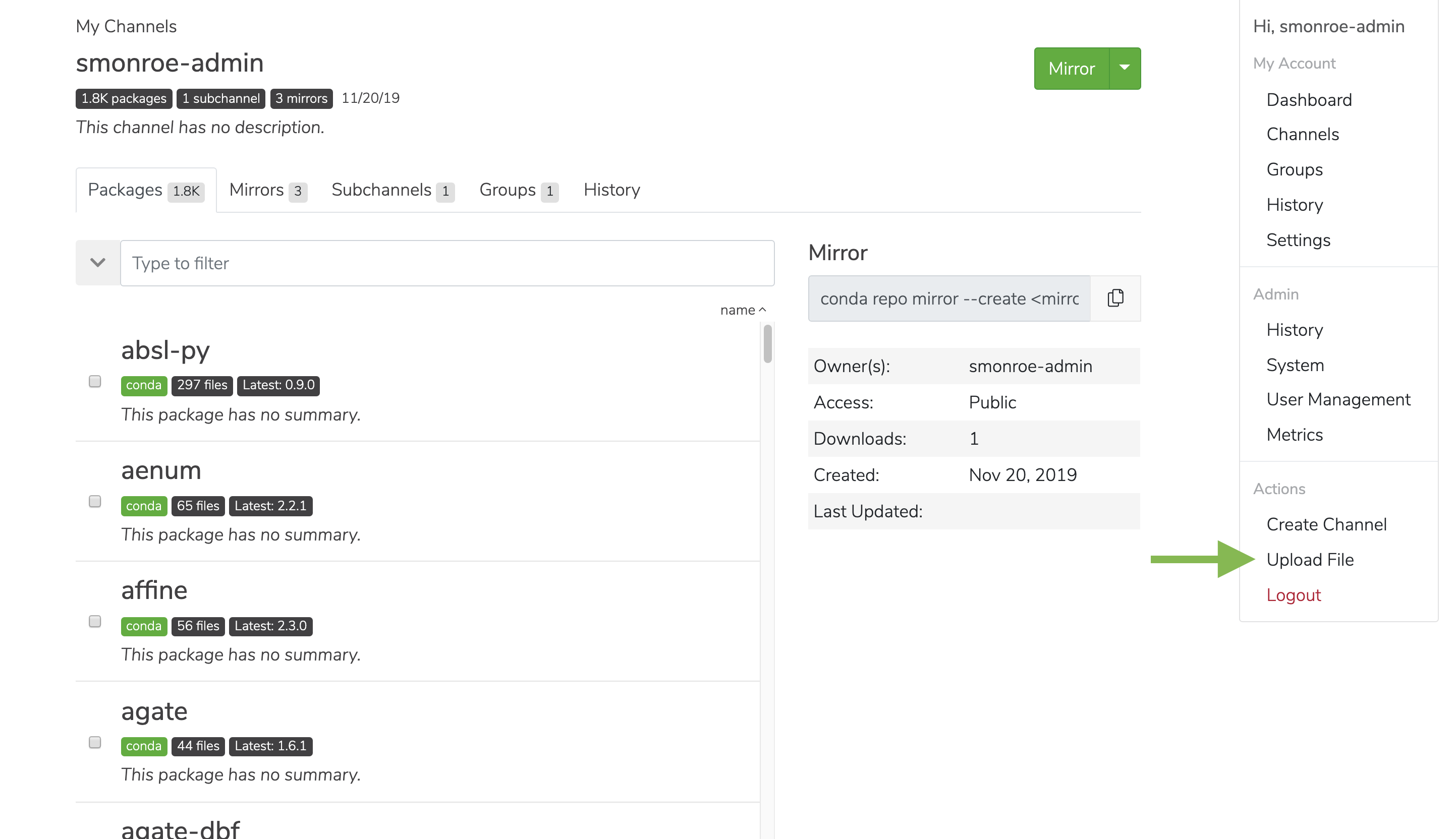
1. Click on the user icon and choose **Upload Package**.
2. Choose the file to upload and what channel to upload it to.
**Via the API**
```sh theme={null}
POST /api/channels//artifacts
```
**Via the CLI**
```sh theme={null}
conda repo upload -c
```
## Uploading to a subchannel
**Via the UI**
1. Visit the subchannel you want to upload packages to.
2. Click on the action button on the right side and select the option to **Upload**.
3. In the modal that appears, select the file from your local computer that you want to upload.
A toast notification will appear informing you of success or failure.
**or**
1. Click on the user icon and choose **Upload Package**.
2. Choose the file to upload and what channel/subchannel combination to upload it to.
**Via the API**
```sh theme={null}
POST /api/channels//subchannels//artifacts
```
**Via the CLI**
```sh theme={null}
conda repo upload -c /
```
## Mirror to/from a channel
**Via the UI**
1. As an admin user, visit the channel you want to mirror to (the destination) and click the green **Mirror** button.
2. Enter the source of the mirror and whether that source is internal (a channel on this repo) or external (a channel on some other repo such as [http://www.anaconda.org](http://www.anaconda.org)).
3. Indicate whether you wish for the mirror to be passive (one time only) or active (synced with the source channel).
Additionally, you will be presented with other options for your mirror such as CVE score restrictions and frequency.
**Via the API**
```sh theme={null}
POST /api/channels//mirrors
```
**Via the CLI**
```sh theme={null}
conda repo mirror --create -c -s --mode
# For example:
# conda repo mirror --create tm3 -c mychannel -s "https://conda.anaconda.org/conda-test" --mode passive
```
## Mirror to/from a subchannel
**Via the UI**
TBD
**Via the API**
```sh theme={null}
POST /api/channels//subchannels//mirrors
```
**Via the CLI**
```sh theme={null}
conda repo mirror --create -c / -s --mode
# For example:
# conda repo mirror --create tm3 -c mychannel/dev -s "https://conda.anaconda.org/conda-test " --mode passive
```
## Copy/move packages to/from a channel
**Via the UI**
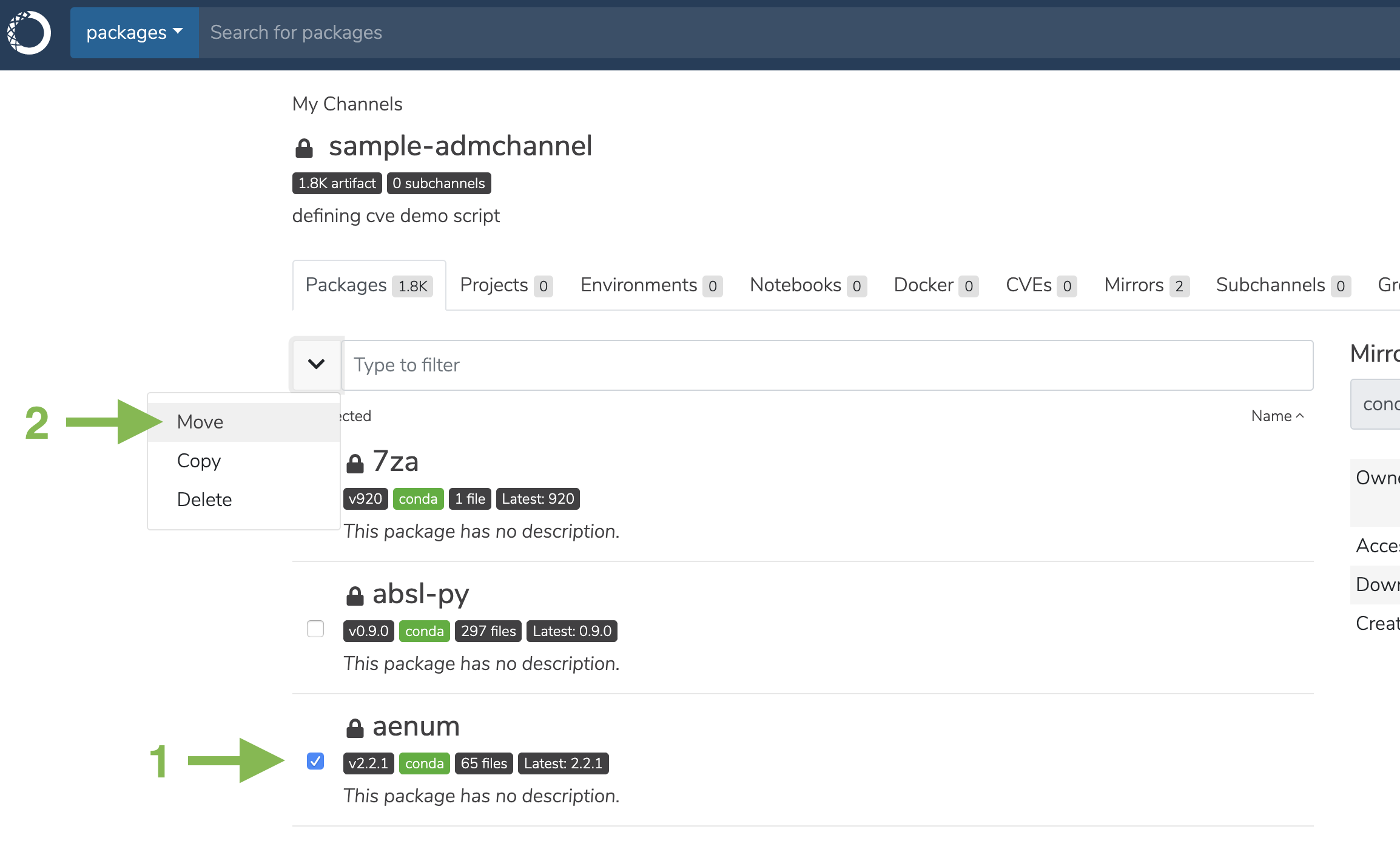
1. Go to the channel you want to copy packages to/move packages from.
2. Click on the **Packages** tab, where you will see a list of all the packages in that channel.
3. Select one or more packages, and then click **move** or **copy** to a new or existing channel.
**Via the API**
```sh theme={null}
POST /channels//artifacts/bulk
```
**Via the CLI**
```sh theme={null}
conda repo copy -d
conda repo move -d
# where dest = [/][::[/[/]]]
# If file name is not given, copy all files in the version
# For example:
# conda repo copy john::bokeh/1.0.2/bokeh-1.0.2-py37_0.tar.bz2 -d john2
# conda repo move john::bokeh/1.0.2/bokeh-1.0.2-py37_0.tar.bz2 -d john2
```
## Copy/move packages to/from a subchannel
**Via the UI**
1. Go to the subchannel you want to copy packages to/move packages from.
2. Click on the **Packages** tab, where you will see a list of all the packages in that subchannel.
3. Select one or more packages, and then click **move** or **copy** to a new or existing channel or subchannel.
**Via the API**
```sh theme={null}
POST /channels//artifacts/bulk
```
**Via the CLI**
```sh theme={null}
conda repo copy -d /
conda repo move -d /
# where dest =/[::[/[/]]]
#If filename is not given, copy all files in the version
# For example:
# conda repo copy john::bokeh/1.0.2/bokeh-1.0.2-py37_0.tar.bz2 -d john/ts2
# conda repo move john::bokeh/1.0.2/bokeh-1.0.2-py37_0.tar.bz2 -d john/ts2
```
 **Via the API**
```sh theme={null}
POST /channels/
**Via the API**
```sh theme={null}
POST /channels/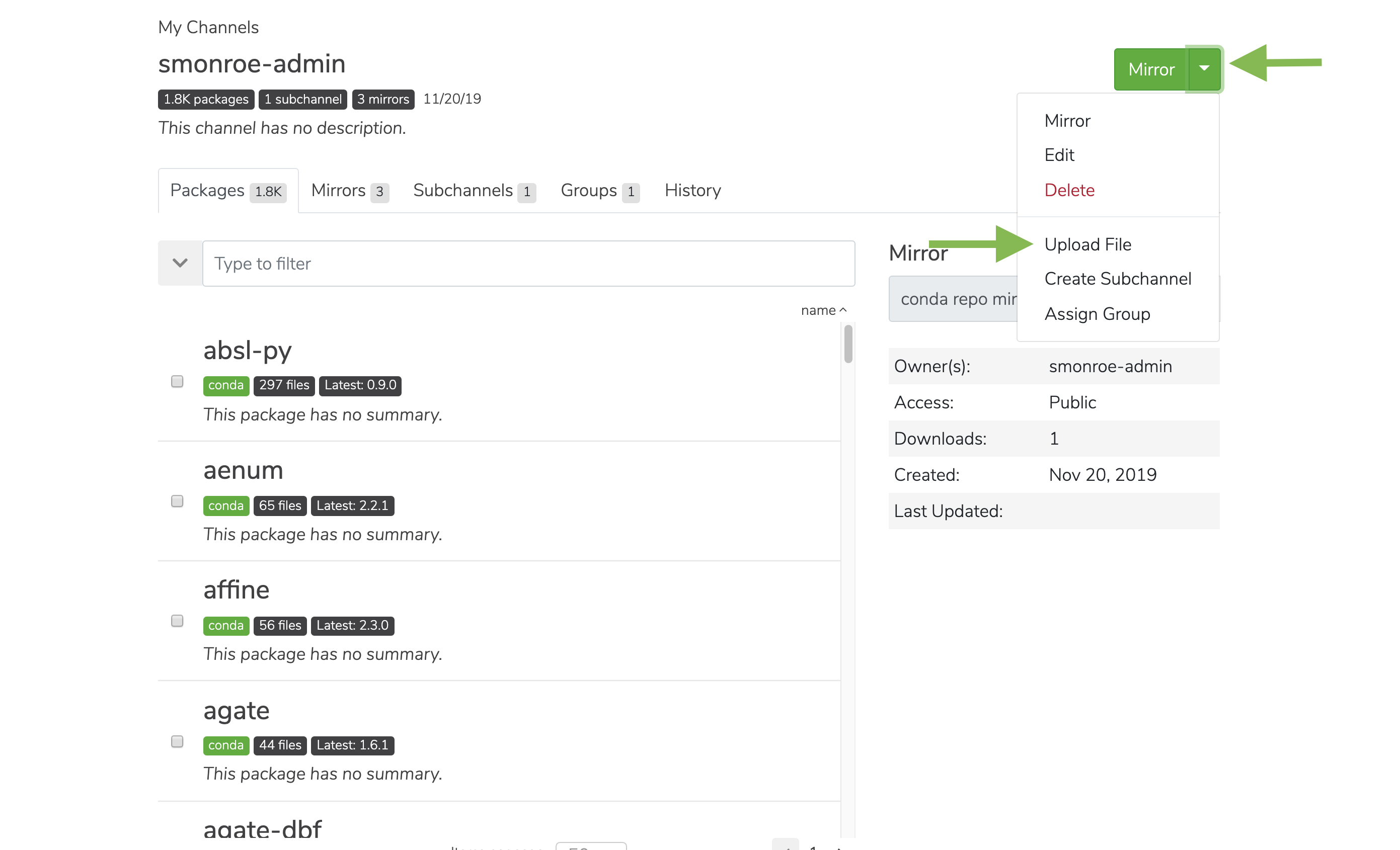 A toast notification will appear informing you of success or failure.
**or**
1. Click on the user icon and choose **Upload Package**.
2. Choose the file to upload and what channel to upload it to.
A toast notification will appear informing you of success or failure.
**or**
1. Click on the user icon and choose **Upload Package**.
2. Choose the file to upload and what channel to upload it to.
 **Via the API**
```sh theme={null}
POST /api/channels/
**Via the API**
```sh theme={null}
POST /api/channels/