> ## Documentation Index
> Fetch the complete documentation index at: https://anaconda.com/docs/llms.txt
> Use this file to discover all available pages before exploring further.
# Managing users
Once you've logged into Keycloak admin, it's possible to perform various actions, connected with user management. It's important to mention that there are two set of users with two respective realms:
* **master**: users who can manage the Keycloak itself
* **dev**: Team Edition users
**Follow these steps to view a list of existing users currently present in Team Edition:**
1. Log in as the admin user.
2. Select **DEV** realm.
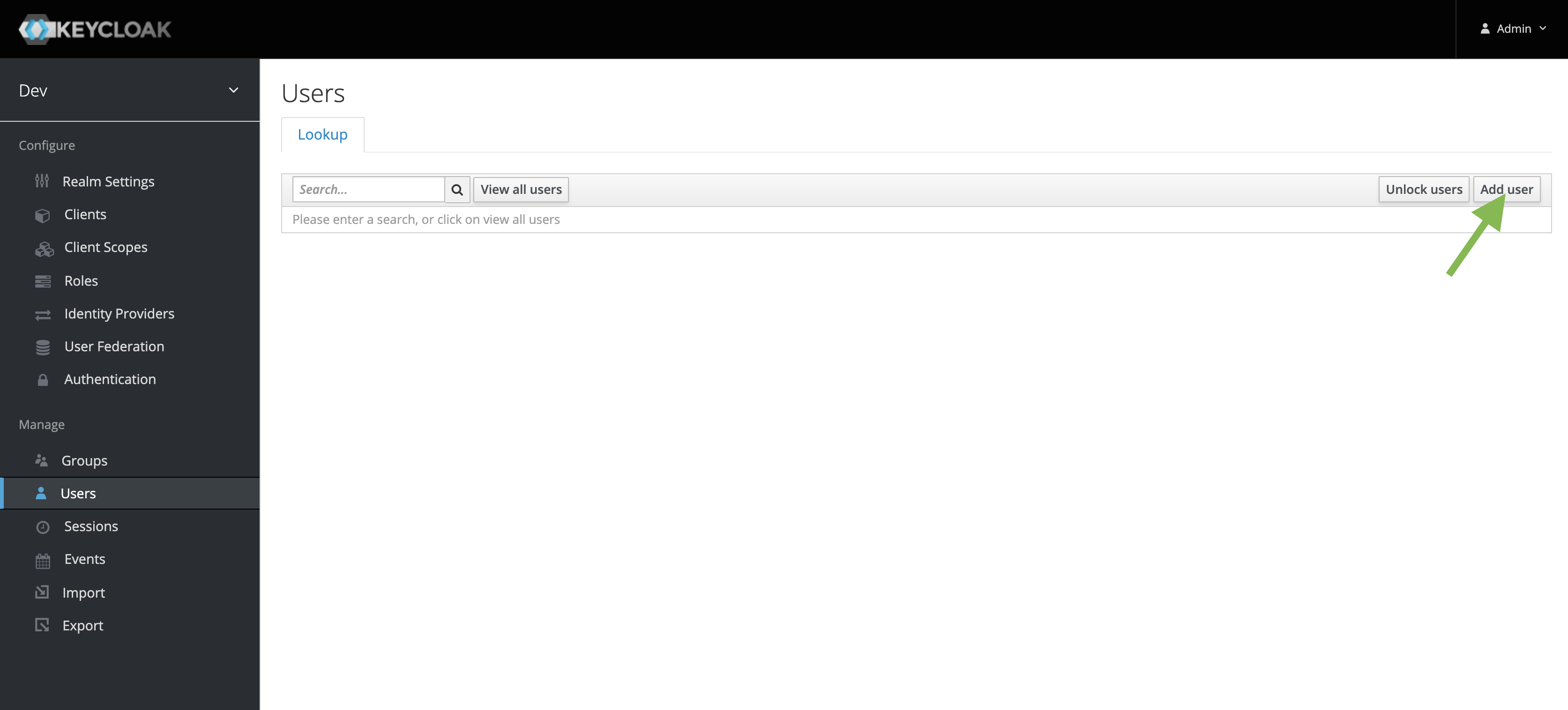
3. Go to the **Users** section on the left.
4. Click **View all users**.
**Follow these steps to create a user:**
1. Go to the **Users** section on the left.
2. Click **Add user**.
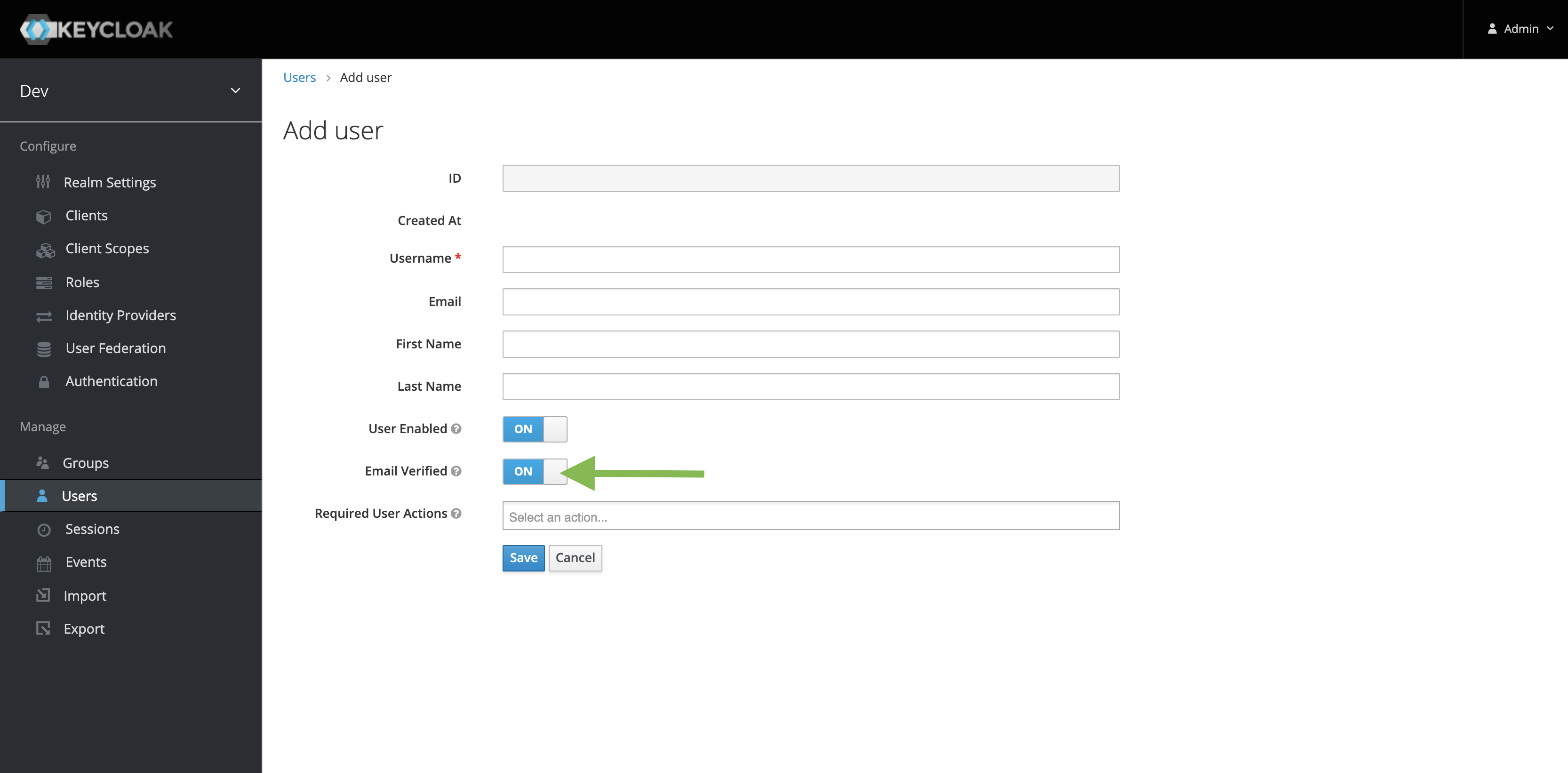
 3. Enter the username and ensure **Email Verified** is **ON**.
 4. Click save, then navigate to the Credentials tab.
5. Ensure **Temporary** is **OFF**.
4. Click save, then navigate to the Credentials tab.
5. Ensure **Temporary** is **OFF**.
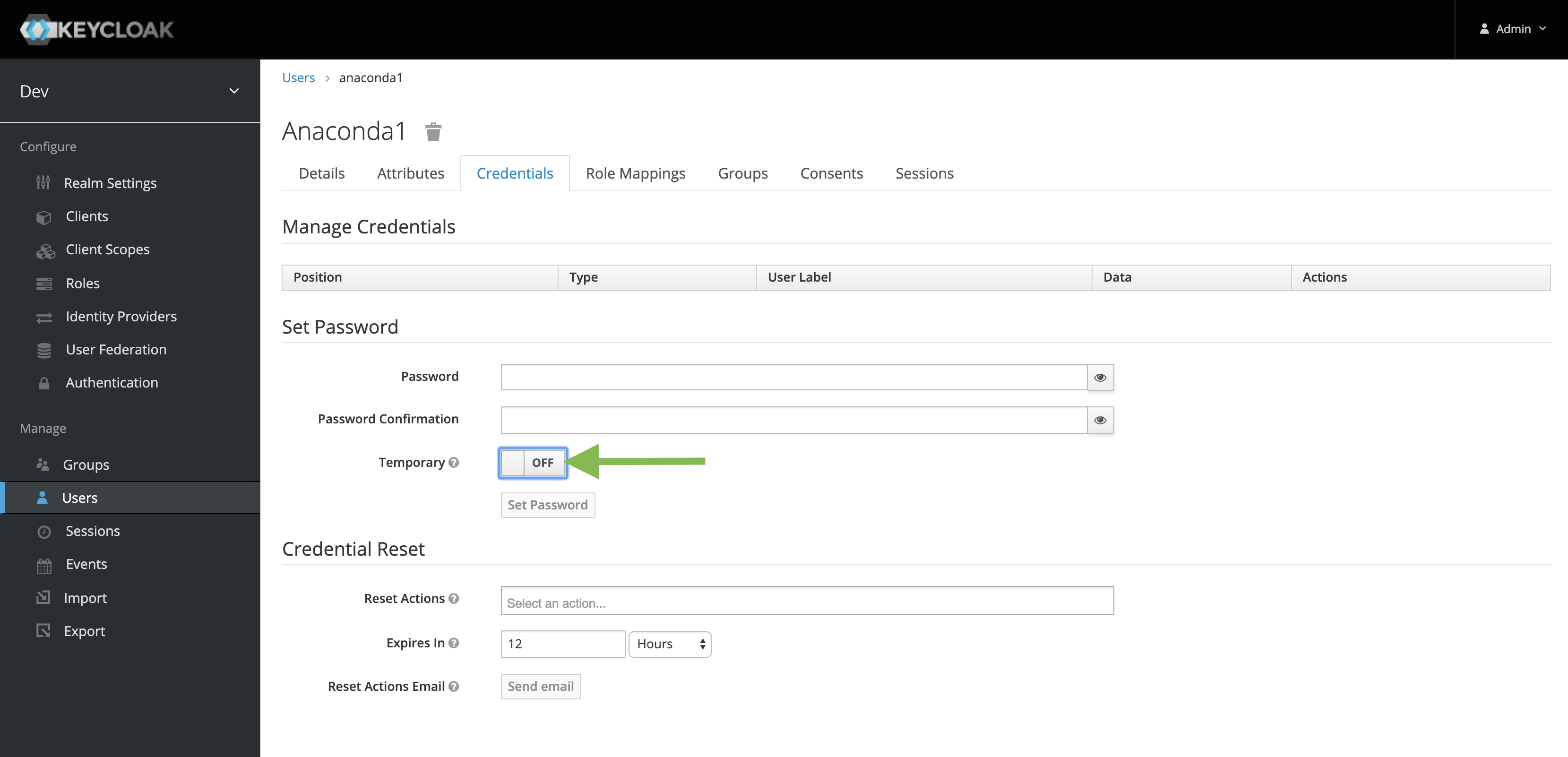 6. Click **Set Password**.