> ## Documentation Index
> Fetch the complete documentation index at: https://anaconda.com/docs/llms.txt
> Use this file to discover all available pages before exploring further.
# User roles and permissions
This topic provides guidance on the following actions:
* [Setting and removing admin role](#setting-and-removing-admin-role)
* [Adding and editing user roles](#adding-and-editing-user-roles)
* [Understanding roles and permissions](#understanding-roles-and-permissions)
* [Editing default roles](#editing-default-roles)
## Setting and removing admin role
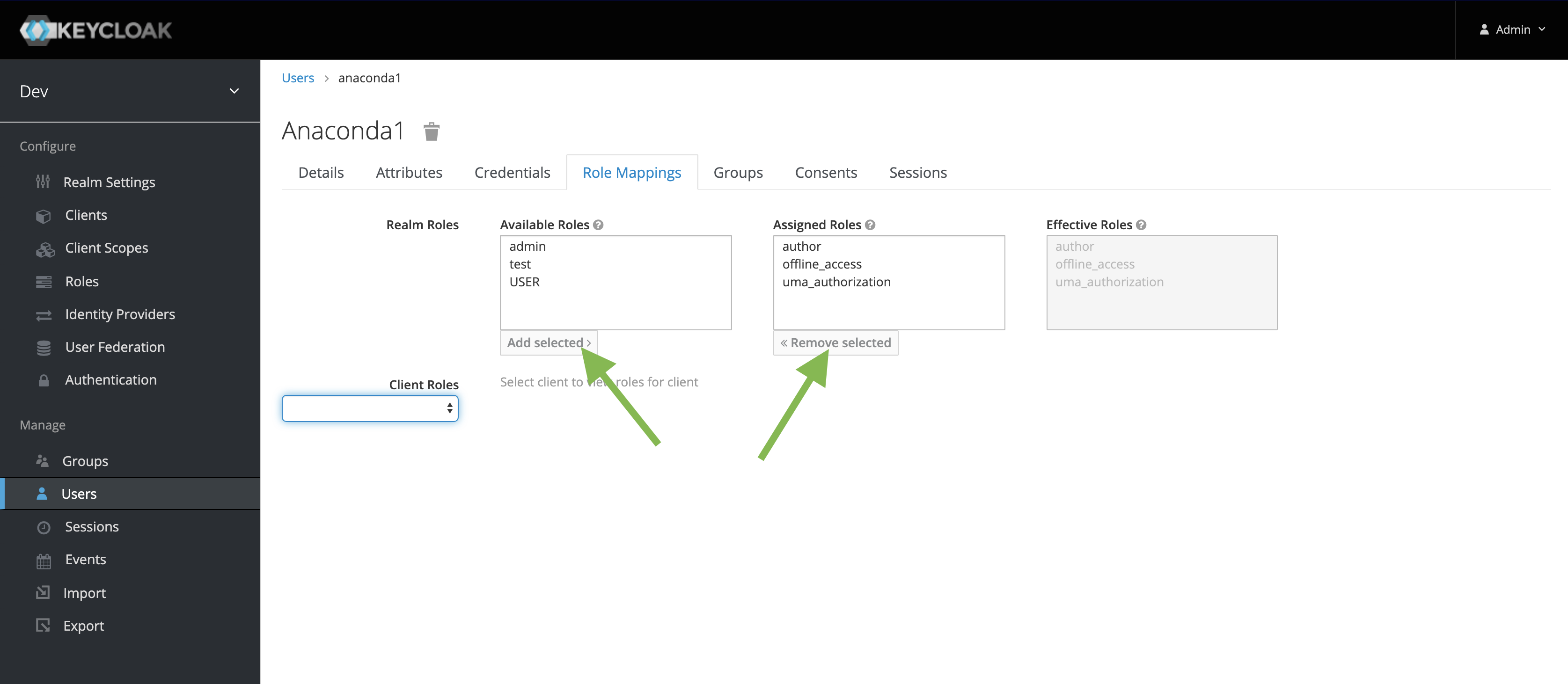
Follow these steps to set or remove the admin role for a Team Edition user:
1. Under **Manage**, navigate to the **Users** page.
2. Go to the **Role Mappings** tab.
3. **To set the admin role:** Under **Available Roles**, select **admin** and click **Add selected**.
**To remove the admin role:** Under **Assigned Roles**, select the user and click **Remove selected**.
4. Log in again and check the available actions.
 ## Adding and editing user roles
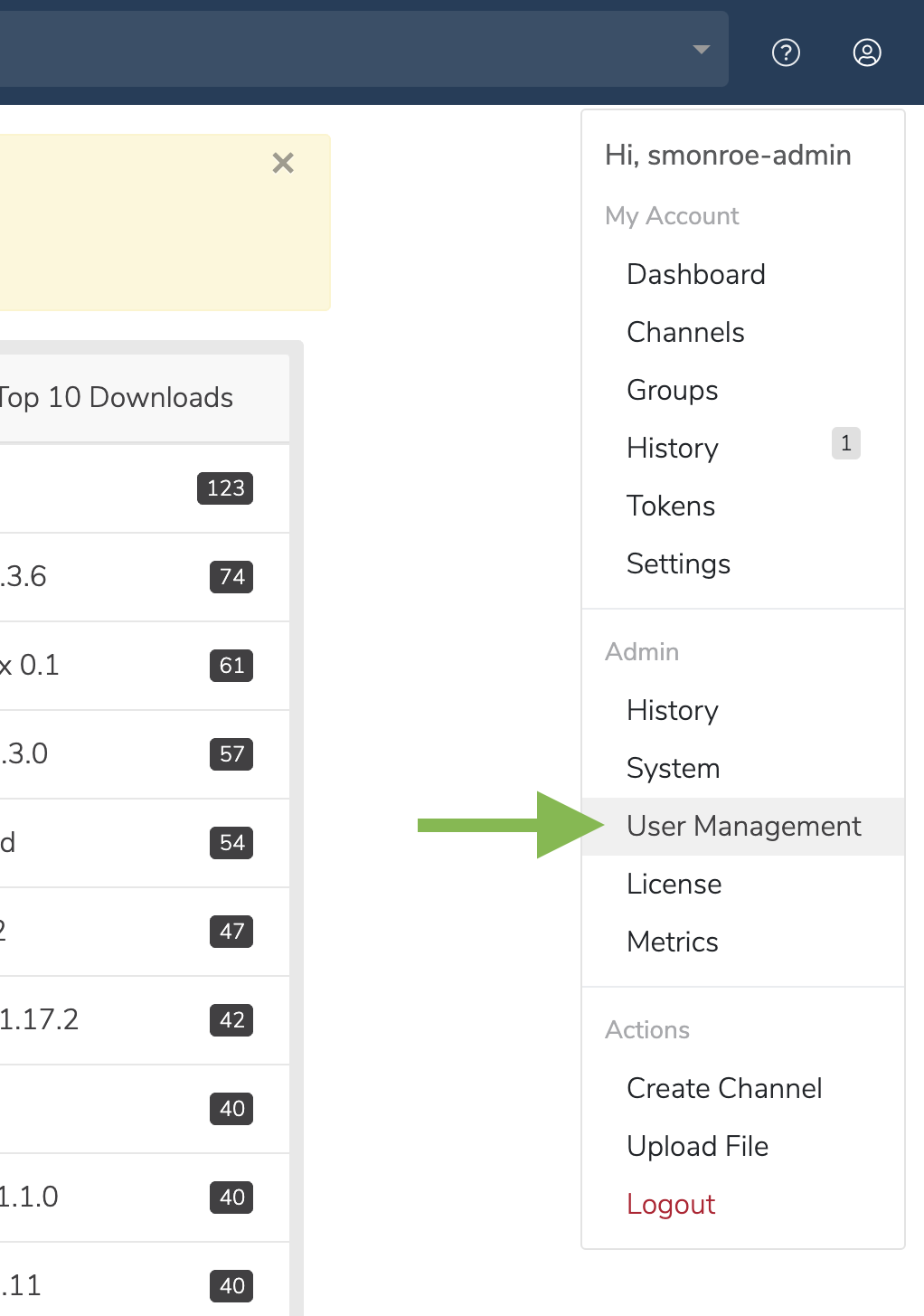
1. Click on the **My account** button in the top right.
2. In the dropdown, under **Admin**, select **User Management**.
## Adding and editing user roles
1. Click on the **My account** button in the top right.
2. In the dropdown, under **Admin**, select **User Management**.
 3. On the **User Management** screen, you can see the **User Roles** table listing the current roles. Click on a role to edit it, or click the **+** icon to add a new role. You can also delete a role by clicking the **x** icon. This will prompt a window to confirm the deletion.
 ## Understanding roles and permissions
### Default user roles
By default, Team Edition contains the following preconfigured roles:
* **Admin**: the user who, in addition to managing all content, can manage mirrors and CVE data as well
* **Author**: an authenticated user who can create channels
* **Everyone**: a non-authenticated user
### Custom user roles
It is possible to create custom roles that provide permissions for the following resources:
* channel
* channel.default-channel (managing default channel)
* channel.group (managing channel groups)
* channel.mirror (managing channel mirror)
* subchannel
* subchannel.group
* subchannel.mirror
* artifact
* cve
* role
### Permissions
The possible permissions you can provide the resources above are **read**, **write**, and **manage**. Each resource has a default set of permissions; if the resource is not explicitly listed, access to that permission is **forbidden**.
* **read**: provides the ability to view the resource
* **write**: provides the ability to view and create the resource
* **manage**: provides the ability to view, create, and edit the resource
## Editing default roles
It is possible to edit default permission settings for **everyone** and **author** roles. It is not possible to edit default settings for the **admin** role.
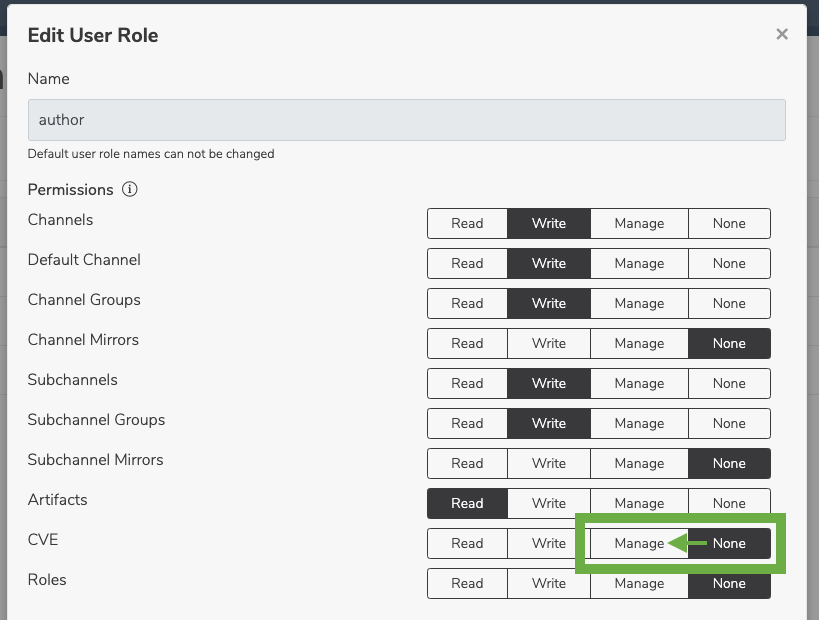
For example, you can grant CVE access to authors by switching user permissions for **CVE** from **None** to **Manage** in the **User Management** dashboard:
## Understanding roles and permissions
### Default user roles
By default, Team Edition contains the following preconfigured roles:
* **Admin**: the user who, in addition to managing all content, can manage mirrors and CVE data as well
* **Author**: an authenticated user who can create channels
* **Everyone**: a non-authenticated user
### Custom user roles
It is possible to create custom roles that provide permissions for the following resources:
* channel
* channel.default-channel (managing default channel)
* channel.group (managing channel groups)
* channel.mirror (managing channel mirror)
* subchannel
* subchannel.group
* subchannel.mirror
* artifact
* cve
* role
### Permissions
The possible permissions you can provide the resources above are **read**, **write**, and **manage**. Each resource has a default set of permissions; if the resource is not explicitly listed, access to that permission is **forbidden**.
* **read**: provides the ability to view the resource
* **write**: provides the ability to view and create the resource
* **manage**: provides the ability to view, create, and edit the resource
## Editing default roles
It is possible to edit default permission settings for **everyone** and **author** roles. It is not possible to edit default settings for the **admin** role.
For example, you can grant CVE access to authors by switching user permissions for **CVE** from **None** to **Manage** in the **User Management** dashboard: