> ## Documentation Index
> Fetch the complete documentation index at: https://anaconda.com/docs/llms.txt
> Use this file to discover all available pages before exploring further.
# Accessing the Keycloak administration console
Follow these steps to access the Keycloak administration console:
1. Click on the **My account** button in the top right.
2. In the dropdown, under **Admin**, select **User Management**.
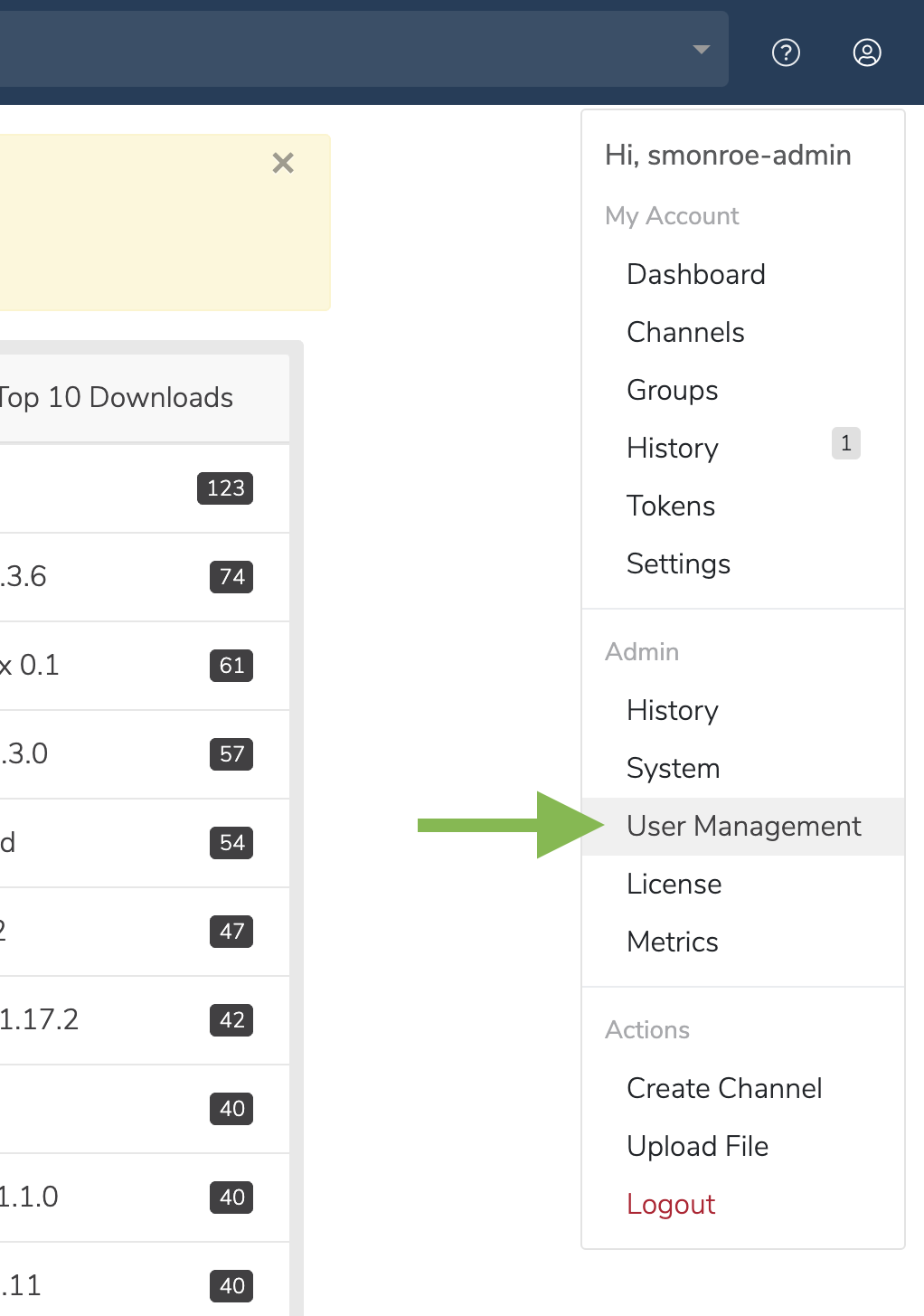 3. On the **User Management** screen, click the **Manage Users** button. You will be directed to the Keycloak login screen.
The default admin username is **admin**, and the admin password can be found in the installer output. The installer will generate a random password for this user.
Alternatively, you can use `/auth/admin` to reach the Keycloak admin login page.
Additional guides for Keycloak:
* [Keycloak documentation for server administration](https://www.keycloak.org/docs/latest/server_admin/)
* [User management](https://www.keycloak.org/docs/latest/server_admin/#user-management)
* [Setup and configuration of Keycloak server](https://www.keycloak.org/docs/latest/server_admin/#setup-and-configuration-of-keycloak-server)
3. On the **User Management** screen, click the **Manage Users** button. You will be directed to the Keycloak login screen.
The default admin username is **admin**, and the admin password can be found in the installer output. The installer will generate a random password for this user.
Alternatively, you can use `/auth/admin` to reach the Keycloak admin login page.
Additional guides for Keycloak:
* [Keycloak documentation for server administration](https://www.keycloak.org/docs/latest/server_admin/)
* [User management](https://www.keycloak.org/docs/latest/server_admin/#user-management)
* [Setup and configuration of Keycloak server](https://www.keycloak.org/docs/latest/server_admin/#setup-and-configuration-of-keycloak-server)