> ## Documentation Index
> Fetch the complete documentation index at: https://anaconda.com/docs/llms.txt
> Use this file to discover all available pages before exploring further.
# Workstations FAQ
export const TroubleshootSolution = ({children}) => <>
Solution
{children}
;
export const TroubleshootCause = ({children}) =>
Cause
{children}
;
export const TroubleshootTitle = ({children}) => <>
{children}
;
export const Troubleshoot = ({children}) => ;
export const Comments = ({children}) => {
return ;
};
Answers to common questions about workstations on Anaconda Platform. For an introduction to workstations, see [What is a workstation?](/docs/platform/concepts/what-is-a-workstation) For help creating and connecting to a workstation, see [Setting up a cloud workstation](/docs/platform/guides/develop/setting-up-a-cloud-workstation).
## Using workstations
Yes. Any user can create and edit their own workstations. Administrators can additionally create workstations for other users and view all workstations in the deployment.
No. Think of workstations as laptops in the cloud: from a workstation, you can access any perimeter you have access to.
Yes. Run `outerbounds perimeter switch --id ` to switch perimeters on your workstation, or use the platform's pre-installed VS Code extension: open it from the extensions bar and select the perimeter to switch to.
Yes. On AWS and Google Cloud, your perimeter credentials are available throughout the workstation environment. CLI tools such as the AWS CLI or `gcloud`, scripts, and notebooks automatically use the credentials of the selected perimeter, whether or not you are using Metaflow.
When you switch perimeters, the credentials swap automatically, and subsequent commands, scripts, and flows use the new perimeter's credentials.
Full access, including your deployment credentials. Any flow an additional user runs appears as launched by you, unless they set up their own `outerbounds` configuration on that workstation.
Reserve the additional users feature for temporary debugging scenarios. An additional user acts with your credentials, so their actions are indistinguishable from yours.
## Configuration and images
Yes. In the Create a new workstation dialog, paste the image's URI into the **Image** field. You do not need to install anything related to VS Code in your image.
If the URI has no registry prefix, the platform pulls from public AWS ECR by default. To pull from a different registry, include the registry in the URI. For Docker Hub, the URI format is:
```text theme={null}
docker.io//:
```
Replace \ with your Docker Hub organization or username.
Replace \ with the image name.
Replace \ with the image tag.
For details on developing with a custom image, see [Managing dependencies](/docs/platform/guides/compute/managing-dependencies).
There are two options for building your own workstation image.
Whichever option you choose, make sure your deployment can pull the image from its registry. The registry must be reachable from the deployment, and the deployment must have credentials to access it.
Start from one of the platform's base workstation images and add your dependencies on top:
```text CPU base image theme={null}
006988687827.dkr.ecr.us-west-2.amazonaws.com/obp-workstations/python:
```
```text GPU base image theme={null}
006988687827.dkr.ecr.us-west-2.amazonaws.com/obp-workstations/nvidia/cuda:
```
Replace \ with the version tag of the image. Tags are listed in the image registry.
Both images include:
* A system-wide installation of Python
* Dependency management tools (including conda and mamba)
* A default user (`workstation-user`)
* The home directory set to `/home/ob-workspace`
* The GitHub CLI (`gh`)
Your image must meet these requirements:
* The user's home directory must be set to `/home/ob-workspace`, and that must be reflected in `/etc/passwd`.
This is the only directory that persists across workstation hibernations and restarts.
***
The platform's tooling depends on this being the user's home directory.
* You must include at least one system-wide installation of Python.
Anaconda also recommends pre-installing tools like `git` and `gh` so users can authenticate with Git providers easily.
To set the home directory, add the user in your Dockerfile with the home directory set:
```dockerfile theme={null}
RUN useradd -m -d /home/ob-workspace
```
Replace \ with the name of the user to create.
If your image uses the root user, you cannot modify `HOME` directly. Edit it in `/etc/passwd` instead:
```dockerfile theme={null}
RUN sed -i 's|root:x:0:0:root:/root|root:x:0:0:root:/home/ob-workspace|' /etc/passwd
```
The platform installs:
* The `outerbounds` CLI and the Metaflow Python package, via `pip install outerbounds`.
* Credentials to access your deployment, renewed automatically when they expire.
You do not need to start any VS Code processes on the workstation; they are set up by default.
**Editable at any time:**
* Additional users
* Auto-hibernation settings
**Editable only while the workstation is hibernating:**
* CPU, GPU, memory, and shared memory
* Disk size (you can only increase it)
* Base image
* Compute pool or instance type
By default, tasks launched with `--with kubernetes` or `argo-workflows` use the workstation's image.
To override the image for a run:
```python theme={null}
@kubernetes(image="")
```
Replace \ with the URI of the image to use for the task.
```sh theme={null}
python flow.py run --with kubernetes:image=
```
Replace \ with the URI of the image to use for the task.
Yes. When creating or updating the workstation, select the compute pool that corresponds to the instance type you want, provided the pool is configured to allow workstations.
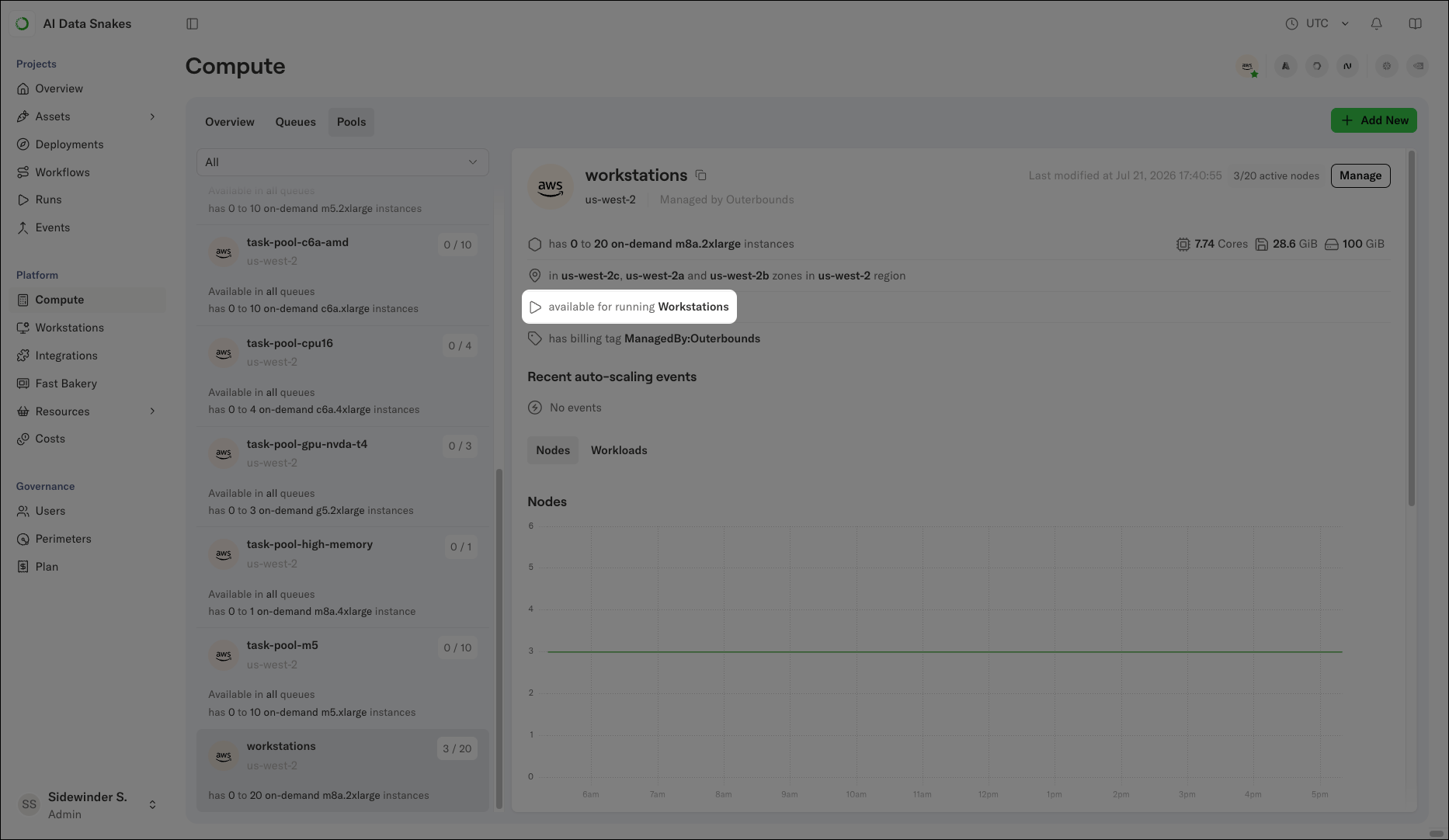
To check whether a pool supports workstations, select **Compute** in the left-hand navigation, click **Pools**, and select the pool. A pool that supports workstations displays "Available for running Workstations" in its details:
 By default, all processes on the workstation assume the task role of the currently selected perimeter. If that is not sufficient, provision a new role assumable by the task role and contact [Anaconda Support](https://support.anaconda.com/) to make it the default on all workstations.
## Working on a workstation
VS Code or Cursor.
Yes.
1. Connect to your workstation using the platform's VS Code extension.
2. Install JupyterLab and Jupyter Notebook:
```sh theme={null}
conda install jupyterlab notebook
```
3. Launch Jupyter with `jupyter lab` or `jupyter notebook`.
Jupyter runs on the workstation's localhost, and VS Code automatically port-forwards it to your local machine, so you can open it directly in your browser. Leave the workstation's VS Code window open in the background while you work.
4. Copy the URL from the command's output into your browser.
Not directly. If you need SSH access, install and configure `openssh-server` on the workstation. For issues or longer-term solutions, contact [Anaconda Support](https://support.anaconda.com/).
The base workstation images include the `gh` CLI. Run `gh auth login` to authenticate with GitHub. When possible, the platform's VS Code extension forwards your Git credentials to the workstation to minimize setup steps.
For files under 100 MB, drag and drop the file into the workstation's VS Code window. For larger files, use Metaflow's S3 client to store the files in S3, then pull them down to the workstation.
Anaconda recommends running long-running flows with `argo-workflows`, which offers better reliability. If you need to run the process on your workstation instead, use `tmux` so the process does not depend on your connection to the workstation.
`/home/ob-workspace` is the only directory that persists across sessions, hibernations, and restarts.
Data outside `/home/ob-workspace` is lost when the workstation hibernates. Save anything you want to keep inside `/home/ob-workspace`.
## Resources, cost, and lifecycle
A workstation is considered active if, within the time window:
1. A Python process is running, or
2. A file on the workstation changed.
Whenever the workstation is running, regardless of whether you are actively working on it, it occupies cloud resources and counts as active usage for billing. Enable auto-hibernation so the workstation hibernates when you are not using it.
Yes. Cost reports include workstation usage.
The workstation's page shows charts of its CPU and memory utilization. If the workstation is under- or over-provisioned, update its resources.
The platform audits workstation creation, spec updates, hibernation, and restarts. The activity log for a workstation is available in the workstations view.
## Troubleshooting
My workstation is taking a long time to start
Two common causes:
1. **Lack of capacity**: Clusters keep only the capacity needed for currently running jobs, so your workstation waits while new capacity is provisioned. The delay varies with your cloud provider, instance type, and that instance type's current availability.
2. **Large image**: Pulling a large image from its registry takes time on first use.
Wait for capacity to provision or the image pull to complete. If your workstation takes more than five minutes to start, contact [Anaconda Support](https://support.anaconda.com/).
My workstation is stuck on "Opening remote"
The VS Code remote session occasionally fails to establish a connection to the workstation.
Hibernate the workstation and restart it from the platform UI, and restart VS Code as well. This resolves the issue in most cases. If you are still stuck, contact [Anaconda Support](https://support.anaconda.com/).
By default, all processes on the workstation assume the task role of the currently selected perimeter. If that is not sufficient, provision a new role assumable by the task role and contact [Anaconda Support](https://support.anaconda.com/) to make it the default on all workstations.
## Working on a workstation
VS Code or Cursor.
Yes.
1. Connect to your workstation using the platform's VS Code extension.
2. Install JupyterLab and Jupyter Notebook:
```sh theme={null}
conda install jupyterlab notebook
```
3. Launch Jupyter with `jupyter lab` or `jupyter notebook`.
Jupyter runs on the workstation's localhost, and VS Code automatically port-forwards it to your local machine, so you can open it directly in your browser. Leave the workstation's VS Code window open in the background while you work.
4. Copy the URL from the command's output into your browser.
Not directly. If you need SSH access, install and configure `openssh-server` on the workstation. For issues or longer-term solutions, contact [Anaconda Support](https://support.anaconda.com/).
The base workstation images include the `gh` CLI. Run `gh auth login` to authenticate with GitHub. When possible, the platform's VS Code extension forwards your Git credentials to the workstation to minimize setup steps.
For files under 100 MB, drag and drop the file into the workstation's VS Code window. For larger files, use Metaflow's S3 client to store the files in S3, then pull them down to the workstation.
Anaconda recommends running long-running flows with `argo-workflows`, which offers better reliability. If you need to run the process on your workstation instead, use `tmux` so the process does not depend on your connection to the workstation.
`/home/ob-workspace` is the only directory that persists across sessions, hibernations, and restarts.
Data outside `/home/ob-workspace` is lost when the workstation hibernates. Save anything you want to keep inside `/home/ob-workspace`.
## Resources, cost, and lifecycle
A workstation is considered active if, within the time window:
1. A Python process is running, or
2. A file on the workstation changed.
Whenever the workstation is running, regardless of whether you are actively working on it, it occupies cloud resources and counts as active usage for billing. Enable auto-hibernation so the workstation hibernates when you are not using it.
Yes. Cost reports include workstation usage.
The workstation's page shows charts of its CPU and memory utilization. If the workstation is under- or over-provisioned, update its resources.
The platform audits workstation creation, spec updates, hibernation, and restarts. The activity log for a workstation is available in the workstations view.
## Troubleshooting
My workstation is taking a long time to start
Two common causes:
1. **Lack of capacity**: Clusters keep only the capacity needed for currently running jobs, so your workstation waits while new capacity is provisioned. The delay varies with your cloud provider, instance type, and that instance type's current availability.
2. **Large image**: Pulling a large image from its registry takes time on first use.
Wait for capacity to provision or the image pull to complete. If your workstation takes more than five minutes to start, contact [Anaconda Support](https://support.anaconda.com/).
My workstation is stuck on "Opening remote"
The VS Code remote session occasionally fails to establish a connection to the workstation.
Hibernate the workstation and restart it from the platform UI, and restart VS Code as well. This resolves the issue in most cases. If you are still stuck, contact [Anaconda Support](https://support.anaconda.com/).