> ## Documentation Index
> Fetch the complete documentation index at: https://anaconda.com/docs/llms.txt
> Use this file to discover all available pages before exploring further.
# Visual Studio Code (VS Code)
export const Comments = ({children}) => {
return ;
};
These instructions refer to Anaconda Distribution exclusively, but will also work with Miniconda.
[Visual Studio Code (VS Code)](https://code.visualstudio.com) is a free, cross-platform source code editor that works with Anaconda Distribution and Miniconda. Installing the [Python for Visual Studio Code extension](https://marketplace.visualstudio.com/items?itemName=ms-python.python) enables VS Code to connect to a conda environment's version of Python as an interpreter for your Python code files.
More of a visual learner? [Sign in to Anaconda.com](https://auth.anaconda.com/ui/login?return_to=https://anaconda.com/app/) and enroll in our Get Started with Anaconda course to learn to [create a simple Python program with VS Code](https://learning.anaconda.com/courses/take/get-started-with-anaconda/lessons/63332024-create-a-simple-python-program-in-vs-code).
## Creating a conda environment in VS Code
Before starting your Python project, Anaconda recommends creating a conda environment to isolate your project's software packages and manage their dependencies.
You must have the [Python for Visual Studio Code extension](https://marketplace.visualstudio.com/items?itemName=ms-python.python) installed to create new conda environments from within VS Code on Windows.
***
If VS Code doesn't display your conda environments, make sure at least one environment has Python installed. The `base` environment alone might not be sufficient for VS Code to detect conda. See [Creating a new environment](/docs/getting-started/working-with-conda/environments#creating-an-environment) for details on creating environments with Python.
1. Open the Command Palette by pressing Ctrl+Shift+P.
2. Select *Python: Create Environment...*
3. Select the environment type:
Creates a `.conda` environment in your workspace. Select the Python version to install in the environment.
Creates a virtual environment using Python's built-in `venv` module. Select a Python installation to use, or select *Enter interpreter path...* to browse to one on your file system.
1. Open the Command Palette by pressing Ctrl+Shift+P (Linux)/Cmd+Shift+P (macOS).
2. Select *Python: Create Environment...*
3. Select the project, folder, or script you want to create the environment for.
4. Click **OK**.
5. Select the environment manager option that best fits your needs:
Creates a `.conda` environment in your workspace automatically using the current Python version and installs any workspace dependencies found in your project.
Creates a conda environment. Continue with the following steps:
1. Select the environment type:
* **Named**: Creates a globally accessible named environment stored in your conda environments directory.
* **Prefix**: Creates an environment in your current workspace folder.
2. Select the Python version to install in the environment.
3. Enter a name for the environment and press Enter twice to confirm.
Uses your system-wide Python installation rather than an isolated environment.
Creates a virtual environment using Python's built-in `venv` module. Continue with the following steps:
1. Select a Python interpreter for the environment.
2. Enter a name for the environment (the default is `venv`) and press Enter to confirm.
Browse to and select a Python interpreter from anywhere on your system.
If your new environment doesn't appear in the interpreter list, open the Command Palette and run "Developer: Reload Window", then try selecting the interpreter again.
Alternatively, you can [create a new environment](/docs/getting-started/working-with-conda/environments#creating-an-environment) with Anaconda Prompt (Terminal on macOS/Linux), and then select the environment in VS Code as the workspace's [Python interpreter](#selecting-anaconda-as-a-python-interpreter).
For more information about Python environments in VS Code, see the [official VS Code documentation](https://code.visualstudio.com/docs/python/environments).
## Selecting Anaconda as a Python interpreter
Now that your conda environment has been created, select the environment as an interpreter. This ensures that your code has access to the correct Python version and packages installed in your conda environment.
1. Open any Python file.
2. Open the Command Palette by pressing Ctrl+Shift+P (Windows, Linux)/Cmd+Shift+P (macOS).
3. Select *Python: Select Interpreter*.
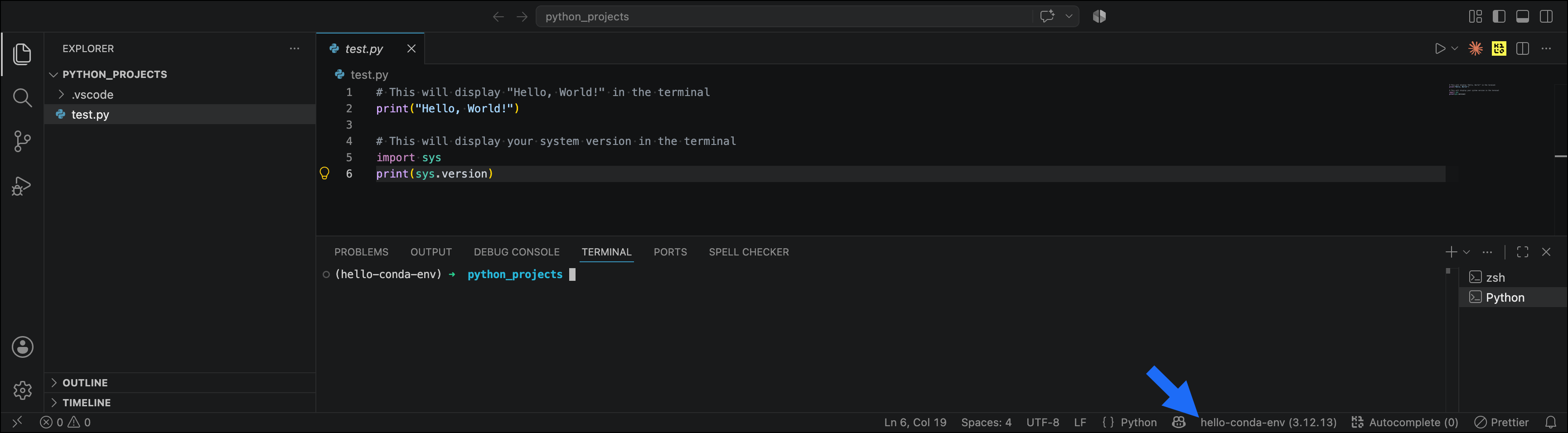
4. Select the conda environment you want to use. Conda environments appear with the environment name, Python version, and path (for example, `hello-conda-env (3.12.13) ~/miniconda3/envs/hello-conda-env/bin/python`).
You can also select *Enter interpreter path...* to browse to a Python interpreter manually.
For more information on finding a specific interpreter path in your Anaconda installation, see [Finding your Anaconda Python interpreter path](/docs/getting-started/working-with-conda/ides/python-path).
The selected interpreter appears in the bottom right corner of the status bar in VS Code. You can also click the interpreter in the status bar to change it.
 ## Adding packages to your environment
To add packages to your environment in VS Code:
1. Open a new terminal by pressing Ctrl+\`.
2. Run the following command:
```sh theme={null}
conda install
```
Replace \ with the name of the package you want to install.
On Windows, you can run conda commands in both Powershell and Command Prompt terminals in VS Code.
## Adding packages to your environment
To add packages to your environment in VS Code:
1. Open a new terminal by pressing Ctrl+\`.
2. Run the following command:
```sh theme={null}
conda install
```
Replace \ with the name of the package you want to install.
On Windows, you can run conda commands in both Powershell and Command Prompt terminals in VS Code.
 When you select the new environment, you might see a notification that says, "Selected conda environment was successfully activated, even though '(.conda)' indicator may not be present in the terminal prompt." You can still run conda commands in the terminal. See VS Code's official documentation for more information on [activating environments in terminal](https://github.com/microsoft/vscode-python/wiki/Activate-Environments-in-Terminal-Using-Environment-Variables).
Learn more about adding [conda packages](/docs/getting-started/working-with-conda/packages/install-packages) to environments.
## Testing your setup
You are now ready to run Python scripts in VS Code!
1. Create a new Python (.py) file.
2. Add the following code to your file:
```python theme={null}
# This will display "Hello, World!" in the terminal
print("Hello, World!")
# This will display your system version in the terminal
import sys
print(sys.version)
```
3. Save the file.
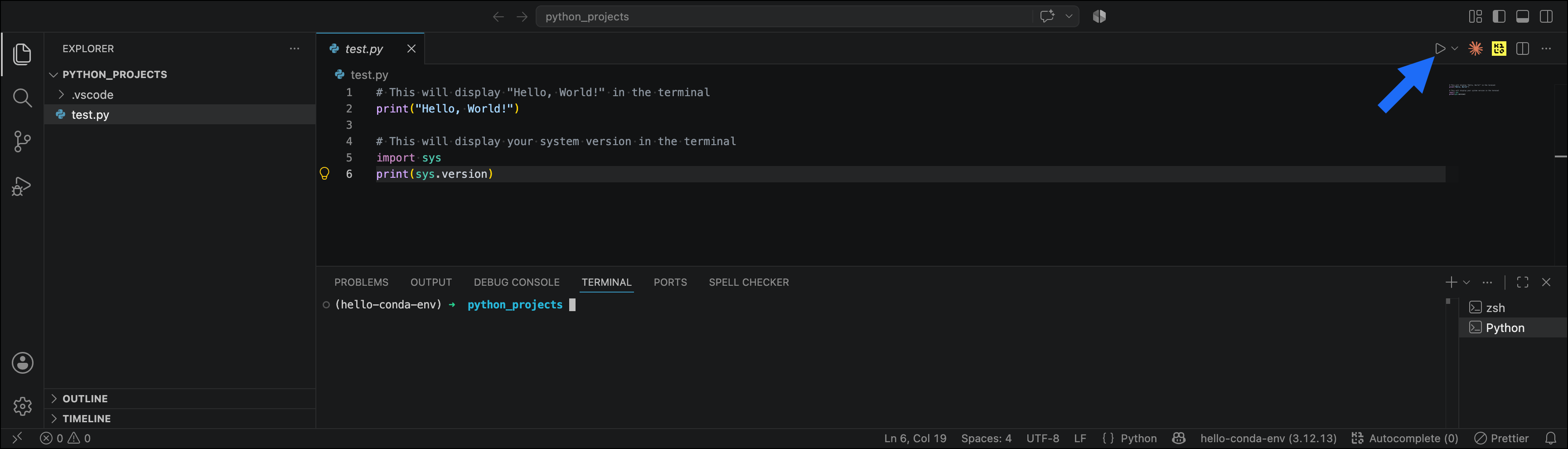
4. Click **Run Python File**.
When you select the new environment, you might see a notification that says, "Selected conda environment was successfully activated, even though '(.conda)' indicator may not be present in the terminal prompt." You can still run conda commands in the terminal. See VS Code's official documentation for more information on [activating environments in terminal](https://github.com/microsoft/vscode-python/wiki/Activate-Environments-in-Terminal-Using-Environment-Variables).
Learn more about adding [conda packages](/docs/getting-started/working-with-conda/packages/install-packages) to environments.
## Testing your setup
You are now ready to run Python scripts in VS Code!
1. Create a new Python (.py) file.
2. Add the following code to your file:
```python theme={null}
# This will display "Hello, World!" in the terminal
print("Hello, World!")
# This will display your system version in the terminal
import sys
print(sys.version)
```
3. Save the file.
4. Click **Run Python File**.
 The terminal displays your output, confirming the script ran successfully with your conda environment's Python interpreter:
```
Hello, World!
3.x.x | packaged by Anaconda, Inc. | ...
```
The second line shows the Python version installed in your environment and confirms that Python was distributed by Anaconda, Inc. rather than from another source.
For more information on working with Python in VS Code, see [Python in Visual Studio Code](https://code.visualstudio.com/docs/languages/python).
The terminal displays your output, confirming the script ran successfully with your conda environment's Python interpreter:
```
Hello, World!
3.x.x | packaged by Anaconda, Inc. | ...
```
The second line shows the Python version installed in your environment and confirms that Python was distributed by Anaconda, Inc. rather than from another source.
For more information on working with Python in VS Code, see [Python in Visual Studio Code](https://code.visualstudio.com/docs/languages/python).