> ## Documentation Index
> Fetch the complete documentation index at: https://anaconda.com/docs/llms.txt
> Use this file to discover all available pages before exploring further.
# Eclipse and PyDev
export const PdfDownload = ({href, children = "Download PDF"}) =>
{children}
;
Deprecated
This page is no longer maintained, and may be out of date. It will be removed on September 30, 2026. To download a PDF copy of this page for your reference, click the **Download PDF** button below.
[Eclipse](https://www.eclipse.org/downloads/) is an open-source
platform that provides an array of convenient and powerful
code-editing and debugging tools.
[PyDev](https://www.pydev.org/) is a Python IDE that runs on top of Eclipse.
These instructions refer to Anaconda Distribution exclusively, but will also work with Miniconda.
If you do not already have Eclipse and PyDev installed:
* Download [Eclipse](https://www.eclipse.org/downloads/) and read the [Eclipse resources](https://wiki.eclipse.org/).
* You might need to install the latest [Java JDK/JRE](https://www.oracle.com/java/technologies/downloads/)
before installing PyDev in order for PyDev to show up in
the Eclipse Preferences menu after PyDev installation.
* Install [PyDev](https://www.pydev.org/manual_101_install.html).
After you have Eclipse, PyDev, and Anaconda installed, set Anaconda Python
as your default:
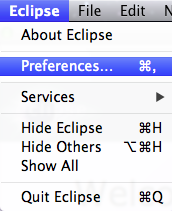
1. Open the Eclipse Preferences window:
 2. In the PyDev list, select Interpreters, and then select Python Interpreter.
3. Click the Browse for python/pypy exe button:
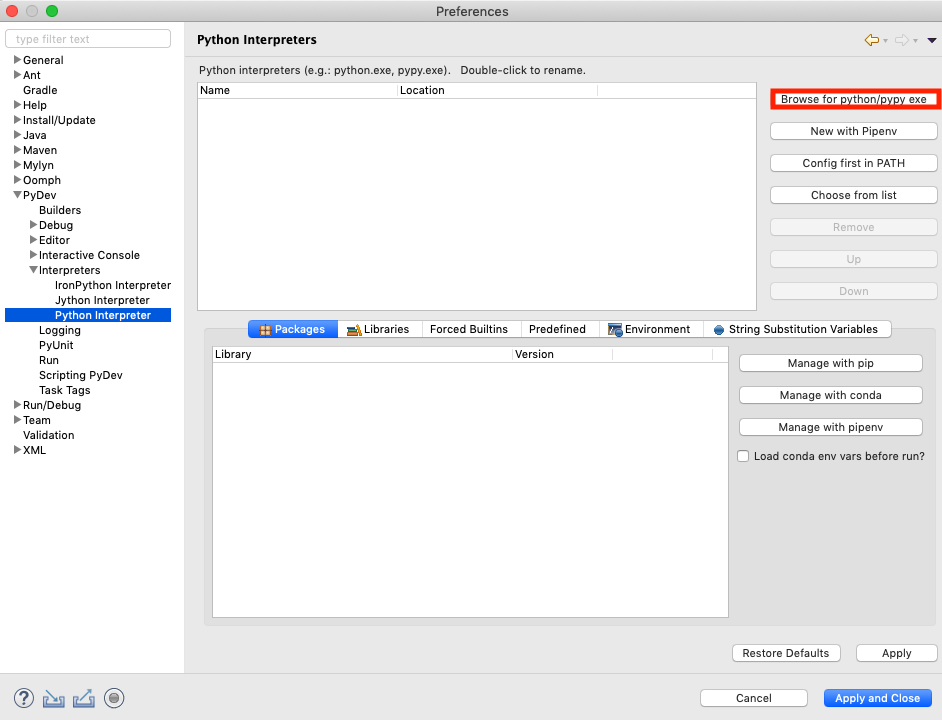
2. In the PyDev list, select Interpreters, and then select Python Interpreter.
3. Click the Browse for python/pypy exe button:
 4. In the Interpreter Name box, type `Anaconda Python`.
5. Browse to your Anaconda [Python interpreter path](/docs/getting-started/working-with-conda/ides/python-path).
The interpreter you choose is related to your environment, so Eclipse
will have access to all of the packages in that environment. To add
new packages, you might need to `conda install package-name`
in your Anaconda Prompt or terminal.
6. Click the OK button:
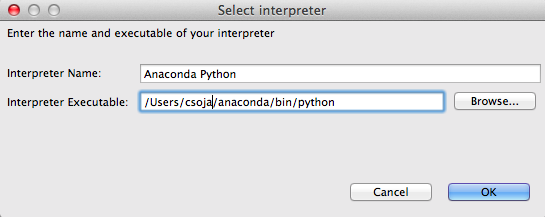
4. In the Interpreter Name box, type `Anaconda Python`.
5. Browse to your Anaconda [Python interpreter path](/docs/getting-started/working-with-conda/ides/python-path).
The interpreter you choose is related to your environment, so Eclipse
will have access to all of the packages in that environment. To add
new packages, you might need to `conda install package-name`
in your Anaconda Prompt or terminal.
6. Click the OK button:
 7. In the next window, select the folders to add to the SYSTEM Python path:
1. Select all the folders
2. Click the OK button.
The Python Interpreters window now displays Anaconda Python:
7. In the next window, select the folders to add to the SYSTEM Python path:
1. Select all the folders
2. Click the OK button.
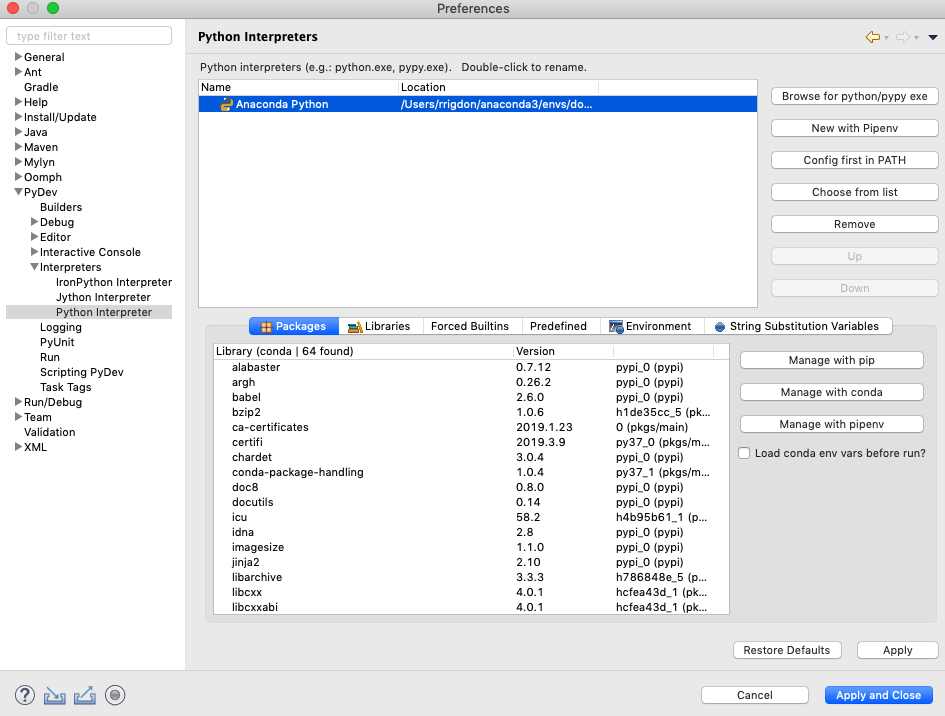
The Python Interpreters window now displays Anaconda Python:
 3. Click the Apply and Close button.
You are now ready to use Anaconda Python with your Eclipse and PyDev
installation.
3. Click the Apply and Close button.
You are now ready to use Anaconda Python with your Eclipse and PyDev
installation.