> ## Documentation Index
> Fetch the complete documentation index at: https://anaconda.com/docs/llms.txt
> Use this file to discover all available pages before exploring further.
# Disabling sudo for yum
By default, `sudo` access for `yum` is enabled on the Data Science & AI Workbench platform. You can easily disable it, however, if your organization requires it.
1. Log in to Workbench, select **Menu** in the top right corner, and click the **Administrative Console** link displayed at the bottom of the slide out window.
2. Click **Manage Resources**.
3. Log in to the Operations Center using the Administrator credentials [configured after installation](../../install/config).
4. Select **Configuration** from the menu on the left.
5. Verify that the `anaconda-enterprise-anaconda-platform.yml` configuration file is selected in the **Config map** drop-down menu.
Anaconda recommends that you make a backup copy of this file since you will be editing it directly.
6. Scroll down to the `sudo-yum` section of the Config map:
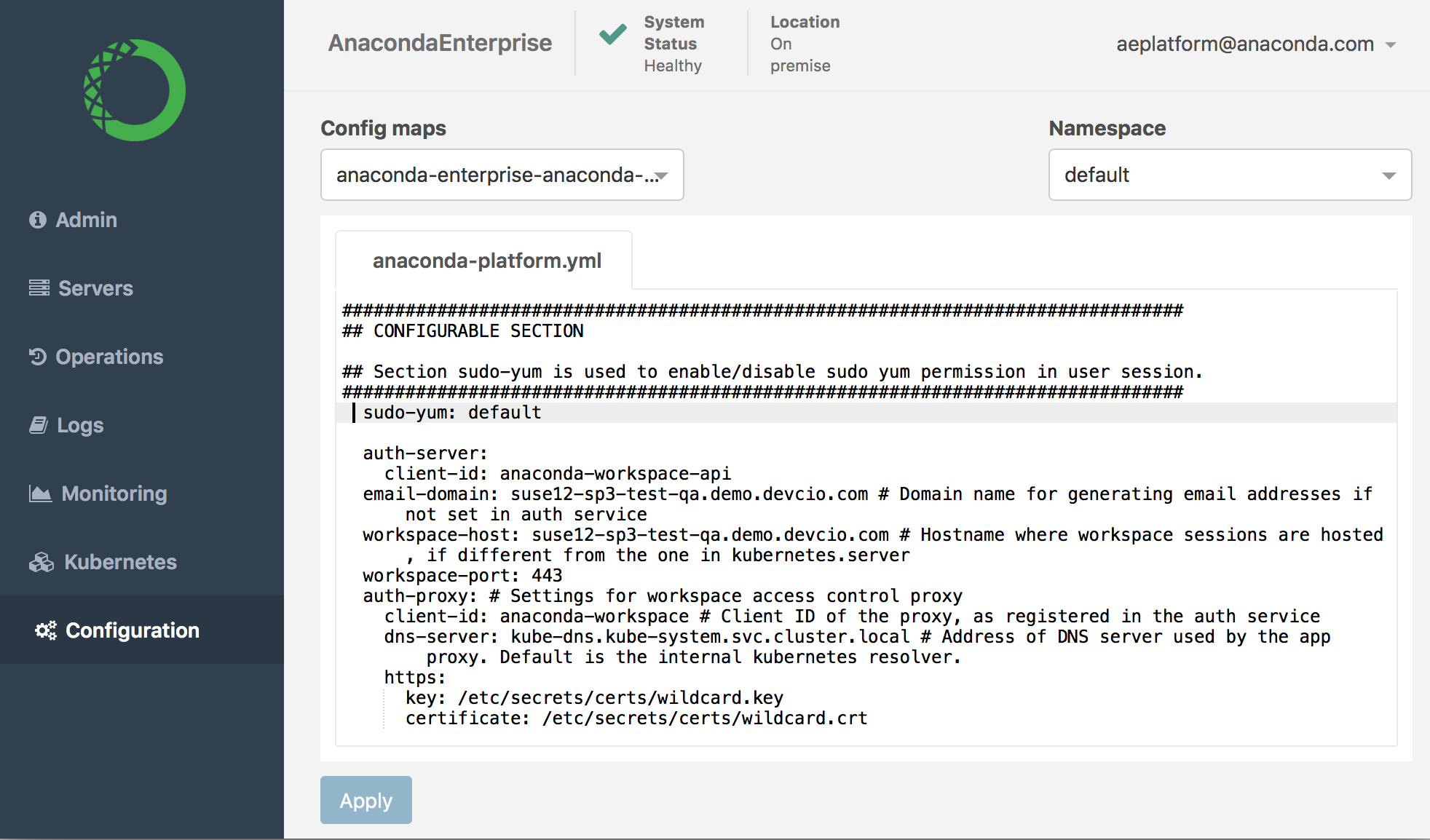 7. Change the setting from `default` to `disable`:
```sh theme={null}
sudo-yum: disable
```
8. Click **Apply** to save your changes.
9. To update the Workbench server with your changes, restart services by running these commands *on the master node*:
```sh theme={null}
sudo gravity enter
kubectl get pods | grep ap- | cut -d' ' -f1 | xargs kubectl delete pods
```
To re-enable sudo yum, simply change this Config map setting back to `default`, save your changes, and restart services.
7. Change the setting from `default` to `disable`:
```sh theme={null}
sudo-yum: disable
```
8. Click **Apply** to save your changes.
9. To update the Workbench server with your changes, restart services by running these commands *on the master node*:
```sh theme={null}
sudo gravity enter
kubectl get pods | grep ap- | cut -d' ' -f1 | xargs kubectl delete pods
```
To re-enable sudo yum, simply change this Config map setting back to `default`, save your changes, and restart services.